


 Video Converter Ultimate
 Skjermopptaker
 Videoreparasjon
Utvid ekspertisen din når det gjelder å nå ut til problemer som Hvordan bremse en video
Du er en aspirerende kunstner og vil se en opplæring i kunstdesign for å forbedre ferdighetene dine. De fleste av disse veiledningene er imidlertid så raske at de kan komprimeres til små filer for opplasting. Derfor tenker du på en løsning der du må senke hastigheten på videoen. Men du vet ikke hvordan du sakker ned en time-lapse-video slik som i de fleste kunstveiledninger. Les denne artikkelen for å øke kunnskapen din om dette problemet som mange spirende kunstnere har.

Del 1. 3 enkle trinn for å redusere hastigheten på en video [stasjonær/bærbar]
Det er mange tilnærminger nettet tilbyr, enten online eller offline redaktør. Noen av dem må lastes ned, spesielt når du bruker en stasjonær eller bærbar datamaskin til redigering. Det er en betydelig forskjell mellom å bruke et skrivebord når det gjelder detaljer i bruken; det er derfor denne artikkelen velger den beste måten å redusere hastigheten på en video offline eller online på et skrivebord. Her er tilnærmingene med fremgangsmåten deres:
Tilnærming 1. Bruk Video Converter Ultimate
Det er mulig å laste ned og bruke mange konvertere selv når du ikke er tilkoblet. For å redusere hastigheten på en video kan du bruke Video Converter Ultimate, et av de beste alternativene. Den er enkel å bruke, og du kan laste den ned gratis. Du trenger ikke å bekymre deg for at internett skal gjøre det tregt å senke hastigheten på en video på nett, fordi denne programvaren kan behandle videoen din uten styr. Takket være det imponerende verktøyet Video Speed Controller kan du nå justere avspillingshastigheten på videoene dine på under ett minutt. Nå som du er nysgjerrig på hvordan dette skal skje, følger her noen veiledede prosedyrer du kan følge:
Trinn 1: Klikk ganske enkelt på knappen Free Download for å laste ned programvaren til datamaskinens skrivebord. Installering av programvaren og tilpasning av oppsettet fullføres deretter i de følgende trinnene.
Gratis nedlastingFor Windows 7 eller nyereSikker nedlasting
Gratis nedlastingFor MacOS 10.7 eller nyereSikker nedlasting
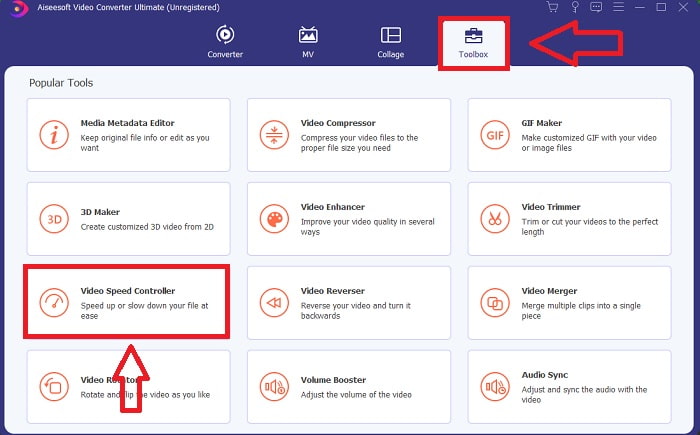
Trinn 2: For å bruke Video Speed Controller, start programvaren umiddelbart etter installasjonen og velg den fra menyen Toolbox.
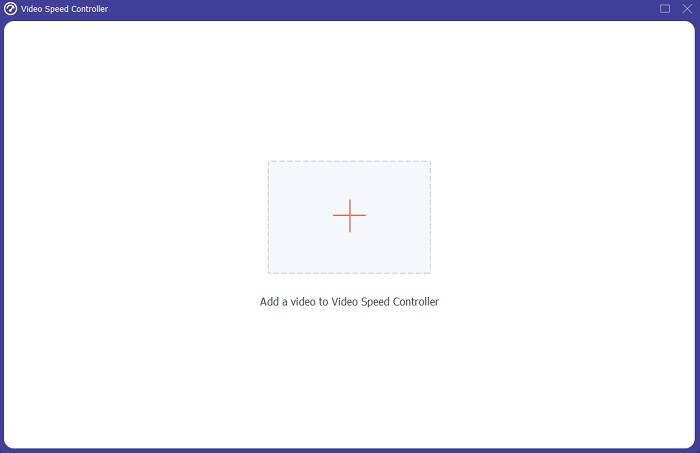
Trinn 3: Grensesnittet til Video Speed Controller vises etter at du har klikket på det. For å laste opp en fil klikker du på +-ikonet.
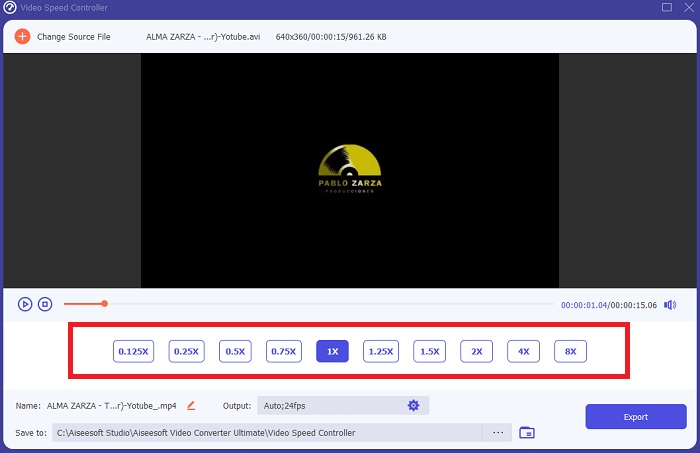
Trinn 4: Du kan nå begynne å senke hastigheten på videoen ved å velge lavere verdier enn normal hastighet. De fleste av tallene vil vises på venstre side av den faktiske hastigheten på videoen din.
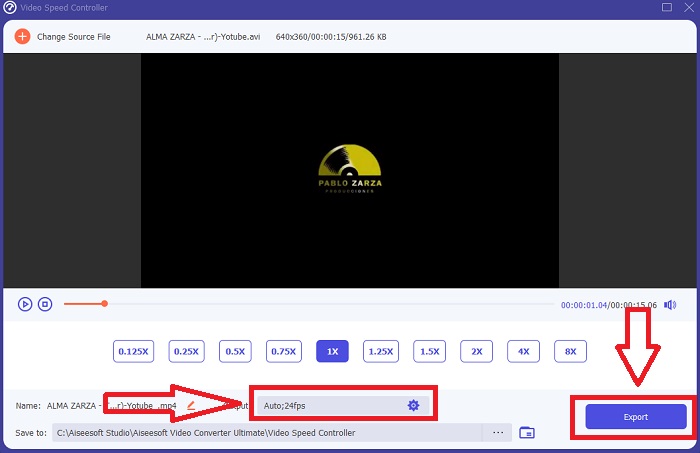
Trinn 5: Når du er ferdig med å endre avspillingshastigheten på videoklippet, kan du velge utdataformat, oppløsning, kvalitet og andre parametere du ønsker å bruke. Når du er ferdig, klikker du på Export og velger hvor du vil lagre filen når alt er fullført.
Tilnærming 2. Bruk VEED
VEED og dets åpen kildekode-nettverktøy er avhengig av innholdsskapere over hele verden for å produsere videoer for sosiale medier og annen bruk. Det er en nettapplikasjon som krever en solid tilkobling for å fungere riktig, men du kan laste opp direkte og endre avspillingshastigheten i brukergrensesnittet. I tillegg har den ulike funksjoner, en av dem er en nedgang i videoens avspillingshastighet. Du kan nå bremse en video uten å laste ned noe til skrivebordet. Du trenger bare en søkemotor og en sterk forbindelse for å få tilgang til dette nettbaserte verktøyet. Den har et enkelt, brukervennlig brukergrensesnitt som kan være til nytte for de fleste nybegynnere som trenger å bremse en video uten å lære kompliserte trinn. Her er eksempelprosedyrene for å fordøye for å oppnå de ønskede justeringene til videoen.
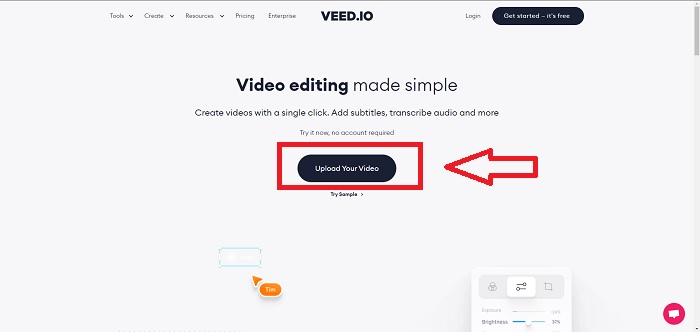
Trinn 1: Klikk på knappen Upload Your Video for å sende en videofil fra datamaskinen din til serveren.
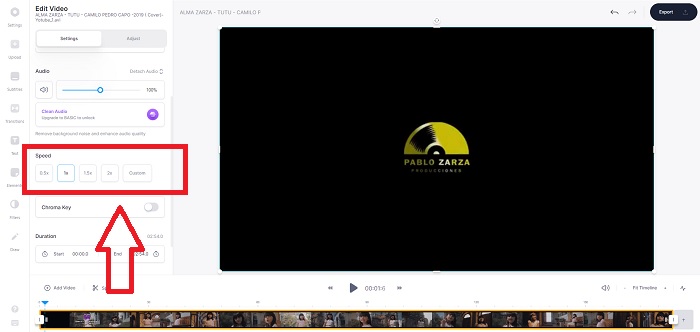
Trinn 2: Du får tilgang til redigeringsgrensesnittet til nettverktøyet ved å klikke på Video Track oppe til venstre. Velg en raskere avspillingshastighet ved å finne alternativet Speed og klikke på det. Hvis hastigheten du foretrekker ikke er tilgjengelig som et alternativ, kan du velge Custom for å overstyre standardinnstillingene og spille av videoklippet ditt i en egendefinert hastighet.
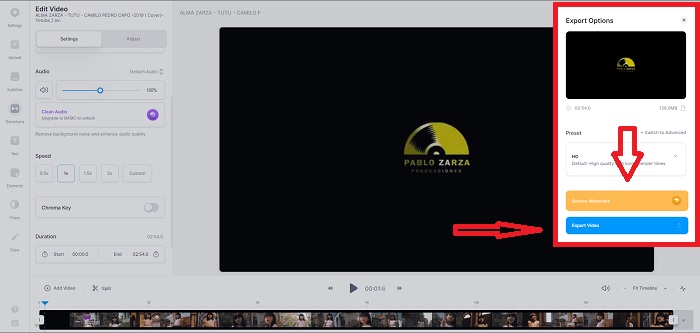
Trinn 3: Etter at du har redigert ønsket videohastighet, går du videre til eksportfanen ved å klikke på Export. Samtidig kan du velge hvilken kvalitet du foretrekker for videoen din og fjerne vannmerket ved å kjøpe premiumversjonen av nettverktøyet. Når alt er i orden, overfører du den konverterte videoen til datamaskinen ved å velge Exporting Video.
Del 2. 3 enkle trinn for å bremse en video [Mobiltelefon]
Er du lei av å tenke på en løsning som gir svar på hvordan du kan bremse en video på iPhone eller Android? Det er mange apper og verktøy tilgjengelig på internett som kan brukes for å rettferdiggjøre at det er et svar på det gitte problemet. Men her er de beste og mest tilgjengelige verktøyene vi anbefaler å bruke hvis du er en mobiltelefonredaktør og ønsker å lage et mesterverk av den lille enheten du har.
Tilnærming 1. Bruk iMovie
Du kan nå kontrollere avspillingshastigheten eller senke hastigheten på videoen på iPhone og iPad med denne gratis og nyttige applikasjonen som heter iMovie. Dette er en av de mest pålitelige appene som er tilgjengelige på iOS-enheter og som kan redigere videoen din, og viktigst av alt, endre avspillingshastigheten til en video. For å lære mer om den nevnte applikasjonen, følger her trinnene du må gjøre for å løse problemet som er nevnt ovenfor:
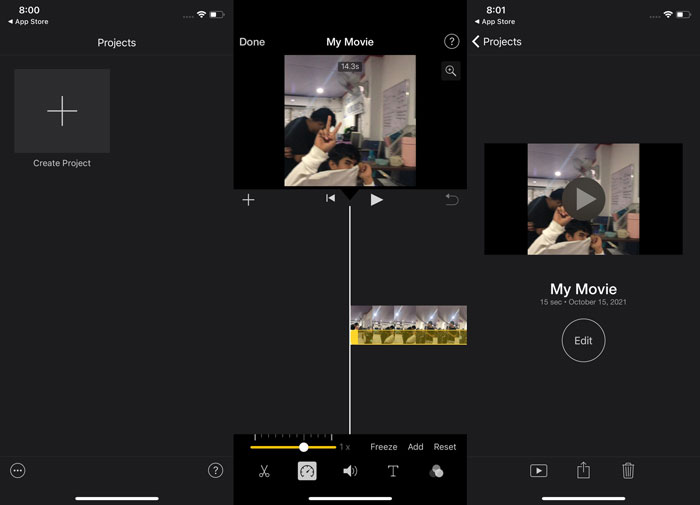
Trinn 1: Begynn å redigere filmen din i iMovie på iPhone eller iPad. Du kan få en kort oversikt over brukergrensesnittet før du fortsetter. På siden Projects klikker du på plusstegnet for å legge til et nytt videoklipp – deretter velger du Movie fra menyen New Projects.
Trinn 2: En video fra kamerarullen din bør velges før du går videre til delen Create Movie. Hastighetsverktøyet ligner et speedometer og kan finnes ved å trykke på videoklippet i tidslinjen og deretter vente til redigeringsverktøyene vises før du bruker dem. Spol tilbake eller frem videomaterialet ved å skyve den gule skyveknappen nederst. Sammenlignet med originalhastigheten kan ting akselereres til opptil dobbelt hastighet eller senkes ned til en åttendedel av den.
Trinn 3: Klikk på Done øverst til venstre på telefonen når du er ferdig med prosessen. Du kan lagre den ferdige videoen ved å velge den fra menyen Share og deretter bestemme hvor du vil lagre den.
Tilnærming 2. Bruk VideoFX Music Video Maker
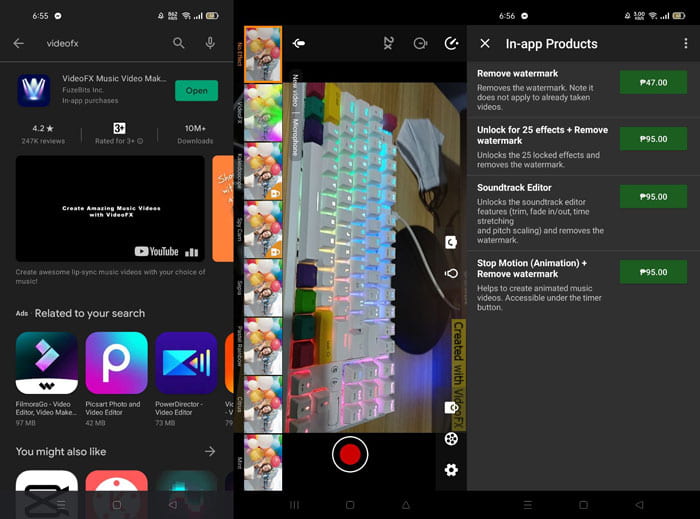
Lag musikkvideoene dine på få sekunder med verktøyet VideoFX Music Video Maker. Alt du trenger å gjøre er å ta opp en video med en av de mange tilgjengelige effektene, velge en sang og lagre den i den interne lagringen på Android-telefonen din. Fordi du kan bruke filtre før du tar opp videoen, er den svært enkel å bruke. På godt og vondt er etterredigering ikke et alternativ; det er bare mulig før videoen tas opp. Før du begynner å filme, velg en sang som passer godt til videoen din. Du kan øke eller senke hastigheten på musikken, men endringene må gjøres før videoen tas opp. Her er trinnene du må følge:
Trinn 1: Last ned og installer VideoFX på Android-telefonen din.
Trinn 2: Siden funksjonene i denne appen bare gjelder før videoinnstillingene endres, begynner du opptaket ved å trykke på knappen Record.
Trinn 3: Klikk deretter på 2x for å justere hastigheten på videoen du tar opp. Før du låser opp alle appens funksjoner, må du først kjøpe full tilgang.
Del 3. Vanlige spørsmål om å bremse en video
Hvordan bremse en video på iPhone?
Innholdsskapere og videofotografer har en mengde verktøy til rådighet, og sakte film er et av de beste. En video med høyere bilder per sekund vil gi en mer behagelig seeropplevelse. Likevel er nedbremsede videoer ikke alltid den beste tilnærmingen i hver video du lager. I noen tilfeller er sakte film rett og slett ikke passende eller til og med unødvendig. Som et resultat er det eneste alternativet ditt å endre iPhone-videoer i sakte film tilbake til normal hastighet.
Hvordan bremser du en video i galleriet?
Android- og iOS-telefoner har innstillingsikoner å trykke på for å aktivere slo-mo- eller saktefilmmodus før du tar opp video. Du bør ta opp sakte filmscener i serier på fem til ti sekunder for å unngå å ha for mye opptak.
Mister jeg kvaliteten hvis jeg bremser en video?
Nei, du vil ikke miste kvaliteten på en video, men du vil se at oppløsningen og bildefrekvensen til videoen din synker for hvert sekund du reduserer med gjennomsnittshastigheten. Når avspillingshastigheten til videoen din økes eller reduseres, vil bare rammen deles. Å øke den vil ha ønsket effekt. Fem ganger så raskt, det vil si 60 bilder per 1/120 av et sekund. Med andre ord, med mindre videoen har en lav bildefrekvens, vil den ikke ha noen effekt.
Konklusjon
Dermed lærer du i denne artikkelen alt om ulike metoder hvert operativsystem har for å håndtere problemet med alle apper for å senke hastigheten på en video. Det finnes også trinn for noen nybegynnere som ikke har noen bakgrunn i videoredigering. Ved å anbefale en app som hjelper deg med avspillingshastigheten på videoen din og resten av redigeringsverktøyene en redaktør trenger, kan du laste ned programvaren Video Converter Ultimate for å få den beste opplevelsen av å være en profesjonell redigerer.
-
 Topp 4 beste VOB -spillere for Android -mobiler for forskjellige bruksområder
 Når du laster ned VOB -videoer og vil se dem på Android, kan du velge den mest passende blant de fire beste VOB -spillerne i denne artikkelen.
-
 Topp 5 beste Windows Media Player -alternativer for Android -mobiler
 Siden du ikke kan laste ned Windows Media Player for Android, bør du lese denne artikkelen og lære om de 5 beste alternativene til Windows Media Player.
-
 Topp 5 beste videospillere for iPhone du ikke bør gå glipp av i 2021
 For å spille av videoer i alle formater og få en bedre seeropplevelse på iPhone, bør du lese denne artikkelen og lære om de beste 5 videospillerne for iPhone 12/11/X/8/7/6.
