


 Video Converter Ultimate
 Skjermopptaker
 Videoreparasjon
Lær hvordan du spiller av video i revers med 3 Elite-programvaren
Mange videoer som lastes opp på ulike videodelingsplattformer i dag har allerede fått omvendt effekt for å gjøre videoene nye og spennende for seerne. I denne artikkelen skal vi derfor snakke om hvordan spille av en video baklengs med detaljerte trinn og ulike programmer du kan bruke. Les videre for å få en idé om hvordan du kan reversere video.

Del 1. Beste måten å spille av video i revers
Den fenomenale konverteren har allerede tatt det første steget innen videoredigering, spesielt når det gjelder å reversere videoer. Mange brukere benytter allerede dette verktøyet for å gjøre videoene sine mer iøynefallende. Video Converter Ultimate har allerede bevist mer enn forventet for sine lojale kunder. I tillegg tilbyr denne programvaren mange avanserte funksjoner du kan bruke for å gjøre opptaket ditt til noe nytt for øynene til seerne. Vil du vite hvordan spille av en video baklengs og lagre den? Følg da trinnene nedenfor og prøv selv.
Trinn 1. Før du kan bruke Video Converter Ultimate må du laste det ned først. Installer programmet og gjør et raskt og enkelt oppsett.
Gratis nedlastingFor Windows 7 eller nyereSikker nedlasting
Gratis nedlastingFor MacOS 10.7 eller nyereSikker nedlasting
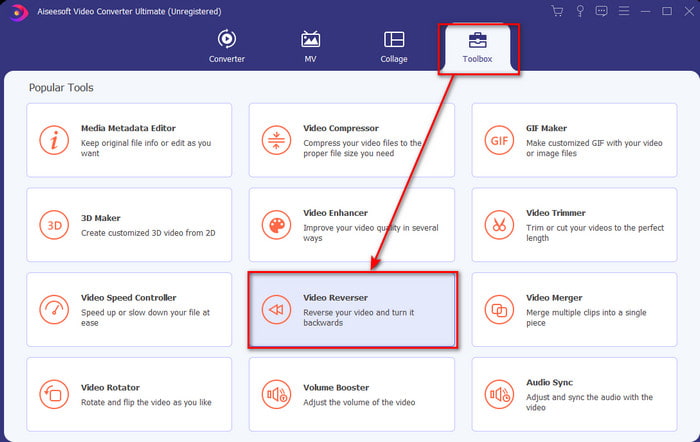
Trinn 2. Gå til Verktøykasse og finn Video Reverser.
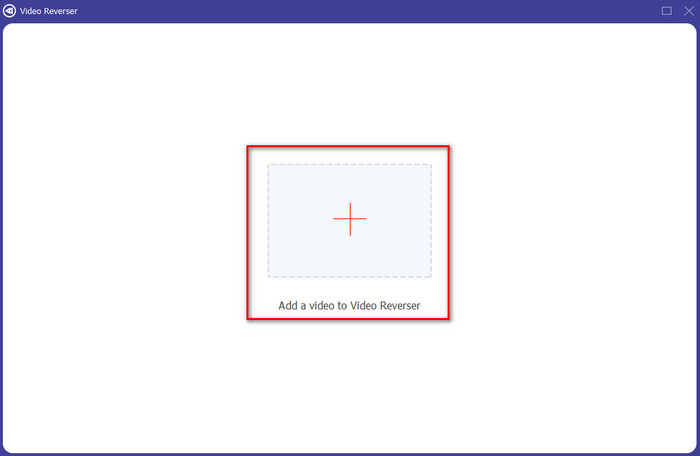
Trinn 3. For å legge til filen, klikk på +-knappen og en mappe vil vises. Velg videofilen og klikk Åpne for å sette inn filen.
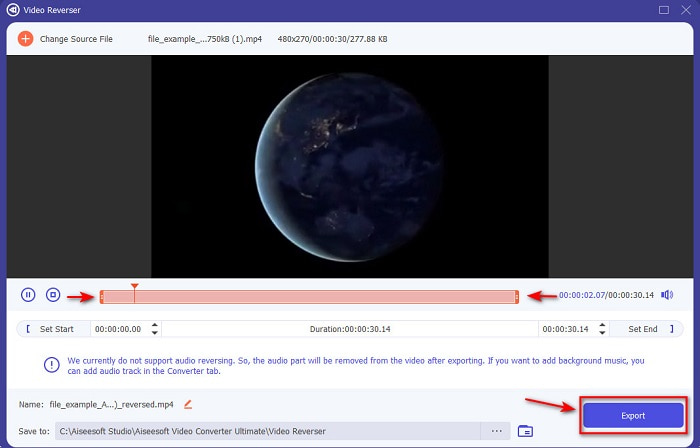
Trinn 4. Endre playback in and out hvis du vil gjøre videoen kortere. Klikk deretter Eksporter for å begynne lagringen av den omvendte videoen på datamaskinen.
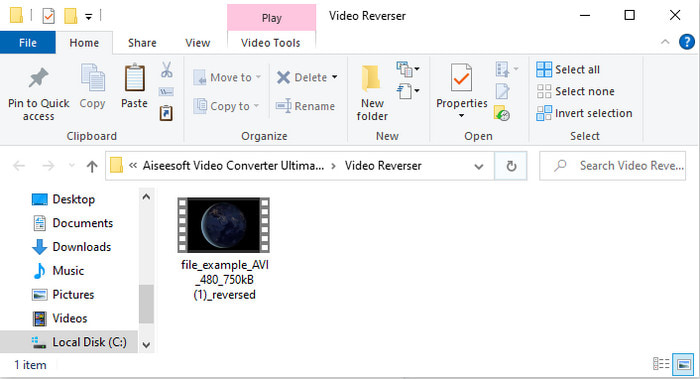
Trinn 5. Etter at videoen er eksportert, vil det dukke opp en mappe med den omvendte videoen på skjermen. Klikk på filen for å se den reverserte videoen.
Fordeler
- Den har mange avanserte funksjoner og er mye enklere å håndtere enn Adobe Premiere Pro.
- Den støtter alle videoformatene. Så du trenger ikke bekymre deg hvis videoen din er i formatet AVI, MP4, MKV, MOV eller annet.
- Passer for proffer og nybegynnere som ønsker å ha et enkelt verktøy som gir en fenomenal konverteringsfunksjon.
Ulemper
- Det er betalt, men prisen på det er mye mindre hvis vi sammenligner det med premiere pro-programvaren.
- Før du får tilgang til verktøyet, må du først laste det ned.
Del 2. Hvordan spille av en video omvendt på iMovie
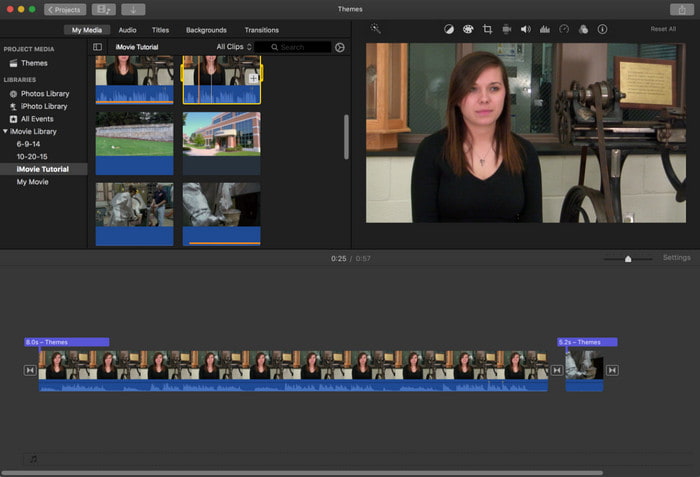
iMovie er det innebygde videoredigeringsprogrammet du kan bruke gratis på Mac. Dette verktøyet er allerede forhåndsinstallert på disken, så du trenger ikke laste det ned for å få tilgang. Hvis du vil vite hvordan spille av en video baklengs i iMovie, følger du trinnene nedenfor.
Trinn 1. Åpne iMovie på Mac-en din. Dra deretter filen til Tidslinjen.
Trinn 2. Klikk på knappen med klokkelignende form og huk av for Reverse. Juster deretter hastigheten til Normal, Slow, Fast og mer.
Trinn 3. For å lagre resultatet klikker du på Eksporter-knappen og lagrer det i galleriet ditt.
Fordeler
- Ingen nedlasting nødvendig, og det er gratis for alle Mac-brukere.
- Enkel å bruke for raske redigeringer du vil gjøre umiddelbart.
- Den har autolagringsfunksjoner, så det er ikke nødvendig å kommandere + S.
Ulemper
- Det vil ta mye tid å eksportere videoer her.
- Den mangler avanserte funksjoner du trenger som profesjonell redaktør.
Del 3. Hvordan lage en video avspilling omvendt ved hjelp av Adobe Premiere Pro
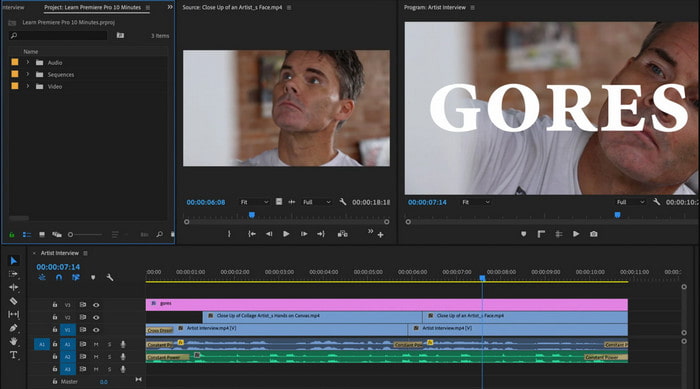
Adobe Premiere Pro er det beste redigeringsverktøyet du kan bruke hvis du vil ha et resultat på proffnivå. Men verktøyet kan virke overveldende for nybegynnere uten erfaring med videoredigering. Hvis du vil lære hvordan spille av en video baklengs i Premiere Pro, kopierer du trinnene nedenfor.
Trinn 1. Last ned Adobe Premiere Pro til disken din og start programmet.
Trinn 2. Dra og slipp videofilen inn i Media Port og flytt den deretter til Tidslinjen. Klikk på videoen og høyreklikk, gå deretter til Speed/Duration.
Trinn 3. Merk av for Reverse Speed og angi ønsket varighet, klikk deretter OK.
Fordeler
- Det er det beste valget for profesjonelle redaktører, da det støtter avanserte funksjoner for profesjonell utgang.
- Den kan gjøre tung redigering, og du må produsere høykvalitets redigert video.
- Den støtter nesten alle videoformater.
Ulemper
- Det er veldig dyrt hvis du bare vil reversere eller gjøre enkel redigering.
- Å lære hvordan du bruker dette vil ta deg mye tid. I utgangspunktet er det ikke brukervennlig.
- Noen ganger krasjer programvaren av ukjente årsaker.
Del 4. Vanlige spørsmål om avspilling av video bakover
Hvordan spille av en video i revers på en iPhone?
iPhone har ikke en innebygd funksjon for å reversere video, men du kan laste ned apper som hjelper deg å gjøre dette enkelt på iPhone. Som appene du kan bruke her. Hvis du vil vite mer, klikk på denne lenken for å gå til andre videoreversere du kan bruke.
Hvorfor reduserer videoene mine kvaliteten etter reversering?
Det kan være utgangen du angir er i midten eller lav. Men for å unngå dette kan du sette innstillingene til høy for å ha en revers video uten tap av kvalitet. Forvent imidlertid en mye større filstørrelse enn den med lav kvalitet.
Hvordan kan jeg legge til lyder på omvendt video?
Alle disse verktøyene reverserer videoen, men lyden er ikke inkludert. Hvis du vil vite hvordan du legger til bakgrunnsmusikk på videoen din, bør du lese denne artikkelen. Der forklarer vi hvordan du legger til lyd i videoen for å gjøre den bedre.
Konklusjon
Nå som vi vet hvordan spille av en video baklengs, er det på tide å lage en selv. Med hjelp av dette utrolige verktøyet, som du kan finne på internett. Hvis du vil lage en mer ekstraordinær omvendt video enn iMovie, men billigere enn Premiere Pro, er det riktige verktøyet for deg Video Ultimate Converter. I følge brukernes etterspørsel er denne programvaren flott på alle områdene du ønsker når du reverserer. Før du begynner på reisen din med å reversere video, må du derfor velge det rette verktøyet som kan gjøre videoen din fenomenal. For å vite mer må du laste ned dette verktøyet først og la programmet gjøre jobben.
-
 Betongveiledning - Hvordan slå sammen to lydspor i Audacity
 Audacity nyter godt av anseelse for å redigere lyd. Du lastet ned Audacity, men vet ikke hvordan du slår sammen lydspor i Audacity? Dette innlegget vil fortelle deg hvordan du slår sammen spor i Audacity.
-
 2 Effektive metoder for å slå sammen MPEG-filer for å kombinere gamle TV-serier
 Når du har noen gamle TV-serier i MPEG, kan du lære mer om de 2 effektive metodene for å slå sammen MPEG-filer til en film i henhold til dine behov.
-
 2 måter å komprimere AMV-videoer til mindre størrelse
 Enten du vil laste opp eller laste ned animerte MV-er på nettet, er den store filstørrelsen på AMV en bummer. Dette innlegget deler to enkle måter å redusere AMV-filstørrelsen på datamaskinen for å løse dette problemet.
