


 Video Converter Ultimate
 Skjermopptaker
 Videoreparasjon
 Sikker nedlasting
Lage ringetoner på iPhone ved hjelp av GarageBand og Alternative
Lei av å våkne til de samme kjedelige ringetonene på iPhone-en din? Selv om iPhone begrenser tilgangen til de mest trendy ringetonene, hindrer ikke det deg i å prøve. Siden ringetoner har blitt en del av hverdagen vår for enkle varsler eller alarmformål, gjenspeiler muligheten til å bruke eller endre dem i noen grad personligheten og smaken vår. Så, hvem vil vel ikke bli varslet eller vekket av en lyd vi selv har valgt, ikke sant? Selv om det virker vanskelig, har vi endelig funnet en måte å lage en ringetone med GarageBand på. Finn ut hvordan du lager, gjør om en eksisterende tone og setter den opp på iPhone-en din ved hjelp av GarageBand og et alternativ i dag, og begynn å vise personlighet og smak gjennom fengende ringetoner.

Del 1. Hvordan lage en ringetone i GarageBand
Før vi viser deg hvordan du lager en ringetone i GarageBand, er det viktig å vite hva GarageBand er først. GarageBand er en digital lydarbeidsstasjon utviklet av Apple eksklusivt for iOS, macOS og iPadOS. Dermed er den svært brukervennlig og kan brukes gratis på det nevnte operativsystemet.
Trinn 1. Åpne GarageBand på Mac-en din, eller last det først ned på iPhone-en din eller en annen Apple-enhet du ønsker.
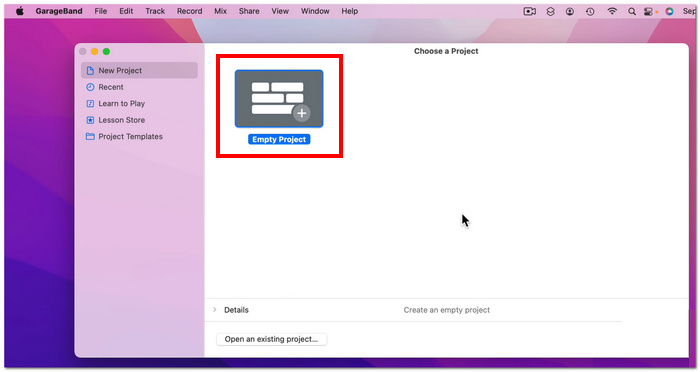
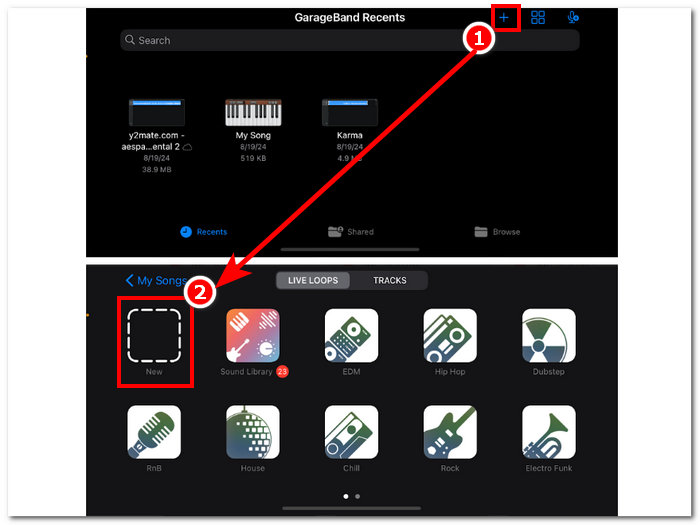
Trinn 2. I appens grensesnitt trykker du på + og velger deretter alternativet Nytt prosjekt.
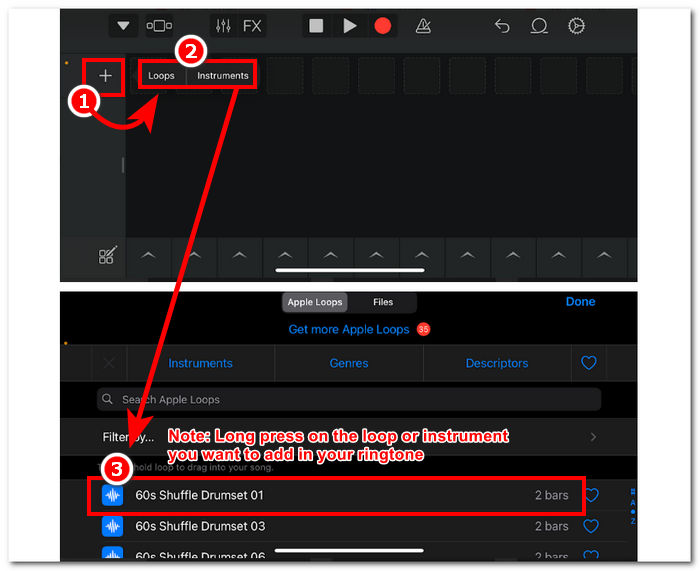
Trinn 3. Du blir deretter sendt videre til tidslinjen i GarageBand, der du kan legge til instrumentet eller Loop-en du vil ha i ringetonen; trykk bare på +-knappen, og hold deretter inne den bestemte loopen eller instrumentet du vil legge til på tidslinjen.
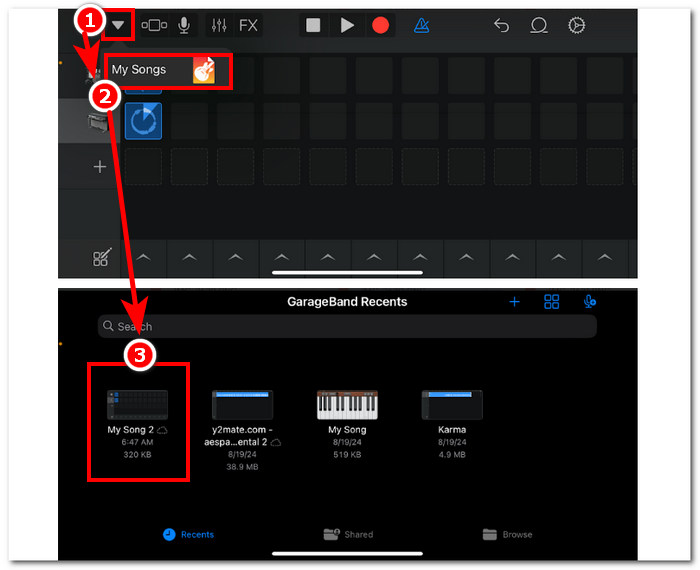
Trinn 4. For å lagre den nye ringetonen, trykker du til slutt på pil-ned-knappen øverst til venstre på skjermen og deretter på My Songs. Filene dine blir automatisk lagret i fillagringen din.
Del 2. Hvordan lage en eksisterende sang til en ringetone på GarageBand
For å lage en spennende sang til ringetonen din, valgte vi musikk fra Apple Music ettersom visse begrensninger forbyr bruk av musikk i en iPhone, når det gjelder det som kalles DRM-beskyttelse.
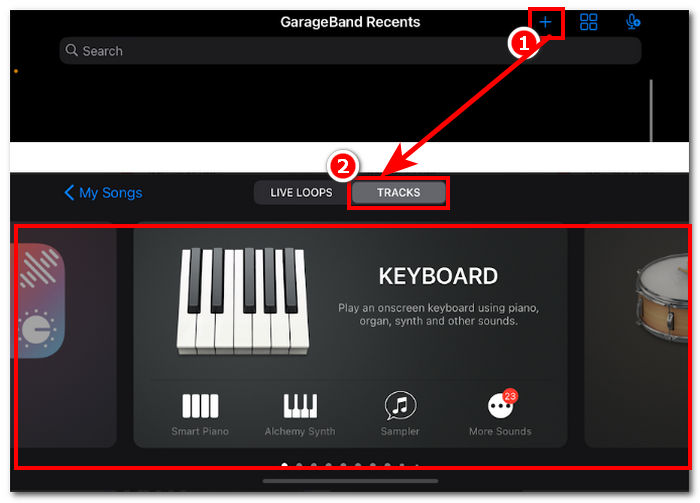
Trinn 1. Åpne GarageBand-appen på iPhone-en din, trykk på +-knappen, og velg et hvilket som helst instrument du vil.
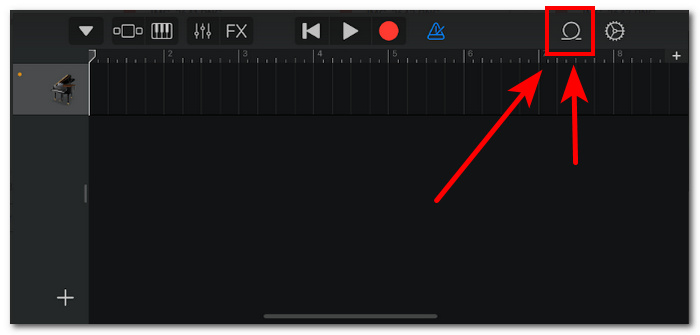
Trinn 2. Når du er i appens multisporsvisning, trykker du på Loop-ikonet øverst til høyre på skjermen.
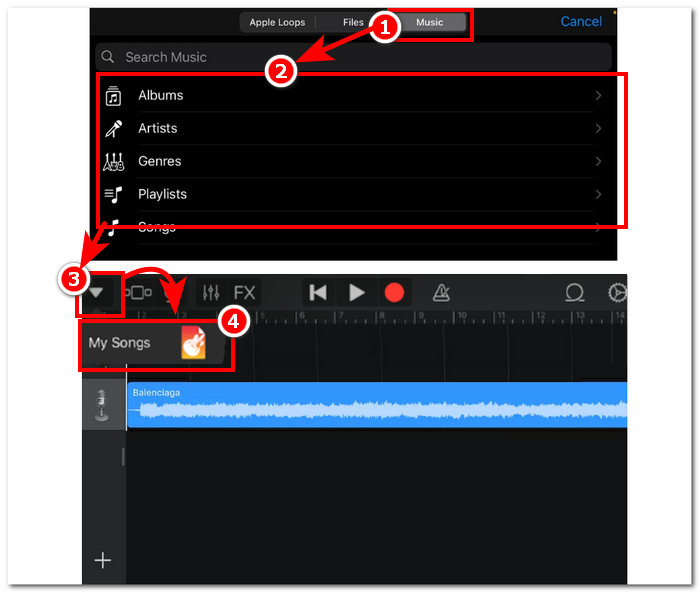
Trinn 3. I loop-delen trykker du på Music-delen, og der velger du sangen du vil lage en ringetone av. Legg den til på tidslinjen ved ganske enkelt å trykke eller holde inne på den. Når den er i tidslinjen, trykker du på pil-ned-knappen og går til My Songs.
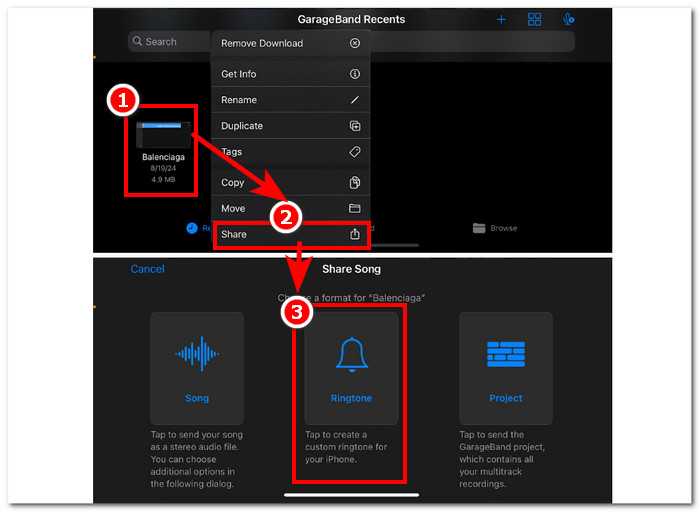
Trinn 4. Hold inne ringetonen du nettopp har laget, trykk på Del (Share), og velg Ringetone (Ringtone) for å gjøre den til din egendefinerte ringetone på iPhone-en din.
Del 3. GarageBand Alternativ til å lage en ringetone
Et programvarebasert verktøy er det beste valget hvis du vil lage en ringetone og tilpasse den for et unikt preg. Med opptil 1000 støttede filtyper er FVC-picked Video Converter Ultimate et alt-i-ett-program som ikke bare er til for å lage ringetoner, men også kan konvertere, redigere, forbedre og komprimere video og lyd. Det er perfekt for å skreddersy en ringetone, i motsetning til GarageBand, som mangler litt når det gjelder tilpasningsmuligheter. I tillegg er høyhastighets behandlingsteknologi godt integrert i systemet til FVC-picked Video Converter Ultimate for å garantere tapsfri lydkvalitet og raske konverteringshastigheter.
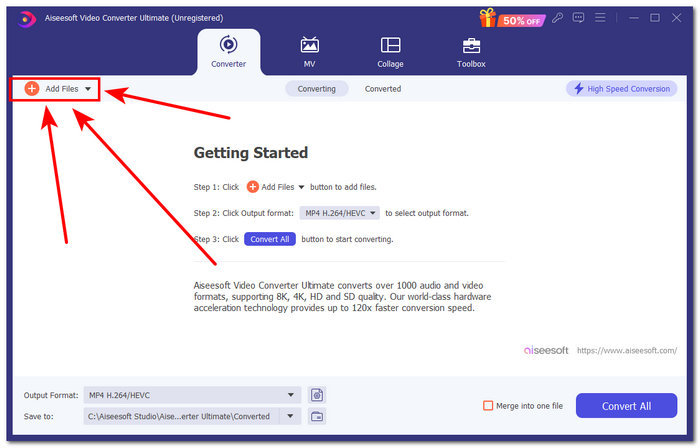
Trinn 1. På Mac-en din laster du ned og installerer FVC-picked Video Converter Ultimate. Åpne programmet på enheten, last inn lyden/sangen du vil bruke, og tilpass den som ringetone ved å klikke på lenken Add Files øverst til venstre i grensesnittet.
Gratis nedlastingFor Windows 7 eller nyereSikker nedlasting
Gratis nedlastingFor MacOS 10.7 eller nyereSikker nedlasting
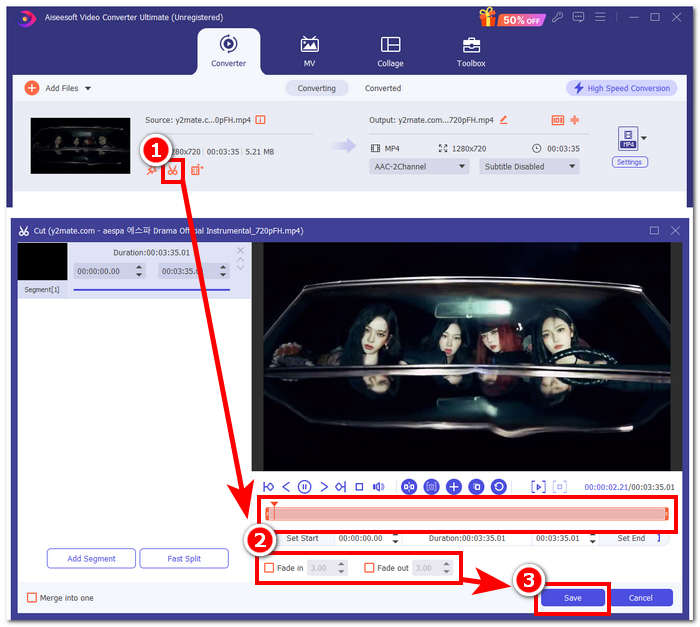
Trinn 2. Klikk på saks-ikonet ved siden av miniatyrbildet av lydfilen din. Et nytt vindu vises på skjermen, der du kan legge til fade-effekter og klippe i lydfilen. Når du er fornøyd med tilpasningen, klikker du bare på knappen Save for å fullføre prosessen.
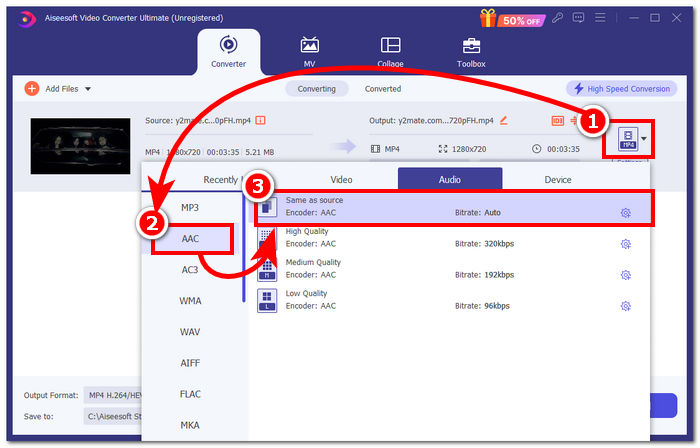
Trinn 3. Når du har gjort endringer i lyden, endrer du filformatet fra MP4 eller MP3 til AAC, som iPhone bruker til ringetoner.
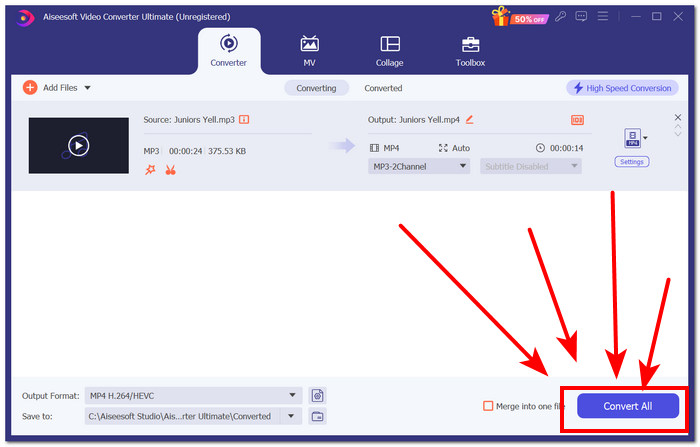
Trinn 4. Klikk på knappen Convert All, så blir ringetonen din automatisk lagret på enheten. Når konverteringen er fullført, finner du ringetonen i nedlastingsmappen.
Del 4. Slik setter du ringetone i iPhone fra filer med GarageBand
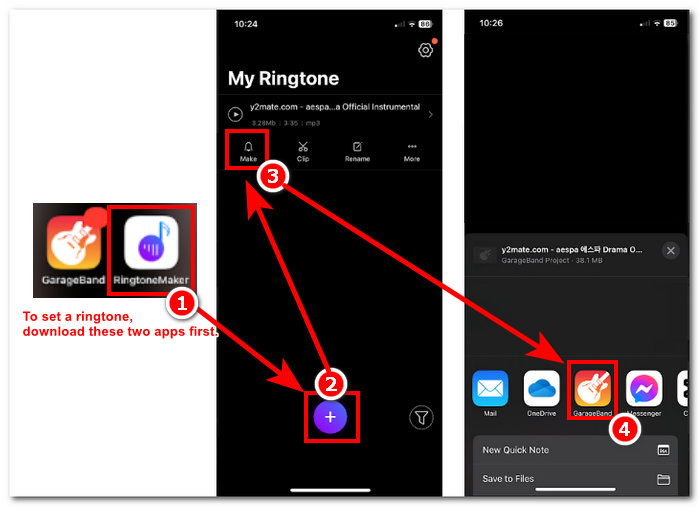
Å angi en sang som ringetone ved å bruke GarageBand fra filene dine kan være litt av en prosess. Dette betyr at du må laste ned sangen først og deretter få den til å gå gjennom RingtoneMaker-appen, som du må installere på enheten din.
Trinn 1. Last ned sangen du vil ha, til enheten din.
Du kan søke etter en sang på YouTube og laste den ned ved hjelp av en online YouTube til MP3-nedlaster.
Trinn 2. For å gjøre en sang om til ringetone åpner du appen RingtoneMaker og importerer ganske enkelt den nedlastede sangen til appen. Etter at den er lastet inn, trykker du på knappen Make Ringtone og fortsetter ved å velge GarageBand-appen.
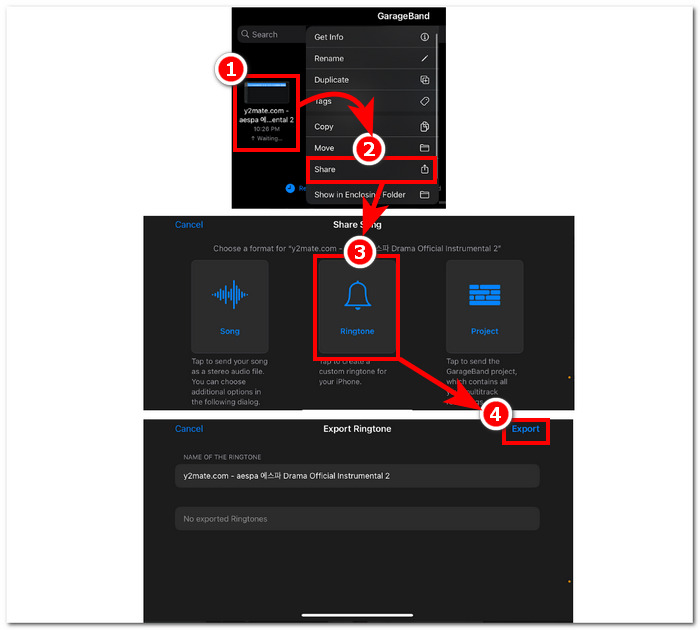
Trinn 3. Etter at du har blitt videresendt til GarageBand-appen, finner du sangen du importerte og trykker på den. Følg deretter denne navigasjonsstien: Share > Ringtone > Export. Så enkelt har du gjort en eksisterende sang om til en ringetone.
Del 5. Vanlige spørsmål om hvordan lage en ringetone i GarageBand
Er GarageBand bra nok for nybegynnere?
Ja, GarageBand er en god, om ikke bedre, ringetoneprodusent for Apple-økosystemet. Det enkle grensesnittet er perfekt for alle typer brukere, fra nybegynnere til profesjonelle. Innebygde verktøy utelukkende laget for å lage fengende og trendy toner og et bredt utvalg av veiledninger tilgjengelig på nettet gjør det til et nybegynnervennlig verktøy.
Er Garage ringetone gratis?
Ja, GarageBand er gratis å bruke og laste ned til alle Apple-enheter. Den lar brukere bruke funksjonene til å lage, komponere og eksportere uten ekstra avgift eller abonnement.
Finnes det en gratis ringetoneapp?
Ja, det er mange ringetone-apper du kan prøve. Noen alternativer er RingtoneMaker, Sedge, Audiko, og listen fortsetter. Dermed er det opp til brukerne å bruke alle typer apper og programvare. Vi anbefaler brukere å undersøke hvilken type ringetone-app de vil ha.
Konklusjon
Apple satte en viss begrensning på hvordan brukere kan lage og stille inn ringetoner ved å bruke deres helt eget GarageBand-program. Det gjør på en eller annen måte jobben sin effektivt, spesielt når du setter opp en sang som allerede er lastet ned på din iPhone. Imidlertid kan det mangle noen tilpasningsfunksjoner som hva FVC-plukkede Video Converter Ultimate kan gjøre for å gjøre det mer personlig. Imidlertid er det fortsatt effektivt og den eneste måten en iOS-bruker kan lage en ringetone på enheten sin.
-
 Beste gjennomgang Hvordan konvertere WAV til ringetone på kort tid
 Ønsker du å konvertere WAV til en ringetone uten problemer? Våre brukervennlige verktøy får jobben gjort! Nyt lydkonvertering av høy kvalitet på et blunk - ingen teknisk hodepine. Prøv dem i dag!
-
 Hvordan lage et talememo til en ringetone på iPhone og Android
 Hvis du vil gjøre et talememo til en ringetone, les denne artikkelen. Enten du er iPhone-bruker eller Android-bruker, kan du finne løsninger i innholdet vårt.
-
 5 MP3-kuttere for å kutte hvilken som helst lyd enkelt [2024 Oppdatert]
 Trenger du en MP3-kutter for å trimme lyden? I så fall, les denne artikkelen fordi vi tilbyr verktøyene du kan stole på for enkel lydklipping.
