


 Video Converter Ultimate
 Skjermopptaker
 Videoreparasjon
 Sikker nedlasting
En omfattende veiledning om hvordan du lager en ringetone fra et talememo
Mange utviklere har imidlertid laget programvare for å lage ringetoner. Det betyr at du fritt kan ta utdrag av favorittsangene dine eller spille inn stemmen din som ringetone. I denne artikkelen forklarer vi hvordan du gjør et talenotat om til en ringetone. Vi håper du finner svaret du leter etter.

Del 1. Beste måten å gjøre et stemmememo til en ringetone
Hvis du også ser etter en fullt utstyrt ringetone‑maker, kan du velge FVC-utvalgte Video Converter Ultimate, lederen selv i det sterkt konkurransepregede markedet for programvare til redigering av multimedia. Ulike smarttelefonmodeller kan støtte ulike ringetoneformater, men dette er ikke noe problem med Video Converter Ultimate. Som du kan se av navnet, er hovedfunksjonen å konvertere filformater. Så uansett i hvilket format du spiller inn eller laster ned talenotater, kan du konvertere dem slik at de passer til telefonens format. Du kan til og med bruke den til å hente ut lyd direkte fra videoer, noe som åpner for et bredt spekter av ringetone‑muligheter. Du kan også endre volum, spor, lengde osv. på den aktuelle lyden. Med Video Converter Ultimate vil det ikke lenger være en drøm å gjøre et talenotat til en ringetone når du vil.
Gratis nedlastingFor Windows 7 eller nyereSikker nedlasting
Gratis nedlastingFor MacOS 10.7 eller nyereSikker nedlasting
Her vil vi fortelle deg hvordan du redigerer dine innspilte eller nedlastede talememoer slik at du kan bruke dem som ringetone.
Trinn 1. Last ned og installer Video Converter Ultimate på datamaskinen din. Start deretter programmet på skrivebordet ditt.
Trinn 2. Klikk på Add Files for å laste opp lyden du vil redigere.
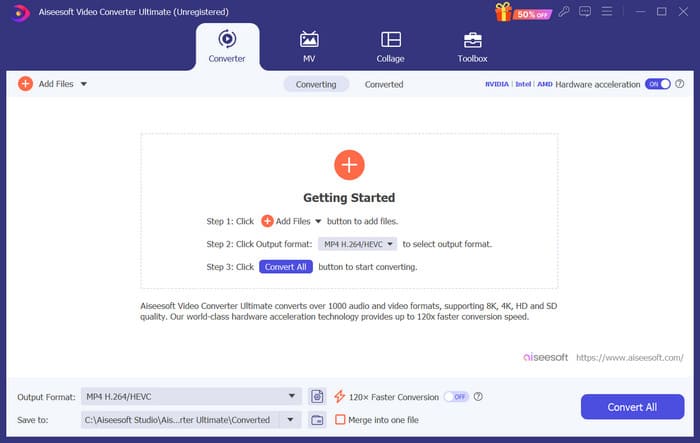
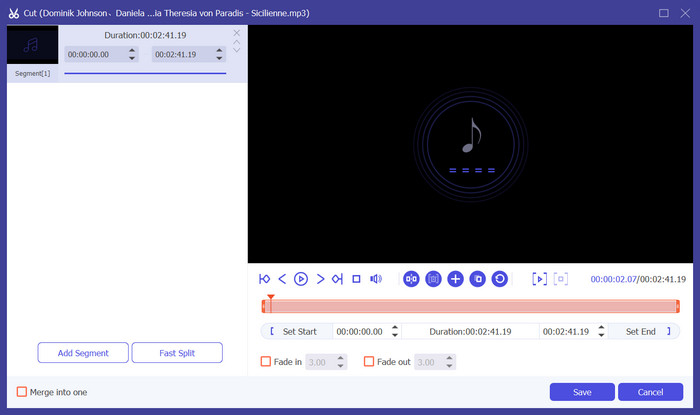
Trinn 3. For å klippe lyden klikker du på Cut. Du kan justere filens lengde. Når du er ferdig med å klippe, klikker du på Save.
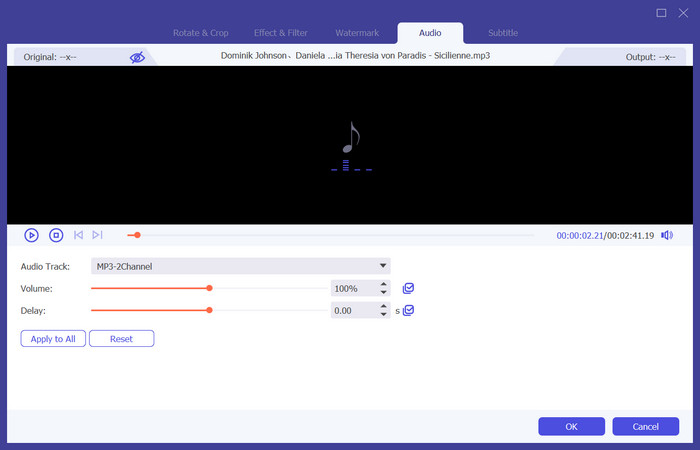
Trinn 4. For å redigere volum og lydspor på talenotatene dine, klikker du på Edit. I vinduet som dukker opp, kan du gjøre de justeringene du ønsker. Når du er ferdig med redigeringen, klikker du på OK.
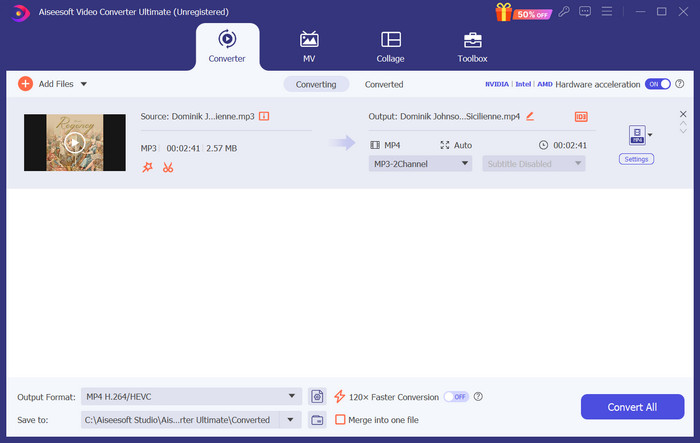
Trinn 5. Hvis du må endre formatet på filen din, åpner du rullegardinmenyen ved siden av Output Format. Her kan du velge utdataformat for lyden din.
Trinn 6. Når du vil eksportere den redigerte ringetonen, klikker du på Convert All.
Del 2. Hvordan lage et talememo til en ringetone på iPhone
Vi anbefaler GarageBand hvis du vil lage en talememo-ringetone på iPhone. Dette er en applikasjon utviklet av Apple. Brukere kan bruke den til å lage musikk på iOS-enhetene sine. Den har mange verktøy for musikkproduksjon, opptak, redigering og miksing. GarageBand kan også integreres med annen Apple-programvare. Det betyr at vi enkelt kan overføre prosjekter mellom GarageBand og annen programvare for videre redigering. Denne appen er populær blant profesjonelle brukere og nybegynnere på grunn av dets brukervennlige grensesnitt, omfattende funksjoner og tilgjengelighet. Alle innstillinger kan gjøres på telefonen uten hjelp av andre enheter.
Her er hva du trenger å gjøre for å gjøre et talememo om til en ringetone.
Trinn 1. Før du stiller inn ringetoner, må du gå til Voice Memo-appen på iPhone for å velge et talenotat.
Trinn 2. Etter at du har valgt talenotatet du vil bruke, trykker du på ikonet med tre prikker. Velg Save to Files, og trykk Save igjen for å bekrefte handlingen.
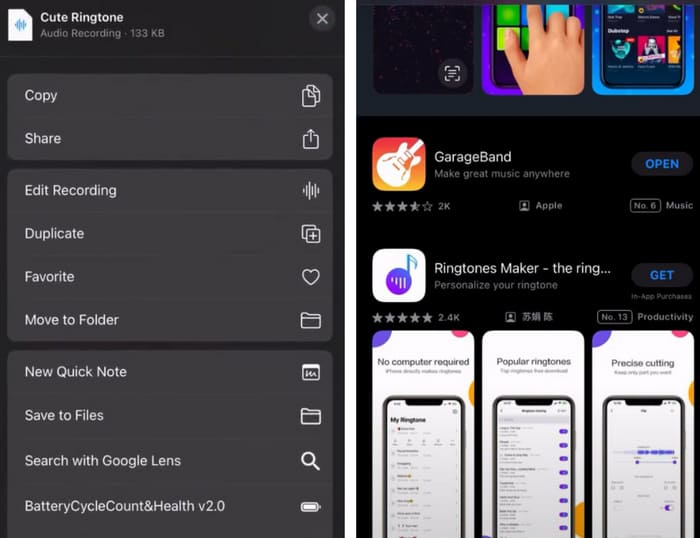
Trinn 3. Åpne GarageBand på iPhone, og trykk på Project.
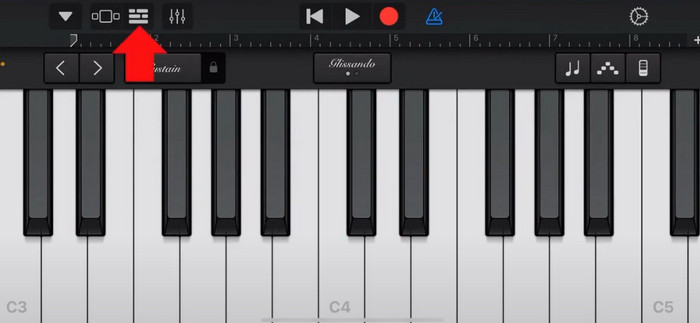
Trinn 4. Velg Loop > Files. Deretter trykker du på Browse items from the Files app for å velge talenotatet du vil bruke.
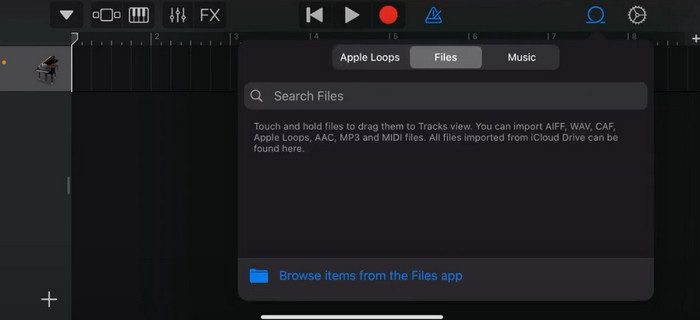
Trinn 5. Dra og slipp filen inn på tidslinjen.
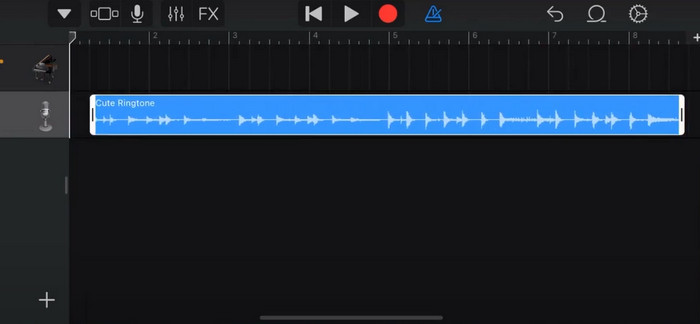
Trinn 6. Deaktiver Metronome, og trykk på pil‑ned‑ikonet > My Songs.
Trinn 7. Trykk og hold på klippet, og velg deretter Share.
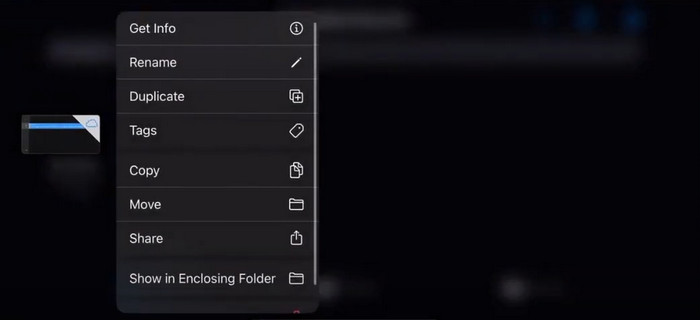
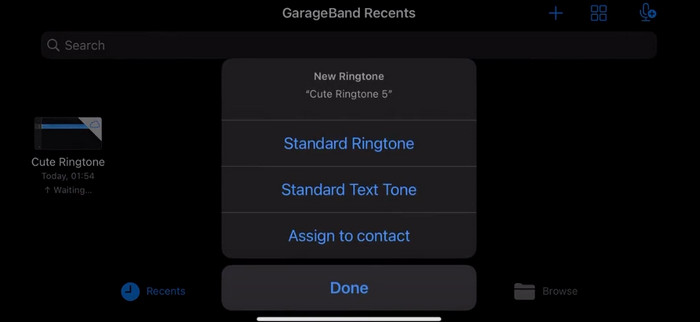
Trinn 8. Velg Ringtone blant alle alternativene, og trykk på Export. Trykk til slutt på Use sound as > Standard Ringtone. Dermed har du laget en ringetone av et talenotat.
Del 3. Hvordan lage et stemmeopptak til en ringetone på Android
Hvis du bruker en Android-telefon og ønsker å gjøre den innspilte musikken om til en ringetone, kan du gjøre det direkte i Innstillinger-appen på telefonen. Prosedyren er veldig enkel, og det er ikke nødvendig å laste ned noen programvare for denne prosessen. Men hvis du ønsker å endre den innspilte lyden, kan du velge en profesjonell lyd- og videoredigeringsprogramvare som FVC-plukket Video Converter Ultimate.
Deretter viser vi deg hvordan du lager en ringetone av et taleopptak på Android. I denne delen bruker vi en Samsung‑smarttelefon som eksempel. Før du begynner, må du forsikre deg om at du har lagret opptaksfilen i appen for taleopptak.
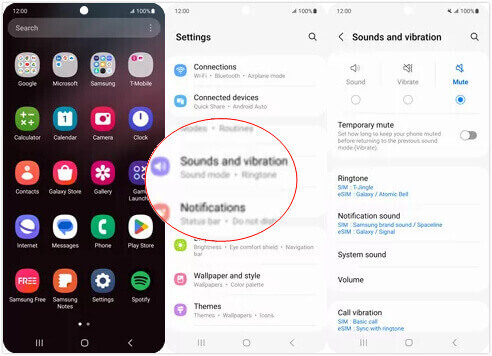
Trinn 1. Åpne Innstillinger på telefonen, og velg Lyder og vibrering.
Trinn 2. Forsikre deg om at Lyd er valgt under Lydmodus. Velg deretter varslingslyd (Notification sound).
Trinn 3. Velg musikkfilen du har spilt inn. Gå deretter tilbake til Hjem‑skjermen for å ta i bruk innstillingene.
Del 4. Vanlige spørsmål om å lage et talememo til en ringetone
Hvilket format er ringetoner for Android?
Ringetoner for Android-enheter kan komme i forskjellige lydfilformater, men de mest støttede formatene er MP3, AAC, M4A, OGG og WAV.
Hvordan lagrer jeg et talememo som en sang på iPhone?
Åpne Voice Memos-appen på iPhone og finn talememoet du vil lagre som en sang. Trykk på talememoet for å åpne det, og trykk deretter på deleikonet for å se de tilgjengelige delingsalternativene. Du kan velge å lagre talememoet i Filer-appen. Etter det kan du åpne en musikkapp på iPhone som støtter import av lydfiler. Apper som GarageBand eller Music Memos er egnet.
Hvordan ta opp lyd på Android Samsung?
For å ta opp lyd på en Android‑enhet fra Samsung bruker du den innebygde Voice Recorder. Åpne den og trykk på Record for å starte opptaket. Når du er ferdig, kan du lagre lydfilen og gi den et navn slik at den er lett å finne igjen.
Konklusjon
I denne artikkelen svarer vi på spørsmålet om hvordan man gjør et talenotat om til en ringetone. Vi tilbyr deg et av de beste verktøyene for redigering av ringetoner, FVC Video Converter Ultimate. Metoder for å gjøre et talenotat om til en ringetone på iPhone og Android‑telefoner er listet opp. Vi har også fullstendige trinnvise instruksjoner for hver del i tilfelle du støter på problemer.
-
 Topp 3 løsninger for å komprimere WAV-filer til en mindre størrelse
 Hvis du også leter etter måter å komprimere størrelsen på WAV-lydfiler på, les innholdet vårt. Vi vil introdusere deg til ulike verktøy fra tre aspekter.
-
 Dybdegående lydkomprimeringsveiledning i 2024 (trinn-for-trinn)
 Trenger du å komprimere lyd, men trenger hjelp til å finne ut hvor du skal begynne? I dette innlegget vil vi presentere de beste valgene for å redusere filstørrelsen på sporene dine.
-
 Effektive lydkompressorer for offline- og onlinebrukere
 Har du problemer med store lydfiler? Det er mange lydfilkompressorer tilgjengelig for offline og online-brukere. Sjekk dem ut her.
