


 Video Converter Ultimate
 Skjermopptaker
 Videoreparasjon
 Sikker nedlasting
Topp 3 måter å konvertere FLV til MOV
På grunn av enkelte ikke-støttede formater eller andre årsaker, kan det hende du må konvertere FLV til MOV, spesielt når du bruker en Mac.
Du bør være klar over at FLV-filer ikke støttes direkte av QuickTime Player og iMovie. Derfor kan du ikke åpne eller redigere FLV-filer direkte på Mac. Uansett årsak vil dette innlegget vise deg hvordan du konverterer FLV til MOV.

Heldigvis finnes det mange videokonvertere, inkludert mange gratis nettbaserte verktøy, som kan hjelpe deg å endre FLV-filene dine til MOV på en enkel måte. Dette innlegget vil introdusere 3 gode FLV til MOV‑konvertere. Når du har lastet ned noen FLV‑videoer fra videosider, kan du bruke dem til å gjøre videokonverteringen fra FLV til MOV.
Del 1. Konverter FLV til MOV Online Free
Som nevnt ovenfor, finnes det et stort antall gratis nettbaserte FLV til MOV‑konvertere på markedet. I tilfelle du ikke vet hvilken du bør bruke, anbefaler vi oppriktig den populære FVC Free Online Video Converter for å konvertere FLV til QuickTime MOV.
Trinn 1: Åpne nettleseren din og gå til dette nettbaserte FLV til MOV‑konverteringsnettstedet. Du kan bruke det i alle nettlesere, inkludert Chrome, IE, Safari og Firefox.
Last ned skrivebordsversjonen for å konvertere filer i batch.
Trinn 2: Klikk på knappen Add Files to Convert for raskt å installere et oppstartsprogram for FLV‑konverteringen. Etter det vil et popup‑vindu vises, der du kan bla gjennom og laste opp FLV‑filen din.

Trinn 3: Når du går inn i hovedvinduet til konverteren, kan du se at noen populære videoformater som MP4, MOV, AVI, FLV, M4V, MKV, VOB, MPG, WMV og flere er listet opp der. Her bør du velge MOV som utdataformat.
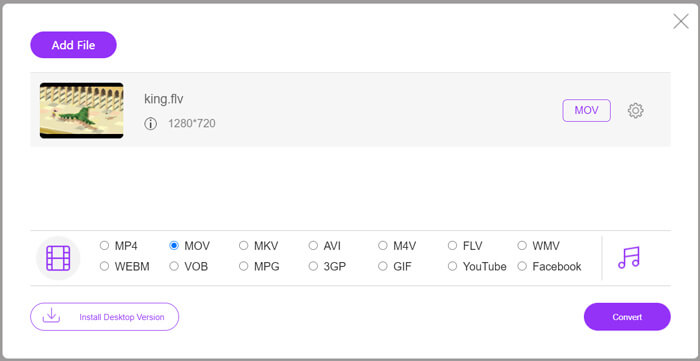
Trinn 4: Før den endelige FLV til MOV‑konverteringen kan du klikke på ikonet Settings for å tilpasse flere video‑ og lydinnstillinger som videooppløsning, koder, bithastighet, bildefrekvens, lydvolum, lydkanal og mer. Deretter kan du klikke på knappen Convert for å begynne å konvertere FLV til MOV på nettet.
Del 2. Endre FLV til MOV med VLC
VLC er en åpen kildekode‑mediespiller som også har noen grunnleggende konverteringsfunksjoner. Hvis du har VLC Media Player installert på Mac‑en eller Windows‑PC‑en din, kan du bruke den til å konvertere FLV‑filene dine.
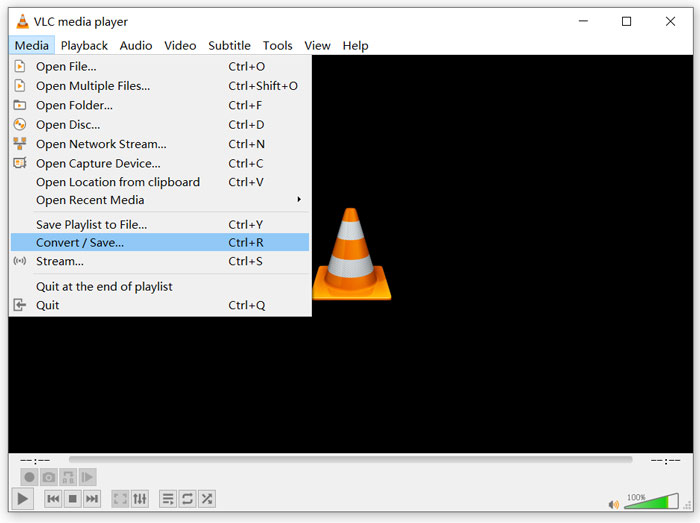
Trinn 1: Åpne VLC Media Player på datamaskinen og klikk på menyen Media. Velg alternativet Convert/Save fra rullegardinlisten. Hvis du bruker VLC på Mac, skal du klikke på File‑menyen og deretter velge alternativet Convert/Stream.
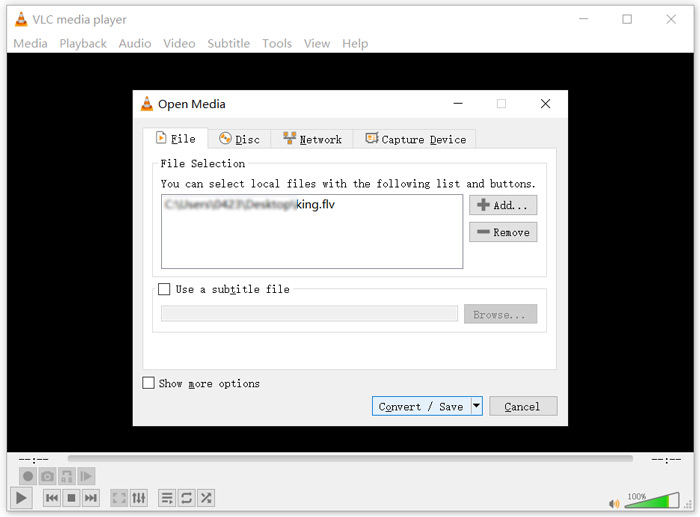
Trinn 2: Nå er du i vinduet Open Media. Her kan du klikke på knappen Add for å importere FLV‑filen du vil konvertere. Klikk deretter på knappen Convert/Save for å fortsette.
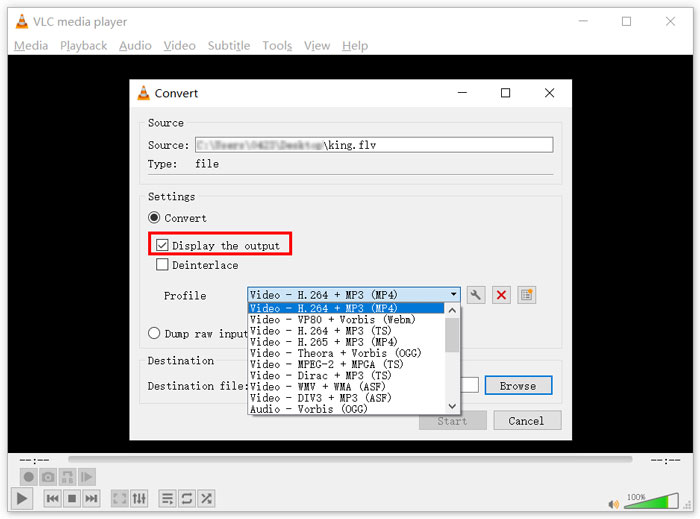
Trinn 3: Velg et passende utdataformat fra rullegardinlisten Profile. Her kan du for eksempel konvertere FLV til MP4, TS, OGG, WebM, YouTube HD, MP3, FLAC og mer. Huk av i boksen foran alternativet Display the output. Klikk på knappen Browse for å velge en passende målmappe for den konverterte FLV‑filen. I dette trinnet kan du gi utvideofilen filendelsen .mov.
Trinn 4: Etter alle disse operasjonene kan du klikke på knappen Start for å starte FLV‑konverteringen.
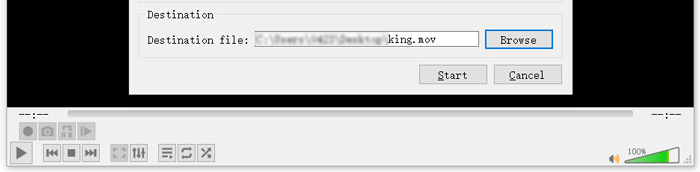
VLC Media Player vil automatisk begynne å spille av utdatafilen. Du kan se varselet Converting file øverst i VLC. Ikke lukk VLC helt før konverteringen er ferdig.
Del 3. Beste måten å konvertere FLV til MOV uten tap av kvalitet
Når du vil konvertere FLV til MOV, kan du også benytte en profesjonell løsning. Her anbefaler vi på det sterkeste den fullverdige FLV til MOV‑konverteringsprogramvaren Video Converter Ultimate. Sammenlignet med gratis nettbaserte FLV til MOV‑konvertere og VLC har den flere funksjoner og støtter flere formater. Enda viktigere er at den kan konvertere FLV til MOV samtidig som den bevarer originalkvaliteten.
- 1. Konverter hvilken som helst video som MKV, AVI, MP4, WMV, FLV til MOV uten å miste kvalitet.
- 2. Konverter 8K / 5K / 4K, 1080p / 720p HD og SD-videoer til over 500 formater som MOV, MP4, AVI, MP3 og mer.
- 3. Rediger video som klippe, rotere, beskjære, slå sammen, etc. og legge til filtre og effekter, og forbedre kvaliteten.
- 4. Verktøykasse kan komprimere FLV, redigere FLV-metadatainformasjon, opprette GIF-er fra FLV og mer.
Gratis nedlastingFor Windows 7 eller nyereSikker nedlasting
Gratis nedlastingFor MacOS 10.7 eller nyereSikker nedlasting
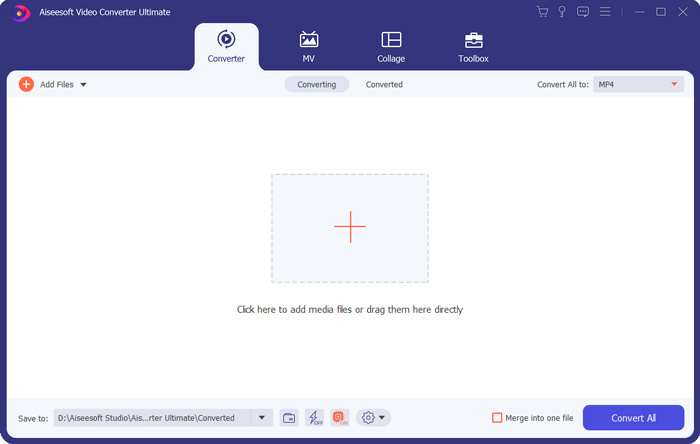
Trinn 1: Installer og start gratis denne FLV til MOV‑konverteren på Mac‑en eller Windows‑PC‑en din. Pass på at du bruker funksjonen Converter. Klikk deretter på det store pluss-ikonet for å legge til FLV‑fil(ene) dine.
Trinn 2: Klikk på format-ikonet på høyre side av den importerte FLV‑filen. Angi MOV som utdataformat fra rullegardinlisten.
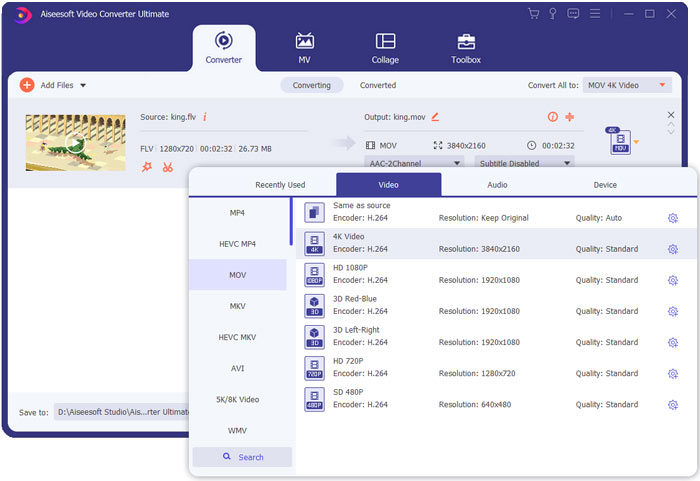
Trinn 3: Som du ser ovenfor, er denne FLV‑konverteren utstyrt med mange redigeringsfunksjoner. Så før FLV til MOV‑konverteringen kan du redigere filen, legge til filtre, effekter eller tilpasse andre innstillinger etter behov. Deretter kan du klikke på knappen Convert All for å starte konverteringsprosessen.
FLV vs. MOV
Adobe Flash Player brukte FLV til å levere videoinnhold som filmer og TV-serier. Nå for tiden utvikler ikke Adobe spilleren lenger og anbefaler brukere å avinstallere den av sikkerhetsgrunner. Du kan imidlertid fortsatt bruke FLV-formatet på mange ikke-Adobe/Macromedia-programmer.
MOV-formatet kan brukes til å lagre en film, et TV-program, et kort videoklipp eller en hjemmefilm. Den er faktisk lagret i QuickTime File Format (QTFF), som ble introdusert av Apple i 1991. MOV-filer brukes ofte når folk vil lagre en video med høy kvalitet.
Del 4. Vanlige spørsmål om konvertering av FLV til MOV
FLV vs MOV, Hva er forskjellen mellom FLV og MOV?
FLV, Flash Video File, er en Flash‑kompatibel videofil som er utviklet av Adobe Systems. Den inneholder et kort hode, flettede video‑, lyd‑ og datapakker. FLV ble opprinnelig designet for å bygge inn videostrømmer i Adobe‑programmer. En FLV‑fil inneholder vanligvis en videostrøm på 640x360 og en lydstrøm med 44,1 KHz, 2 kanaler, AAC.
MOV er standardvideoformatet for Apple‑enheter og relatert programvare som QuickTime Player og iMovie. Det er grunnlaget for MPEG‑4‑filformatet fra International Organization for Standardization. En MOV‑fil kan lagre videoer, lyd, tekst, undertekster, bilder og andre filer.
FLV‑formatet støttes ikke av Apple‑enheter, inkludert Mac, iPhone, iPad og iPod touch. Dessuten tilbyr FLV lavere videokvalitet sammenlignet med MOV.
Kan iMovie redigere FLV?
Nei. Som du kan lære ovenfra, kan ikke FLV støttes av Apple-enheter og programvare. Som standard videoredigerer for Mac- og iOS-enheter er iMovie heller ikke kompatibel med FLV-filer.
Kan Windows Media Player åpne MOV-filer?
De fleste Windows Media Player-versjoner støtter ikke MOV-format. Men den nyeste Windows Media Player 12.0 kan åpne MOV-filer.
Konklusjon
Dette innlegget deler 3 enkle måter å konvertere FLV til MOV på. Når FLV‑filene dine ikke kan spilles av eller redigeres, kan du bruke de anbefalte konverterne til å konvertere dem til MOV eller MP4.
-
 Slik konverterer du FLV-videoene dine til MP3-lydfiler på skrivebordet og online
 Hvordan konvertere en FLV til en MP3-fil? Alt du trenger å gjøre er å lese denne artikkelen nøye, finne din favorittmetode og følge vår trinnvise guide for å få det du vil ha.
-
 10 beste FLV-videospillere for Windows 10/8/7, Mac, iOS og Android du må prøve (2021 siste)
 FLV-spiller hjelper deg med enkel tilgang til FLV-filene dine på Windows, Mac, Android, iOS-enheten. Sjekk ut de beste FLV-filspillerne du kan laste ned akkurat nå.
-
 Hvordan konvertere MP4 gratis til FLV Online / Mac / Windows
 Dette innlegget er den detaljerte guiden til MP4 til FLV-konvertering. Du kan ta de 3 beste gratis omformerne for å endre MP4 til FLV online, på Windows eller Mac-datamaskiner uten problemer.

