


 Video Converter Ultimate
 Skjermopptaker
 Videoreparasjon
 Sikker nedlasting
Topp offline og online GIF-kombinatorer | Slik slår du sammen GIF-er sømløst
Have you ever wanted to make an amusing and memorable image by splicing together several GIFs? Good news! Merging GIFs has never been simpler or more convenient than using the top-rated online and offline GIF combiner tools. With these potent apps, you can easily combine your preferred GIFs to make something totally new and unique that is sure to attract people's attention. In this tutorial guide, we'll demonstrate both online and offline methods for combining GIFs and offer advice on how to maximize the effectiveness of each method. Now is the time to begin exploring the fascinating field of GIF mashups.

Del 1. Beste GIF Combiner frakoblet
Using an offline program for combining GIFs offers several advantages for users, such as not requiring an internet connection, providing better control over the process, ensuring more privacy and security, and allowing for faster processing. With an offline program, you can create and combine GIFs at your own pace and customize the output to your liking. That said, we would like to recommend FVC Video Converter Ultimate.
Dette verktøyet lar brukere slå sammen flere GIF-er og justere størrelsen, hastigheten og avspillingsinnstillingene for den resulterende GIF-en. Det som skiller det fra konkurrentene er at det er en multifunksjonell videoredigeringsprogramvare som inkluderer en GIF Maker-funksjon, som lar brukere utføre andre videoredigeringsoppgaver i tillegg til å slå sammen GIF-er. I tillegg har den et brukervennlig grensesnitt som gir trinnvise instruksjoner, noe som gjør det tilgjengelig for avanserte og nybegynnere. Lær hvordan du slår sammen flere GIF-er til MP4 på PC eller andre formater ved å følge den forenklede veiledningen.
Compatibility: Windows 11/10/8/7 & Mac OS X 10.12 or higher
Rating: 9.8 / 10
Pricing: $49.96 Lifetime
Nøkkelfunksjoner:
◆ Videokonvertering: FVC Video Converter Ultimate kan transformere videoer til et bredt spekter av formater, inkludert MP4, AVI, WMV, MKV og mer.
◆ Lydekstraksjon: Brukere kan trekke ut lydspor fra videofiler.
◆ Slå sammen GIF-er: FVC Video Converter Ultimate inkluderer et innebygd GIF Maker-verktøy som lar brukere slå sammen flere GIF-er, justere avspillingshastigheten og tilpasse andre innstillinger.
◆ Utdata av høy kvalitet: FVC Video Converter Ultimate hevder å bevare den opprinnelige kvaliteten på kildefilene under konverteringsprosessen, og sikre utdata av høy kvalitet.
◆ Batchbehandling: Brukere kan konvertere og slå sammen mange filer samtidig, noe som sparer tid og øker effektiviteten.
Steps on how to combine GIFs with this GIF merger:
Step 1. First you have to get the program by ticking any of the Free Download buttons below corresponding to your computer’s operating system. After that, open the installer and follow the setup wizard to properly install the GIF merger on your computer. Launch the program afterward.
Gratis nedlastingFor Windows 7 eller nyereSikker nedlasting
Gratis nedlastingFor MacOS 10.7 eller nyereSikker nedlasting
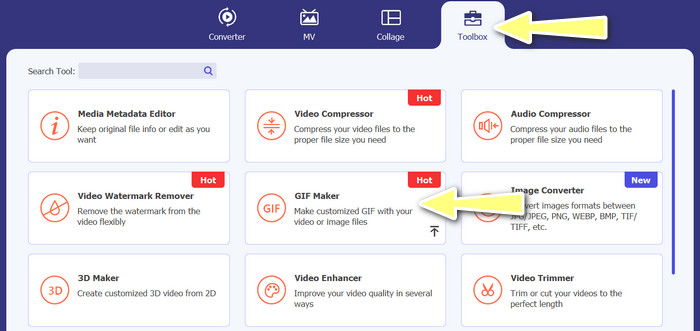
Step 2. Next, go to the Toolbox tab located from the upper interface of the program. Then, you will be redirected to a collection of options offered by the program. From here, select GIF Maker and add GIF files by ticking the Photos to GIF button. Afterward, choose all the GIF files you wish to merge into one.
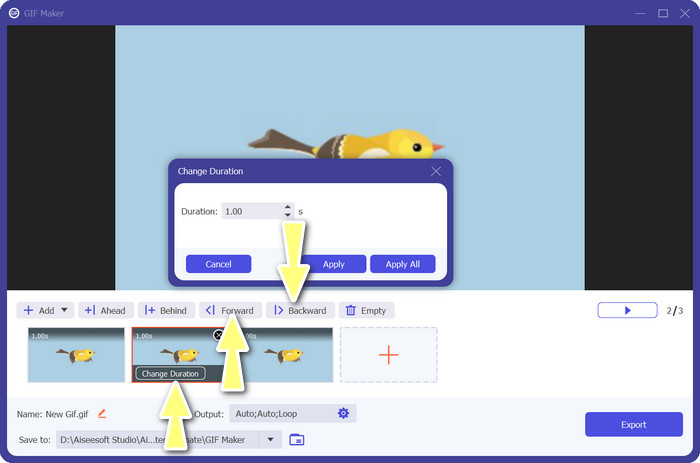
Step 3. From the editing panel, hover your mouse to each GIF to see the Change Duration option and adjust the length of each GIF. Also, you can change the sequence by choosing between the Backward and Forward buttons from the main menu.
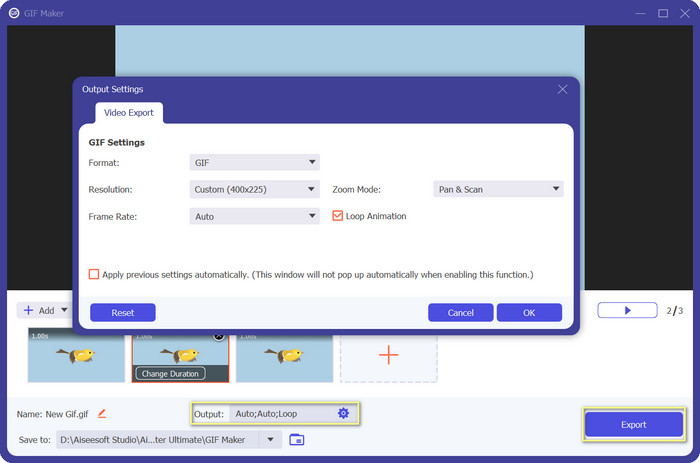
Step 4. Next, you may adjust other settings, such as the format, resolution, frame rate, and zoom mode, from the Output settings. Finally, hit the Export button to produce the final output.
Del 2. Topp 4 GIF Combiner Online
Det finnes også noen online-alternativer for å kombinere GIF-er til én. Derfor kan du enkelt bli med i GIF-ene dine uten å laste ned noe program på datamaskinen din. Sjekk dem ut ved å sjekke programmene introdusert nedenfor.
1. EZGIF
EZGIF er en mye brukt webtjeneste for å lage og endre GIF-er. GIF Joiner-funksjonen lar deg kombinere mange GIF-er til en enkelt, med mulighet for å endre avspillingshastighet og andre parametere. Nedenfor er en enkel guide for hvordan du bruker EZGIF for å kombinere GIF-er til én.
Step 1. Launch your favorite web browser and visit the program's official site. From here, go to the GIF Maker option.
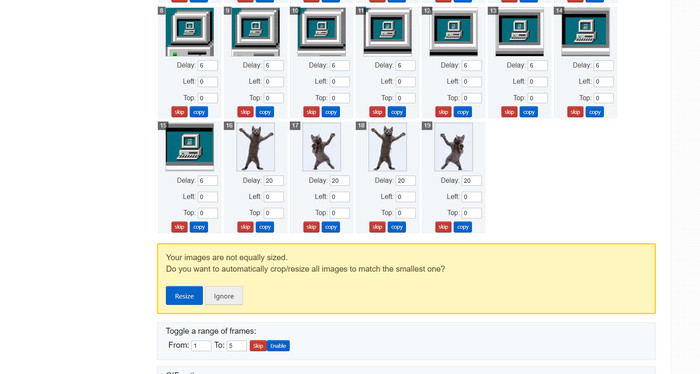
Step 2. Next, upload the GIF files you'd like to combine, and the tool will load each and every frame of your GIF file from the next page.
Step 3. Now, you can adjust which frame of a GIF you wish to include or exclude.
Step 4. Other options are available on the below page. If you are satisfied with the settings, tick the Make a GIF button.
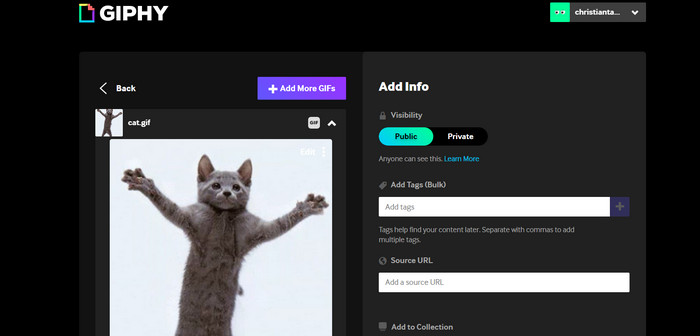
2. GIPHY
Mens de fleste kjenner GIPHY som et sted å søke etter og dele GIF-er, er de kanskje ikke klar over at nettstedet også har en GIF-skaper som lar brukere kombinere GIF-er og legge til tekst eller klistremerker. På den annen side, her er en trinn-for-trinn-prosess for å bli med GIF-er med GIPHY.
Step 1. To start making GIFs, head over to the GIPHY website and use the Create tab. Choose GIF Creator from the menu that appears.
Step 2. Select the GIFs you wish to combine from your computer by clicking the Choose Files button.
Step 3. The selected GIFs can be dropped onto the timeline at the screen's base. Simply by dragging the GIFs into a new order, you can change their display order.
Step 4. To change the length of each GIF, use the slider provided. Using GIPHY's editing tools, you can personalize your GIF with text, stickers, and more. After you're happy with the outcome, select Create GIF to save the combined GIF to your computer.
3. Kapwing
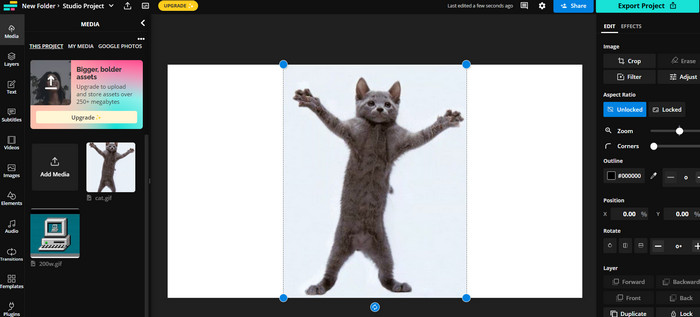
Kapwing is a free, web-based service that allows users to edit videos and create GIF from images. It allows users to submit several GIFs, combine them into one, select the playback speed, and change other parameters. To learn how to put two GIFs together with Kapwing, take a look at the instructions below.
Step 1. Go to Kapwing's website and click on Get Started to get started. Click on Click to Upload and select the GIFs you want to merge from your computer.
Step 2. Drag and drop the selected GIFs onto the timeline at the bottom of the screen. You can rearrange the order of the GIFs by dragging them to the desired position.
Step 3. Adjust the playback speed and duration of each GIF by using the editing tools provided by Kapwing. You can also add text, stickers, and other elements to your GIF by using the editing tools provided by Kapwing.
Step 4. Once you are satisfied, click on Publish to save your merged GIF to your computer.
4. Imgflip
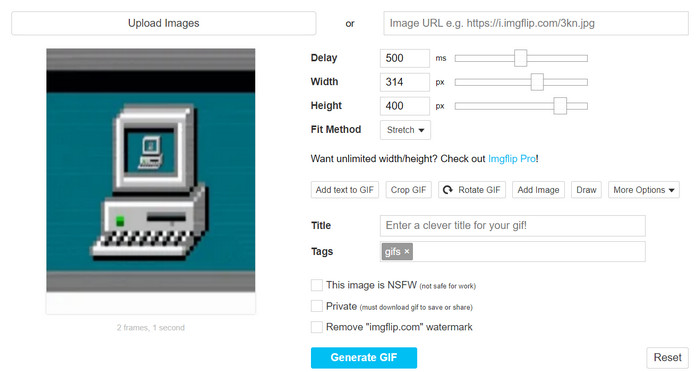
Populære online meme- og GIF-skaper Imgflip har også en GIF-generator. Brukere kan legge til tekstoverlegg, endre avspillingshastigheten og legge ut flere GIF-er samtidig. Se på trinnene og bli informert om hvordan du kombinerer GIF-er til én.
Step 1. Go to Imgflip's website and click on Create at the top of the page. Click on Video to GIF in the dropdown menu.
Step 2. Click on Upload Video and select the GIFs you want to merge from your computer. After your GIFs are uploaded, click on Join GIFs at the top of the page.
Step 3. Arrange the order of the GIFs by dragging and dropping them to the desired position. Adjust the playback speed and other settings as desired.
Step 4. Once satisfied with the final result, click Create GIF to save your merged GIF to your computer.
Del 3. Vanlige spørsmål om GIF Combiners
Kan jeg kombinere GIF-er i forskjellige størrelser?
Ja, de fleste GIF-sammenslåinger lar deg kombinere GIF-er i forskjellige størrelser og størrelsesforhold. Det er imidlertid viktig å legge merke til at den endelige utgangen kan bli beskåret eller endret størrelse avhengig av dimensjonene til de individuelle GIF-ene.
Er det lovlig å slå sammen GIF-er som ikke er mine?
Det er viktig å respektere lover om opphavsrett og bare slå sammen GIF-er som du har rett til å bruke. Dette kan inkludere GIF-er som er i det offentlige domene eller de du har laget selv.
Kan jeg legge til tekst eller klistremerker til min sammenslåtte GIF?
Yes, most GIF mergers offer editing features that allow you to add text, stickers, and watermarks to your GIF. This can help enhance the visual appeal and message of your GIF.
Konklusjon
In a world where visual content is becoming increasingly important, GIF merging is a valuable skill to acquire. With the ability to combine GIFs into one file, you can create something truly unique that will grab the audience's attention and make them want to engage with your content.
-
 5 av de beste GIF-resizerne tilgjengelig på alle plattformer [2023]
 Vil du vite hvilke GIF-resizers du kan bruke? I så fall vil informasjonen nedenfor snakke om resizerne du kan bruke på GIF-ene dine på alle plattformer.
-
 Loop GIF med den beste animerte GIF Looper på Windows og Mac
 Vil du vite hemmeligheten for den beste loop GIF? Vil du lage en? I så fall er du på rett sted. Så lær hvordan du lager en loop med den beste tilgjengelige looperen.
-
 Topp 6 måter å kombinere MP4-filer på Windows / Mac / Online
 Vil du slå sammen dine rå MP4-filer til prosjektet ditt? Dette innlegget samler de 6 beste måtene for å hjelpe deg med å kombinere MP4-videoer på Windows, Mac og online uten problemer.
