


 Video Converter Ultimate
 Skjermopptaker
 Videoreparasjon
 Sikker nedlasting
Lær de perfekte metodene for hvordan du lager en URL fra et bilde
I dag har bildefilformater blitt populære. Disse formatene er en av de beste måtene å dele og åpne bilder i ulike nettlesere og programmer på. Det finnes imidlertid tilfeller der du ikke kan dele bildene dine, uansett hvilken filtype du bruker. Denne situasjonen kan være problematisk for andre. Men uten at vi kanskje var klar over det, finnes det en løsning på denne typen utfordring. Hvis du vil dele bildene dine overalt og når som helst, er den beste måten å transkode bildet til en URL. På denne måten kan du dele bildet med andre uten hjelp av noen utvidelser. Heldigvis har denne artikkelen en svært god løsning for deg. Les dette innlegget videre, der vi gir deg de beste veiledningene for hvordan du gjør bilder om til en lenke.

Del 1. Effektive metoder for å gjøre et bilde til en kobling
Konverter bilde til lenke ved hjelp av i-Converter
Noen bildefil-til-URL-konvertere på nettet fungerer ikke særlig bra, så vi vil gjerne introdusere deg for i-Converter. Det er en nettbasert konverter du kan stole på for å gjøre bildefiler om til en URL-lenke. Du kan åpne det nettbaserte verktøyet i ulike nettlesere, blant annet Firefox, Chrome, Edge, Explorer og flere. Det har også en enkel prosess for å konvertere filer. På den måten passer verktøyet for deg enten du er erfaren eller nybegynner. I tillegg støtter det ulike bildefilformater. Du kan konvertere bildene dine til JPEG, BMP, TIFF, PNG, GIF, DOC og mer. Dessuten er i-Converter gratis. Det betyr at du kan konvertere bildene dine uten å kjøpe et abonnement. Men i-Converter er kun for JPG-bildefiler. Hvis bildet ditt ikke har filendelsen .jpg, kan du ikke laste det opp til dette nettverktøyet. Det hender også at verktøyet ikke fungerer optimalt. Siden det er et nettbasert verktøy, anbefales det sterkt å ha internettilgang.
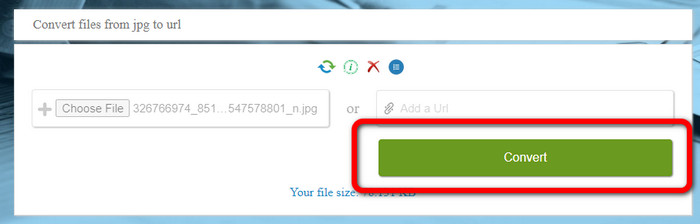
Trinn 1. Åpne en hvilken som helst nettleser på datamaskinen og gå til nettsiden til i-Converter. Når du er på hovedsiden, klikker du på knappen Choose File. Når filutforskeren på datamaskinen vises på skjermen, åpner du bildet du vil gjøre om til en URL.
Trinn 2. Etter at du har lastet opp bildefilen du vil konvertere, klikker du på knappen Convert. Vent deretter på konverteringsprosessen. Etter noen sekunder vil verktøyet gi deg lenken. Du kan kopiere lenken til nettleseren for å åpne bildet ved å klikke på knappen Copy Code.
Hvordan lage et bilde til en kobling ved å bruke Image to Link
Et annet nettverktøy du kan bruke for å konvertere bilder til HTML, er Image to Link. Sammenlignet med det første verktøyet ovenfor, støtter dette flere inndataformater som JPG, PNG og GIF. Det tilbyr også enkle arbeidsmetoder. Etter at du har lastet opp bildet, vil verktøyet automatisk konvertere det. Konverteringsprosessen er rask, slik at du får lenken på kort tid. I tillegg er Image to Link tilgjengelig i ulike nettlesere. Du kan bruke det i Google, Mozilla, Explorer og flere. Alle brukere kan håndtere dette verktøyet fordi alternativene er lett forståelige. Det beste er at du kan konvertere flere bilder samtidig. Dermed er verktøyet perfekt når du vil konvertere mange filer. Men når du bruker konverteren, vises det noen annonser på skjermen, noe som kan være frustrerende for brukerne. Dessuten kan du bare laste opp opptil fem bilder når du konverterer flere filer samtidig. Du trenger også internettilgang for å bruke den nettbaserte bildekonverteren.
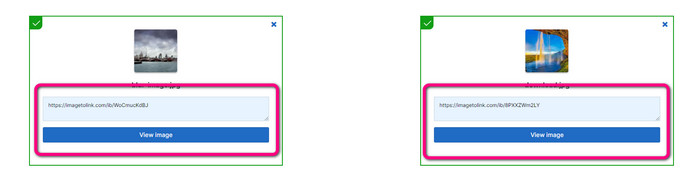
Trinn 1. Gå til nettsiden til Image to Link fra nettleseren din. På nettsiden klikker du på knappen Start Uploading. Åpne deretter bildefilen du vil konvertere fra filene på datamaskinen. Du kan laste opp opptil fem bilder når du gjør en batchkonvertering.
Trinn 2. Etter opplastingen vil verktøyet automatisk gjøre bildet om til en lenke. Deretter vil verktøyet gi deg en lenke du kan bruke til å åpne bildet. For å åpne bildet kopierer du den oppgitte lenken og limer den inn i nettleseren din.
Del 2. Hvordan endre bilder til JPG, PNG og GIF
Konverter bilder til JPG, PNG og GIF på FVC Free Image Converter
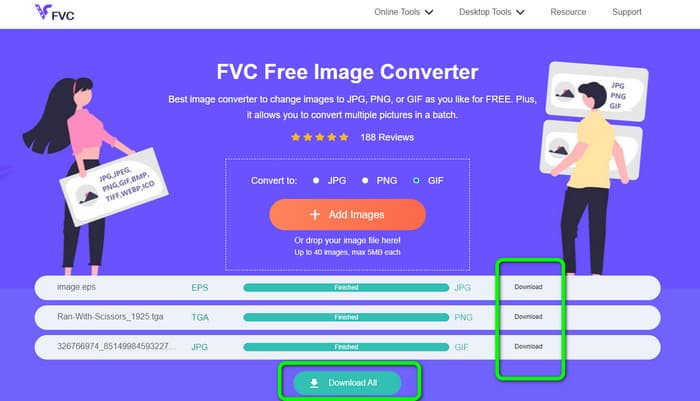
Et av de ledende nettbaserte bildekonverteringsverktøyene du kan bruke, er FVC Free Image Converter. Verktøyet kan transkode bildet ditt til ulike formater som JPG, PNG og GIF. Det støtter også forskjellige inndataformater, inkludert BMP, SVG, ICO, WebP og flere. Du kan konvertere bilder ved hjelp av en enkel metode, noe som er perfekt for brukere. I tillegg har bildekonverteren flotte funksjoner du kan dra nytte av. Det gjelder batchkonvertering. Den lar deg laste opp flere bilder og konvertere dem med ett enkelt klikk. Merk at du kan konvertere opptil 40 bildefiler. Det tilbyr også en rask konverteringsprosess der du kan konvertere bilder på få sekunder.
Dessuten, FVC Free Image Converter i alle nettlesere, slik at du kan betjene den overalt så lenge du har en internettforbindelse. Verktøyet garanterer også ditt personvern. Under konverteringsprosessen vil du aldri støte på noen irriterende annonser på skjermen. Etter å ha lagret de konverterte bildene dine, vil verktøyet slette dataene dine, slik at ingen kan se de opplastede og konverterte bildene dine. Bruk metodene nedenfor for å enkelt konvertere bilder til JPG-, PNG- eller GIF-format.
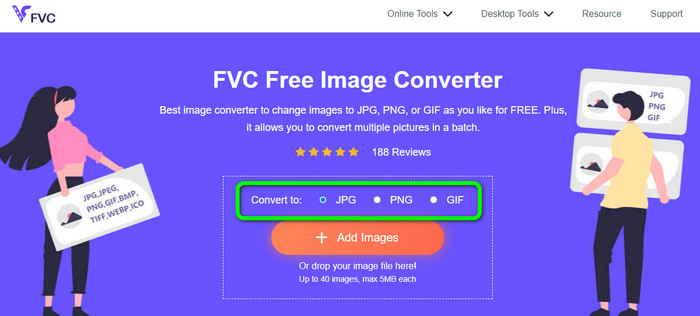
Trinn 1. Gå til den offisielle nettsiden til FVC Free Image Converter. Du kan åpne denne nettbaserte bildekonverteren i alle nettlesere. Deretter kan du klikke på JPG-, PNG- eller GIF-formatet i formatvalget.
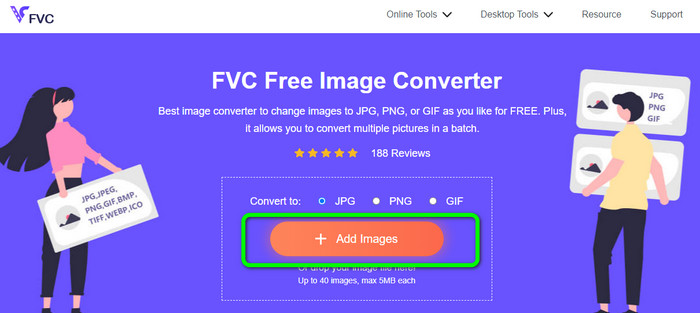
Trinn 2. Klikk på Add Images for å laste opp bildefilen fra datamaskinen. Du kan også dra og slippe filen inn i boksen. Siden verktøyet tilbyr batchkonvertering, kan du laste opp flere filer samtidig.
Trinn 3. Du vil se at bildekonverteren automatisk konverterer bildene etter opplastingsprosessen. Når konverteringsprosessen er ferdig, klikker du på knappen Download All for å lagre dem med ett klikk. Hvis du foretrekker å lagre bildet manuelt, klikker du på knappen Download til høyre.
Del 3. Vanlige spørsmål om konvertering av bilder til lenker
1. Hvorfor gjøre et bilde om til en lenke?
Du kan bruke et bilde som en knapp hvis du har en nettside eller blogg. På denne måten kan brukere få tilgang til hjemmesiden din eller en bestemt side. I tillegg er det mulig å koble bilder i sosiale medier eller e-postsignaturer. Dessuten er det en fantastisk måte å annonsere for nettstedet eller bloggen din og øke trafikken. Her er bare noen av de viktigste begrunnelsene for URL-konvertering fra et bilde.
2. Hva er fordelene med å gjøre om et bilde til en lenke?
Det kan være enklere for brukere å klikke på linken din hvis du konverterer et bilde til en link. Hvis du vil at besøkende skal klikke på et lite bilde, vil det å gjøre bildet til en URL for å gi dem et mer omfattende område å klikke på. Å dele materialet ditt med andre kan gjøre det mye enklere å oppdage nye varer eller tjenester.
3. Hvordan finner jeg nettadressen til et bilde på et nettsted?
Høyreklikk på bildet og velg Kopier bildelenke for å få URL-en til et bilde på et nettsted. Du kan deretter åpne URL-en i en ny fane for å lagre bildet eller dele URL-en via e-post, sosiale medier og andre kanaler.
Konklusjon
Der har du det! Nå har du lært de beste metodene for å konvertere bilder til lenker. I tillegg har du oppdaget de enkleste måtene å konvertere bilder til JPG-, PNG- og GIF-formater på. Hvis du vil gjøre bildene dine om til URL‑lenker, kan du følge de effektive metodene ovenfor. På den andre siden, hvis du vil ha en fremragende bildekonverter for å konvertere bilder til andre formater, bruker du FVC Free Image Converter.
-
 Metoder for hvordan du konverterer bilder til JPG online og offline
 Vil du konvertere filen til JPG-format av en eller annen grunn? Da er denne artikkelen for deg. Vi vil lære deg den beste metoden for å konvertere bildet til JPG
-
 Nyttige metoder for enkelt å konvertere bilder til PNG-format
 Leter du etter den beste måten å lagre bildet som PNG på? Denne guideposten tilbyr utmerkede løsninger for å konvertere bilder til PNG online og offline
-
 Hva er JPEG/JPG: Konverter bildene dine til JPG uten problemer
 Er du nysgjerrig på betydningen av JPEG? Vi har et svar til deg. Du vil også lære hvordan du konverterer forskjellige bildeformater til JPG-filer. Les innlegget nå.
