


 Video Converter Ultimate
 Skjermopptaker
 Videoreparasjon
3 måter å legge til bakgrunn på bilde på nett, på iPhone, Android og datamaskin
Når du redigerer et bilde, må du ofte fjerne den opprinnelige bakgrunnen og legge til en annen. For et bilde med gjennomsiktig bakgrunn kan du enkelt endre bakgrunnen ved å bruke et bilderedigeringsprogram. I de fleste tilfeller må du imidlertid først fjerne den nåværende bakgrunnen og deretter legge til en ny bakgrunn til bildet. Ser du etter en god bildeeditor‑app for å legge til bakgrunn i et bilde?
Dette innlegget forteller 3 effektive metoder for å legge til en bakgrunn til et bilde. Enten du vil legge til hvit bakgrunn til et bilde direkte på nettet, legge til en bakgrunn til et bilde på en iPhone eller endre bildebakgrunnen på en Android-enhet, kan du følge den spesifikke metoden for å gjøre det.

Del 1. Hvordan gratis legge til en bakgrunn til et bilde på nett
For å raskt legge til en bakgrunn i et bilde, kan du først prøve noen nettbaserte bilderedigeringsverktøy. Her anbefaler vi på det sterkeste det brukervennlige Free Background Remover Online, som lar deg fjerne den opprinnelige bakgrunnen på bildet ditt og legge til en annen bakgrunn. Dette gratisverktøyet for å endre bildebakgrunn støtter alle ofte brukte bildeformater som JPG, PNG, GIF og flere. Det gir deg en enkel måte å legge til hvit bakgrunn i et bilde på eller erstatte den nåværende bakgrunnen med et annet bilde.
Trinn 1. Åpne nettleseren din, for eksempel Chrome, Safari, Yahoo, IE eller Firefox, og gå til dette gratis nettstedet for å endre bildebakgrunn. Når du kommer til siden, kan du ganske enkelt klikke på knappen Upload Portrait for å velge og legge til bildet ditt for videre redigering.

Trinn 2. Med avansert AI‑teknologi vil verktøyet automatisk velge hovedobjektet i det opplastede bildet ditt. Deretter kan du bruke funksjonen Keep or Erase for å gjøre ytterligere redigering.
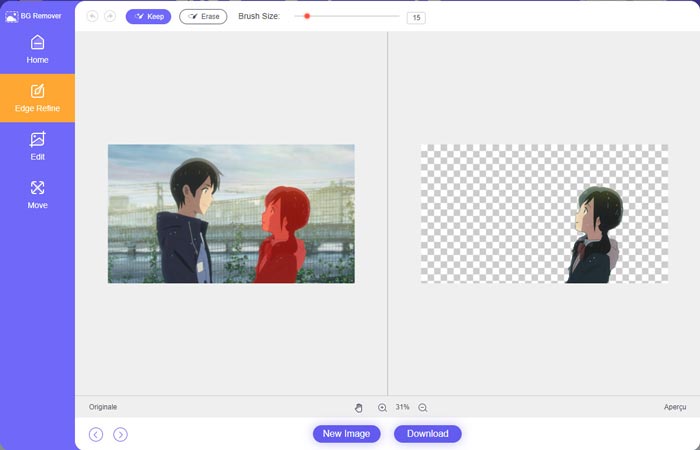
Trinn 3. Klikk på alternativet Edit til venstre, og deretter kan du velge å endre bakgrunnsfargen eller legge til en bakgrunn i bildet. I dette trinnet kan du også bruke funksjonen Crop til å tilpasse bildestørrelsen etter behov.
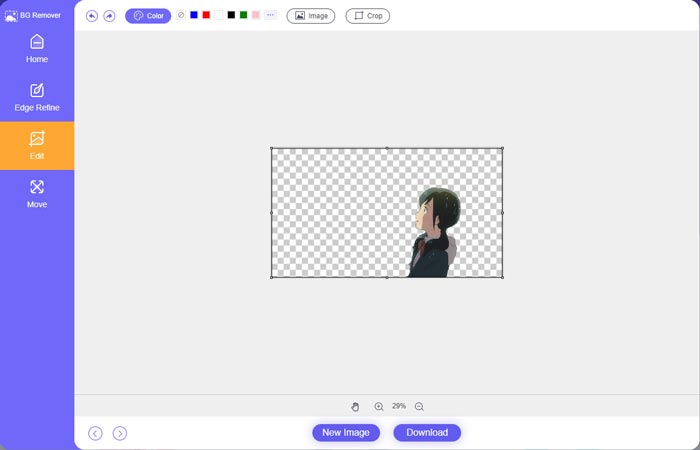
Trinn 4. Når du har lagt til en passende bakgrunn i bildet, kan du klikke på knappen Download for å lagre det på datamaskinen din. Den redigerte bildefilen lagres som standard i PNG‑format.
Del 2. Hvordan legge til en bakgrunn til et bilde ved hjelp av Adobe Photoshop
Adobe Photoshop er en av de mest kjente bilderedigererne som har mange funksjoner for å redigere bilder, tilpassede effekter og utføre andre operasjoner. Hvis du har Photoshop installert på datamaskinen, kan du velge å legge til bakgrunn på bildet i Photoshop.
Trinn 1. Åpne Photoshop‑programmet på datamaskinen og legg til bildet ditt i det. Du kan fritt laste ned den nyeste versjonen av Photoshop fra Adobes offisielle nettsted. Merk at Adobe bare tilbyr en gratis prøveperiode på 7 dager for å bruke Photoshop.
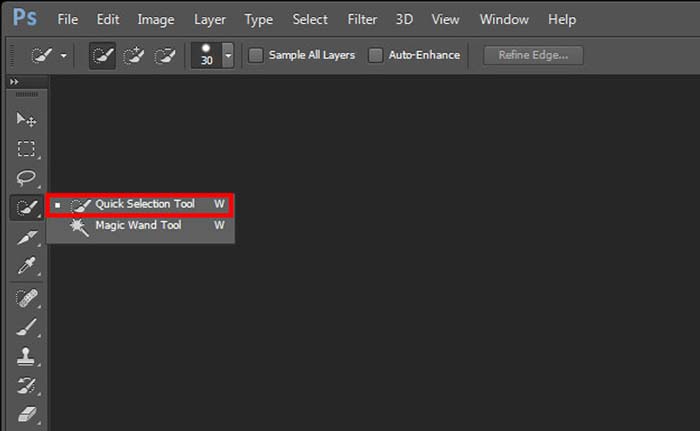
Trinn 2. Når bildet ditt er lastet inn i Photoshop, kan du klikke på ikonet for Quick Selection Tool or Magic Wand Tool i verktøylinjen til venstre for å velge bakgrunnen du vil endre.
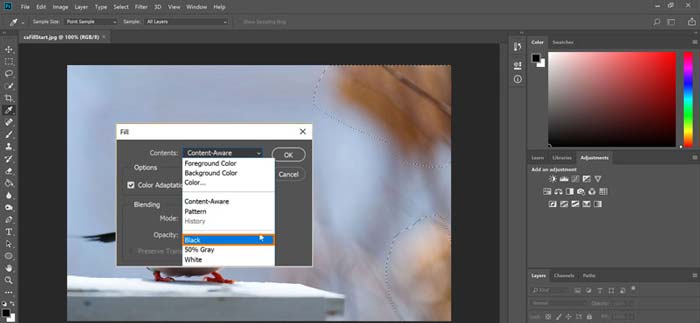
Trinn 3. Etter at du har valgt bildebakgrunnen, kan du høyreklikke på den og velge alternativet Fill. Nå kan du enkelt legge til hvit bakgrunn i bildet eller endre bakgrunnen til en annen farge, som svart, blå, grå eller en annen farge du trenger.
Trinn 4. Hvis du vil legge til et nytt bilde som bakgrunn, må du først fjerne den valgte bakgrunnen. Du kan trykke på Delete‑tasten på tastaturet for å kvitte deg med den nåværende bakgrunnen. Deretter kan du legge til bildefilen i Photoshop og dra laget dens under bakgrunnslaget. På den måten kan du enkelt erstatte den opprinnelige bakgrunnen med et nytt bilde.
Trinn 5. Etter at du har lagt til en bakgrunn i et bilde i Photoshop, kan du klikke på Fil‑menyen øverst og deretter velge alternativet Save As fra rullegardinlisten. Velg riktig bildeformat for dette bildet og lagre det på datamaskinen din.
Del 3. Hvordan legge til en bakgrunn til et bilde på iPhone og Android-telefon
Når du vil legge til bakgrunn til et bilde på en iPhone, iPad eller Android-telefon, må du finne en god bildebakgrunnsredigeringsapp.
LightX er en komplett fotoeditor‑app for både iOS‑ og Android‑brukere. Den tilbyr en praktisk måte å fjerne uønsket bakgrunn på, legge til ny bakgrunn i bildet, legge til ulike effekter, lage selfier i høy kvalitet og mer, direkte på telefonen din. Mange avanserte bilderedigeringsverktøy er innebygd i LightX‑appen, slik som fargemiksing, tilpasset metning, kontrast, fargetone, kurver og mer. Du kan laste den ned fra App Store eller Google Play Store.
Trinn 1. Installer og åpne LightX‑appen på iPhone, iPad eller Android‑telefonen din. Gi denne appen tillatelse til å få tilgang til bildene på enheten din. Legg til bildet ditt for videre redigering av bakgrunnen.
Trinn 2. For å fjerne den nåværende bildebakgrunnen og endre den til noe annet, kan du sveipe til venstre for å få fram mange ulike alternativer. Under Creative kan du velge funksjonen Cutout for å legge til bakgrunn i bildet. Nå må du manuelt velge hovedobjektet og fjerne den opprinnelige bakgrunnen.
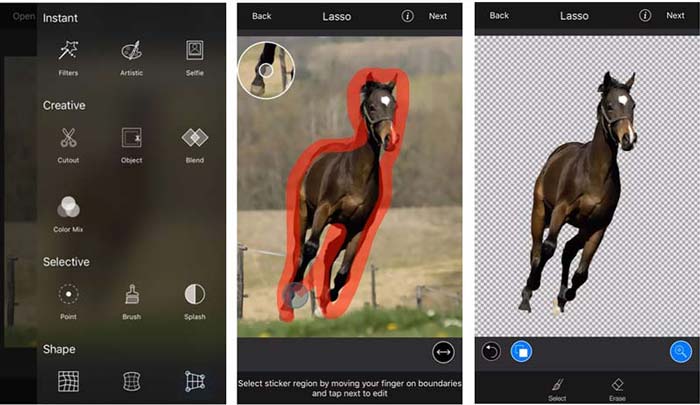
Trinn 3. Etter at du har fjernet bakgrunnen, kan du trykke på Next øverst til høyre for å gå videre. Deretter kan du bruke funksjonen Crop til å endre størrelsen på bildet. Trykk på Done for å bekrefte handlingen. Etter det kan du trykke på BG Image nederst på skjermen for å legge til en annen bakgrunn i bildet. Du kan fritt justere effektene på den nye bakgrunnen etter behov.
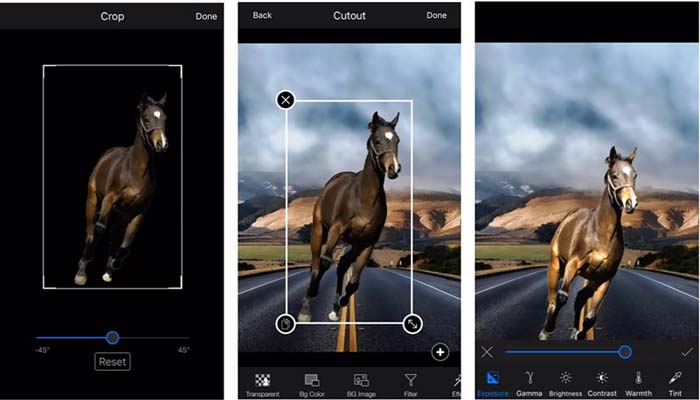
Enten du bruker en iOS- eller Android-enhet, kan du følge lignende trinn for å legge til en bakgrunn til et bilde ved hjelp av LightX-appen. Merk at du som iOS-bruker må betale $3.99 for denne bakgrunnsappen. Hvis du er en Android-bruker, kan du installere den fra Google Play Store. For å oppgradere til en premiumversjon må du betale samme pris.
Relatert:
Hva er videooppløsning: En grundig innsikt i oppløsning og mer
6 favorittvalg av animerte Snapchat‑filtre på Snapchat
Del 4. Vanlige spørsmål om hvordan legge til en bakgrunn til et bilde
Hvordan legge til en annen bakgrunn til et bilde på min Mac?
Du kan bruke de to første metodene for enkelt å endre bildebakgrunnen på en Mac. I tillegg til den anbefalte Free Background Remover Online og Adobe Photoshop kan du også bruke noen andre bilderedigeringsprogrammer for å legge til en ny bakgrunn i bildet ditt.
Hvordan endre bakgrunnsbilde på en iPhone?
iOS tilbyr en enkel måte å endre bakgrunnen på en iPhone eller iPad. Du kan gå til Innstillinger-appen, trykke på Bakgrunn-alternativet og deretter velge en ny bakgrunn.
Kan jeg legge til en bakgrunn til et levende bilde på iPhone?
Nei. iPhone tilbyr deg ikke en direkte måte å endre bakgrunnen til et levende bilde. Du har bare lov til å beskjære det, bruke filtre, justere effekter og endre det til et stillbilde.
Konklusjon
Dette innlegget deler 3 nyttige metoder for å legge til bakgrunn til et bilde. Når du har behov for å fjerne den originale bildebakgrunnen og legge til en ny til den, kan du velge ditt foretrukne bilderedigeringsprogram for å gjøre det.
-
 Topp 3 måter å legge til filtre på GIF med de beste GIF-redigererne [Favoritt]
 Vil du vite hvordan du legger til et filter i GIF for å gjøre det bedre? I denne bloggen vil du enkelt lære de forskjellige teknikkene for å legge til filtre til GIF-ene dine.
-
 3 enkleste måter å legge til vannmerke til en GIF online og offline
 Å legge til et vannmerke til en GIF kan være så enkelt som 1-2-3 hvis du bruker riktig verktøy. Verktøyene i markedet er for brede, men vi vil presentere de tre verktøyene du kan stole på.
-
 5 beste måter å endre bilde til animert GIF [Oppdatert 2022]
 Trenger du et konverteringsbilde til GIF? Denne artikkelen vil gi de fem beste omformerne vi kan finne på markedet. Så la oss finne ut disse verktøyene ved å lese denne artikkelen.
