


 Video Converter Ultimate
 Skjermopptaker
 Videoreparasjon
 Sikker nedlasting
3 måter å enkelt komprimere bilder for e-post [veiledning]
E-post er en flott plattform for å sende meldinger med bildevedlegg og andre nødvendige filer. Noen brukere opplever imidlertid problemer med å sende bilder med store filer, da de fører til langsomme opplastingstider, mislykkede leveranser eller overskridelse av vedleggsstørrelsesgrensene som er pålagt av e-postleverandører. For å unngå disse problemene er det viktig å endre størrelsen på bildene dine før du sender dem.
Med det skal vi i denne artikkelen gå gjennom 3 metoder for hvordan du kan komprimere bilder for e‑post, slik at bildevedleggene dine er enkle å sende og motta uten at det går på bekostning av kvaliteten.

Del 1. Fordeler med å komprimere bilder for e-post
Å komprimere bilder har generelt mange fordeler, inkludert for e-postbruk. Følgende er tingene du kan glede deg over når du endrer størrelse på bilder for e-post:
• Siden komprimering av bilder innebærer å endre størrelsen på bildet til en mindre størrelse, kan du enkelt sende flere bildevedlegg i én e‑post sammenlignet med ukomprimerte bilder.
• Ofte har e‑postleverandører begrensninger på hvor store vedlegg du kan sende. Ved å komprimere bildene dine for e‑post kan du holde deg innenfor disse grensene og sikre at e‑posten blir levert uten problemer. Dette er nyttig når du sender e‑post til flere mottakere eller når du inkluderer andre typer vedlegg sammen med bildene dine.
• Når bilder komprimeres, betyr det bare at de tar mindre plass, slik at du kan utnytte lagringskvoten for e‑post bedre.
• Store e‑postvedlegg kan noen ganger bli flagget av e‑postservere, noe som kan føre til leveringsfeil eller at e‑poster blir merket som spam. Å komprimere bildene dine for e‑post bidrar til å unngå disse problemene, og sikrer at vedleggene dine når frem til de tiltenkte mottakerne uten problemer.
• I enkelte situasjoner der brukere sjekker e‑posten sin på mobiltelefonen, er sendte komprimerte bilder enklere å laste ned og vise på mobile enheter enn ukomprimerte bilder.
Del 2. Komprimer bilder for e-post ved å konvertere bildeformat
Hvis du vil komprimere bilder for e-post, er den første metoden du kan prøve ved å bruke et bildekonverteringsverktøy. Med dette vil det konvertere bildet ditt til et format du ønsker der konverteringsprosessen også optimaliserer bildet ditt til en ønskelig og mer håndterlig størrelse.
FVC Free Image Converter er et gratis konverteringsverktøy som gjør det mulig for brukere å konvertere bildene sine til ulike bildefilformater, som JPG, PNG og GIF. Så hvis du sender en bildefil på e‑post i et format som inneholder mer data og dermed gir en større filstørrelse, kan du absolutt dra nytte av dette verktøyet. Dessuten er det ideelt når du vil sende flere store filer, ettersom det kan batch‑konvertere opptil 40 bilder på én gang. Slik bruker du dette verktøyet til å komprimere bilder for e‑post:
Trinn 1. Søk først etter FVC Free Image Converter i nettleseren din for å få tilgang til nettverktøyet.
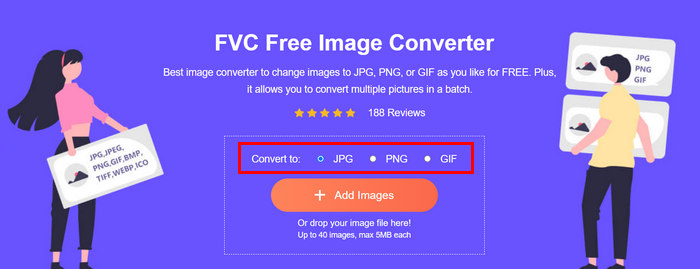
Trinn 2. Velg deretter ønsket utdatafilformat i alternativet Convert to. Etter det klikker du på knappen Add Images for å importere bildene du vil konvertere.
Trinn 3. Når du er ferdig, klikker du på knappen Download All.
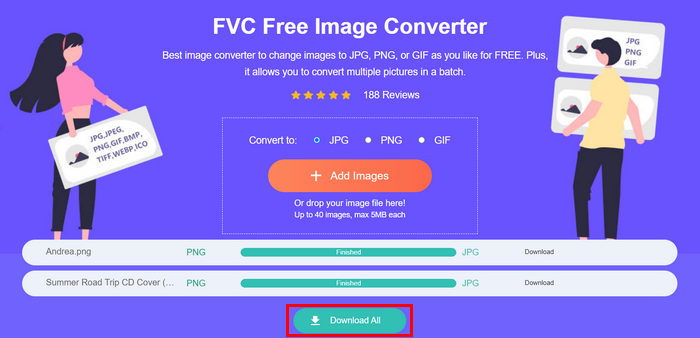 Med FVC Free Image Converter-verktøyet er det garantert at de konverterte bildene dine nå er komprimert og har fått redusert størrelse, noe som er perfekt for e-postbruk.
 Del 3. Krympe bilder for e-post med Online Compression Tool
FVC Free Image Compressor er et gratis nettbasert komprimeringsverktøy som gjør det enkelt å komprimere bilder for e‑post. Du trenger bare å laste opp eller importere bildefilene, så lar du verktøyet komprimere dem automatisk. Hvis du er bekymret for kvalitetstap, bruker dette verktøyet den beste optimaliseringen og avanserte komprimeringsalgoritmer. Dette vil sikre at bildekvaliteten bevares når du komprimerer dem for e‑post.
Dessuten, hvis du må batchkomprimere et bilde, lar dette verktøyet deg komprimere 40 bilder samtidig. Til slutt støtter den forskjellige populære bildeformater som JPEG, PNG, SVG og animerte GIF-er.
Trinn 1. Gå til deres offisielle nettsted i nettleseren din.
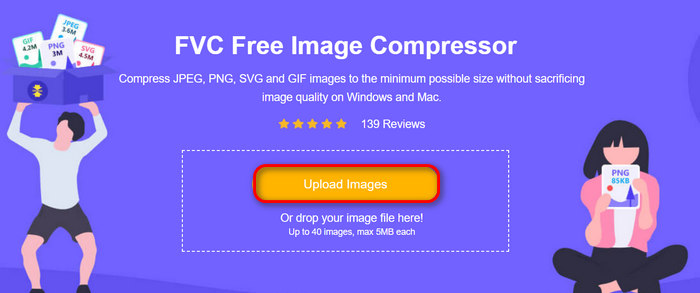
Trinn 2. Deretter klikker du på Upload Images for å importere bildene du vil komprimere for nettet. Vær oppmerksom på at dette verktøyet automatisk komprimerer bildene dine når du har valgt dem og klikket på «Åpne».
Trinn 3. Etter at bildene dine er komprimert, kan du forhåndsvise dem ved å se på den nye størrelsen etter komprimering. Til slutt klikker du på Download All for å lagre bildet ditt.
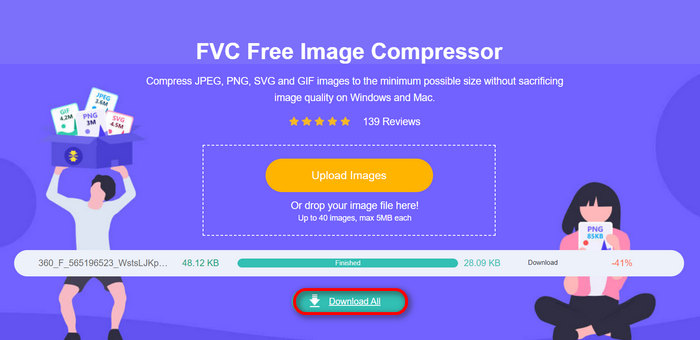
Denne metoden kan virkelig hjelpe deg med å komprimere bilder for e-post uten å måtte tåle komplekse trinn og abonnementsavgifter. Dessuten gjør det brukervennlige og intuitive grensesnittet det til et ideelt verktøy for alle brukernivåer. Så hvis du vil optimalisere bildene dine for e-postbruk, prøv denne metoden nå.
Del 4. Endre størrelsen på bilder for e-post til en spesifisert størrelse
Hvis du vil endre størrelsen på bilder for e-post til en spesifisert størrelse, kan du prøve IMGonline-verktøyet. Dette bildekomprimeringsverktøyet lar deg endre størrelsen på bildet til en størrelse du ønsker. Slik gjør du det:
Trinn 1. På nettstedet deres klikker du på knappen Choose File for å legge til bildet du vil komprimere.

Trinn 2. Deretter angir du innstillingene for JPEG‑filkomprimering. Skriv inn ønsket størrelse i KB eller MB, avhengig av hva du foretrekker.

Trinn 3. I menyen Size Reducing in Megapixel velger du hvor mye du vil komprimere bildet ditt, eller hvordan du vil begrense komprimeringen av bildet.
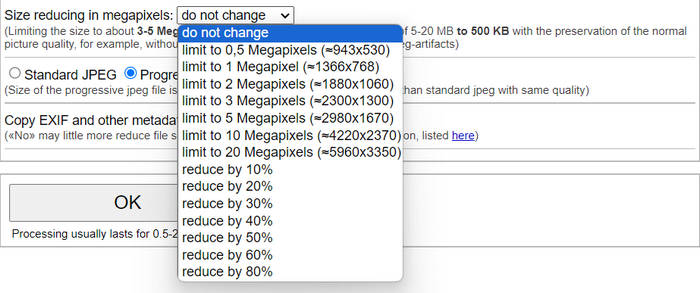
Trinn 4. Etter det velger du mellom Standard JPG eller Progressive JPG.

Trinn 5. Når du er ferdig, klikker du bare på knappen OK.
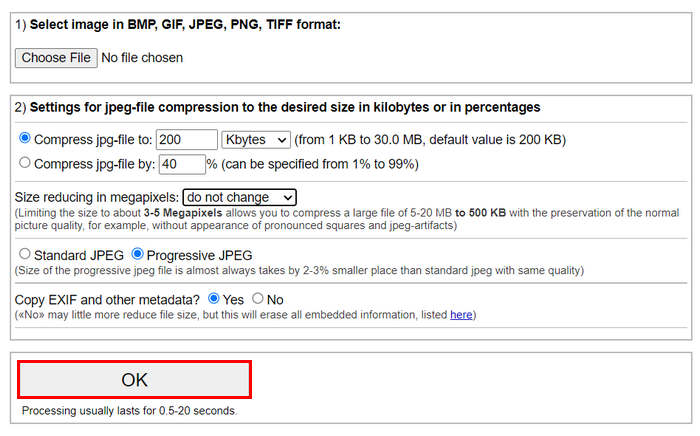
I forhold til å velge mellom standard JPG og progressiv JPG, husk at størrelsen på den progressive jpeg-filen alltid tas av 2-3% mindre plass enn standard jpeg med samme kvalitet.
Del 5. Vanlige spørsmål om komprimering av bilder for e-post
Hvilken størrelse skal jeg endre størrelsen på bildene mine for e-post?
Når det kommer til den ideelle størrelsen for å sende bilder i e-post, mens det ikke er noen begrensning, anbefales det generelt å endre størrelsen på bildene dine til maksimalt 1024x768 piksler. Hvis du holder bildestørrelsen under 1 MB, unngår du problemer med vedleggsgrenser og gjør det enklere for mottakere å laste ned og se bildene.
Hvordan komprimere bilder for Gmail?
Å komprimere bilder for Gmail kan gjøres på ulike måter. En av de enkleste er å bruke nettbaserte komprimeringsverktøy som FVC gratis bildekomprimeringsverktøy. For å bruke dette trenger du bare å laste opp bildefilene dine, så vil de automatisk bli komprimert.
Hvilken bildetype er best for e-post?
De beste bildetypene for e‑post er JPEG og PNG. JPEG er mye brukt på grunn av sin gode komprimeringsgrad og balanse mellom filstørrelse og kvalitet, noe som gjør det ideelt for fotografier og bilder med mange farger. PNG foretrekkes for bilder som krever gjennomsiktighet eller har tekst, logoer eller grafikk med skarpe kanter, fordi det bevarer høyere kvalitet for disse elementene, selv om filstørrelsen kan være større enn for JPEG.
Konklusjon
Det er svært viktig å vite hvordan du kan komprimere bilder for e‑post for å unngå treg opplasting, mislykkede leveringer og begrensninger på vedleggsstørrelse. Ved å følge metodene som er grundig beskrevet i denne artikkelen, kan du sørge for at bildevedleggene dine er håndterbare og raske å sende og motta.
Hva venter du på? Begynn å optimalisere e-postvedleggene dine i dag med disse tre enkle måtene.
-
 Altfor komprimert bilde: Slik fikser du dem enkelt
 Lurer du på hva du skal gjøre når bildet ditt er for komprimert? Les denne artikkelen og lær hvorfor dette bildeproblemet oppstår, og lær to metoder for hvordan du kan fikse dem.
-
 Endre størrelsen på bildet til 100KB: 3 beste måter for effektiv komprimering
 Leter du etter et verktøy som hjelper deg med å endre størrelsen på bildet til 100KB? Les denne artikkelen og lær 3 metoder for hvordan du kan krympe bildene dine til ønsket filstørrelse.
-
 Hvordan komprimere bilder i Word [Windows og Mac]
 Lurer du på hvordan du kan utnytte Word for bildekomprimering? Denne veiledningen vil lære deg hvordan du komprimerer bilder i Word for sømløs komprimering.
