


 Video Converter Ultimate
 Skjermopptaker
 Videoreparasjon
 Sikker nedlasting
Hvordan skarpere bildet raskt i Photoshop - en komplett guide du må vite
Med det beste profesjonelle bildebehandlingsprogrammet kan du ta hvert bilde du har til et nytt nivå. Adobe Photoshop har i lang tid vært den mest pålitelige programvaren du kan laste ned på Windows, Mac, iOS og Android. Takket være utvikleren Adobe har programmet for lengst introdusert og revolusjonert redigering til sitt fulle potensial. På grunn av de avanserte funksjonene blir nye brukere ofte litt skremt av både grensesnittet og den generelle funksjonaliteten. Det kan virke vanskelig å bruke, men det er det ikke – spesielt ikke når du skal gjøre bildet skarpere. Her går vi gjennom en komplett veiledning i hvordan du raskt gjør et bilde skarpere i Photoshop.

Del 1. En komplett veiledning om hvordan du gjør bildet skarpere i Photoshop [3 effektive måter for skarphet]
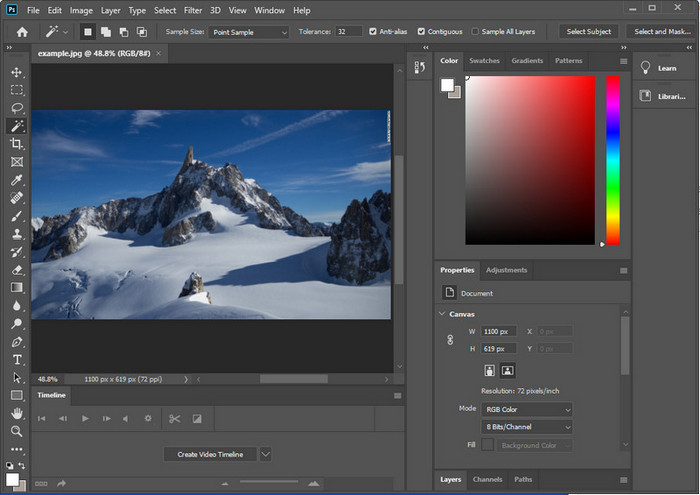
Å gjøre Photoshop-bilder skarpere kan overvelde de som ikke har brukt dette programmet. Men før vi fortsetter til opplæringen, må du laste ned den offisielle programvaren på Adobe. Velg riktig nedlastingsknapp for å ha den på skrivebordet ditt. Hvis du ikke har lastet ned dette programmet på skrivebordet ditt, kan du bruke dets gratis prøveversjon, men hvis du er ferdig med prøveversjonen, må du kjøpe en månedlig eller årlig plan. Etter å ha fulgt alt, fortsett til trinnene du velger, måtene vi inkluderer nedenfor.
1. vei. Slik gjør du bildet skarpt i Photoshop ved hjelp av High Pass:
Highpass lar deg fremheve bildet og bruke et filter på bildet som kan hjelpe deg med å skarpere kantene på bildet du laster opp i Photoshop. Du kan følge opplæringen vi legger til nedenfor for å lære hvordan du bruker og bruker highpass på bilder du har.
Trinn 1. Start programmet, klikk på File, og trykk på Open for å laste opp bildet og begynne å gjøre det skarpere.
Trinn 2. Dupliser laget til bildet du lastet opp i Photoshop.
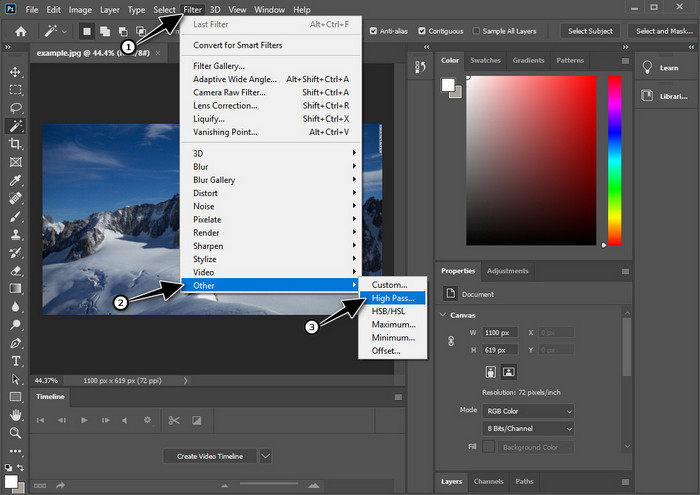
Trinn 3. Øverst klikker du på menyen Filter, trykker på Other, og deretter High Pass. Ikke bli bekymret om bildet ditt blir grått – det er helt normalt når du legger til et High Pass-filter.
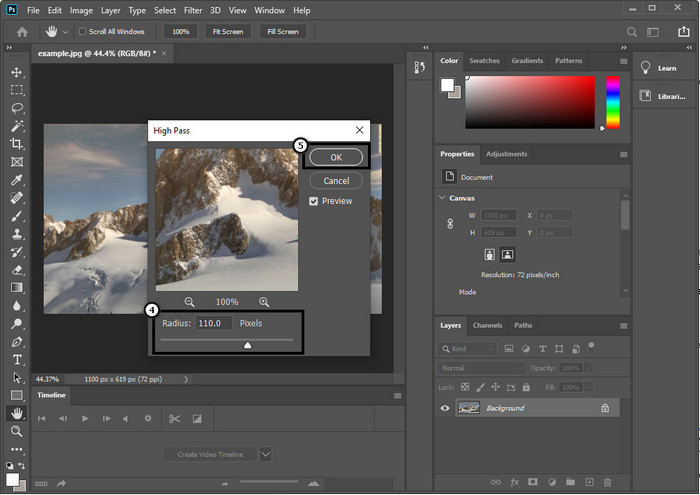
Trinn 4. Et popup-vindu vises på skjermen, der du kan begynne å dra i slideren for å øke radiusen og få tydeligere detaljer i bildet. Trykk deretter på OK for å lagre.
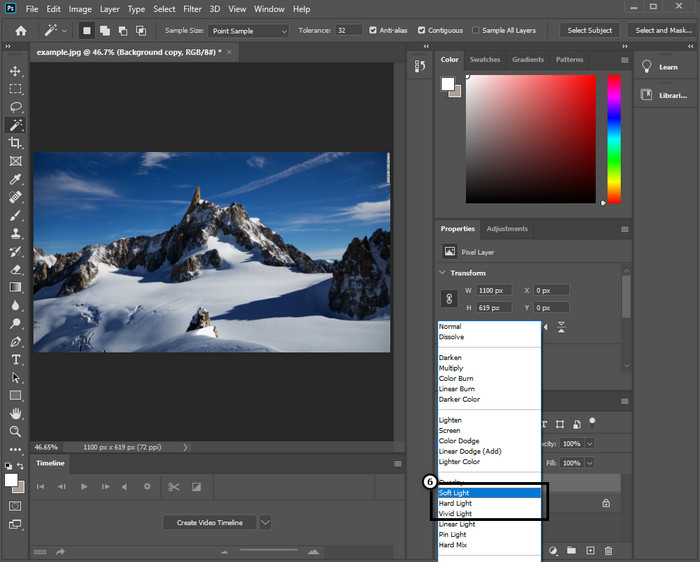
Trinn 5. Gå tilbake til laget, klikk på drop-down-knappen, og velg hvilken lysmodus du vil bruke på bildet – fra soft, hard og vivid light for å gjøre det skarpere. Gjenta trinn 3 og dette trinnet for å skjerpe bildet ytterligere.
2. vei. Slik gjør du bildet skarpere i Photoshop med Smart Sharper:
Smart Sharpen er en effektiv funksjon du har tilgang til i Adobe Photoshop for å gjøre alt i bildet ditt skarpere. Denne funksjonen er ikke en automatisk løsning, du må justere noen parametere for at alt skal se skarpt ut. Hvis du vil bruke funksjonen i Adobe, kan du følge de etterfølgende trinnene vi har tatt med.
Trinn 1. Etter at du har lagt til bildet du vil gjøre skarpere, klikker du på menyen Filter.
Trinn 2. I menyen som vises klikker du på Sharpen, og deretter på Smart Sharpen.
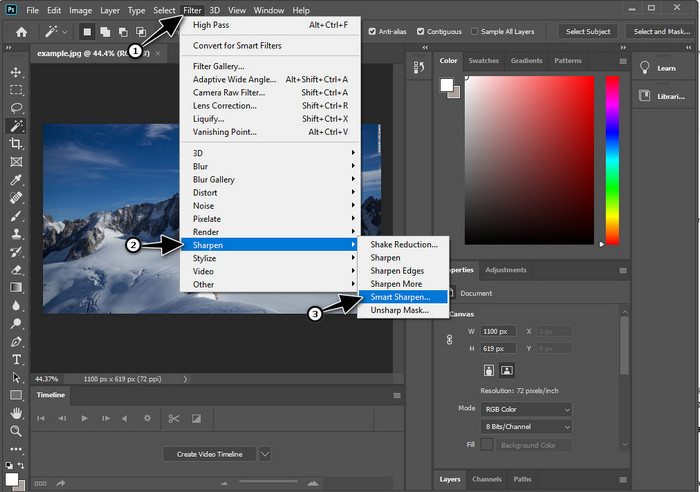
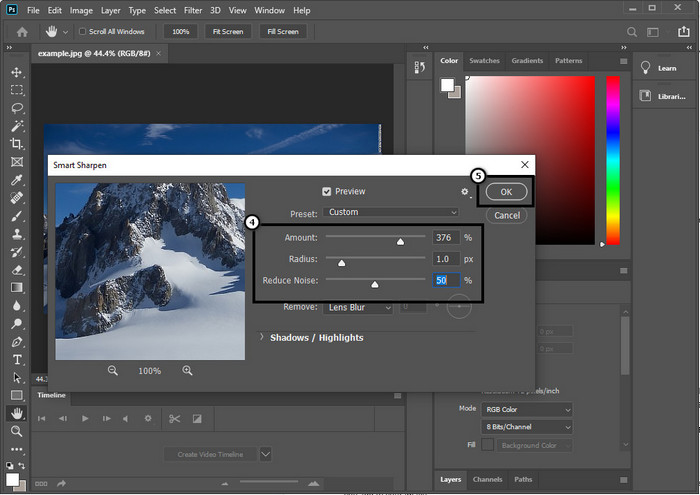
Trinn 3. Juster mengde (amount) og radius for skarphet etter eget ønske, og klikk OK for å lagre endringene. Så enkelt har du gjort bildet skarpere med dette skarphetsverktøyet i programmet.
3. vei. Slik gjør du skarpere bilde på bilde ved å justere lysstyrke og kontrast:
I motsetning til de to måtene vi introduserte, fokuserer lysstyrke og kontrast på å fremheve bildet du laster opp for å få det til å se mer detaljert ut, som hva skarphetsverktøy gjør. Få brukere kjenner til dette alternativet, så hvis du vil bruke dette alternativet og begynne å gjøre bildet skarpere, følg trinnene nedenfor.
Trinn 1. Etter at du har lastet opp bildet ditt i Photoshop, fortsetter du ved å klikke på menyen Image.
Trinn 2. Flere alternativer vises; klikk på Adjustment, og deretter Brightness and Contrast.
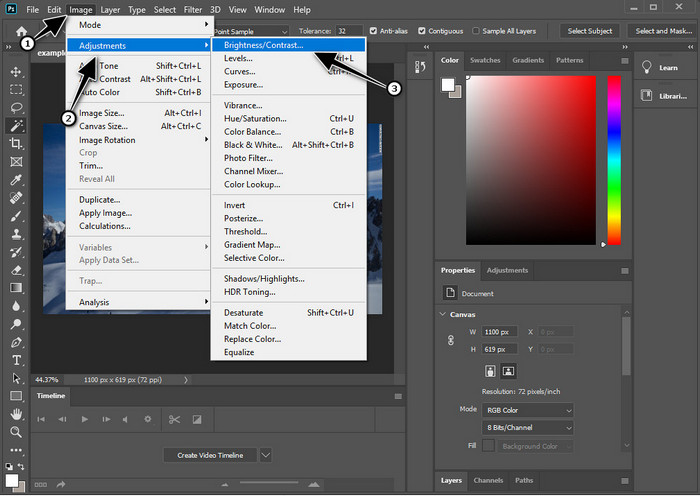
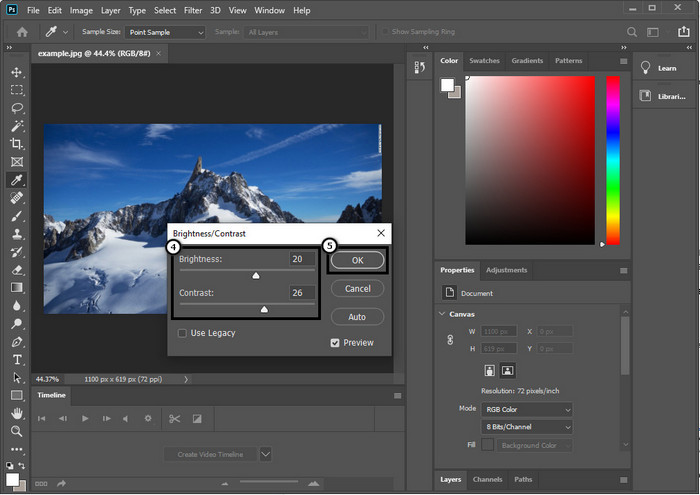
Trinn 3. Juster lysstyrke og kontrast ved å dra i slider-en og trykk på OK for å lagre endringene du gjør i bildet.
Relatert:
Enkel veiledning i hvordan du raskt legger til vannmerke på en video i Photoshop
Del 2. Beste alternativ til Photoshop for å gjøre bildet skarpere på nettet [Gratis tjeneste]
Hvordan gjøre et uskarpt bilde skarpere i Photoshop uten å bruke appen? Du kan bruke FVC Free Image Upscaler. Dette nettbaserte verktøyet kan spare deg for kompliserte arbeidsprosesser. Last opp bildet og la AI-teknologien i dette programmet gjøre jobben for deg. Du trenger heller ikke kjøpe lisensnøkkel eller premiumversjon, for det er gratis for alle brukere som trenger å redigere bildene sine umiddelbart. Selv om du ikke er en redigeringsekspert, kan du likevel gjøre bildet skarpere ved å følge trinnene nedenfor.
Trinn 1. Du må klikke på denne lenken for å åpne nettverktøyet og gjøre bildet ditt skarpere.
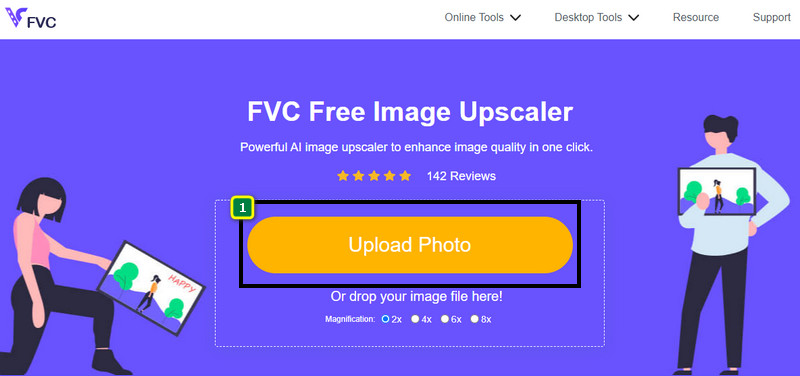
Trinn 2. På nettsiden må du trykke på Upload Image for å sette inn bildet du vil gjøre skarpere. En mappe vises på skjermen; velg bildet og klikk deretter på Open for å laste det opp.
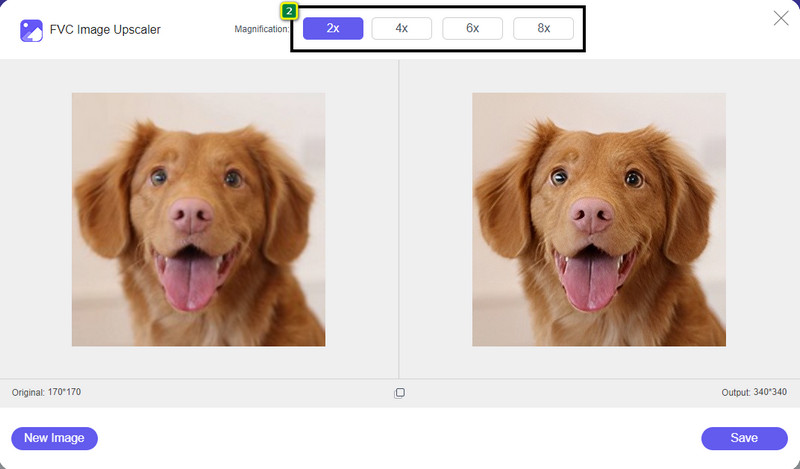
Trinn 3. Det vil være ulike forstørrelsesalternativer for bildet ditt, slik at du enkelt kan gjøre det skarpere ved hjelp av AI-teknologi.
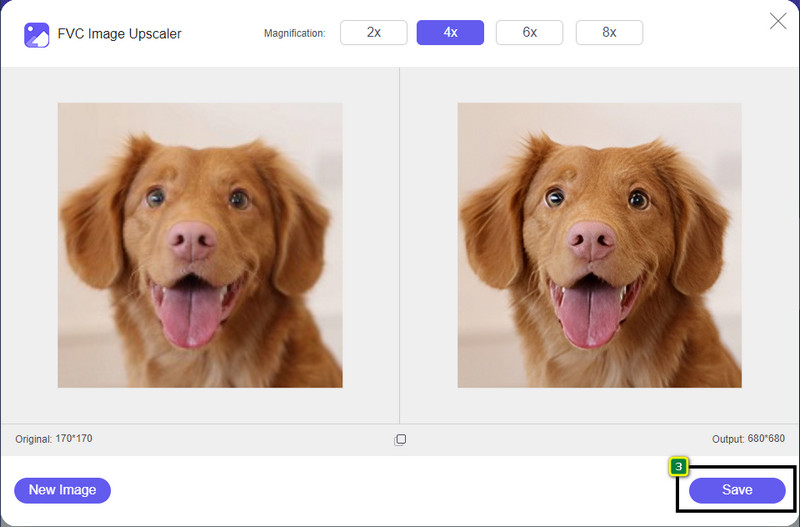
Trinn 4. Nederst klikker du på knappen Save for å laste ned det oppskarpede bildet til den lokale stasjonen din.
Del 3. Vanlige spørsmål om hvordan du gjør bilder skarpere i Photoshop
Hva bør jeg gjøre hvis en gratis prøveversjon av Photoshop er avsluttet?
Hvis du ønsker å fortsette å bruke dette profesjonelle bilderedigeringsprogrammet som Adobe har utviklet, må du kjøpe et abonnement for å kunne fortsette å bruke det. Men hvis du vil ha en redigeringsopplevelse som ligner på Photoshop, kan du begynne å bruke FVC Free Image Upscaler.
Hva kan jeg gjøre med Photoshop?
Du kan gjøre en mengde bilde- og videoredigering her, noe den andre redaktøren ikke tilbyr. Det er et komplett bilderedigeringsprogram som du trenger for å lage fantastiske ting som å gjøre 2D-bildet om til en 3D og mange flere. Imidlertid er denne programvaren litt komplisert, og du må ta deg tid til å mestre hvordan du bruker den generelt.
Hvor kan jeg laste ned Photoshop?
Adobe Photoshop støtter Windows 10 med 64-bit eller nyere og Mac 10.15 Catalina eller nyere. Den støtter også en mobilversjon, Photoshop Express Photo Editor.
Konklusjon
Med veiledningen vi har lagt til om hvordan du gjør et bilde skarpere i Photoshop, kan du nå enkelt gjøre det skarpere på ulike måter ved hjelp av det beste redigeringsprogrammet. Hva om prøvetiden din er over og du fortsatt vil gjøre bilder skarpere? Hva bør du gjøre da? Du trenger ikke å bekymre deg, for vi har tatt med et nettbasert alternativ som gjør det enklere og gratis å gjøre bildet skarpere så lenge du har internett – nemlig FVC Free Image Upscaler.
-
 Lag Photo HD med de beste måtene du kan finne på markedet
 Lurer du på eller ønsker å lage foto HD? Du kan følge opplæringen vi legger til nedenfor med forskjellige løsninger du kan bruke.
-
 Topp 4 bildekvalitetsreduksjoner du kan bruke online og offline
 Disse bildekvalitetsreduserne kan hjelpe deg med å redusere kvaliteten på bildet ditt av noen grunner. Hvis du trengte en, les denne artikkelen!
-
 Offisielle måter å oppskalere bilde til 4k med en praktisk veiledning
 For å oppskalere bildet til 4k trenger du en programvare på enheten din. Hvis du ikke har en, må du velge verktøyet vi inkluderer her.
