


 Video Converter Ultimate
 Skjermopptaker
 Videoreparasjon
 Sikker nedlasting
Den ultimate guiden til bruk av AI for å skjerpe bilder på datamaskin og mobil
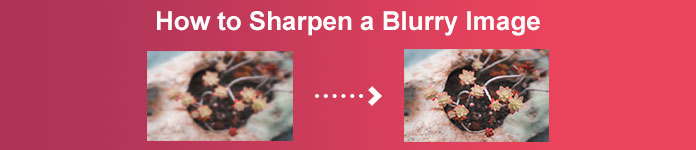
Har du noen gang hatt et bilde som ser matt og livløst ut? Kanskje bildet ditt mangler skarphet og klarhet. Men visste du dette? Det finnes mange bildeskjerpeprogrammer du kan finne på internett. Du trenger ikke dyre skrivebordsløsninger for å gjøre bildet skarpere. Du vil finne mange programmer som kan hjelpe deg å skjerpe bildet ved å søke på internett. Men du trenger ikke å søke lenger, for vi har listet opp de beste verktøyene for bildeskarping og lærer deg hvordan du bruker dem. Les ferdig denne artikkelen for å lære hvordan du kan skjerpe bilder gratis både på nett og uten nett.
Del 1. Hvordan skjerpe bilder gratis på nett uten registrering
Til tross for det er det mange applikasjoner for å gjøre et bilde skarpere; det anbefales at du bruker det sikre og enkleste verktøyet. Det er derfor vi søkte etter de beste bildeskarpere og listet dem opp bare for deg. I tillegg vil vi demonstrere for deg hvordan du bruker disse bildeskarpheringsverktøyene.
Gjør bildet skarpere via FVC gratis bildeoppskaler
FVC Free Image Upscaler er det beste verktøyet for å skjerpe et bilde. Hvis du leter etter et AI-basert bildeskjerpeverktøy, er FVC Free Image Upscaler verktøyet du er ute etter. I tillegg støtter det ulike bildeformater, som PNG, JPG, JPEG og BMP. Og ved hjelp av AI‑teknologien (Artificial Intelligence) kan du forstørre og forbedre bildet ditt opptil 2x, 4x, 6x og 8x. Det som er ekstra fint med dette nettbaserte verktøyet, er at du kan bruke det i alle nettlesere, inkludert Google, Firefox og Safari.
Videre foretrekker mange nybegynnere å bruke dette verktøyet fordi det har et enkelt brukergrensesnitt. Selv om det er en nettbasert applikasjon, har den en rask skjerpingsprosess, noe som gjør den praktisk å bruke. Du kan også forhåndsvise utdatabildet før du laster det ned til enheten. Så hvis du vil bruke dette verktøyet til å gjøre bildet skarpere, følg de enkle instruksjonene nedenfor.
Hvordan skarpere et bilde med FVC Free Image Upscaler:
Trinn 1. Åpne nettleseren din og søk etter FVC Free Image Upscaler i søkefeltet. Du kan også klikke på lenken direkte til hovedsiden deres.
Trinn 2. Klikk deretter på knappen Upload Photo i hovedgrensesnittet for å importere bildet du vil skjerpe.

Trinn 3. Velg deretter forstørrelses‑forhåndsinnstillingen du ønsker for bildet ditt. Du kan velge mellom 2x, 4x, 6x og 8x forstørrelse. Deretter vil du se en forhåndsvisning av resultatet.
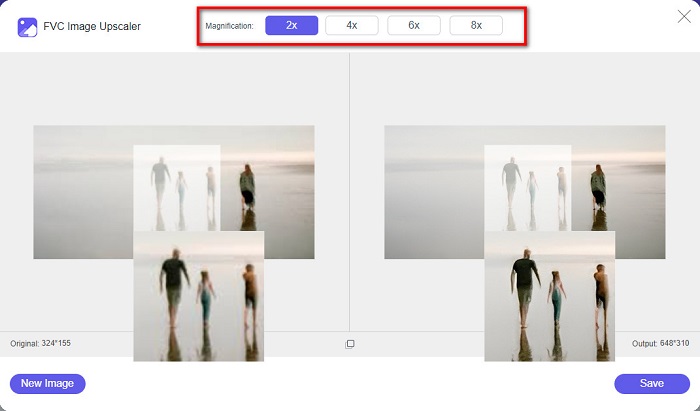
Trinn 4. Til slutt, for å lagre bilderesultatet, klikker du på knappen Save. Programmet vil da automatisk og raskt lagre bildet ditt i mappene på datamaskinen.
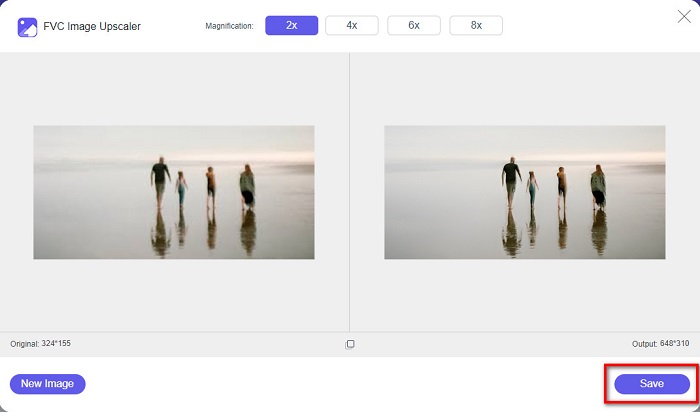
Og det er det! Så enkelt som det, kan du enkelt forbedre den uskarpe delen av bildet ditt og legge til skarphet til det.
Gjør bildet skarpere med VanceAI
VanceAI er en nettbasert bildeskjerper du kan bruke hvis du vil gjøre bildet ditt skarpere eller gi det mer klarhet. Når du øker skarpheten i et bilde, vil det uten tvil se bedre ut. Derfor, hvis du vil skjerpe bildet ditt raskt, er VanceAI verktøyet å bruke. I tillegg kan du bruke det gratis i nesten alle nettlesere, som Google og Safari. Det forbedrer også automatisk de uskarpe delene av bildet ditt med bare noen få klikk. Med sitt brukervennlige grensesnitt kan nybegynnere enkelt bruke dette verktøyet. Dessuten støtter det de vanligste bildeformatene, som JPG, JPEG og PNG. Ulempen er at når du skjerper bildet ditt med VanceAI, vil det legge inn et vannmerke i bildet.
Slik skjerper du et uskarpt bilde med VanceAI:
Trinn 1. Søk etter VanceAI i nettleseren din, og gå deretter til hovedsiden. Klikk så på knappen Upload Image i hovedgrensesnittet for å laste opp bildet du vil skjerpe.
Trinn 2. Etter at du har lastet opp bildet, klikker du på knappen Start to Process nede i høyre hjørne av grensesnittet.
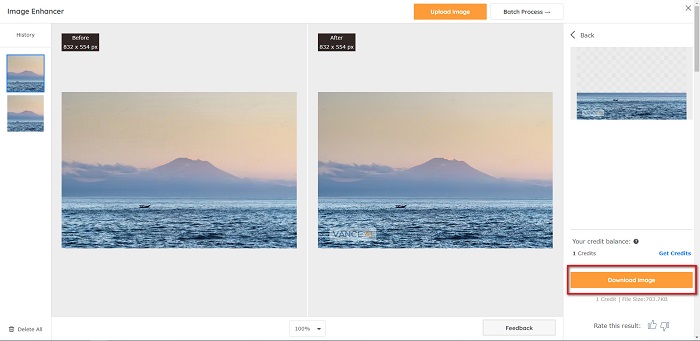
Trinn 3. Til slutt vil du se en forhåndsvisning av resultatet. Klikk deretter på knappen Download Image for å laste ned det skjerpede bildet.
Gjør uskarpt bilde skarpere med PineTools
PineTools er en annen nettbasert skjerpeapp som du enkelt kan bruke. Med sitt enkle brukergrensesnitt kan også nybegynnere bruke dette verktøyet til å forbedre bildekvaliteten. Du kan justere bildets styrke eller skarphet ved hjelp av glidebryteren. I tillegg kan du velge størrelse på konvolusjonsmasken for bildet ditt mellom 3x3 og 5x5. Det som også er flott med dette nettbaserte verktøyet, er at du kan bruke det i nesten alle nettlesere, inkludert Google og Safari. Ulempen med PineTools er at det inneholder mange annonser som kan distrahere deg mens du skjerper bildet. Likevel bruker mange nybegynnere dette verktøyet fordi det er så praktisk.
Slik skjerper du et uskarpt bilde med PineTools
Trinn 1. Søk først etter PineTools i nettleseren din, og klikk på siden som leder til nettstedet. Klikk deretter på knappen Choose Files i det første grensesnittet for å laste opp bildet du vil skjerpe.

Trinn 2. Deretter, i panelet Sharpen, flytter du den lille boksen til den styrken eller skarpheten du ønsker for bildet ditt.
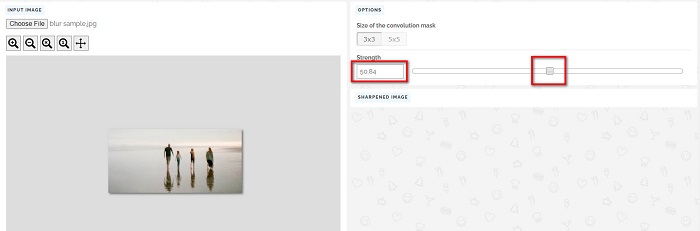
Trinn 3. Klikk så på knappen Sharpen nederst i grensesnittet for å skjerpe bildet ditt. Hvis du vil lagre resultatbildet, klikker du på bildeformatet du ønsker, så blir det lagret på enheten din.
Del 2. Slik skjerper du bildet på Windows/Mac
Slik skjerper du et bilde i Photoshop
Adobe Photoshop er et kraftig og mye brukt bildebehandlingsprogram som brukes av en rekke personer over hele verden. Det er for både nybegynnere og profesjonelle, og det inneholder en rekke funksjoner som lar folk redigere bilder presist og kreativt. Fra enkle justeringer til intrikate design lar Photoshop deg bringe ideene dine til live. Skarpefiltrene hjelper deg med å gjøre fotografier skarpere ved å endre kontrast og detaljer. Å skjerpe et bilde i Photoshop er enkelt og vil ikke skade originalen på grunn av de sofistikerte lagene og filtrene – ideelt for bilder fra sosiale medier, kommersiell fotografering og grafisk design.
Trinn 1. Klikk Layers panel > Filter menu > Convert for Smart Filters.

Trinn 2. Velg Sharpen > Unsharp Mask under Filter.
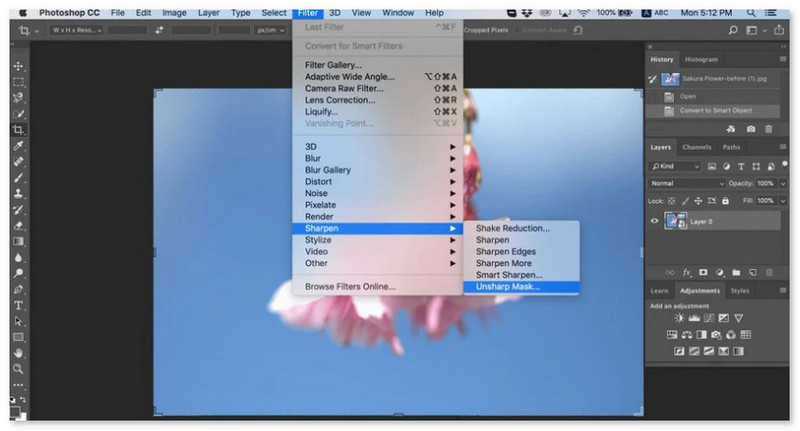
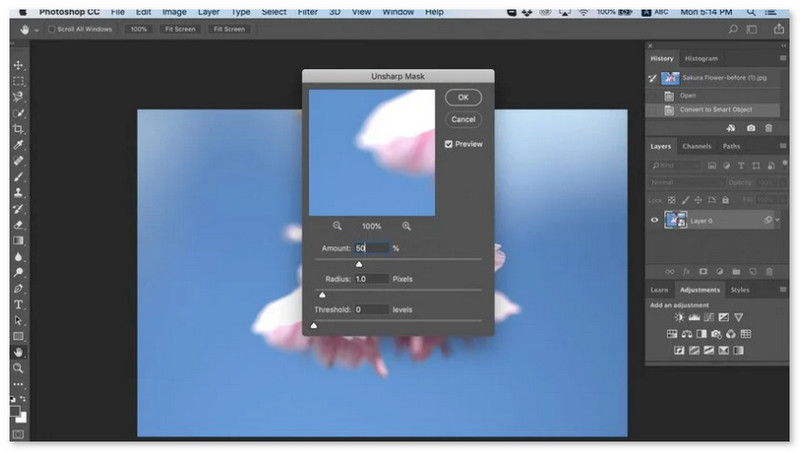
Trinn 3. Juster innstillingene og klikk OK.
Slik skjerper du et bilde i GIMP
I motsetning til skarpere bilde-appen presentert ovenfor, er GIMP et offline-verktøy du kan bruke hvis du vil gjøre bildet skarpere eller forbedre kvaliteten. Videre bruker mange fagfolk dette verktøyet til å skarpere bilder og forbedre dem. Mange kjenner igjen dette verktøyet som et alternativ til Adobe Photoshop. Den støtter nesten alle bildeformater, som PNG, JPG, JPEG, WebP og BMP. I tillegg har den mange redigeringsfunksjoner du kan bruke, inkludert fotoretusjering, endring av komposisjoner og mer. Men ulempen med denne appen er at den har et vanskelig å bruke grensesnitt, noe som gjør det vanskelig for nybegynnere å bruke den.
Likevel, hvis du er en proff i mange fotoredigeringsapplikasjoner, vil du garantert finne GIMP et flott verktøy for å gjøre et bilde skarpere.
Slik skjerper du et bilde i GIMP:
Trinn 1. Last ned bildeskjerperen GIMP på enheten din. Og i hovedgrensesnittet til programmet importerer du bildet ved å klikke File > Open.
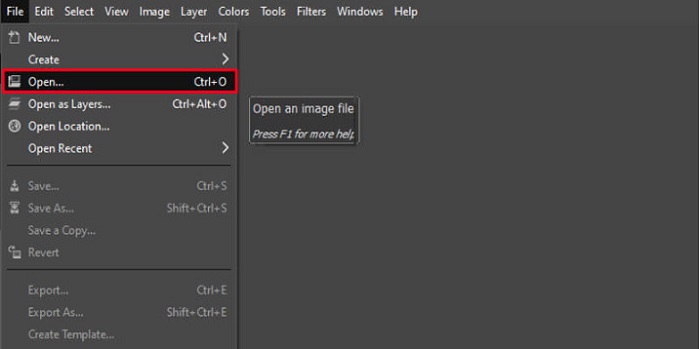
Trinn 2. Opprett deretter et duplikatlag ved å klikke på knappen Layer > Duplicate. Du kan også bruke hurtigtaster for å duplisere lag. Trykk Shift + Ctrl + D, så vil laget bli duplisert.
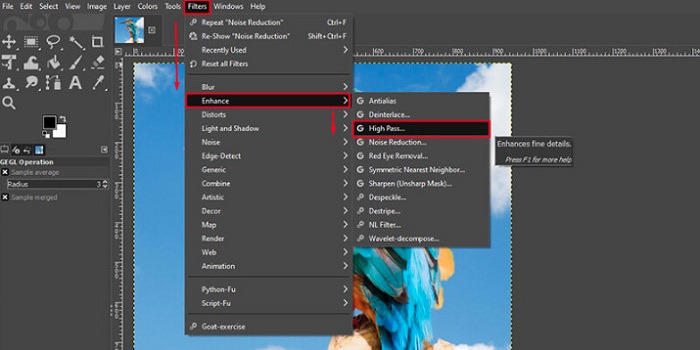
Trinn 3. Deretter reduserer vi støy ved å gå til Filter > Enhance > Noise Reduction. Så bruker vi High Pass‑alternativet for å legge til den skarpheten vi ønsker. Gå til Filters > Enhance > og velg High Pass-alternativet.
Trinn 4. Deretter bruker vi alternativet Vivid Light for å gjøre bildet lysere og legge til detaljer. Gå til Option i modusdelen og endre fra Normal til Vivid Light.
Trinn 5. Opprett et duplikatlag igjen for de siste justeringene, og gå deretter til Filters > Enhance > Sharpen (Unsharp Mask). Nå kan du justere bildets Radius, Amount og Threshold. Trykk deretter Ctrl + S på tastaturet for å lagre resultatet.
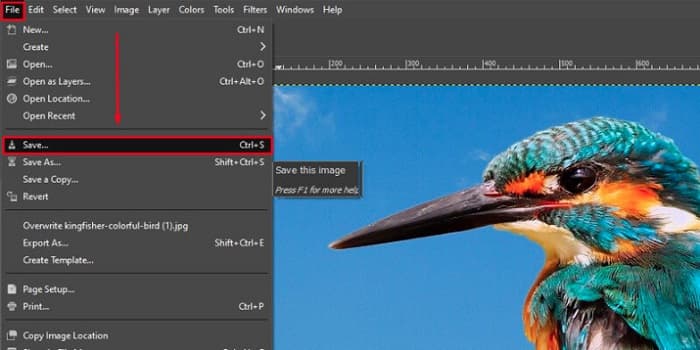
Det var det! Hvis du er en av dem som søker etter hvordan du skjerper bilder med GIMP, er dette veiledningen for deg. Følg bare disse trinnene for å øke bildekvaliteten din med GIMP.
Del 3. Slik skjerper du bildet på iPhone/Android
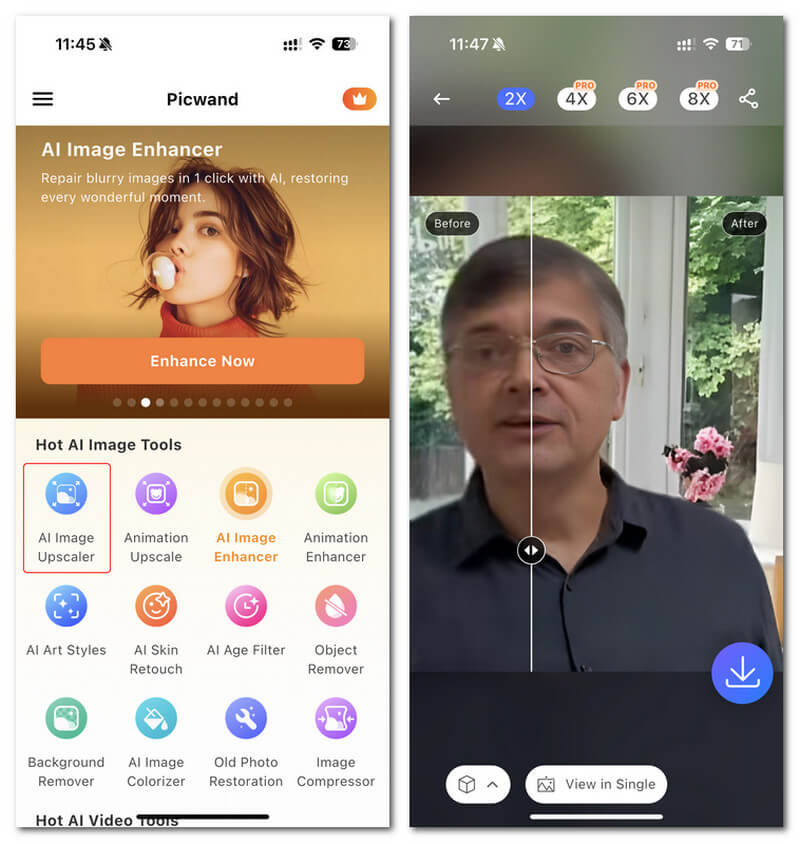
Picwand AI Photo Editor er et kraftig redigeringsprogram som hjelper deg med å redigere bildene dine med AI. Du kan redigere direkte på Picwands nettsted eller laste det ned på iPhone- eller Android-enheten din. Det finnes en rekke intelligente funksjoner som å forstørre bilder, klippe ut bakgrunner, trekke ut objekter og gjøre bilder klarere, alt takket være avansert AI. Fiks uskarpe bilder, retusjer gamle bilder eller fjern uønskede ting med Picwand, og få det gjort raskt og presist. Det enkle grensesnittet gjør det egnet for alle, uavhengig av erfaring.
Trinn 1. Åpne appen og velg AI Image Upscaler.
Trinn 2. Last opp et bilde og velg ønsket forstørrelsesfaktor.
Trinn 3. Trykk på nedlastingsikonet for å eksportere.
Del 4. Vanlige spørsmål om hvordan du skjerper uskarpe bilder
Finnes det et program for å fikse pikselerte bilder?
Ja. Du kan bruke en image upscaler for å justere pikslene i bildet ditt. Et av de beste verktøyene for å fikse pikselerte bilder er PIXLR. Det er også bra til å gjøre uklare bilder skarpere.
Er GIMP gratis?
GIMP er en bilderedigeringsapp tilgjengelig på Windows, Mac og Linux. Det er en gratis-å-bruke app, der du kan endre kildekoden. Du må imidlertid kjøpe appen for å få tilgang til de andre redigeringsfunksjonene.
Kan jeg gjøre et bilde skarpere med Canva?
Heldigvis har Canva en funksjon der du kan legge til skarphet i bildet ditt. Så Canva kan være et passende verktøy for deg hvis du har et uskarpt bilde.
Konklusjon
Vi håper vi har besvart spørsmålene dine om hvordan du kan skjerpe bilder. Det finnes 7 måter å gjøre det godt og raskt på, blant annet ved å bruke Video Converter Ultimate, Photoshop, VanceAI og så videre. Hvis du dessuten er på jakt etter et helt gratis verktøy, kan du rette blikket mot FVC Free Image Upscaler. Det er et 100 % gratis nettbasert verktøy.
-
 Topp 4 bildekvalitetsreduksjoner du kan bruke online og offline
 Disse bildekvalitetsreduserne kan hjelpe deg med å redusere kvaliteten på bildet ditt av noen grunner. Hvis du trengte en, les denne artikkelen!
-
 Offisielle måter å oppskalere bilde til 4k med en praktisk veiledning
 For å oppskalere bildet til 4k trenger du en programvare på enheten din. Hvis du ikke har en, må du velge verktøyet vi inkluderer her.
-
 Hvordan redigere klarheten til bildet ved å bruke gratis og betalte apper
 Hvordan redigerer jeg bildets klarhet? Dette spørsmålet vil bli besvart mens du leser denne artikkelen, og vi vil legge til tips du trenger å vite!
