


 Video Converter Ultimate
 Skjermopptaker
 Videoreparasjon
 Sikker nedlasting
Slik fjerner du uskarphet i bilder ved hjelp av de kraftigste programmene
Det er ganske frustrerende å oppdage at bildet du tok er uskarpt. Bildet ditt er uskarpt fordi motivet du tar bilde av beveger seg, kameraet rister, eller lyset på stedet ikke er godt. I tillegg kan du ikke få tilbake øyeblikket da du tok bildet, noe som er svært skuffende. Å reparere det bildet virker umulig, men det er det ikke. Heldigvis finnes det bestemte metoder du kan bruke for å gjøre et uskarpt bilde skarpere. Med de beste bildereparasjons‑appene kan du fikse det uskarpe bildet ditt. Denne veiledningen vil lære deg hvordan du gjør et bilde skarpere uten anstrengelse.

Del 1. Slik fjerner du et bilde på nettet
Folk foretrekker å bruke et nettbasert program for å fjerne uskarpe bilder fordi det lar dem spare plass på enhetene sine. Når du bruker et nettbasert verktøy, trenger du bare å få tilgang til det i nettleseren din. Praktisk ikke sant? Derfor søker vi etter den beste bildeoppskaleren på nettet for å fikse uskarpheten til bildet ditt.
FVC Free Image Upscaler er det beste valget hvis du leter etter en måte å gjøre et bilde skarpere på nettet. I tillegg er det gratis og trygt å bruke. Du kan også få tilgang til det i alle nettlesere, inkludert Google, Firefox og Safari. Dessuten kan du forbedre kvaliteten på bildet ditt med 2x, 4x, 6x og 8x forstørrelse. Det bruker også AI (kunstig intelligens)‑teknologi som automatisk oppdager de uskarpe delene av bildet ditt og deretter forbedrer dem.
Videre lar FVC Free Image Upscaler deg nøyaktig fikse tapte piksler, fargeteksturer og flere detaljer. Og til tross for at den er en nettbasert applikasjon, har den en rask oppskaleringsprosess og inneholder ingen annonser som kan distrahere deg. Så hvis du er interessert i å bruke den gratis bildeoppskaleren, følg den enkle veiledningen nedenfor.
Slik fjerner du uskarphet i bilder med FVC Free Image Upscaler:
Trinn 1. Åpne først nettleseren din og skriv inn FVC Free Image Upscaler i søkefeltet. Du kan også klikke på lenken direkte til hovedsiden. Deretter starter du appen ved å klikke på knappen Upload Photo. Etter at du har startet appen, går du videre til neste trinn.
Trinn 2. På det første grensesnittet klikker du på knappen Upload Photo for å importere bildet du vil gjøre skarpere. Datamappene dine vil dukke opp, der du finner bildet ditt. Klikk Open for å laste det opp.

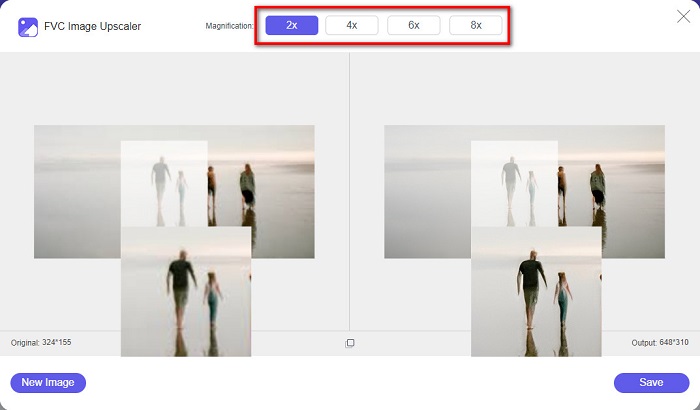
Trinn 3. Etter at du har lastet opp bildet ditt, velger du forhåndsinnstilt forstørrelse du foretrekker for bildet ditt. Du kan velge mellom 2x, 4x, 6x og 8x forstørrelse. Deretter kan du se forhåndsvisningen av resultatet på høyre side for å se forskjellen fra den opprinnelige filen.
Trinn 4. Til slutt lagrer du resultatet ved å klikke på knappen Save nederst til høyre i grensesnittet.
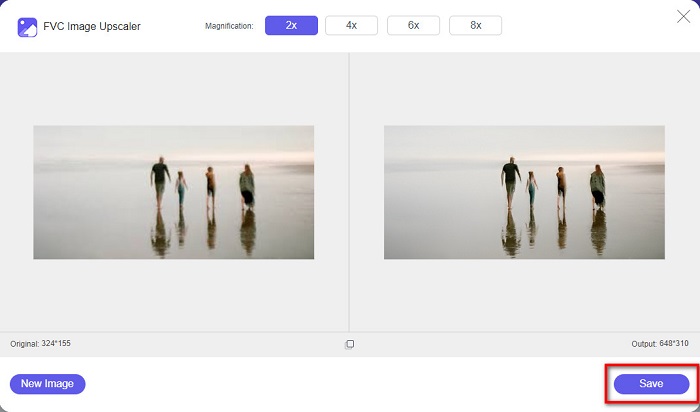
Og dette er trinnene for hvordan du fjerner uskarphet på et bilde på nettet. Du vil se fra resultatet hvordan denne gratis bildeoppskaleren kan hjelpe deg med å fikse kvaliteten på bildet ditt.
Del 2. Hvordan fjerne uskarphet et bilde frakoblet på skrivebordet
Mange profesjonelle bruker en datamaskin til å redigere bilder eller videoer. Mange fotoredigeringsapplikasjoner er også bare tilgjengelige på stasjonære datamaskiner. Og i denne delen vil vi lære deg de beste metodene for å fjerne uskarphet et bilde offline på skrivebordet ditt.
Fjern uskarphet bilde ved hjelp av Photoshop
Adobe Photoshop er sannsynligvis det beste bildebehandlingsprogrammet du kan bruke for å gjøre bildene dine skarpere. Dette offline‑programmet har mange redigeringsfunksjoner og verktøy du kan bruke for å forbedre et bilde. I tillegg kan du gi bildet ditt mer skarphet hvis kvaliteten ikke er god eller hvis det er uskarpt. Ved hjelp av de avanserte redigeringsverktøyene kan du helt sikkert lage svært gode resultater. I tillegg kan du fjerne personer eller objekter fra bildet ditt, tegne et bilde eller objekt med blyant‑ eller pennverktøyet, manipulere fargene i bildet ditt og mer. Med Adobe Photoshop kan du skape fantastiske bilder du har redigert. Men Adobe Photoshop er ikke et brukervennlig verktøy. Du trenger inngående kunnskap om hvordan du bruker verktøyene for å gjøre bildet skarpere eller redigere det. Likevel vil vi gi deg trinnene for hvordan du bruker Photoshop til å gjøre bilder skarpere. Vi vil også vise deg to måter å bruke Photoshop på for å redusere uskarpheten i bildet ditt.
Bildeutsløringsprosess ved hjelp av Adobe Photoshop:
Trinn 1. Last ned Adobe Photoshop på datamaskinen din og installer det. Når du har lastet ned og installert appen, kjører du den på enheten din.
Trinn 2. Åpne deretter bildet du vil gjøre skarpere i hovedgrensesnittet. Du kan også trykke CTRL + O på tastaturet for enkelt å åpne bildet ditt.
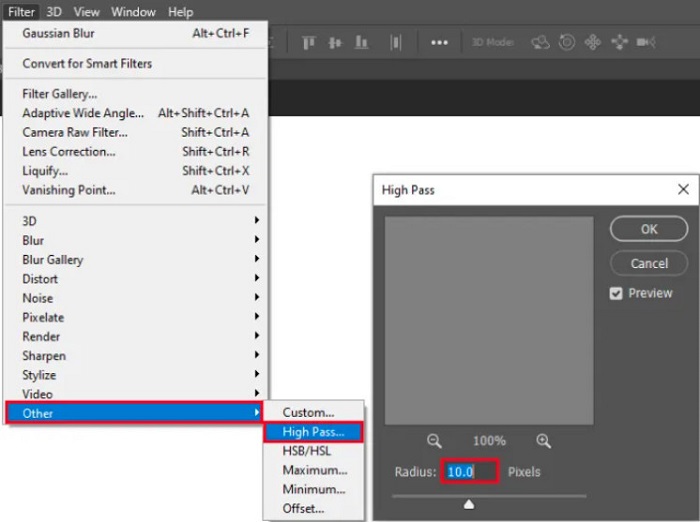
Trinn 3. Deretter dupliserer du bakgrunnen til laget ditt og velger det. Klikk så på Filter > Other > High Pass. Still inn High Pass til 10%.
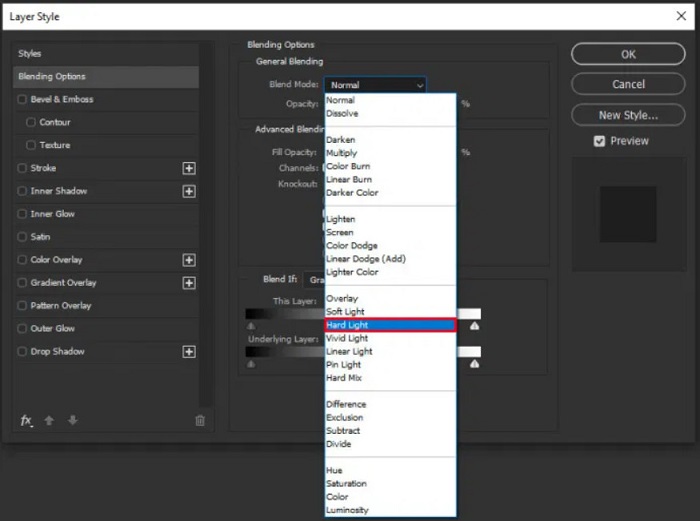
Trinn 4. I vinduet Layer Style endrer du blandemodusen fra normal til Hard Light, og justerer deretter opacity til bildet er klart eller forbedret.
Hvis du bruker den nye versjonen av Photoshop, kan du bruke alternativet for reduksjon av kamerarystelser for å gjøre et bilde skarpere i Photoshop.
Trinn 1. Importer bildet du vil gjøre skarpere i Photoshop.
Trinn 2. Gå deretter til Filter > Sharpen > Shake Reduction.
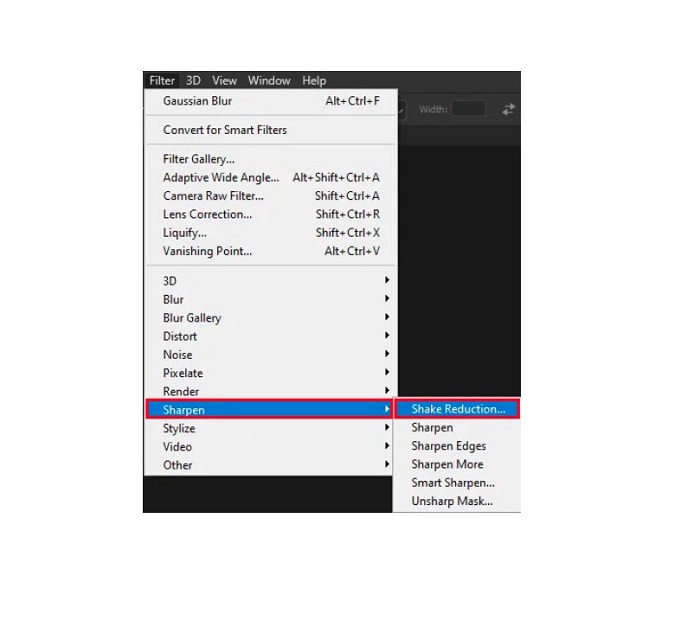
Trinn 3. Deretter vil Photoshop behandle bildet ditt, og du kan nå se resultatet.
Fjern uskarphet bilde ved hjelp av Paint.net
Et annet gratis, offline bilderedigeringsprogram du kan bruke, er Paint.net. En av de sterke funksjonene i dette programmet er å gjøre et bilde skarpere. Ved å flytte glidebryteren kan du justere mengden skarphet i bildet, slik at bildet får et skarpt og klart utseende og uskarpheten fjernes. Videre er det enklere å bruke enn Adobe Photoshop. Det har også andre redigeringsfunksjoner du kan bruke til å redigere bildene dine. Og hvis du ikke vet hvordan du bruker dette programmet, kan du få tilgang til nettbasert veiledning og trinnvise instruksjoner. I tillegg er det blant de mest kjente bilderedigeringsprogrammene for Windows‑brukere fordi det har mange korrigeringsfunksjoner du kan bruke for å forbedre bildet ditt. En liten ulempe med Paint.net er at du ikke kan rette opp teksten du har skrevet inn etter at du har brukt effektene. Likevel lar denne programvaren deg lage flernivå‑bildebehandling.
Slik fjerner du et bilde ved hjelp av Paint.net:
Trinn 1. For å begynne åpner du bildet ditt i Paint.net ved å trykke CTRL + O på tastaturet. Du kan også gå til File og finne alternativet Open. Deretter vises filene på skrivebordet, der du velger bildet ditt og åpner det.
Trinn 2. Klikk deretter på Effects > Picture, og velg deretter Sharpen.
Trinn 3. På panelet Sharpen ser du glidebryteren der du justerer skarpheten i bildet for å gjøre det mindre uskarpt. Du kan også klikke på knappen med opp/ned‑pil for å endre hvor mye skarphet bildet ditt skal ha.
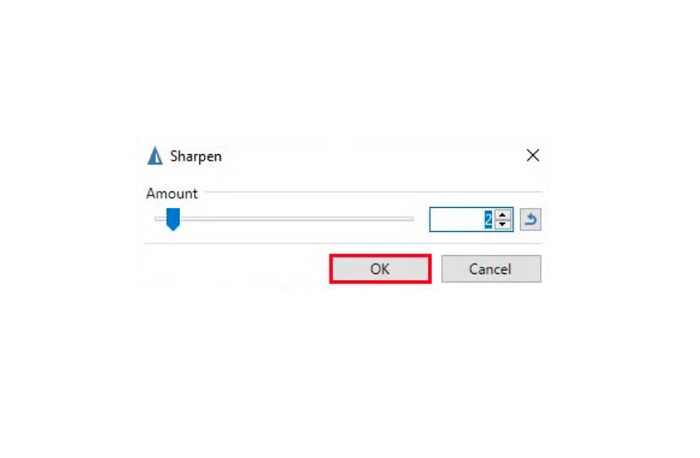
Trinn 4. Trykk på knappen OK og lagre resultatet.
Del 3. Slik fjerner du et bilde på iPhone
Hvis du er en iPhone-enhetsbruker, kan du også laste ned noen apper for å uskarpe bildet ditt. Du kan velge blant appene fra App Store for å fjerne uskarphet i bildet. Noen apper kan imidlertid kjøpes, noe som krever at du kjøper dem før du bruker dem. Men i denne delen vil vi lære deg hvordan du fjerner uskarphet ditt på iPhone ved hjelp av en gratis og bemerkelsesverdig applikasjon.
Foton er en av de mest brukte appene for å gjøre bilder skarpere på iPhone. Du kan laste ned denne appen gratis i App Store. I tillegg har den andre redigeringsfunksjoner du kan bruke, som collage, beskjæring, legge til maler, dele opp og mer. Den har også et brukervennlig grensesnitt, noe som gjør den lett å bruke. Med denne appen kan du gjøre bildet ditt skarpere ved å justere skarpheten i bildet. Og hvis du vil gi bildet mer klarhet for å gjøre det enda mer imponerende, kan du justere kontrast, klarhet, metning og «dehaze» i bildet ditt. Dessuten er den trygg å bruke, så du trenger ikke bekymre deg for sikkerheten til bildefilene dine. Ulempen med denne appen er at du må kjøpe pro‑versjonen for å bruke de andre funksjonene.
Slik fjerner du et bilde på iPhone:
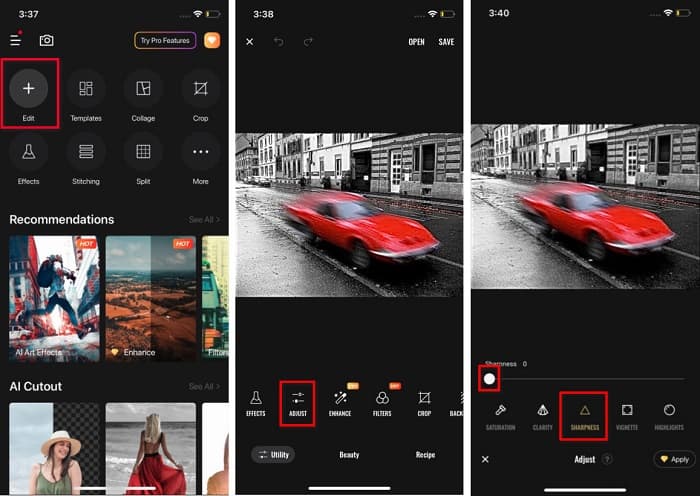
Trinn 1. Åpne App Store på iPhonen din, og søk etter Foton. Installer den på telefonen, og åpne den når den er installert. Trykk deretter på alternativet Edit i hovedgrensesnittet til appen.
Trinn 2. Velg bildet du vil gjøre skarpere; deretter blir du sendt til et annet grensesnitt. Trykk på alternativet Adjust under bildet ditt, og sveip til venstre for å finne funksjonen Sharpness.
Trinn 3. På panelet Sharpness drar du glidebryteren til ønsket skarphet til uskarpheten i bildet ditt er redusert.
Trinn 4. Til slutt trykker du på knappen Save øverst til høyre i grensesnittet for å lagre resultatet på iPhone‑enheten din. Klikk her for å lære hvordan du kan endre størrelsen på et bilde på en iPhone.
Del 4. Slik fjerner du et bilde på Android-telefonen
Mange eier også Android-enheter, og hvis du også bruker en, kan du lese denne delen for å lære hvordan du fjerner uskarphet på et bilde på Android. Vi søkte etter de mest populære appene for å fjerne uskarphet for Android og prøvde dem én etter én. Heldigvis fant vi en app som er best å anbefale.
Snapseed er den beste appen hvis du vil gjøre bildet ditt skarpere på Android‑enheten din. Ved å bruke funksjonene Sharpen og Structure kan du legge til skarphet i bildet ditt for å fjerne de uskarpe delene. I tillegg har den mange redigeringsfunksjoner som kan hjelpe deg med å forbedre kvaliteten på bildet ditt. Og akkurat som de andre verktøyene som er nevnt ovenfor, har den et enkelt brukergrensesnitt. Så hvis du er nybegynner, kan du bruke denne appen til å gjøre bildet skarpere. Du må imidlertid fortsatt slå på Wi‑Fi før du bruker denne appen.
Slik fjerner du et bilde på Android ved å bruke Snapseed:
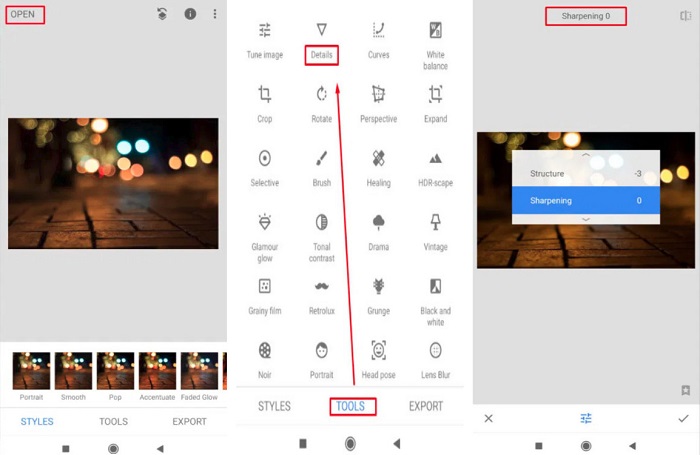
Trinn 1. Last ned appen på Android‑enheten din, og åpne den. Etter at du har åpnet den, åpner du bildet ditt i appen.
Trinn 2. Deretter velger du alternativet Details på panelet Tools.
Trinn 3. Velg deretter Sharpen eller Structure for bildet ditt for å gjøre en forskjell i det uskarpe bildet. Ved å justere disse to alternativene vil du fjerne uskarpheten i bildet ditt.
Del 5. Vanlige spørsmål om hvordan du fjerner uskarphet i et bilde
Vil filstørrelsen øke når du fjerner uskarphet i et bilde?
Ja. Når du fjerner uskarphet i et bilde, vil PPI for det øke, noe som fører til at filstørrelsen blir større enn originalen.
Hvorfor blir bildet mitt uskarpt når jeg gjør det større?
Det er sannsynligvis på grunn av et kompresjonsproblem. Når du prøver å endre størrelsen på et bilde, forstørrer du også pikslene i bildet. Så komprimering av et bilde kan påvirke kvaliteten på bildet ditt.
Kan jeg fjerne uskarphet i et JPG-bilde på Adobe?
Helt sikkert! Du kan bruke Adobe Photoshop hvis du vil gjøre et JPG-bilde uskarpt. Adobe Photoshop støtter standard bildeformater, som PNG, JPG og JPEG
Konklusjon
Nå som du vet hvordan du gjør et bilde skarpere ved hjelp av de enkleste metodene, kan du gjøre bildene dine mindre uskarpe. Alle metodene vi har vist ovenfor vil helt sikkert hjelpe deg å nå målet ditt. Men hvis du vil spare plass på enheten din, anbefaler vi at du bruker FVC Free Image Upscaler, som du kan bruke gratis og på nett.
-
 Hvordan endre størrelse på et bilde i PowerPoint [raskeste måten å endre størrelse på]
 Å lære å endre størrelse på bilder i PowerPoint er viktig, spesielt hvis du vil bruke det i presentasjonen. Les denne artikkelen for å vite hvordan du gjør det.
-
 1440p bilde – alt inkludert informasjon du trenger [2022 oppdatert]
 Vil du vite om 1440p-bilder? Eller hvor kan du få tak i det? Vil du gjøre bildet ditt til 1440p? Les dette for å bli kjent med dem alle.
-
 Veiledning for å fjerne pikselering av et bilde ved å bruke 3 Best Photo Unpixelator
 Har du problemer med å håndtere pikselerte bilder? I dag har vi løst problemet, og du kan bruke verktøyene vi legger til her.
