


 Video Converter Ultimate
 Skjermopptaker
 Videoreparasjon
 Sikker nedlasting
Konverter PPT til MP4 med 3 effektive metoder
PPT er et flott verktøy når det gjelder å presentere presentasjoner, enten det er på skole, jobb osv. Noen ganger, etter en presentasjon, kan noen be om en kopi av PPT-materialet som referanse.
Det er imidlertid viktig å erkjenne at noen mennesker ikke har tilgang til filen fordi de ikke har applikasjonen eller programvareverktøyet installert på enhetene sine. Med dette har de fleste presentatørene en konvertert MP4-versjon av presentasjonen for enkelt å dele materialet for alle.
Så hvis du ser etter en måte å konvertere din PPT til MP4 for rask deling og bedre tilgjengelighet til filmaterialet, er du på rett side. Fortsett derfor å lese denne artikkelen og fordyp deg i å lære de 3 ulike metodene for hvordan du kan gjøre PPT-filen din om til en video.

Del 1: Hvordan konvertere PowerPoint til MP4 i PPT
Ved å bruke PowerPoint-presentasjonen kan brukere enkelt konvertere PPT til MP4. Det er en flott innebygd funksjon for bekvemmelighet og fleksibilitet.
Trinn 1. Åpne presentasjonen din ved å bruke PowerPoint-programmet på enheten din.
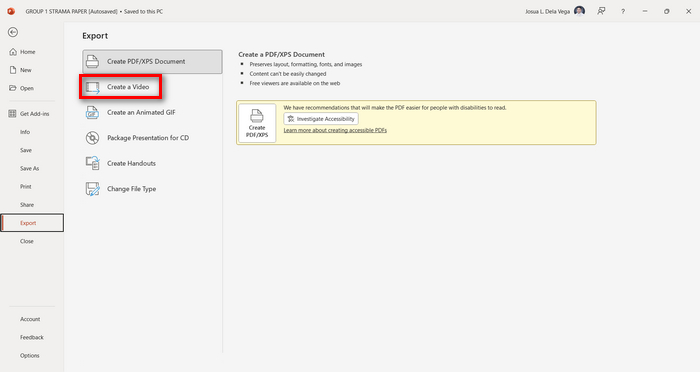
Trinn 2. Gå til fanen Fil, se etter knappen Eksporter, og klikk på den.
Trinn 3. Når du er på Eksporter-fanen, klikker du på alternativet Opprett en video.
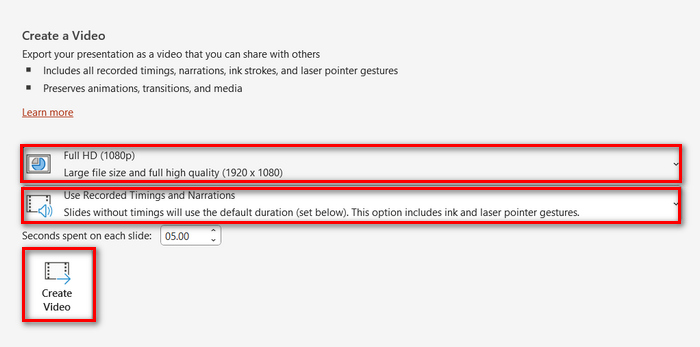
Trinn 4. Nå kan du angi ønsket videooppløsning. Du kan velge mellom 480p og 4K. I alternativet Bruk innspilte tidsberegninger og fortellinger kan du også stille inn lysbildenes varighet manuelt. Deretter klikker du på knappen Opprett video.
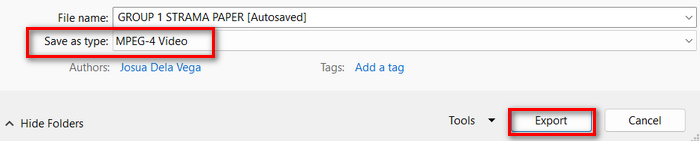
Trinn 5. Etter å ha klikket på knappen Opprett en video, kommer det opp et nytt vindu der du kan kontrollere formatet på filutdataen og hvor du vil lagre den. Når dette er satt, klikker du bare på knappen Eksporter og venter til prosessen er ferdig.
Det er utvilsomt praktisk å konvertere PowerPoint til MP4 ved hjelp av den innebygde funksjonen. Den mangler imidlertid tilpasningsmuligheter hvis du ønsker å legge til bakgrunnsmusikk. Hvis målet ditt bare er å kunne dele presentasjonen, er dette likevel ikke noe problem for deg.
Del 2: Konverter PPT til MP4 med Audio Online Free
Hvis du har PPT-filen og hvis du vil konvertere den online siden du ikke har en PowerPoint-presentasjonsprogramvare-app eller -verktøy på enheten din, kan du bruke MagicSlides. Dette online konverteringsverktøyet lar deg enkelt konvertere PowerPoint til MP4 ved ganske enkelt å importere filen til systemet deres.
Trinn 1. Last opp PPT-filen du vil konvertere til MP4 ved å klikke på knappen Last opp kildefilen din.
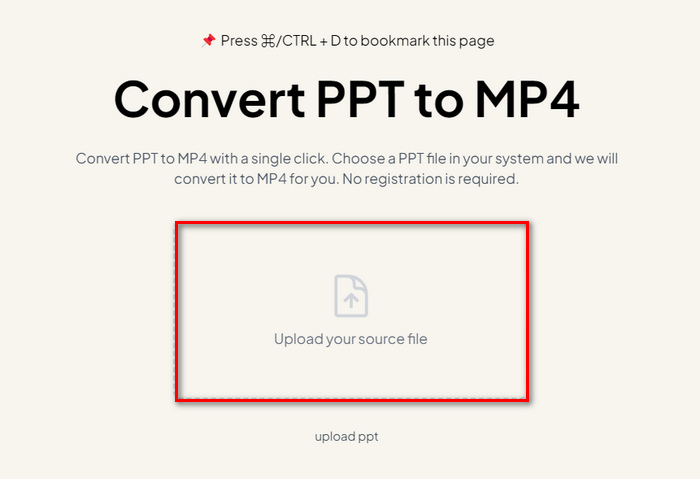
Trinn 2. Når filen er importert, klikker du på knappen Create MP4 for å starte konverteringsprosessen.
Trinn 3. Når den er ferdig, kan du først forhåndsvise den konverterte PPT-filen, og når du er fornøyd med resultatet, klikker du bare på knappen Download for å lagre den direkte på enheten din.
Selv om dette verktøyet tilbyr veldig enkle trinn for å konvertere PPT til MP4, tar import av PPT-filer så mye tid, noe som kan være foruroligende, spesielt når du har det travelt. Dessuten har den ingen tilpasningsmuligheter. Det forvandlet bare bokstavelig talt PPT-filer til en video.
Del 3: Hvordan konvertere PPT til MP4 med effekter og lyd
Hvis du vil konvertere PPT til MP4, men denne gangen med effekter og lyd, er dette definitivt løsningen for deg. Med FVC Screen Recorder kan du gjøre PowerPoint-presentasjonen din om til en kreativ og interaktiv MP4-fil ved hjelp av redigeringsfunksjonene. Dessuten trenger du ikke bekymre deg for utgangskvaliteten, ettersom den støtter videooppløsning opptil 4K. Følg veiledningen nedenfor for å bruke den:
Trinn 1. Last først ned programmet og installer det på datamaskinen din.
Gratis nedlastingFor Windows 7 eller nyereSikker nedlasting
Gratis nedlastingFor MacOS 10.7 eller nyereSikker nedlasting
Trinn 2. Åpne PowerPoint-presentasjonen din, og sørg for at den er åpnet i fullskjerm.
Trinn 3. Gå deretter til skjermopptaksverktøyet, velg funksjonen Videoopptaker og sett opptaksområdet til Full.
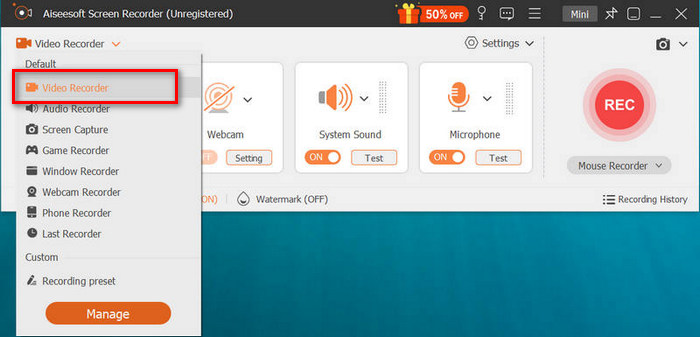
Trinn 4. Etter dette starter du lysbildefremvisningen i PowerPoint. Klikk samtidig på knappen REC for å begynne opptaket av PowerPoint-presentasjonen.
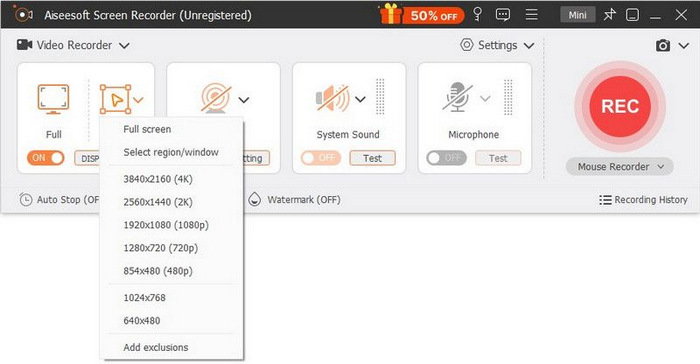
Trinn 5. Når du er ferdig, klikker du bare på knappen Stopp, og du blir tatt til forhåndsvisningsvinduet. Der finner du redigeringsfunksjonene i hjørnet nederst, som du kan bruke til å redigere lyd og effekter når du konverterer PPT til MP4.

Trinn 6. Til slutt kan du få tilgang til filen ved å klikke på knappen Åpne mappe.
Det som er bra med å bruke FVC Screen Recorder for å gjøre PowerPoint til MP4, er at du kan ta kontroll over timingen og tempoet til lysbildene. Dessuten, i motsetning til andre verktøy som bare tilbyr en grunnleggende konvertering, har dette verktøyet redigeringsfunksjoner som kan brukes til å forbedre den konverterte MP4-filen ytterligere.
Del 4: Vanlige spørsmål om konvertering av PPT til MP4
Hvor lang tid tar det å konvertere PPT til MP4?
Tidspunktet for konverteringsprosessen avhenger av filstørrelsen som konverteres. Men vanligvis tar enkle presentasjoner ikke mye tid under konverteringen.
Kan jeg beholde animasjoner og overganger når jeg konverterer PPT til MP4 i PPT?
Ja. Den innebygde funksjonen lar brukere beholde animasjoner og overganger under konverteringsprosessen. Dette er for å sikre at de visuelle elementene i presentasjonen, som overganger og animasjoner, opprettholdes mens de konverteres til MP4-format. Det er imidlertid viktig å merke seg at kompatibiliteten til animasjoner og overganger kan variere avhengig av hvilken versjon av PowerPoint som brukes og kompleksiteten til effektene som brukes.
Vil kvaliteten på PowerPoint-presentasjonen bevares når jeg konverterer til MP4?
Ja. PowerPoint-presentasjon støtter opptil 4K videooppløsning. Derfor vil å velge en høyere oppløsning bidra til å opprettholde kvaliteten på presentasjonen. I tillegg, når du velger å konvertere din PPT til MP4 ved å bruke et avansert konverteringsverktøy som tilbyr alternativer for å justere bitrate og komprimeringsinnstillinger for å optimalisere videokvaliteten ytterligere, kan du garantere en kvalitetsutgang.
Konklusjon
Å konvertere PPT til MP4-format gir virkelig praktisk og enkel deling av filen på ulike plattformer og enheter. Nå som du har en idé om hvordan du kan konvertere dem, er det på tide å sette denne kunnskapen ut i livet. Begynn å konvertere i dag, og øk rekkevidden og effekten av presentasjonene dine!
-
 Hvordan endre størrelse på et bilde i PowerPoint [raskeste måten å endre størrelse på]
 Å lære å endre størrelse på bilder i PowerPoint er viktig, spesielt hvis du vil bruke det i presentasjonen. Les denne artikkelen for å vite hvordan du gjør det.
-
 Apowersoft Watermark Remover Review – Funksjon, fordeler og ulemper og pris
 Apowersoft Watermark Remover er en av de beste fjerning av vannmerker som støtter online og offline, klikk på denne for å vite mer!
-
 Hvordan fikse video som ikke spilles av i PowerPoint | Hurtiginnføring
 Spiller ikke PowerPoint-videoen din? Overvinn frustrasjonen over at innebygde videoer ikke spilles nå med våre fem beste løsninger for å løse dem uten problemer.
