


 Video Converter Ultimate
 Skjermopptaker
 Videoreparasjon
 Sikker nedlasting
4 nyttige tips for å fikse VLC Player vil ikke spille MKV
MKV (Matroska Video file) is a free and open multimedia file format. But it can’t be supported by many frequently-used players, including Windows Media Player and QuickTime Player. So, you may turn to the popular VLC Media Player for the MKV playing. However, many users have encountered the VLC player won’t play MKV problem.

The MKV playback issues can vary, such as the audio track of your MKV file playing is delay, playback stuttering, fuzzy image, and buggy interface quirks and so on. Here in this post, we like to share 4 useful tips for you to fix the MKV files won’t play on VLC issue.
Del 1. Angi innstillinger for å fikse VLC Player vil ikke spille MKV
VLC er et veldig populært avspillingsverktøy for mediefiler som kan støtte de fleste digitale video- og lydformater, inkludert MKV, MP4, AVI, FLV, MP3, AAC, M4A, FLAC, etc. og VCDer, lyd-CDer og DVDer.
VLC Media Player tiltrekker seg millioner av brukere fordi den kan spille av alle mediefiler du har. Men VLC-spilleren vil ikke spille MKV-filer, problemet oppstår fra tid til annen. Hvis VLC-spiller bare hopper over MKV- eller HD MKV-filen, kan du tilpasse preferanser for å fikse den.
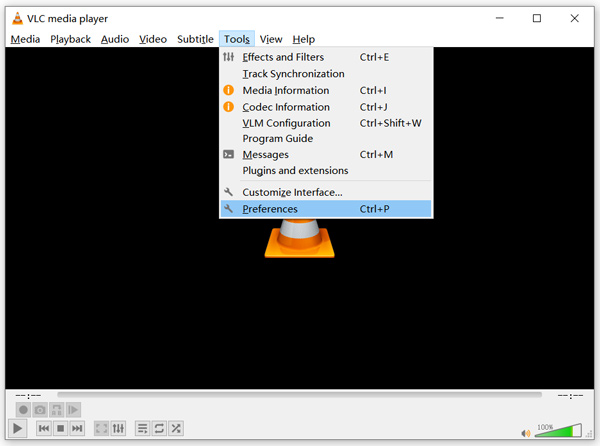
Step 1. Open VLC Media Player and choose the Tools menu. From the drop-down list, select the Preferences option.
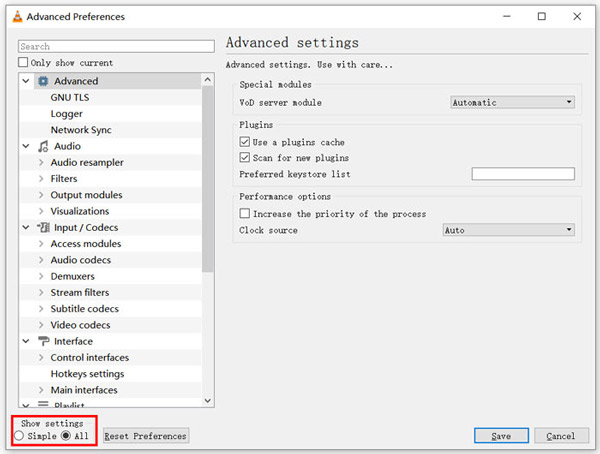
Step 2. Tick All under the Show settings on the bottom left of the dialog window. By doing so, you can display the Advanced Preferences window.
Step 3. Choose the Input/Codecs section on the left, and then locate the File Caching(ms) option on the right. You may need to scroll down to find it.
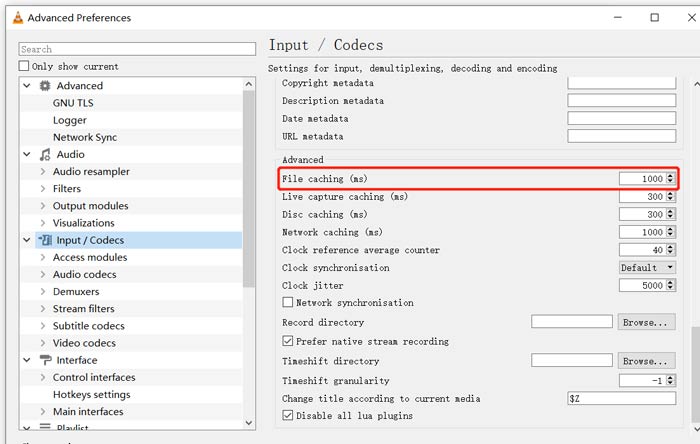
Step 4. Set File Caching to 1000 and then click Save button to confirm your operation. After that, you can restart VLC and replay your MKV file.
Del 2. Oppdater eller installer VLC for å fikse spilleren vil ikke spille MKV
Hvis VLC-spilleren ikke spiller MKV-problemet fortsatt eksisterer, kan du velge å oppgradere det til den nyeste versjonen. Du bør vite det, en ny versjon vil alltid fikse mange feil med gamle versjoner. Du kan følge trinnene nedenfor for å oppdatere VLC Media Player.
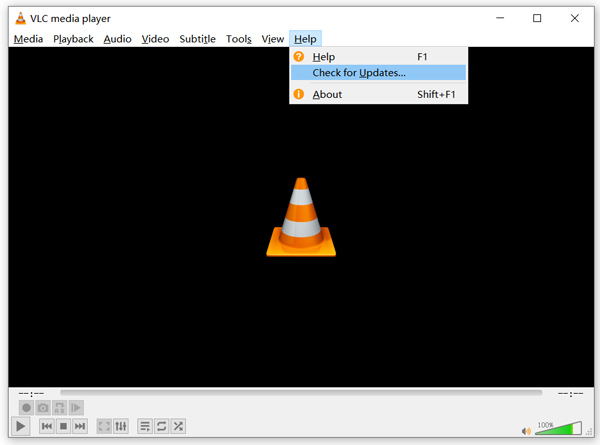
Open VLC and click the Help menu. Select the Check for Updates option from the drop-down list. VLC will start to check if there is an available updating version. Then you can follow the instructions to upgrade VLC to its latest version.
You can also directly remove VLC from your computer, and then go to its official site, VideoLAN to install a right version. When you get a new VLC Media Player installed, you can play your MKV file and check if it can be played normally.
Del 3. Aktiver lyd for å fikse VLC-spiller Ingen lyd mens du spiller MKV
Hvis VLC Media Player kan spille MKV-fil, men ingen lyd, bør du sjekke om lydinnstillingene er riktige.
Step 1. Choose Tools option on VLC menu bar. From the drop-down menus, select Preferences. Then you will be guided to the Simple Preferences window.
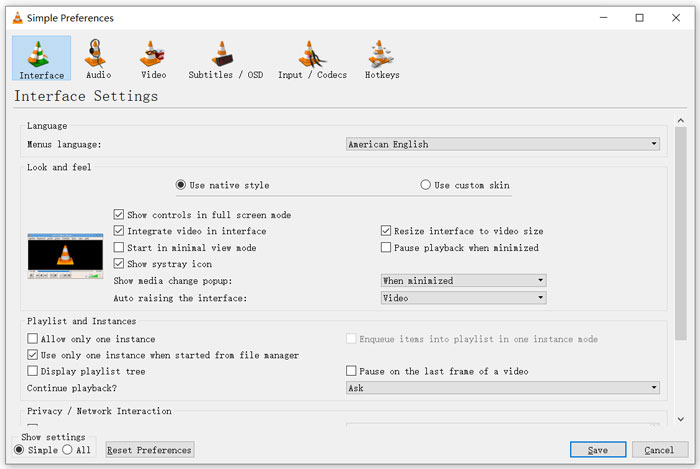
Step 2. Click on the Audio tab, and then check the Enable Audio option. During this step, you are also allowed to custom Output Module, HDMI/SPDIF audio passthrough and Device based on your need. Click Save button to save your changes.
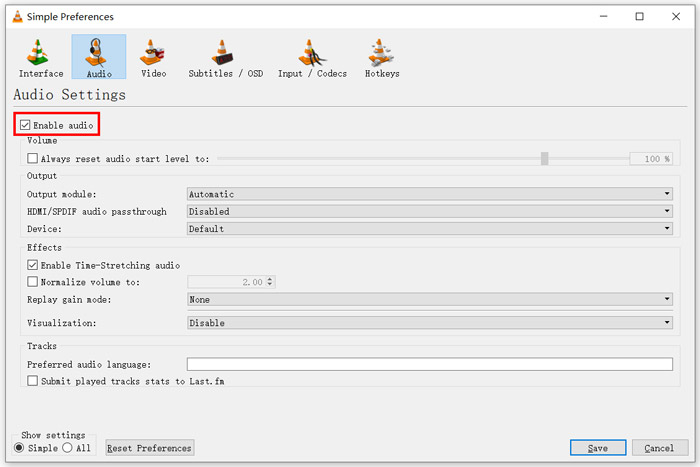
Now you will be back to the main interface of VLC, you can click Media and then Open File to play your MKV file.
Del 4. Velg et VLC Player-alternativ for å spille MKV-filer
When you want to watch MKV movies, you can also choose another player to replace VLC. You can give the popular Free Online Video Player a try. Whether you are using a Windows 10/8/7 PC or a Mac, you can rely on it to play any MKV files with high quality.
Denne gratis online spilleren har muligheten til å spille 4K, 1080p / 720p HD, SD-videoer, 3D-videoer og lydfiler jevnt. Foruten MKV, støtter den også mange andre formater, inkludert MP4, MOV, FLV, AVI, MPEG, WMV, WMA, AAC, MP3 og mer.
Step 1. When you want to view MKV files, you can go to this Free Online Video Player site. It is compatible with any web browser like Chrome, IE, Firefox and Safari. Click on the Play Now button to quickly install a small launcher for the MKV playing.
Step 2. Once the installation is complete, this free online MKV file player will be initiated automatically. Click Open File button to import your MKV file. Here you can also click Open Disc to watch a DVD movie.
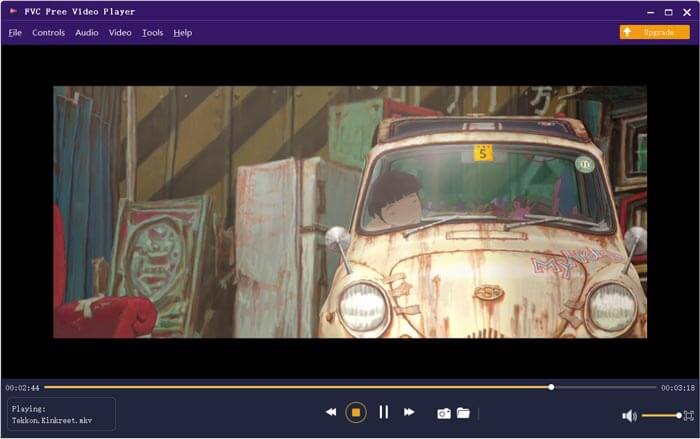
Your MKV video will be played automatically after that. You are given full control of the MKV playing. Compared with VLC Media Player, it gives an easier way to enjoy MKV files. This free online MKV player supports both DTS-HD and Dolby TrueHD to ensure you have a great sound experience.
Del 5. Vanlige spørsmål om VLC Player vil ikke spille MKV
Spiller smart TV MKV-filer?
Ja. Mange smarte TV-er som Sony og Samsung som kan støtte MKV-filer. Du kan spille MKV-en din via en ekstern harddisk eller UBS-enhet
Hvordan spiller jeg DVD med VLC Media Player?
Når du vil spille av en DVD-film med VLC, bør du først sette DVD-platen inn i datamaskinens diskstasjon. Åpne VLC, klikk Media på menylinjen og velg deretter Åpne plate. Bla gjennom og last denne DVD-filmen til VLC og spill den av.
Hvordan deaktiverer jeg dekoding av maskinvareakselerasjon på VLC?
For å deaktivere dekoding av maskinvareakselerasjon på VLC Media Player, bør du gå til Innstillinger fra Verktøy-menyen. Velg Inngang / kodeker-kategori og deretter kodeker. Finn alternativet for maskinvareakselerert dekoding og deaktiver det der.
Konklusjon
When you face the VLC player won’t play MKV problem, you can directly use another player like the recommended Free Online Video Player to view your MKV files. Also, you can choose to upgrade VLC Media Player or custom various settings to fix it.
-
 Gratis og profesjonelle måter å konvertere MKV til MOV
 Hvordan konverterer jeg MKV til MOV på Mac? Kan iMovie lese MKV? Hva betyr MOV-format? Dette innlegget forteller to enkle måter å hjelpe deg med å konvertere MKV til MOV med gratis online og profesjonelle videokonverterere.
-
 Hvordan konvertere M2TS til MKV uten å miste kvalitet
 Vil du konvertere M2TS til MKV mens du holder den originale kvaliteten? Dette innlegget viser deg gratis og online metoder for å endre M2TS til MKV tapsfritt.
-
 VLC Media Player - En kort gjennomgang videospiller og de beste alternativene på Windows og Mac
 Hvorfor lyden ikke fungerer på VLC Media Player? Hvis du vil lære mer om den populære mediaspilleren, kan du lære mer om gjennomgangen og de beste alternativene fra artikkelen.
