


 Video Converter Ultimate
 Skjermopptaker
 Videoreparasjon
 Sikker nedlasting
Hvordan ta opp på PS4 via standard og de beste alternativene
PS4, eller PlayStation 4, har imponert mange spillere med sin kraftige maskinvare og gode ytelse helt siden den først kom ut. Selv nå er den fortsatt en viktig del av hverdagen til mange gamere, takket være det store utvalget av spill og muligheten til å gjøre mer enn bare å spille. Når du spiller favorittspillene dine på PS4, er det helt naturlig at du vil fange de episke øyeblikkene for å dele dem med andre, ikke sant? Uansett årsak er det ganske viktig å vite hvordan du tar opp på PS4. Det er derfor vi er her for å hjelpe deg!
I dette innlegget skal vi bryte ned trinnene du må følge for å spille inn spillingen din på favorittkonsollen din ved å bruke standardmåten, sammen med de beste alternativene du kan bruke! Så vær oppmerksom og følg nøye med for å sikre at du får det riktig.

Del 1. Hvordan ta opp PS4-skjermen i full kvalitet uten en grense foruten standardmåten
Siden PS4 har en tidsbegrensning, går vi rett til det beste alternativet først. Siden du ser etter en måte å ta opp spilløktene dine på konsollen, er FVC Screen Recorder et pålitelig valg. Dette er et skrivebordsprogram som er laget for å ta opp gameplay, i tillegg til skjerm, videoer, lyd, mobiltelefoner og mer. Med støtte for tapsfri opptak ved 60 bilder per sekund kan du fange gameplayet ditt jevnt og i høy kvalitet. Videre er det spesielt nyttig for deg som vil ta opp ubegrenset med gameplay. I tillegg tilbyr FVC Screen Recorder redigerings- og delingsmuligheter for de innspilte klippene dine på ulike plattformer som YouTube, Twitter, Facebook, Instagram og flere andre.
Det som er mer interessant er at det gir preferanser der du kan tilpasse opptakene dine for å passe dine behov. Derfor, enten det er å justere utgangsinnstillinger, rydde opp i voiceoveren med støyreduksjon, eller integrere webkameraet ditt i en bilde-i-bilde-modus, har dette verktøyet deg dekket! Med funksjoner som snapshotting, rask deling til populære nettsteder og forbedring, er denne skjermopptakeren fortsatt et allsidig verktøy for spillere. Derfor, her er hvordan du tar opp en PS4-skjerm uten tidsbegrensninger.
Trinn 1. Først må du laste ned riktig versjon av spillopptakeren på datamaskinen din og åpne den. Før du begynner å ta opp, må du sørge for at PS4-en din er koblet til den samme datamaskinen via skjermdeling/Remote Play.
Gratis nedlastingFor Windows 7 eller nyereSikker nedlasting
Gratis nedlastingFor MacOS 10.7 eller nyereSikker nedlasting
Trinn 2. Når opptaksprogrammet åpnes, vil du få noen valg. Men for denne oppgaven klikker du på verktøyet Game Recorder. Velg deretter vinduet der PS4-bildet vises ved å klikke på pilknappen i den første boksen. Deretter kan du fritt stille inn de andre innstillingene etter egne preferanser.
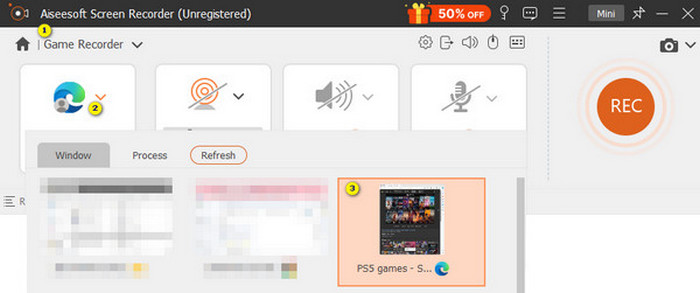
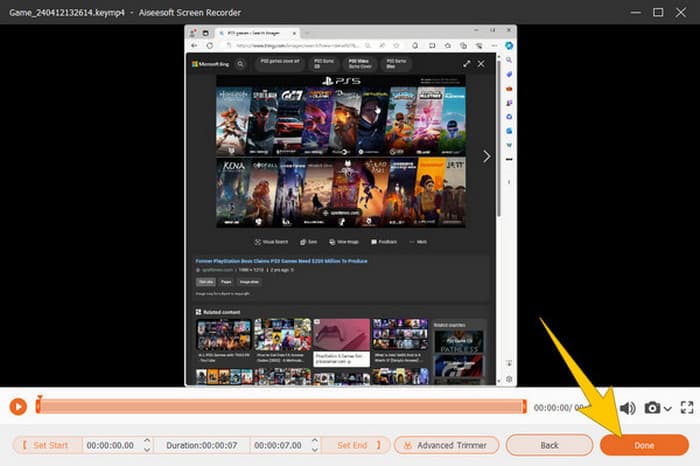
Trinn 3. Etter oppsettet klikker du på REC-knappen for å starte opptaket. Når du er ferdig med å ta opp, trykker du på Stopp-knappen. Deretter tar programmet deg til et vindu der du kan gjøre noen justeringer av opptaket ditt. Du kan trimme, ta et skjermbilde og justere volumet hvis du vil. Klikk deretter på Ferdig-knappen for å gå videre og lagre resultatet.
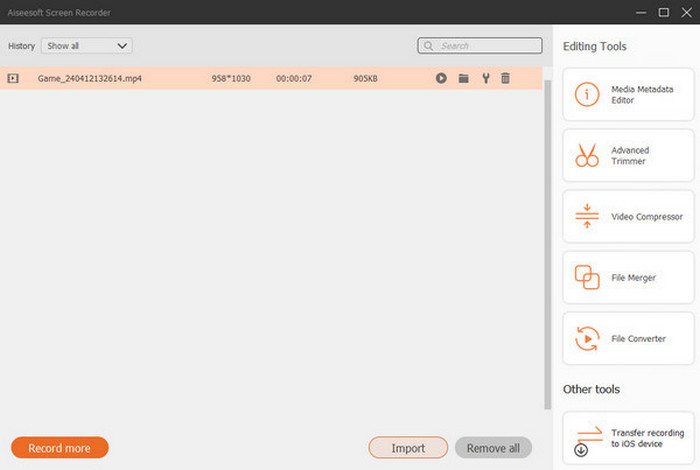
Trinn 4. Når videoen er lagret, dukker det opp et nytt vindu. Du kan høyreklikke på det innspilte spillet og velge en avansert innstilling du vil bruke. Du kan også velge å dele det på den plattformen du ønsker. Slik tar du opp en PS4-skjerm uten noen begrensning.
Del 2. Slik tar du opp på PS4 på standardmåten
I tillegg til en tredjeparts spillopptaker har du også en innebygd opptaksfunksjon på PS4. La oss nå gå gjennom trinnene for å bruke den innebygde PS4-opptakeren.
Trinn 1. Start med å slå på PS4-en din og velg spillet du vil ta opp. Gå så inn i spillet du har valgt og begynn å spille. Når du er klar til å starte opptaket, dobbelttrykker du ganske enkelt på Share-knappen på kontrolleren.
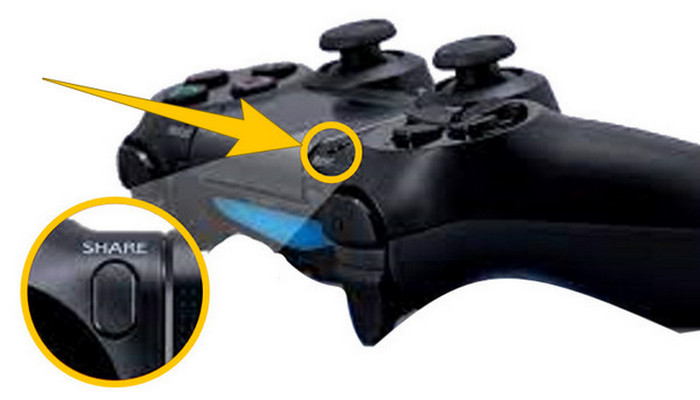
Trinn 2. Du får et varsel om at opptaket har startet. Men hvordan stopper du spillopptaket på PS4 når du er ferdig? For å gjøre det holder du bare Share-knappen inne lenge.
Trinn 3. Deretter kan du se opptaket ved å gå til Hovedmeny og deretter velge Capture Gallery fra valgene som vises.
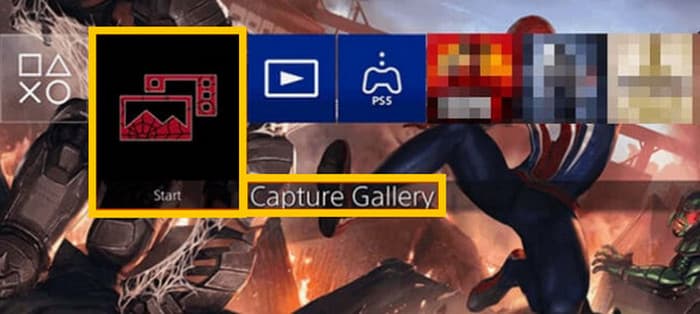
Del 3. Slik tar du opp gameplay på PS4 ved hjelp av et Capture Card
Et annet populært alternativ til standard PS4-opptaker er bruken av et opptakskort. Klart det! Et opptakskort vil hjelpe deg med å koble PS4 til andre enheter og la deg ta opp alt på PS4. Hvis du ikke visste om dette ja, fortsett å lese og følg instruksjonene vi gir nedenfor.
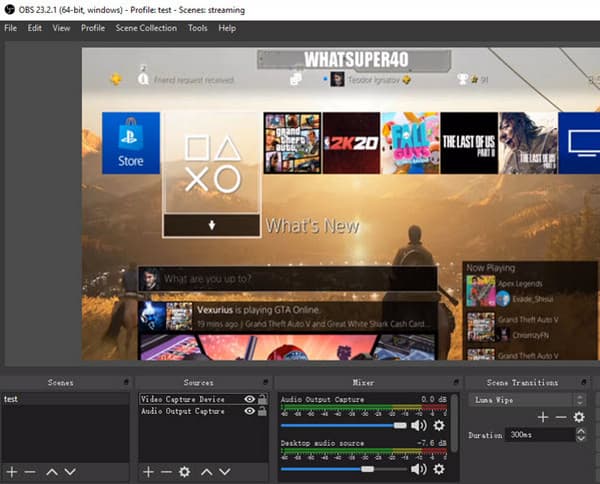
Trinn 1. Koble opptakskortet til PS4-en din, datamaskinen og TV-skjermen via HDMI. Sørg deretter for at datamaskinen har OBS installert for at opptaket skal fungere.

Trinn 2. Konfigurer nå PS4-en ved å gå til Settings og velge System, deretter System Information. Derfra merker du av for alternativet Enable HDCP.
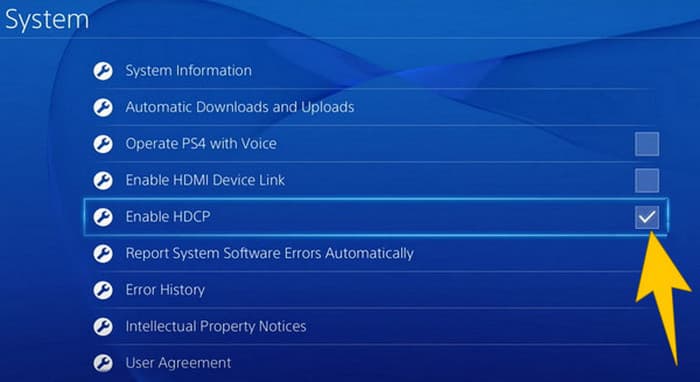
Trinn 3. Start OBS, gå deretter til Source Section>Plus>Video Capture Device, og klikk deretter på OK-knappen. Nå kan du klikke på Start Recording-knappen og begynne å spille for å ta opp gameplayet. For å avslutte opptaket klikker du på Stop Recording-knappen når som helst.
Del 4. Vanlige spørsmål om opptak på PS4
Hvordan stoppe spillopptak på PS4?
For å stoppe spillopptaket med standardopptakeren til PS4-en din trenger du bare å trykke lenge på Del-knappen. Etter å ha trykket på denne knappen, vil du se alternativet Stopp opptak på skjermen. Klikk på den for å bruke den.
Trenger jeg spesiell programvare for å bruke et opptakskort på PS4-en min?
Ja. I utgangspunktet trenger du spesialprogramvare som OBS for å få opptakskortet til å fungere med PS4-en din. I tillegg trenger du også skjermenheter og kabler, som HDMI- og USB-kabler, for å kunne gjennomføre skjermopptaket ved hjelp av et opptakskort.
Hva er begrensningene for å ta opp på PS4 på den innebygde opptakeren?
Det er sant at den innebygde opptaksfunksjonen på PS4 har begrensninger på opptak. De vanligste grensene er lengden og kvaliteten på det innspilte spillet.
Konklusjon
Dette er retningslinjene for hvordan du tar opp på PS4. Du kan ta opp ved å bruke konsollens innebygde metode, et opptakskort og spesialisert programvare som er laget for skjermopptak. Men vi vil ikke at du skal overse begrensningene ved den innebygde opptakeren, som hindrer deg i å ta opp lange og virkelig gode opptak. På samme måte kan opptakskort også ha begrensninger basert på maskinvaren og lagringskapasiteten til datamaskinen din. Hvis du ikke vil at disse begrensningene skal stå i veien, bør du velge FVC Screen Recorder som ditt beste alternativ.
-
 Hvordan spille inn episke stunts, clutcher eller veiledninger på Minecraft
 Vil du vite hvordan du tar opp stuntene dine på Minecraft? Les deretter denne artikkelen som vi gir.
-
 Slik spiller du inn på PS5 på 2 ultimate måter uten en grense
 Denne artikkelen viser deg de flotte måtene å lære hvordan du tar opp spilling på PS5. Standard og ubegrensede måter finnes i denne artikkelguiden! Så les den nå!
-
 Detaljert veiledning om hvordan du spiller MKV-filer på PS4 [Oppdatert 2024]
 Ved å lese denne artikkelen vil du lære noen måter på hvordan du spiller MKV på PS4 og hvordan du konverterer videofilen i tilfelle videoen ikke spilles av.
