


 Video Converter Ultimate
 Skjermopptaker
 Videoreparasjon
 Sikker nedlasting
Hvordan ta opp spilling på PS5 uten begrensninger [Omfattende retningslinjer]
I løpet av bare tre år har PlayStation 5 forsvunnet fra hyllene. Konsollen har passert over 50 millioner solgte enheter siden lanseringen, takket være sin kraftige maskinvare og muligheten for 4K‑gaming. Hvis du har lyst til å vise fram spillferdighetene dine eller dele episke spilløyeblikk med følgerne dine, er det et godt alternativ å gjøre opptak på en PlayStation 5. Hvis du lurer på hvordan du recorder på PS5, har den en praktisk funksjon du kan bruke til å ta opp, justere og dele spilløktene dine på ulike plattformer. Men hvordan gjør du egentlig alt dette? Følg med videre for å finne ut hvordan du tar opp video og skjermbilder på PS5, og til og med hvordan du gjør det med en opptaksløsning uten tidsbegrensning.

Del 1. Slik tar du opp spilling på PS5
Selvfølgelig kommer PS5 med en innebygd opptaker som vil hjelpe deg med å ta opp det fantastiske spillet ditt. Det er imidlertid verdt å merke seg at konsollens opptaker har begrensninger og effektivitet. Når det kommer til effektivitet, er det trygt å si at det er svært effektivt for å produsere høykvalitets innspilte videoer. På den annen side, når det kommer til begrensningene, må du huske på at denne konsollen kun kan tillate deg å ta opp maksimalt 60 minutter spilletid. Bortsett fra det, vil det bare tillate deg å produsere videoer i MP4 og WebM som støttede utdataformater.
I mellomtiden, for spørsmålet om hvordan skjermopptak på PS5s innebygde spillopptaker, la trinnene nedenfor gi deg svar.
Ta opp et spill
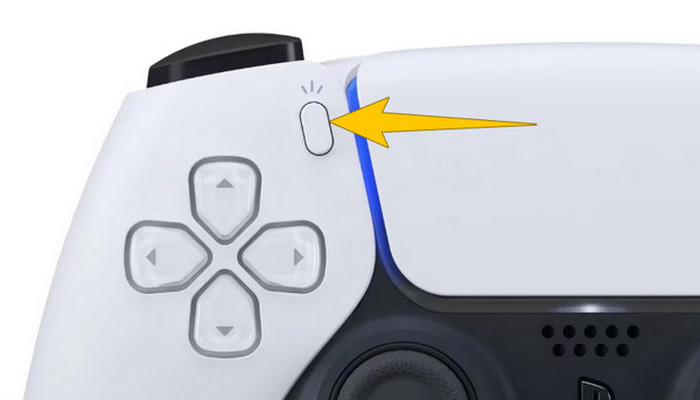
Trinn 1. Ta DualSense‑kontrolleren og trykk på knappen over piltastene. Dette er Opprett-funksjonen, og du kan trykke på den når du er klar til å ta opp gameplay.
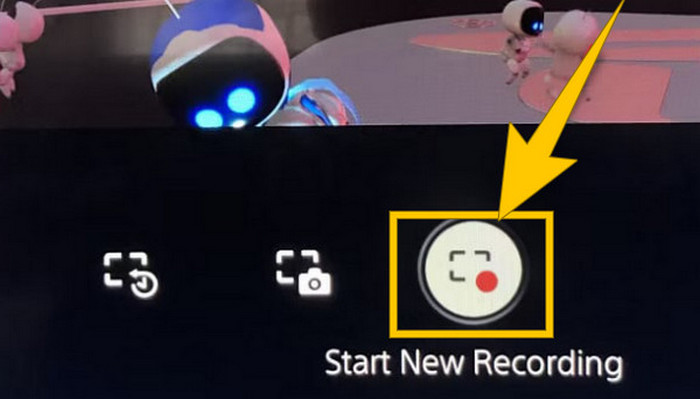
Trinn 2. Etter at du har trykket på knappen, ser du på skjermen og klikker på alternativet Start nytt opptak. Du finner dette alternativet nederst. Opptaket starter umiddelbart, så du kan begynne å spille.
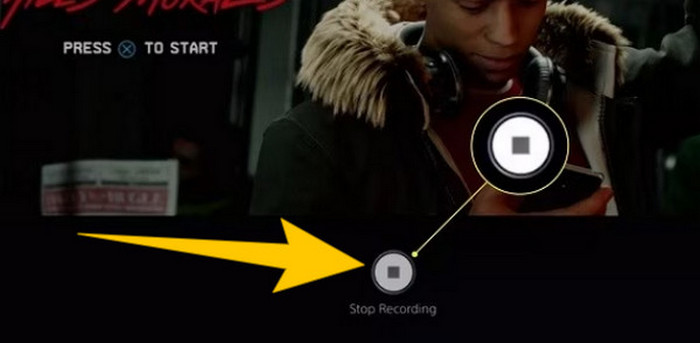
Trinn 3. Når du er ferdig med spillet, slik slår du av gameplay‑opptak på PS5. Du trenger bare å trykke på Opprett-knappen igjen, og denne gangen klikker du på Stopp opptak, som du ser på skjermen.
Last ned opptakene
Etter opptak vil PS5 automatisk lagre utdataene i mediegalleriet ditt, hvor alle filene oppbevares. Nå, hvis du vil beholde en kopi for din separate enhet, er det uheldig å fortelle deg at det nevnte galleriet ikke har nedlastingsalternativet. Det er imidlertid fortsatt en måte å beholde filene på.
Trinn 1. Koble det eksterne SD‑kortet eller USB‑drevet til konsollen. Gå deretter til Mediegalleri og åpne det.
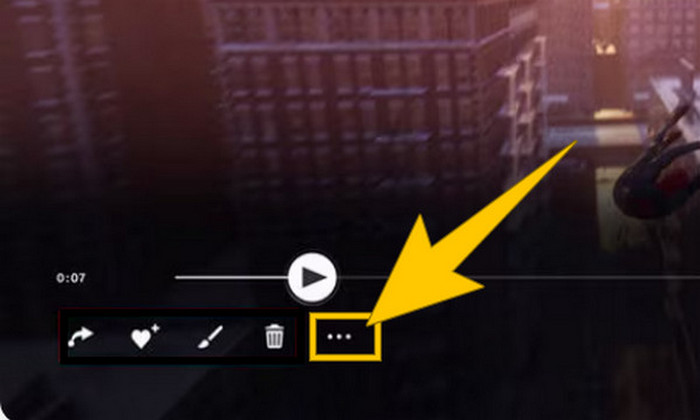
Trinn 2. Velg skjermopptaket du nettopp lagret. Klikk deretter på Ellipsis, altså tredotters‑knappen nederst på skjermen, sammen med de andre alternativene.
Trinn 3. Når du har klikket, velger du alternativet Kopier til USB‑stasjon for å begynne å kopiere den innspilte videoen til USB‑enheten. Når dette er gjort, kan du overføre videoen til enheten der du vil lagre opptaket.
Del 2. Slik skjermopptak på PS5 i 4K-kvalitet uten grense
Ikke fortvil hvis PlayStation 5 bare lar deg ta opp opptil én time med gameplay i god kvalitet. Vi vet hvor frustrerende det er for mange gamere, og ikke alle spill støtter dette. For ubegrenset opptak i 4K‑kvalitet i alle PS5‑spill kan du derfor ta en titt på FVC Screen Recorder. Dette opptaksprogrammet begrenser nemlig ikke opptakstiden – bare avhengig av hvor mye lagringsplass du har på PC‑en. I tillegg vil det ikke senke ytelsen i spillet ditt. Med denne avanserte spillopptakeren kan du også finjustere opptakene før du lagrer dem. Du kan faktisk klippe, slå sammen, komprimere, konvertere, redigere metadata, forbedre opptaket og dele det til utvalgte plattformer uten problemer.
Det er også verdt å merke seg at FVC Screen Recorder tilbyr ulike opptaksverktøy for å møte opptaksoppgavene dine. Med den kan du ta opp video, lyd, vinduer, webkameraer, telefoner osv. Bemerkelsesverdig nok kan du nyte opptakene dine uten vannmerker innebygd i dem! Så for å lære mer om FVC Screen Recorder, følg trinnene nedenfor for å se hvordan du skjermopptak på PS5.
Trinn 1. Skaff deg FVC Screen Recorder ved å laste det ned til datamaskinen. For å gjøre det klikker du bare på knappen Free Download, og følger deretter instruksjonene for å installere og åpne programmet.
Gratis nedlastingFor Windows 7 eller nyereSikker nedlasting
Gratis nedlastingFor MacOS 10.7 eller nyereSikker nedlasting
Trinn 2. Når du kommer til grensesnittet til FVC, finner og klikker du på verktøyet Game Recorder. Det ligger midt til høyre på skjermen. Derfra klikker du på den lille pilen ved siden av Select the Game for å velge vinduet der PS5‑en din er speilet.
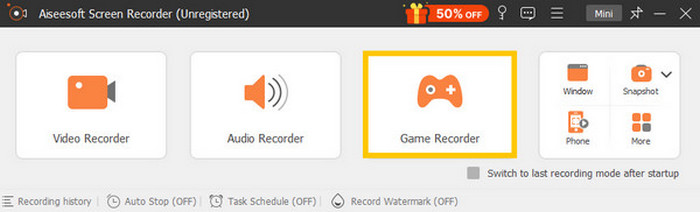
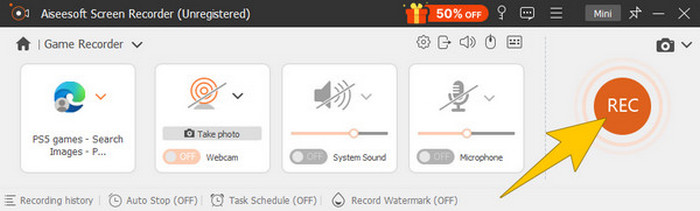
Trinn 3. Når du har valgt vinduet, vil du se at opptakeren fokuserer på dette. Du kan dessuten velge om du vil ta med webkameraet for bilde‑i‑bilde‑opptak, systemlyd og mikrofonlyd i opptaket. Når alt er stilt inn, klikker du på REC-knappen for å starte spillet og opptaket.
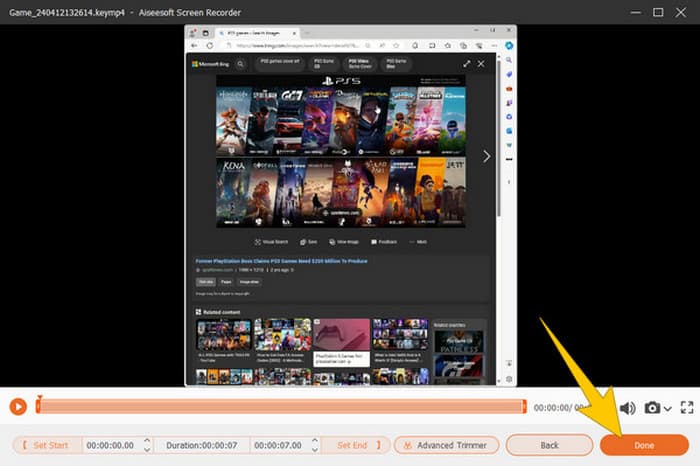
Trinn 4. Når du er ferdig med opptaket, klikker du på Stopp-knappen på den flytende verktøylinjen. Deretter kan du justere videoen ved hjelp av redigeringsverktøyene i det nye vinduet. Etterpå klikker du på Ferdig-knappen for å lagre opptaket i galleriet ditt.
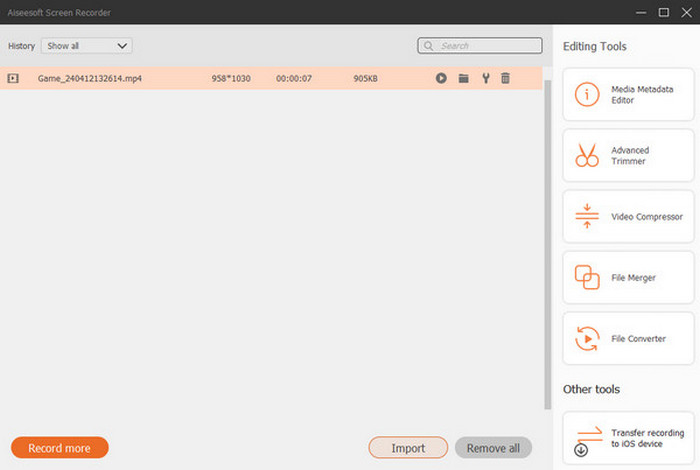
Trinn 5. Dette trinnet er valgfritt. Hvis du vil dele opptaket på sosiale medier, kan du høyreklikke på ditt nyeste gameplay‑opptak og velge Del‑alternativet. Du kan også bruke flere avanserte redigeringsverktøy for å forbedre opptakene.
Hvis du vil vite mer om denne opptakeren, her er flere tips å lære.
Videre lesning
5 effektive måter å ta opp skjermen som GIF på Mac og Windows
Slik tar du opp episke stunt, clutcher eller guider i Minecraft
Del 3. Vanlige spørsmål om opptak av spill på PS5
Hvordan slår du av spillopptak på PS5?
For å slå av eller stoppe spillopptaket på PS5-en din trenger du bare å trykke på Lag-knappen fra spillkontrolleren. Deretter klikker du på Stopp opptak på skjermen.
Hvor kan jeg se mine innspilte spillklipp på PS5?
De innspilte spillklippene lagres i Capture-delen fra hovedgalleriet. Du får tilgang til dette galleriet fra startskjermen. Med den kan du se, redigere og dele klippene dine slik galleriet ditt lar deg.
Hvordan deler jeg opptakene mine på PS5?
Du kan dele klippene dine etter opptak på PS5 direkte fra Capture Gallery. Du trenger bare å velge klippet du vil dele, klikke på Alternativer-knappen på kontrolleren og velge Del-alternativet.
Konklusjon
Du trenger ikke lenger å spørre hvordan du recorder på PS5, for denne artikkelen har vist deg både standardmetoden og de beste alternativene. Nå kan du gjøre opptak av lange spilløkter i høy kvalitet, akkurat slik du ønsker. Del gjerne disse løsningene med med‑gamerne dine, slik at også de kan få den samme spennende opptaksopplevelsen på PS5!
-
 5 av den ledende programvaren for spillopptak en spiller må kjenne til [2024]
 Er du en gamer som vil gjøre et spillopptak? Da vil denne artikkelen gi deg den beste spillopptakeren du kan bruke for å oppleve nye spillhøyder.
-
 Topp 5 Android-skjermopptaker-apper du må skaffe deg i 2024
 Har du problemer fordi du ikke kan gjøre et skjermopptak på Android? I så fall gjennomgikk denne artikkelen Android-skjermopptakerne du kan laste ned på.
-
 Topp 5 Zoom-møteopptakere for å ta opp møter på Zoom [2024]
 Trenger du å ta opp et zoommøte for ikke å gå glipp av de viktige detaljene i møtet ditt? I så fall gir denne artikkelen de beste zoomopptakerne du bør vite.
