


 Video Converter Ultimate
 Skjermopptaker
 Videoreparasjon
Beste måten å ta opp lyd på iPhone via tilgjengelige apper og omformer
Med en smarttelefon i lommen kan vi gjøre nesten hva som helst. Denne lille dingsen ble laget for å være den nye generasjonen datamaskiner som enkelt kan tas med over hele verden uten oppsett. På grunn av dette har vi nå muligheten til å gjøre lydopptak på telefonen uten å sette opp masse utstyr. For eksempel kan du spille inn din egen podkast på iPhone-en din, men vår verste fiende er dårlig opptakskvalitet. Så i denne listen presenterer vi ulike måter å ta opp lyd på iPhone uten å sette opp mye utstyr og uten å miste lydkvaliteten i opptaket.

Del 1. Hvordan ta opp ekstern lyd på iPhone med de 2 beste appene
Lær hvordan du bruker dette verktøyet som er tilgjengelig på Apple-enheter eller App Store. Disse appene i denne listen er kjent for å bli brukt av mange brukere over hele verden. Spesielt hvis de vil ta opp seg selv eller ta opp litt lyd. Så uten flere forsinkelser, la oss presentere de 2 beste lydopptakerne du kan bruke.
1. Talememoer
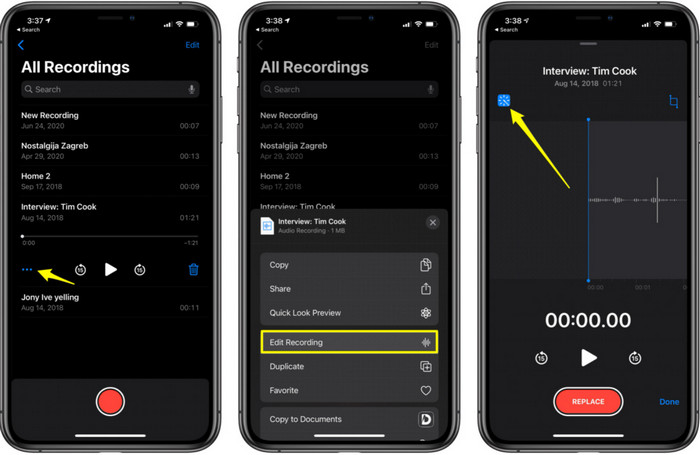
Taleopptak er den beste måten å ta opp lyd på en iPhone uten nedlasting og helt gratis. Du kan også redigere opptakene dine her. Men redigeringsfunksjonene som er tilgjengelige er begrenset til å klippe og legge til andre lydfiler. Så hvis du vil forbedre opptaket ditt, kan du ikke gjøre det her fordi det ikke har slike funksjoner. Men enkle opptak som notater, lydjournal, forelesninger og mer kan gjøres ved hjelp av Taleopptak.
Fordeler
- Innebygd verktøy på iPhone for å gjøre lydopptaket eksternt.
- Grunnleggende redigering er tilgjengelig som trimming og sammenslåing.
Ulemper
- Den har ingen lydforsterker for å gjøre opptaket ditt bedre.
- Kan ikke ta opp internt.
2. GarageBand
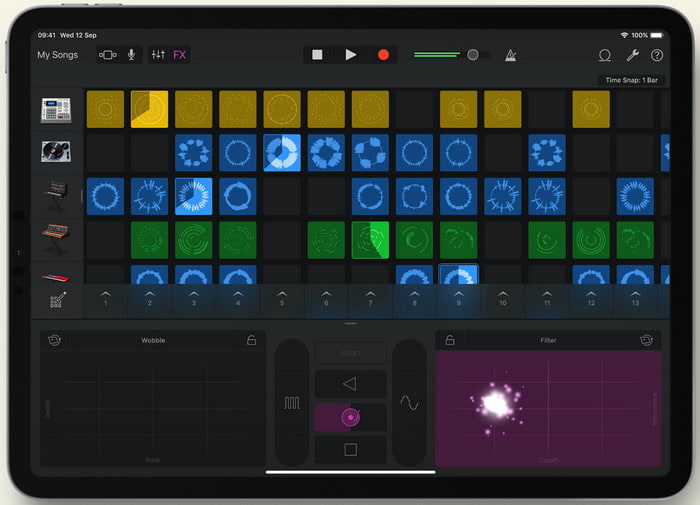
Vil du produsere musikalske innspillinger? Prøv da å bruke GarageBand. Siden dette verktøyet har mange funksjoner du kan leke deg med, er det mye mer komplisert enn Taleopptak fordi appen er laget for musikkproduksjon. Å lære hvordan ta opp stemme på iPhone med GarageBand vil derfor ta mye av tiden din. Men hvis du er dedikert til å lære, kan du laste ned dette verktøyet gratis, og filstørrelsen er 1,7 GB inkludert de tunge funksjonene du trenger for å spille inn musikk.
Fordeler
- Det er den beste appen å bruke som bærbar musikkproduksjon som kan ta opp lyd internt.
Ulemper
- Ikke det beste valget for en nybegynner på grunn av det kompliserte appgrensesnittet.
- Filstørrelsen kan gå opp til mer enn 1,7 GB.
Del 2. Hvordan gjøre iPhone-skjermopptak til lydformat
Siden iPhone ikke har ren intern lydopptak, kan du først gjøre et skjermopptak og deretter konvertere det til lyd senere. Med hjelp av det fenomenale Video Converter Ultimate kan du velge blant over 200 formater som er tilgjengelige i verktøyet og klippe vekk unødvendig lyd like enkelt som aldri før. Ikke bare det – du kan også forsterke lyden her for å gjøre den klarere og bedre. I motsetning til når du bruker Taleopptak, kan du med dette verktøyet og konverteringen gjøre mye «magisk» for å gjøre resultatet best mulig. Uten videre om og men, la oss starte konverteringen av skjermopptaket ditt til et lydformat ved å følge trinnene nedenfor.
Trinn for hvordan konvertere skjermopptak til et lydformat med Video Converter Ultimate
Trinn 1. Trykk på gratis nedlastingsknapp for å laste ned programvaren til PC-en eller Mac-en din. Etter nedlasting installerer du og setter den opp, og klikker deretter fullfør for å starte den.
Gratis nedlastingFor Windows 7 eller nyereSikker nedlasting
Gratis nedlastingFor MacOS 10.7 eller nyereSikker nedlasting
Trinn 2. Legg til filen du spilte inn på iPhone, og klikk knappen Legg til filer øverst til venstre i verktøyets grensesnitt. Finn deretter filen i mappen, den vil dukke opp, og klikk Åpne.
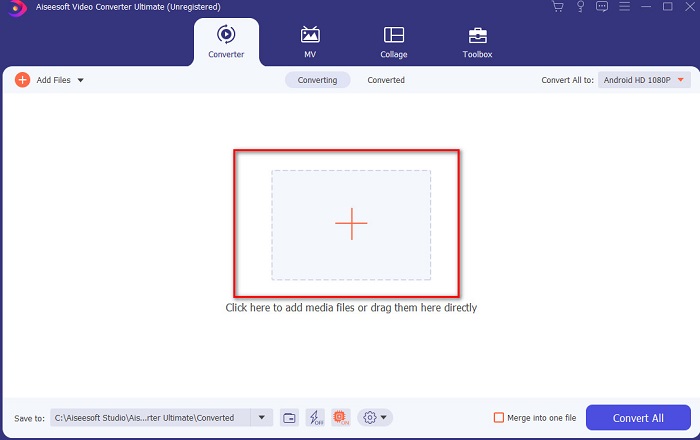
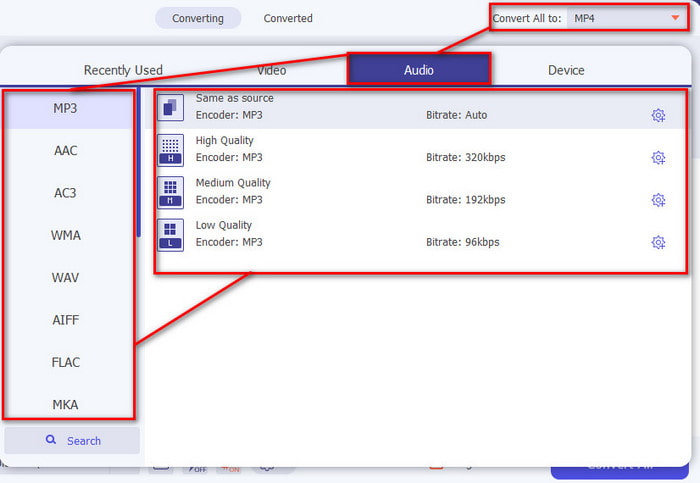
Trinn 3. Klikk på nedtrekksmenyen ved siden av Konverter alle til og velg sluttformatet du ønsker fra listen i kategorien Lyd for å fortsette. I tillegg kan du også redigere den innspilte filen hvis du klikker på tryllestav-knappen i hovedgrensesnittet. Etter å ha redigert, klikker du OK for å lagre endringene du har gjort.
Trinn 4. Når du er klar til å starte konverteringsprosessen, klikker du på knappen Konverter alle og venter i mindre enn et sekund.
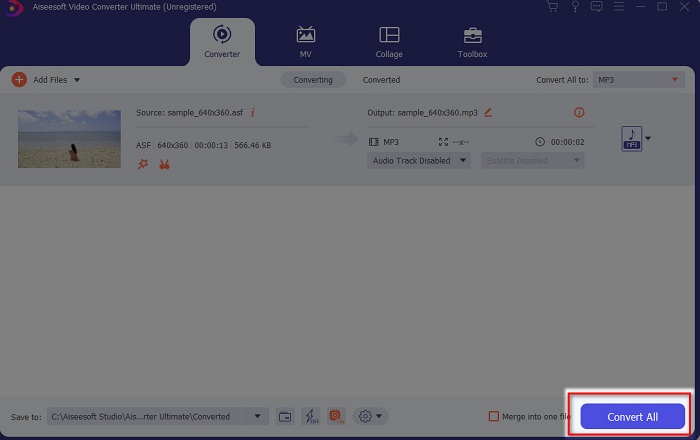
Trinn 5. En filmappe vises når konverteringen er ferdig; klikk på filen og lytt til den, og senere kan du overføre og lagre den på iPhone-en din.
Fordeler
- Det beste fenomenale verktøyet som brukes til å konvertere skjermopptaket til lydformat.
- Her er avanserte redigeringsfunksjoner tilgjengelig for å gjøre opptaket ditt bedre.
- Flere grupper med konvertering kan gjøres her.
Ulemper
- Kan ikke gjøre skjerm- eller lydopptak her fordi det ikke støttes.
- Det er betalt, men det er ikke dyrt.
Del 3. Vanlige spørsmål om opptak av lyd på iPhone
Hva er det beste lydformatet for å gjøre lydopptak?
Det ideelle formatet du vil bruke hvis du ønsker å ta opp lyd med høyest mulig kvalitet, er FLAC-formatet. Selv om verktøyet ovenfor ikke gir mulighet til å endre format til FLAC, kan du altså ikke ta opp i FLAC med det. Men hvis du klikker på denne lenken, vil du lære mye om de beste FLAC-opptakerne for å ta opp lyd i høyeste kvalitet.
Hvor lenge kan jeg ta opp på iPhone?
Vel, du kan ta opp så lenge du har nok plass. I utgangspunktet er det anslått at hver 1GB du kan lagre minst 100 minutter med lydopptak. Så hvis du ønsker å ta opp en lang diskusjon eller forelesning er det ideelt å frigjøre litt plass før du begynner å ta opp.
Kan jeg gjøre lydopptak gjennom VLC?
Ja, absolutt! Du kan ta opp lyd hvis du bruker VLC, enten det er på PC eller Mac. For å finne ut hvordan du gjør opptak i VLC må du klikke på denne lenken.
Konklusjon
Avslutningsvis har vi allerede introdusert mange måter du kan velge mellom for å gjøre opptakene dine bedre og mer effektive. Dette er de beste alternativene innen opptak, siden vi har testet dem selv før vi skrev denne artikkelen. Men det finnes ingen bedre og brukervennlig redigerer som tilbyr lydforsterker enn Video Converter Ultimate. Så hvis du vil gjøre opptakene dine mer enn bare gode, bør du prøve å redigere og konvertere dem med dette verktøyet.
Gratis nedlastingFor Windows 7 eller nyereSikker nedlasting
Gratis nedlastingFor MacOS 10.7 eller nyereSikker nedlasting
-
 7 av de beste AAC-opptakerne for Windows og Mac [2021]
 Oppdag hva som er AAC og de mest vurderte AAC -opptakerne som du kan bruke gratis og kan lastes ned på både Mac- og Windows -datamaskiner.
-
 Spot-On Guide: Hva er den beste M4A-opptakeren for Windows og Mac
 M4A er containere filen ACA og ALAC kodet for tapskomprimering. Listen nedenfor er M4A -opptakerverktøyene du kan bruke. Les følgende grundig.
-
 Mest nyttige OGG-opptaker i 2021 [gratis og online]
 Denne oppskriften snakker om de beste OGG-opptaksverktøyene som hjelper deg med å gjøre OGG-lydopptak. For å legge til mer detaljert informasjon for brukeren, fortsett å lese den
