


 Video Converter Ultimate
 Skjermopptaker
 Videoreparasjon
 Sikker nedlasting
Skjermopptak fungerer ikke: Hva bør du gjøre? [Guide]
Har du prøvd å ta opp skjermen på datamaskinen, den bærbare PC-en eller mobilen, bare for å oppdage at det ikke fungerte som forventet? Hva om du tar opp et direktesendt arrangement og går glipp av en hel del av det fordi skjermopptaksfunksjonen ikke virker.
Dette er ikke noe som skjer sjelden, for de fleste opplever det samme. Så ikke fortvil, denne artikkelen har det du trenger. Lær ulike måter å fikse problemer med skjermopptak på en enkel måte, og oppdag nye verktøy og metoder du kan bruke for å unngå at dette skjer igjen. Er du klar for å få slutt på dette problemet når du tar opp skjermen på enheten din? Da er det bare å lese videre!

Del 1. Hva gjør du hvis skjermopptak ikke fungerer på Windows/macOS?
Hvis du bruker Windows eller macOS og opplever at skjermopptaket ikke fungerer, er det ikke så lett å peke nøyaktig på hovedårsaken. I noen tilfeller kan den innebygde skjermopptakeren mislykkes i å ta opp bestemte apper eller beskyttet innhold på grunn av personvern- eller DRM‑begrensninger. For å hjelpe deg med å løse dette, vil de følgende delene veilede deg gjennom vanlige årsaker og praktiske løsninger, slik at skjermopptaket igjen fungerer som det skal på både Windows og macOS.
Start datamaskinen på nytt
Det høres enkelt ut, men en omstart løser ofte midlertidige feil eller programvareglitcher som hindrer skjermopptak i å fungere. Lukk først alle åpne programmer, start enheten på nytt, og prøv å ta opp igjen.
Sørg for at skjermopptak er slått på
Systemet ditt kan ha slått av tillatelser for skjermopptak.
Windows: Hvis du bruker den innebygde Xbox Game Bar, går du til Innstillinger, velger Spill, og deretter Game Bar. Kontroller at bryteren for «Ta opp spillklipp, skjermbilder og kringkast ved hjelp av Game Bar» er slått på.
macOS: Klikk på Apple‑ikonet, velg Systemvalg, deretter Sikkerhet og personvern, og klikk på fanen Personvern. Etter det velger du Skjermopptak. Sjekk om opptaksappen din står oppført og er aktivert. Hvis ikke, huk av i boksen ved siden av.
Sjekk tilgjengelig lagringsplass
Hvis skjermopptaket plutselig stopper eller ikke vil lagre, kan lite lagringsplass være årsaken. Sjekk hvor mye ledig plass du har på enheten, og fjern store eller unødvendige filer. Du kan også flytte eldre videoer til skylagring for å frigjøre plass.
Oppdater systemet og opptaksprogramvaren
Utdaterte systemer eller apper fører ofte til opptaksfeil. Enten du bruker Windows eller macOS, må du sørge for at både operativsystemet og skjermopptaksprogrammet er oppdatert til nyeste versjon. Start deretter datamaskinen på nytt og prøv å ta opp igjen.
Del 2. Hva gjør du når skjermopptak ikke fungerer på iPhone/Android‑telefon?
Hvis telefonen plutselig ikke lar deg ta opp skjermen og du sitter fast med problemet at skjermopptak ikke fungerer, er det ingen grunn til å bekymre seg for mye, for dette er ganske vanlig og kan som regel fikses med noen enkle justeringer. Så enten du tar opp med en iPhone eller en Android‑enhet, finner du her noen praktiske måter å få skjermopptaksfunksjonen til å fungere igjen.
Sørg for at skjermopptak er aktivert eller tilgjengelig
Hvis du ikke finner eller kan bruke skjermopptakeren, kan det hende den bare er skjult i hurtiginnstillingene.
På iPhone: Åpne Innstillinger, gå til Kontrollsenter, og trykk deretter på Tilpass kontroller. Legg så til Skjermopptak hvis den ikke allerede er der, slik at den vises når du sveiper ned fra høyre øvre hjørne.
På Android: Sveip ned fra toppen av skjermen for å åpne panelet med Hurtiginnstillinger. Hvis «Skjermopptak» ikke står oppført, trykker du på Rediger- eller Blyant-ikonet for å legge den til snarveiene dine.
Sjekk for system‑ eller appoppdateringer
Noen ganger oppstår problemet med at skjermopptak ikke fungerer fordi systemet på telefonen eller selve opptaksappen er utdatert. Enten du bruker en iPhone eller en Android‑enhet, må du sørge for at alt er oppdatert. Gå til innstillingene på telefonen og se etter tilgjengelige systemoppdateringer, og gjør deretter det samme for appene via App Store eller Google Play Butikk. Oppdateringer gir bedre kompatibilitet, retter feil og gjenoppretter ofte funksjoner som skjermopptak, som kan ha sluttet å fungere på grunn av utdatert programvare.
Sjekk lagringsplass
En annen grunn til at du opplever at skjermopptak ikke fungerer, er at mobilen ikke har nok plass til å lagre nye opptak. For å fikse dette må du sjekke lagringsplassen og slette unødvendige filer for å frigjøre plass til nye skjermopptak.
Del 3. Bonus: Beste skjermopptaker med god ytelse
Hvis den innebygde skjermopptaksfunksjonen fortsatt ikke fungerer eller oppleves som for begrenset, kan det være verdt å prøve et dedikert skjermopptaksverktøy. Disse verktøyene gir jevnere ytelse, bedre kvalitet og mer kontroll over hva du tar opp. Her er to gode alternativer: ett du kan bruke direkte i nettleseren, og ett du kan installere på datamaskinen.
Beste nettleserbaserte skjermopptaker:
FVC Free Screen Recorder er det beste skjermopptaksverktøyet du kan bruke hvis du fortsatt opplever at skjermopptak ikke fungerer. Med dette verktøyet kan du ta opp skjermen, ta skjermbilder, redigere og legge til merknader. Det fungerer også både på Windows og macOS, noe som gir brukerne fleksibilitet uansett operativsystem. Dessuten støtter dette skjermopptaksverktøyet systemlyd, mikrofoninngang og til og med opptak fra webkamera, noe som gjør det til et godt valg for nettmøter, videotutorialer og spillopptak.
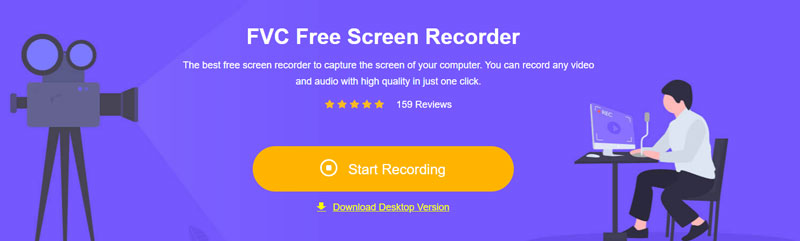
Hovedtrekkene:
- Lar deg ta opp enten fullskjerm, valgt vindu eller et tilpasset område.
- Du kan bruke den direkte i nettleseren din.
- Ta opp videosamtaler, møter, spilling og nettkurs
- Lar deg legge til tekst, linjer, uthevinger og former under opptak.
- Kan ta opp både systemlyd og mikrofonstemme.
- Støtter ulike video- og lydutgangsformater.
- Skjermopptak av videoer i HD.
- Tilgjengelig for både Windows og macOS
Trinn for hvordan du bruker FVC Free Screen Recorder:
Trinn 1. Først må du søke opp FVC Free Screen Recorder i nettleseren din. Vær oppmerksom på at den er tilgjengelig for både Windows og macOS.
Trinn 2. Deretter får du tilgang til verktøyet og klikker på Start Recording.
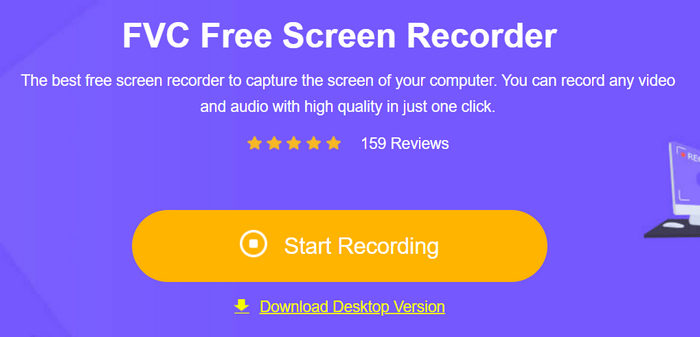
Trinn 3. Til slutt, for å starte opptaket, klikker du på Record-knappen.
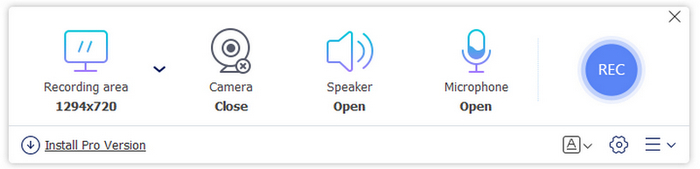
Det beste med FVC Free Screen Recorder er at det er lett tilgjengelig for brukere, enten de bruker Windows eller macOS. Det er også svært enkelt å bruke på grunn av det enkle og intuitive grensesnittet. Til slutt er det gratis og har mange nyttige funksjoner for skjermopptak. Så hvis du fortsatt opplever at skjermopptak ikke fungerer, bør du vurdere å prøve dette skjermopptaksverktøyet.
Beste skrivebordsbaserte skjermopptaker:
Hvis du foretrekker et skrivebordsbasert verktøy som lar deg installere dedikert programvare for stabile opptak av høy kvalitet, er Aiseesoft Screen Recorder et godt valg. Det tilbyr kraftige opptaksalternativer for skjerm, webkamera og lyd. Med det intuitive grensesnittet og avanserte funksjoner som planlagt opptak, sanntidsforhåndsvisning og tilpassbare utdata‑innstillinger kan du fange akkurat det du trenger, enkelt og presist.
Gratis nedlastingFor Windows 7 eller nyereSikker nedlasting
Gratis nedlastingFor MacOS 10.7 eller nyereSikker nedlasting
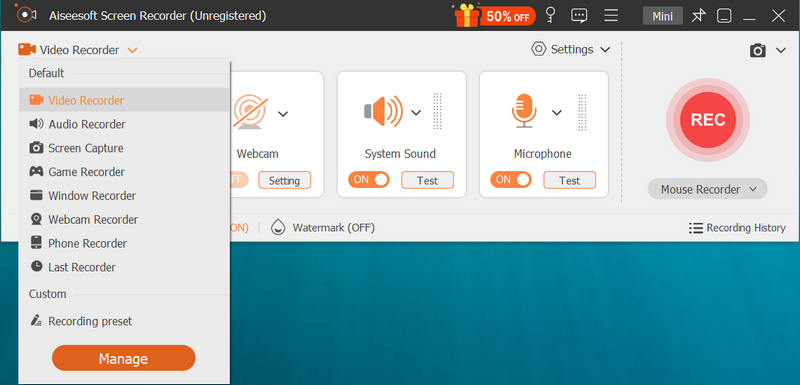
Hovedtrekkene:
- Tar opp skjerm, webkamera og system‑ eller mikrofonlyd.
- Tilbyr alternativer for videoopptak i HD og 4K.
- Gir deg mulighet til å velge et egendefinert skjermområde.
- Støtter planlagt opptak og sanntidsforhåndsvisning.
- Lar deg legge til merknader, tekst og figurer mens du tar opp.
- Lagrer videoer i flere formater som MP4, MOV, WMV osv.
- Fungerer problemfritt på både Windows og macOS
Aiseesoft Screen Recorder er fortsatt et pålitelig og effektivt skjermopptaksverktøy den dag i dag. Det tilpasser seg ny teknologi og videreutvikles. Men til tross for det er det fortsatt brukervennlig, og grensesnittet er enkelt og lett å navigere i. Det er virkelig et av de beste skrivebordsbaserte verktøyene for skjermopptak.
Del 4. Vanlige spørsmål om at skjermopptak ikke fungerer
Hvorfor fungerer ikke skjermopptaket mitt med lyd?
Hvis skjermopptaket ditt ikke fungerer med lyd, kan mikrofonen eller systemlyden være slått av. Sjekk innstillingene i opptaksprogrammet og aktiver alternativet for mikrofon eller intern lyd for å ta opp lyd under innspillingen.
Hvordan kan jeg fikse at skjermopptak ikke fungerer etter flere forsøk?
Hvis problemet med at skjermopptak ikke fungerer fortsetter selv etter feilsøking, kan du prøve å bruke et dedikert skjermopptaksverktøy som FVC Free Screen Recorder eller Aiseesoft Screen Recorder. Disse verktøyene gir jevnere ytelse, flere funksjoner og bedre kompatibilitet enn de fleste innebygde opptakere.
Hvordan kan jeg unngå at skjermopptak ikke fungerer i fremtiden?
Oppdater systemet og appene dine jevnlig, kontroller tillatelser og frigjør lagringsplass. Ved å bruke en pålitelig skjermopptaker sikrer du jevn ytelse og færre tekniske feil når du tar opp viktig innhold.
Konklusjon
Til syvende og sist, når skjermopptak ikke fungerer, er den beste løsningen å være proaktiv. Sjekk innstillingene dine, hold enheten oppdatert, og bruk riktige verktøy til jobben. I stedet for å slite med upålitelige innebygde alternativer, kan du vurdere å prøve pålitelige opptakere som Aiseesoft Screen Recorder eller FVC Free Screen Recorder.
Disse verktøyene løser ikke bare opptaksproblemene dine, de gjør hele prosessen jevnere, klarere og mer effektiv. Så neste gang du trykker på opptak, sørg for at du bruker et verktøy som faktisk gir resultatene du trenger.
-
 Slik fikser du NVIDIA-posten som ikke fungerer: Årsaker og løsninger
 Hvis du opplever problemer med at NVIDIA-filen ikke fungerer, kan du komme hit for å finne ut hvordan du kan fikse det. Vi har analysert årsakene og gitt seks av de mest effektive løsningene.
-
 Hvorfor utklippsverktøyet ikke fungerer på Windows og løsninger for å fikse det
 Har du et problem med at utklippsverktøyet ikke fungerer, og føler deg litt forvirret? Les denne veiledningen. Vi skal snakke om hvordan du finner utløseren og løser problemet.
-
 2 foretrukne måter for hvordan du tar opp ekstern lyd fra Mac
 Hvis du lurer på hvordan du tar opp ekstern lyd fra en Mac, les denne artikkelen og bli veiledet av to kvalitetslydopptaksverktøy som du enkelt kan bruke.
