


 Video Converter Ultimate
 Skjermopptaker
 Videoreparasjon
Forstå hvordan du importerer AVI-filer til iMovie på Mac OS
Som vi alle vet, er iMovie velkjent for videoredigering på Mac. Hvis du bruker dette verktøyet, forstår du hvorfor det er et av de beste til redigering. Men selv om vi snakker om hvor bra iMovie er, finnes det noen tilfeller der du ikke kan importere videoer for å redigere dem. Dette skjer svært ofte når du importerer AVI-filer. På grunn av det brede spekteret av kodeker som dekkes, har AVI-formatet blitt populært blant brukere. Likevel er det svært utfordrende å bruke dette formatet, spesielt når kodeken ikke støttes av verktøyet du bruker. Så nå lurer du kanskje på hvordan du kan konvertere AVI til iMovie-format for å redigere videoen senere. I listen nedenfor finner du noen verktøy du kan bruke til å konvertere AVI-format, og du får vite hvorfor du ikke kan laste inn videofiler i iMovie.

Del 1. Hvorfor iMovie mislyktes i å importere AVI-filformat
Selv om iMovie bare er gyldig på Mac, så forvent at det er mindre prioritet som kodekene til Windows gir. Men det er noen grunner til at du ikke kan importere videoer. Her i listen vil vi snakke om de 2 grunnene til at du ikke kan importere et annet format til iMovie.
Første grunn: iMovie støtter bare et begrenset antall kodeker. Dette kan være grunnen til at du ikke kan redigere i iMovie på grunn av kodekkompatibilitet. Når det gjelder AVI-format, må det kodes til MJPEG-data, ellers blir ikke filen importert.
Andre grunn: iMovie eller macOS-en din er ikke oppdatert. Denne grunnen er lett å forstå, for hvis programvaren eller operativsystemet ikke er oppdatert, er det en sjanse for at det ikke støtter de nyeste formatene.
Dette er de vanligste grunnene til at du ikke kan redigere i iMovie, men for hvert problem finnes det alltid en løsning. Derfor følger her noen måter å løse dette problemet på, og du må lære deg hvordan du konverterer AVI-filer til et iMovie-kompatibelt format og tilhørende kodek.
Del 2. Konverter AVI til iMovie-kompatibelt format ved hjelp av de beste AVI-konvertererne
1. FVC gratis online videokonverterer
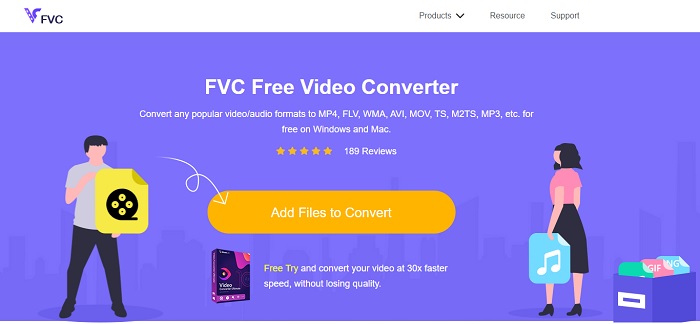
Dette gratis AVI til iMovie-verktøyet kan utføre konverteringen. I motsetning til verktøyet nedenfor er FVC Free Video Converter gratis å bruke og krever ingen nedlasting. Dessuten er dette nettbaserte verktøyet gratisversjonen av verktøyet nedenfor. Som nevnt gir de god komprimering, men forskjellen mellom de to er at dette verktøyet ikke har hovedfunksjonene som premiumversjonen tilbyr, og heller ikke like mange formatalternativer. Likevel er det fortsatt det beste nettbaserte verktøyet sammenlignet med andre konvertere du kan stole på. Så, før noe annet, la oss gå videre til hvordan dette verktøyet fungerer ved å følge de enkle trinnene nedenfor.
Trinn 1. Klikk denne lenken for å gå til verktøyets hovedside.
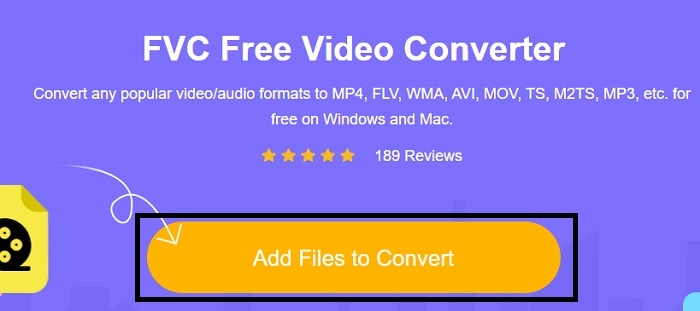
Trinn 2. Trykk på Add Files to Convert for å starte den nettbaserte konverteren.
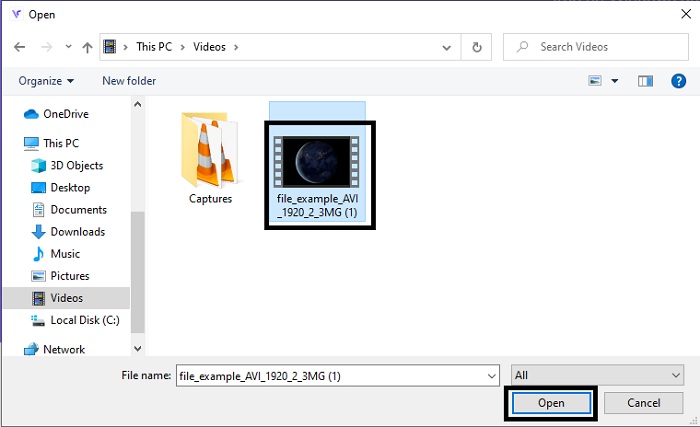
Trinn 3. Når vi går videre, velger du AVI-filen og trykker på open for å legge den inn i grensesnittet.
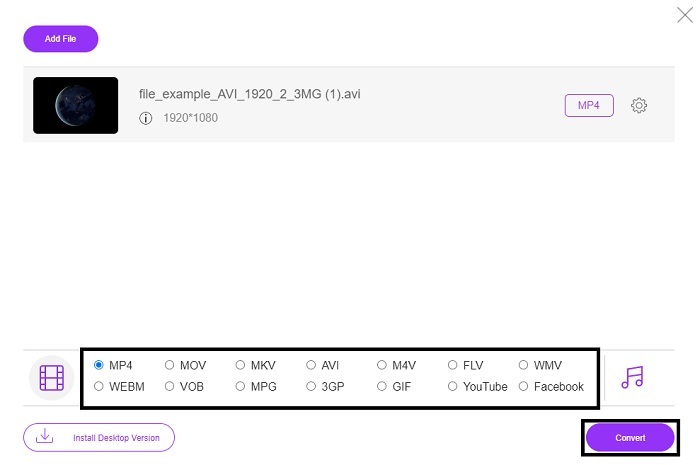
Trinn 4. Velg hvilket iMovie-format du vil ha. Etter at du har valgt, klikker du på Convert for å starte prosessen.
Trinn 5. Gå til filbehandleren og finn den ferdige filen.
2. FVC Video Converter Ultimate
Som vi sa tidligere, gir ikke nettverktøyet deg redigeringsfunksjonene og det andre formatet også. FVC Video Converter Ultimate kan brukes som et alternativ til iMovie, spesielt ved redigering også. Det gir brukerne og kundene muligheten til å manipulere hver mediefil og forbedre, redigere eller lage en nyere versjon. Men dette verktøyet må betales, men det er ikke dyrt, så ingen grunn til bekymring fordi hver krone du betaler for dette verktøyet er fortsatt verdt det.
Så, etter at du har konvertert AVI til iMovie-format, kan du senere forbedre den før du tar den inn i iMovie, eller du kan la være å bruke iMovie og gjøre redigeringen her. Hvis vi skulle forklare hvor bra dette verktøyet er, ville vi trenge to eller flere artikler for å beskrive det skikkelig. Uten videre om og men, la oss fortsette på veien mot å konvertere AVI til et nytt format ved å kopiere trinnene nedenfor.
Trinn 1. Før du kan bruke dette verktøyet, må du laste det ned til datamaskinen. Velg riktig operativsystem som støttes av maskinen din. Etter nedlastingen følger du installasjonsveiledningen og klikker på «Finish» for å starte verktøyet.
Gratis nedlastingFor Windows 7 eller nyereSikker nedlasting
Gratis nedlastingFor MacOS 10.7 eller nyereSikker nedlasting
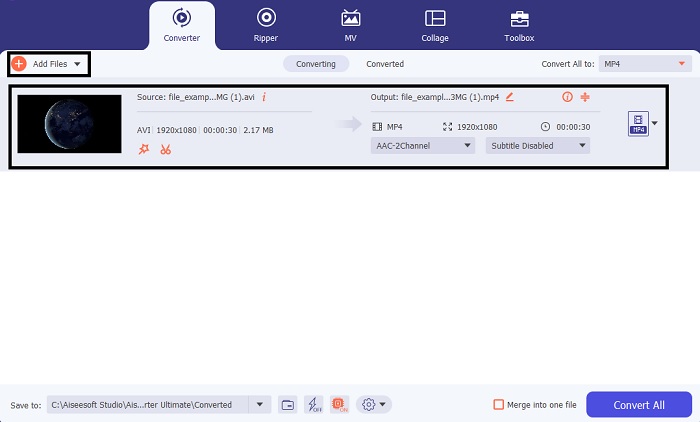
Trinn 2. For å legge til AVI-filen som skal konverteres, klikker du på Add Files eller pluss-symbolet – det spiller ingen rolle hvilket av de to du bruker. Velg filen du vil konvertere, og klikk open for å fortsette.
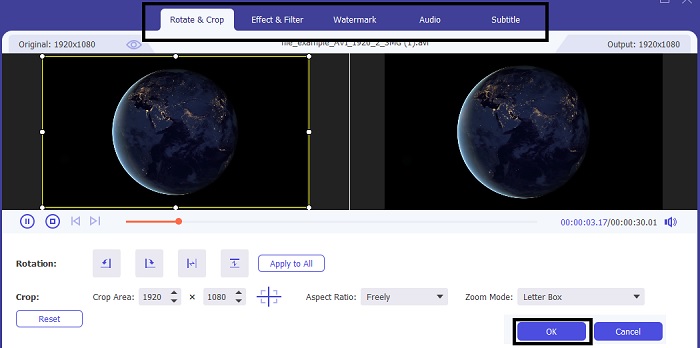
Trinn 3. I grensesnittet til FVC-verktøyet ser du en knapp som ser ut som en tryllestav. Klikk på den. Et nytt vindu vises på skjermen, der du kan redigere videoen og gjøre den bedre. Merk: Dette trinnet er bare en ekstra mulighet hvis du vil redigere før du konverterer. Da trenger du senere ikke iMovie for å redigere, hvis du ikke vil. Trykk OK for å lagre.
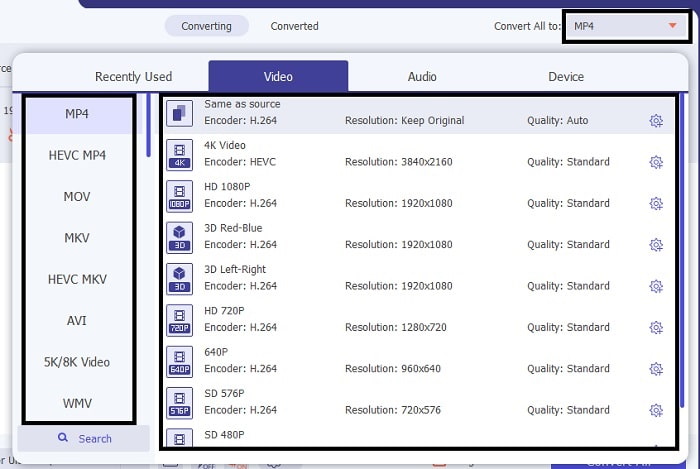
Trinn 4. Når alt er klart, klikker du på nedtrekks-knappen og velger hvilket iMovie-format du vil ha. Når du har valgt det nye AVI-formatet, må du klikke på Convert All for å gi verktøyet signal om å starte konverteringen.
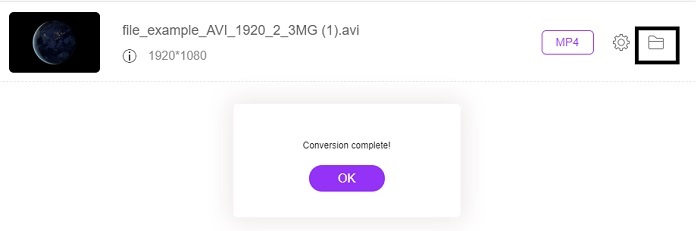
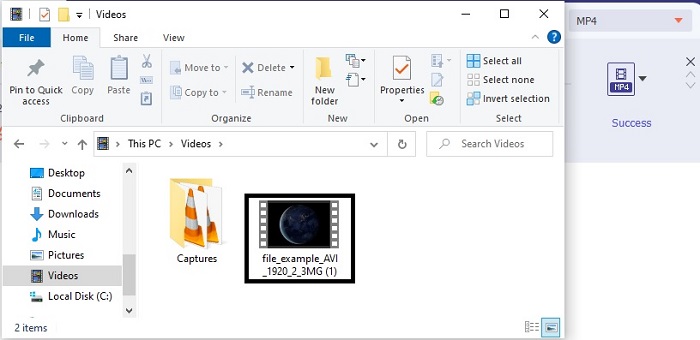
Trinn 5. Konverteringen tar bare noen få sekunder, og når den er ferdig, vises en mappe med det nye formatet på skjermen. Klikk på filen for å spille den av, og gratulerer – nå kan du redigere den i iMovie.
Del 3. Vanlige spørsmål om AVI til iMovie
Hvem er skaperen av iMovie?
iMovie ble laget av Apple Inc. for å være deres proprietære redigeringsverktøy. Andre fakta om Apple Inc. de utviklet også QuickTime-spiller og MOV-format som deres opprinnelige mediespiller og format for Mac-brukere.
Hva er det beste alternativet for AVI-format på Mac?
Det er sannsynligvis MOV-formatet, siden det er ment å brukes på Mac. Vil du vite hvordan du konverterer AVI-filer til MOV-format? Klikk da på denne lenken for å lære mer om AVI til MOV-konvertere.
Hva er ulempen med å bruke et AVI-format?
Det ble sagt ovenfor at dette formatet kan inneholde forskjellige kodeker, noe som er bra. Men AVI-formatet er ikke komprimert, så å ha en video på 2 til 3 minutter forventer en enorm filstørrelse. Likevel, hvis du vil lære mer om AVI, kan du klikke på denne for å vite hva en AVI er.
Konklusjon
Før var vi usikre og forvirret fordi vi ikke hadde noen anelse om hvordan vi skulle håndtere dette problemet. Men nå er det klart for oss at du må konvertere AVI-filen for å kunne redigere den i iMovie. Så nå trenger du ikke lenger å spørre om hvordan du importerer AVI-filer til iMovie og redigerer dem senere. Hvis du har valgt FVC Video Converter Ultimate, fortjener du en applaus. For du har valgt verktøyet som gir en løsning på alle problemer du kan møte med konvertering, sammenslåing, forbedring, komprimering og mer i fremtiden. Bestem hva som er best for deg – og det beste er FVC Video Converter Ultimate.
-
 Concrete Guide for å hjelpe deg med å konvertere AVI til FLV gratis
 For å konvertere AVI til FLV, trenger du en kraftig videokonverterer. Heldigvis kan du lære to og trinnvise veiledninger fra denne enkeltartikkelen.
-
 Hvordan konvertere AVI-videoer til animerte GIF-filer på Windows / Mac
 Vil du velge de interessante AVI-segmentene for å lage GIF-memer? Denne artikkelen vil fortelle deg de to beste metodene for å klippe AVI-videoene og konvertere AVI til animerte GIF-filer gratis.
-
 [2 beste løsninger] Hvordan spille AVI-filmer på iPhone/iPad enkelt
 Kan ikke spille av AVI-filmer på iPhone/iPad og vil ikke laste ned tredjeparts videospillere? Du kan lære 2 effektive måter å konvertere AVI-videoer til å spille på iPhone.
