


 Video Converter Ultimate
 Skjermopptaker
 Videoreparasjon
 Sikker nedlasting
Førsteklasses teknikker for hvordan du konverterer MPEG til M4V
Er MPEG-filen din ikke spillbar i QuickTime Player? Hvis det er problemet, er den beste løsningen du kan prøve å konvertere MPEG-filen til M4V-format. Du kan spille av en M4V-fil i QuickTime Player og andre mediespillere. I denne veiledningen gir vi deg de tre beste metodene du kan bruke for å konvertere MPEG til M4V umiddelbart ved hjelp av Mac- og nettbaserte verktøy. I tillegg viser vi deg forskjellene mellom MPEG-filformatet og M4V, slik at du får et innblikk i disse to formatene. Les denne artikkelen og lær mer om metodene.

Del 1: Hva er forskjellene mellom MPEG og M4V
Se på tabellen nedenfor for å se informasjon om filformatene MPEG og M4V.
| MPEG | M4V | |
| Beskrivelse | Da MPEG-1 ble opprettet i 1993, ble den raskt populær som lagringsformat for både lyd og video. Det er nå den medietypen som er mest kompatible over hele verden. Da formatet opprinnelig kom ut, var det nyskapende og forut for sin tid, og leverte filer av rimelig kvalitet samtidig som de reduserte størrelsen og komprimerte dataene, noe som gjorde det enkelt å laste opp og laste ned filer. Disse funksjonene tillot kringkasting av digital lyd, digital TV og video. Siden MPG er utdatert og ikke lenger beskyttet av patenter, kommer en rekke maskinvare og Mac- og Windows-programvare utstyrt med innebygd støtte for MPEG-video og -lyd. | M4V, en type videobeholder som iTunes-filer kan lagre lyd- og videodata. Det er best å kjøpe lyd- eller videofiler fra iTunes Store hvis de er Apple FairPlay DRM-beskyttet mot uautorisert visning og kopiering. Fordi formatet er basert på MPEG-4-struktur, kan praktisk talt alle moderne spillere vise ubeskyttede filer. |
| Filkategori | Video | Video |
| Filutvidelse | .mpeg | .m4v |
| Utvikler | ISO, IEC | eple |
| Tilknyttede programmer | VLC Media Player Video LAN Windows media spiller | Quicktime Player VLC Media Player Apple iTunes |
Del 2: Utmerket metode for å konvertere MPEG til M4V ved hjelp av Mac
Du kan laste ned Video Converter Ultimate for enkelt å konvertere MPEG til M4V på Mac. Den har en høyhastighets konverteringsprosess som er 30 ganger raskere enn andre konvertere. Den tilbyr også batchkonvertering. På denne måten kan du konvertere MPEG-filen din til M4V-format, og samtidig konvertere flere filer på én gang. Med denne typen prosess kan du være sikker på at du kan konvertere en rekke filer på kort tid. Du kan også konvertere MPEG-filen din til andre formater, som MOV, MKV, WMV, MP4, AVI, FLV og over 100 andre. Dessuten er ikke Video Converter Ultimate bare pålitelig til konvertering. Hvis du vil beskjære MPEG-videoen før du konverterer den, kan du gjøre det i dette programmet. Denne konverteren tilbyr et beskjæringsverktøy for å klippe og beskjære videoen for å fjerne delene du ikke vil se. Hvis du også planlegger å lage en bildecollage, kan du bruke dette programmet. Det har en collagefunksjon. Med denne funksjonen kan du bruke gratis maler med ulike design, og den har også en rekke filtre du kan bruke. På denne måten er det mulig å lage en flott collage. Hvis du ønsker å oppdage mer om dette programmet, bør du prøve å bruke det selv.
Funksjoner
◆ Konverter 100+ videofilformater, inkludert M4V, MPEG, MKV, WMV, MOV, FLV, AVI, MP4 og mer.
◆ Den kan lage en collage med gratis maler og filtre.
◆ Tilbyr ulike redigeringsverktøy, for eksempel videoforsterker, kompressor, fargekorrigering, beskjæring, etc.
◆ Kan lage en attraktiv musikkvideo med gratis temaer.
◆ Kan bremse og øke hastigheten på en video fra 0,125x til 8x raskere.
◆ Den kan komprimere video og lyd.
Fordeler
- Perfekt for den ikke-profesjonelle brukeren.
- Den kan konvertere filer 30 ganger raskere enn normal konverteringshastighet.
- Den har et intuitivt grensesnitt.
- Tilbyr batchkonverteringsprosess.
Ulemper
- Du må kjøpe programvaren for å nyte de flotte funksjonene til pro-versjonen.
Følg den enkle guiden nedenfor for å konvertere MPEG til M4V ved hjelp av Mac.
Trinn 1: Klikk på knappen Last ned for å laste ned og installere Video Converter Ultimate på Mac-en din. Start deretter programmet.
Gratis nedlastingFor Windows 7 eller nyereSikker nedlasting
Gratis nedlastingFor MacOS 10.7 eller nyereSikker nedlasting
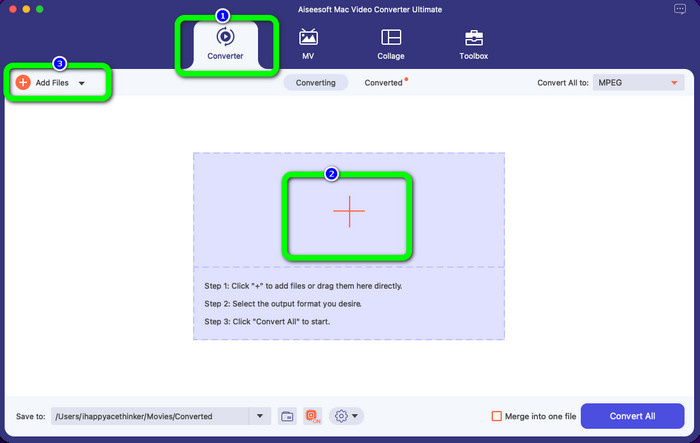
Trinn 2: Etter at du har åpnet programmet, vil du se fire alternativer øverst i grensesnittet. Velg Converter-alternativet og klikk på pluss-ikonet i midten av grensesnittet for å legge til MPEG-videoen du vil konvertere. Du kan også klikke på knappen Legg til filer.
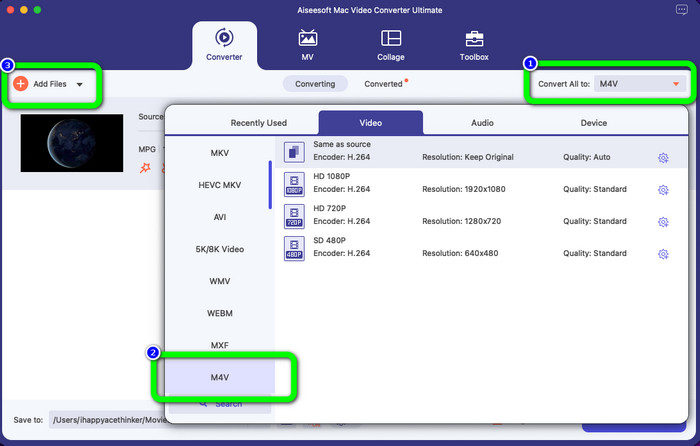
Trinn 3: Når du har satt inn MPEG-videofilen, velger du knappen Konverter alle til øverst til høyre i grensesnittet. Deretter vises formatvalgene på skjermen din. Klikk på M4V-filen, som er ønsket utdataformat. Dette verktøyet tilbyr batchkonvertering, så du kan klikke på knappen Legg til filer for å legge til flere filer du vil konvertere.
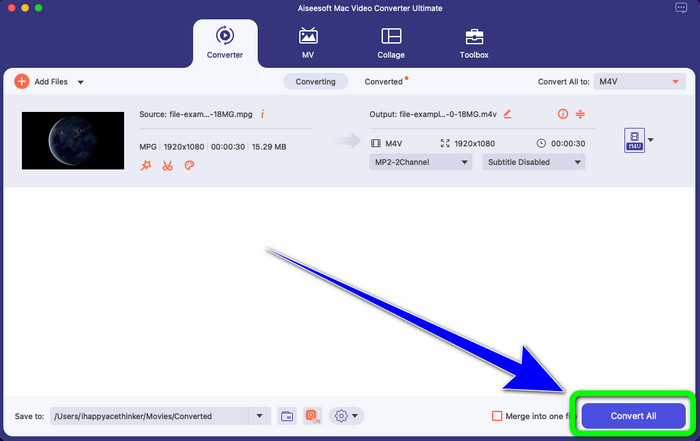
Trinn 4: Når du er ferdig med å endre MPEG-filen til ønsket format, klikker du på knappen Konverter alle for å lagre den endelige videoen med M4V-filformat.
Del 3: Beste måten å konvertere MPEG til M4V Online
Den beste måten å konvertere MPEG til M4V med et nettbasert verktøy på er FVC Free Video Converter Online. Det er en allsidig videokonverterer som kan konvertere nesten alle formater, som AVI, MOV, MP4, FLV, TS og mer. Du kan også konvertere MPEG-filen din samtidig som du beholder originalkvaliteten. I tillegg er denne konverteren 100 % gratis, slik at du kan bruke verktøyet uten begrensninger og uten å bruke penger. Følg de enkle trinnene nedenfor for å konvertere MPEG til M4V ved hjelp av FVC Free Video Converter Online.
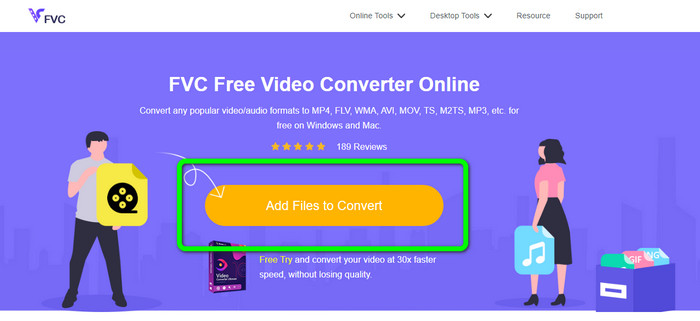
Trinn 1: Åpne nettleseren din og gå til nettstedet FVC Free Video Converter Online. Klikk deretter på knappen Legg til filer for å konvertere. Mappen din vil vises på skjermen, og du velger MPEG-filen du vil konvertere.
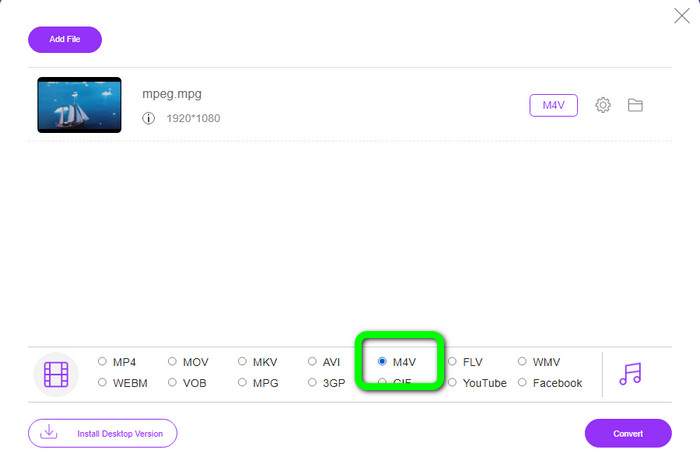
Trinn 2: Etter at du har lagt til MPEG-videofilen, vil du se formatvalgene nederst i grensesnittet. Velg ønsket utdataformat, som er M4V-filen.
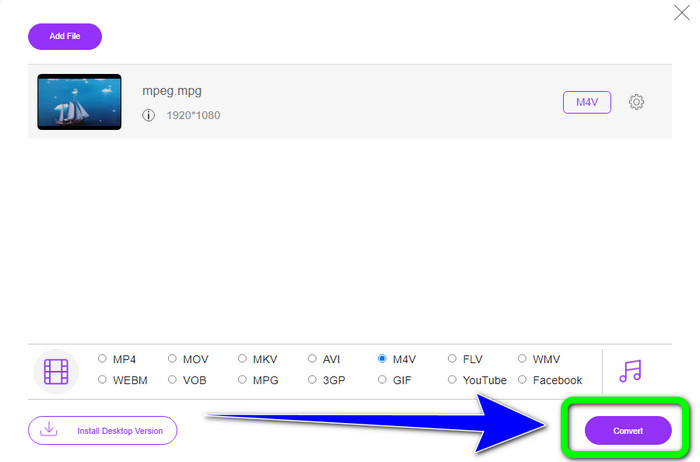
Trinn 3: Til slutt klikker du på knappen Konverter etter at du har valgt M4V-filformatet. Lagre den deretter på ønsket sted. Vent på at konverteringsprosessen skal bli ferdig, og klikk OK. Dette verktøyet hjelper deg også med å konvertere MP4 til M4V på nett.
Del 4: Vanlige spørsmål om konvertering av MPEG til M4V
Hvordan bruke FFmpeg til å konvertere MPEG til M4V?
Last ned FFmpeg på datamaskinen din. Åpne deretter ledeteksten. Bytt kommandolinjen til "Desktop." Konverteringskommandoen begynner med FFmpeg -i, etterfulgt av navnet og filtypen til kildefilen, samt navnet og filtypen til utdatafilen. Trykk deretter "Enter" og vent på konverteringsprosessen. Etter konvertering vil du se den konverterte filen på skrivebordet.
Kan VLC konvertere MPEG til MP4?
Ja. VLC, en populær mediespiller på tvers av plattformer, kan spille av alle de viktigste filtypene, inkludert MP4, MPEG, AVI, MOV og mer. Spilleren kan også brukes til raskt og enkelt å konvertere MPG-filene dine til MP4, siden den også støtter filkonvertering.
Kan jeg bruke et utmerket onlineverktøy til å konvertere MPEG-filer til andre formater?
Ja, selvfølgelig! Du kan bruke FVC Free Video Converter Online. Dette nettbaserte verktøyet kan umiddelbart konvertere MPEG-filen din til andre formater uten å endre videokvaliteten.
Konklusjon
De to metodene som er vist ovenfor er den beste løsningen for å konvertere MPEG til M4V-filformat. Du kan bruke Video Converter Ultimate hvis du vil ha en nedlastbar konverter. Og hvis du foretrekker å bruke et nettverktøy, kan du bruke FVC Free Video Converter Online.
-
 3 måter å konvertere MPG til 3GP på Windows og Mac [Gratis]
 Hvis du leter etter måter å konvertere MPG til 3GP på, les denne artikkelen for å vite de beste måtene å konvertere MPG til 3GP på Windows og Mac.
-
 Hvordan konvertere MPG til DivX uten å ha kvalitetstap
 Leter du etter et problemfritt program du kan bruke til å konvertere MPG til DivX? Denne artikkelen vil gi deg forskjellige effektive metoder du må prøve.
-
 Hvordan konvertere M4V til DivX gratis på Mac [Beste verktøy]
 Leter du etter måter å konvertere M4V til DivX gratis? Vi listet opp de beste konvertererne for deg å konvertere M4V-filen til DivX på Mac.
