


 Video Converter Ultimate
 Skjermopptaker
 Videoreparasjon
Mestre kunsten å legge til vannmerke på iMovie med detaljerte trinn
En av de beste redigeringsprogrammene du kan bruke på Mac, er iMovie. Dette verktøyet har et svært intuitivt grensesnitt for Mac‑brukere. Selv om programmet er utmerket og lett å håndtere, er det likevel noen brukere som ønsker en veiledning i hvordan det brukes. Så hvis du er Mac‑bruker og vil lære hvordan legge til vannmerke i video i iMovie, kan du følge veiledningen vi har presentert nedenfor for å få mest mulig ut av verktøyet.

Del 1. Veiledning om hvordan du legger til vannmerke i en video i iMovie på macOS
Vi har allerede introdusert iMovie, så de etterfølgende detaljene vil lære deg hvordan du setter et vannmerke på en video i iMovie. For å lære hvordan du legger til, kan du følge den detaljerte veiledningen nedenfor, og les den grundig for å forstå hele ideen.
Trinn 1. Start iMovie på Mac‑en din, og hvis du ikke finner det, kan du raskt gå til Finder og søke etter det.
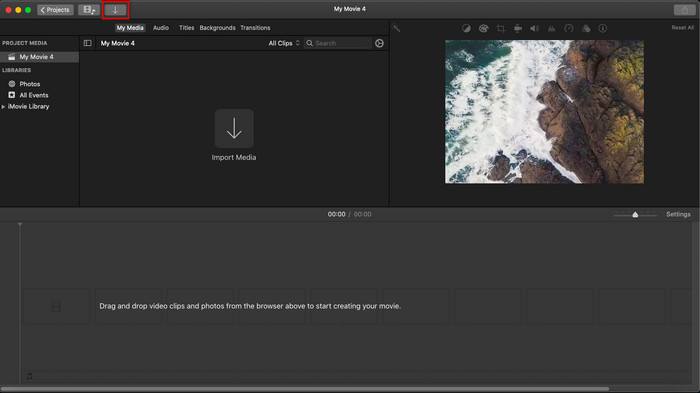
Trinn 2. Klikk på Importer-knappen for å laste opp videoen og bildet du vil bruke som vannmerke. Dra video- og bildefilen ned til Tidslinjen under, på samme måte som bildene. Sørg for at videoen ligger øverst på tidslinjen. Gjør justeringer av bildet ved å dra, endre størrelse og mer.
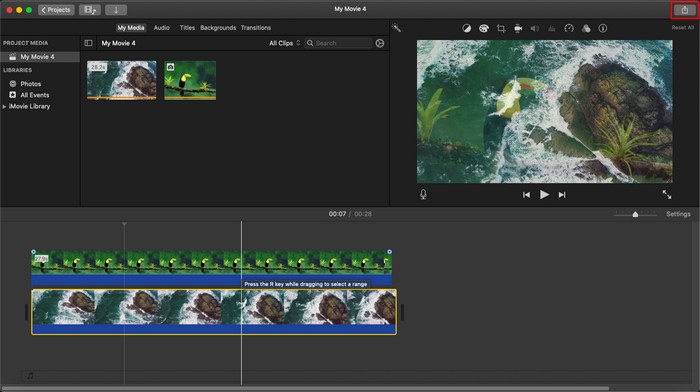
Trinn 3. Hvis du er fornøyd med justeringene, klikker du på Eksporter øverst til høyre i programmet, og deretter Eksporter fil.
Fordeler
- Det er gratis å bruke på alle Apple-enheter som macOS og iOS-enheter.
- Gjør raske redigeringer på råvideoene for å få dem til å se bra ut.
- Viktige opp til gjennomsnittlige redigeringsfunksjoner er tilgjengelige.
Ulemper
- Den støtter mindre format, så hvis du vil redigere videoen her, må du konvertere den til MOV eller et hvilket som helst format som er kompatibelt med Apple-enheter.
- Mindre støtte for profesjonell redigering.
Del 2. Beste verktøy for å bruke og sette vannmerke på video på Mac-datamaskiner på en mindre problemfri måte
Hvis du synes det er vanskelig å legge til et vannmerke i iMovie, kan du i stedet bruke det beste alternativet, Video Converter Ultimate. Dette verktøyet gjør det mye enklere å legge til et vannmerke i videoen din. Tenk deg dette: det ultimate verktøyet er enda mer brukervennlig enn iMovie, som allerede er lett å bruke. Selv om det er enkelt å bruke, er sluttresultatet førsteklasses, og en av fordelene sammenlignet med iMovie er at det støtter flere bildeformater du kan laste opp. Vil du vite mer? Da kan du lese funksjonene vi har presentert for deg nedenfor.

FVC Video Converter Ultimate
5 689 200+ nedlastinger- Gir komplette redigeringsfunksjoner du kan bruke for å gjøre videoen din mer fremragende enn den andre.
- Den støtter ultraraske prosesser og maskinvareakselerasjon for raskt å importere og eksportere videoen.
- Den støtter videoformater som MOV, MKV, AVI, MP4, FLV, RMVB og mer.
- Den har et veldig interaktivt grensesnitt for å få den beste opplevelsen.
- Tilgjengelig på alle skrivebordsplattformer som Windows og Mac.
Gratis nedlastingFor Windows 7 eller nyereSikker nedlasting
Gratis nedlastingFor MacOS 10.7 eller nyereSikker nedlasting
Er det ikke utrolig å ha alle disse funksjonene på ett verktøy? Hvis vi er på samme side, la oss grave i detaljene om hvordan du vannmerker en video i iMovie, men på en mer uanstrengt måte med det ultimate verktøyet.
Trinn for hvordan du setter inn vannmerke på video med det ultimate verktøyet
Trinn 1. Last ned programvaren til Mac‑en din, følg installasjonsprosedyren, og trykk Start Now for å starte verktøyet.
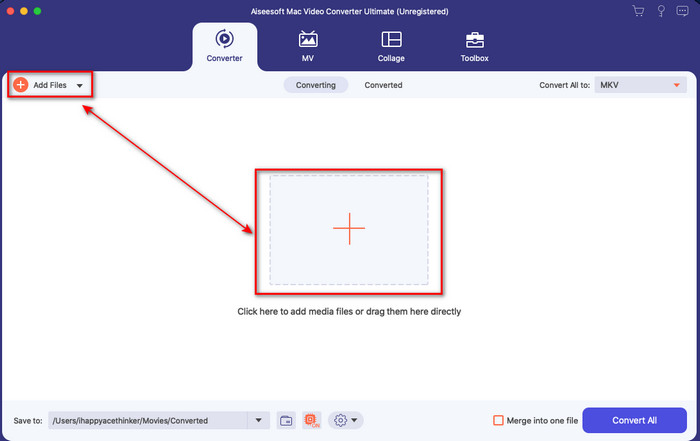
Trinn 2. Last opp videofilen du ønsker ved å klikke på +-knappen eller Legg til filer. Finn videoen i mappen som vises på skjermen, og trykk Åpne for å laste den opp.
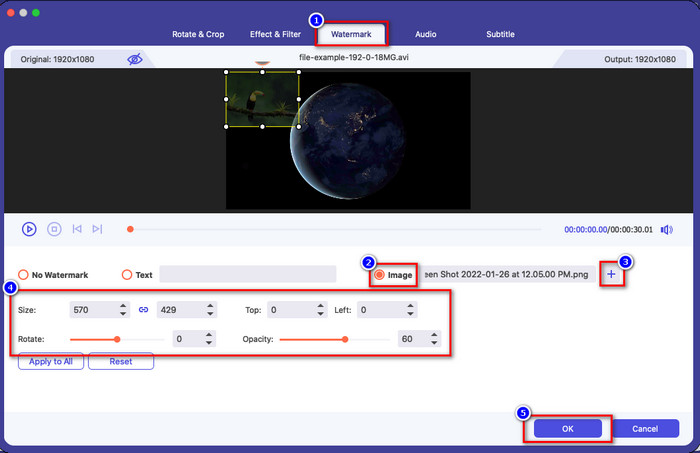
Trinn 3. Klikk på tryllestav-knappen for å åpne redigeringsvinduet i verktøyets grensesnitt. Klikk deretter på delen Vannmerke, huk av for Bilde, og trykk på +-knappen for å legge til bildet du vil bruke. Deretter justerer du bildets opasitet eller roterer det, og klikker OK for å lagre endringen du har gjort.
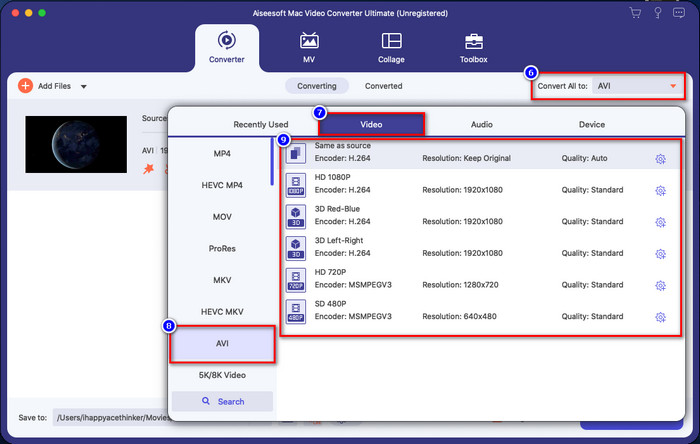
Valgfritt. Hvis du vil endre format, klikker du på Konverter alle til, velger et format på listen og klikker på det. Hvis du ikke vil endre format, kan du gå videre til siste trinn.
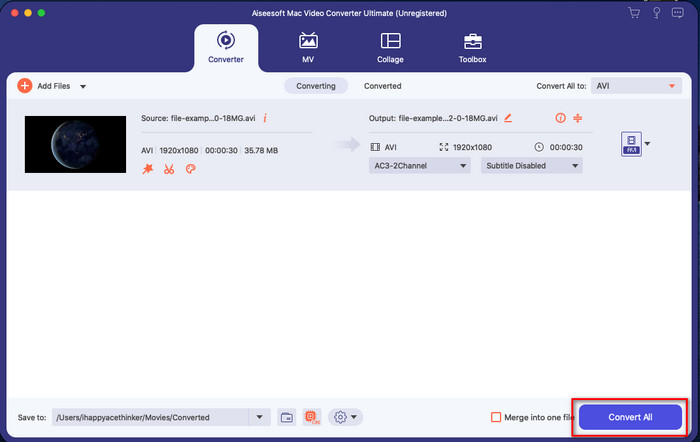
Trinn 4. For å eksportere videoen med vannmerke klikker du på Konverter alle. Du trenger ikke å vente lenge, takket være den ultraraske konverteringsprosessen. Dermed har du lagt til bilde‑vannmerket i videoen din på under ett minutt.
Fordeler
- Det er det beste valget for alle brukere som har liten eller ingen anelse om hvordan de skal redigere.
- Den støtter flere videoformater du kan laste opp for å spare tid og unngå å konvertere den.
- Tilgjengelig på alle plattformer som Windows eller Mac for nedlasting.
Ulemper
- Det er ikke gratis å laste ned, men det er ikke for dyrt.
- Det er nødvendig å laste den ned på stasjonen.
Del 3. Vanlige spørsmål om å legge til vannmerke på iMovie
Er iMovie gratis å bruke?
Ja, iMovie er gratis å bruke hvis du har et Apple‑produkt, men du kan ikke laste det ned hvis du bruker Android eller Windows. Merk at det ikke finnes noen iMovie‑versjon for andre plattformer. Så hvis du laster ned et program som utgir seg for å være iMovie på en datamaskin eller telefon som ikke er fra Apple, kan du forvente at det ikke vil fungere like bra som iMovie, eller – enda verre – at det inneholder virus. For å unngå dette kan du klikke og lese denne artikkelen for å finne alternativer til iMovie.
Er iMovie den beste redaktøren på Mac?
Vi kan si at det er en av de beste, men ikke den beste, fordi forskjellige redaktører tilbyr flere redigeringsfunksjoner som du ikke finner på iMovie. Selv om det mangler på noen måter, er det fortsatt en førsteklasses editor du kan bruke på Macen din gratis for å lage videoredigering for vlogging, forretninger, promotering og mer.
Etter å ha eksportert videoen på iMovie, har den et vannmerke?
Per denne dagen er ikke videoens vannmerke i de eksporterte videoene. Så du kan nyte de nedlastede videoene du redigerer på iMovie fritt uten det irriterende vannmerket.
Kan jeg bruke .avi-videoen på iMovie?
iMovie støtter ikke et bredt spekter av formater, men du kan klikke og lese denne artikkelen for å lære hva du kan gjøre for å gjøre AVI‑filene dine kompatible med iMovie.
Konklusjon
Denne artikkelen viser allerede at du kan bruke det innebygde redigeringsprogrammet Apple har gitt deg, og legge til vannmerker i videoer ved hjelp av trinnene vi har lagt til, som du enkelt kan følge. Selv om du fritt kan bruke iMovie, mener vi fortsatt at Video Converter Ultimate er det beste verktøyet for denne oppgaven når som helst. Så hvis du vil ha hjelp, kan du laste det ned på Mac eller Windows ved å trykke på nedlastingsknappen ovenfor.
-
 3 metoder for å konvertere MPEG til WMV uten å miste kvalitet
 Vil du se videoene dine på din foretrukne spiller, men den støtter ikke formatet videoen er? Les denne artikkelen mens vi gir deg de mest effektive måtene å konvertere MPEG til WMV.
-
 2 av favorittkonverteringsvalgene for å konvertere F4V til WMV [2022]
 Er du en av brukerne som leter etter den beste måten å konvertere F4V til WMV? I så fall, prøv å lese denne artikkelen for å vite mer om hvordan du gjør det og hva som er tilgjengelige verktøy.
-
 Beste MXF til WMV-konverterere for å konvertere MXF til WMV gratis
 Vil du vite den enkleste måten å endre MXF-filen din til WMV-format? Hvis du er klar til å utforske hvordan du gjør det, må du lese denne artikkelen nøye.
