


 Video Converter Ultimate
 Skjermopptaker
 Videoreparasjon
 Sikker nedlasting
4 enkleste måter å endre avspilling av videohastighet på skrivebord, nett og telefoner
De fleste brukere finner en effektiv måte å se en én time lang video på på mindre enn en time. Den eneste løsningen som kan løse dette problemet, er å endre avspillingshastigheten på videoen du ser på. De fleste videoredigeringsprogrammene du finner på markedet kan hjelpe deg å fullføre oppgaven, men spørsmålet er om de er pålitelige. Da vi undersøkte hver av dem, fant vi ut at du kan endre videohastighet på datamaskin, på nett, på iOS og Android‑enheter. Hvis du vil vite hvordan du gjør det, må du fortsette å lese dette innlegget, for vi tar med verktøy og apper som kan hjelpe deg.

Del 1. Beste anbefalte måten å endre videohastighet på Windows og Mac uten problemer
For enkelt å endre videohastighet må du velge det beste verktøyet som gir topp resultat med bare noen få klikk – vi presenterer FVC Video Converter Ultimate. Dette verktøyet endrer effektivt hastigheten på videoen du har, når som helst og hvor som helst. Du kan også endre videohastigheten selv om formatene er MP4, MOV, AVI, FLV, TS, RMVB og over 1000 andre formater; opplasting av filen hit er rask og enkel. Enten du er Windows‑ eller Mac‑bruker, kan du laste ned programvaren på det operativsystemet og fullføre oppgaven med å endre avspillingshastighet med noen få klikk.
I tillegg til funksjonen for videohastighetskontroll, har verktøyet også en stolt multifunksjonell verktøykasse som kan hjelpe andre oppgaver. Slik som å legge til metadata, lage en GIF, fjerne vannmerker og mange flere. Selv om verktøyet er nedlastbart, vil du merke når du bruker det at du ikke trenger mye erfaring med redigering, for det er brukervennlig. Det er funksjoner og funksjoner som vi ikke har skrevet ennå som vil fremheve dette produktet. Men hvis du vil lære hvordan du endrer hastigheten på en video, kan du lese detaljene for å få kunnskap.
Fordeler med å bruke den ultimate programvaren som en videohastighetsveksler:
◆ Intuitivt grensesnitt, slik at de lærer å bruke det på noen få minutter.
◆ Last opp 1000+ videoer for å øke hastigheten på avspillingen.
◆ Brukervennlig for å hjelpe brukerne med å oppleve mest mulig ut av det.
◆ Andre funksjoner er på Toolbox, for eksempel grunnleggende og avansert videoredigering.
◆ Det er førstevalget til nesten en million brukere som laster det ned.
◆ Tilgjengelig på Windows og Mac for å laste ned verktøyet uten problemer.
Trinn for hvordan du endrer videohastighet ved å bruke den ultimate programvaren:
Trinn 1. Du kan få den komplette programvaren på både Windows‑ og Mac‑systemer ved å klikke på nedlastingsknappen. Fullfør installasjonsprosessen etter at du har klikket på filen du lastet ned, og start deretter programvaren for å fortsette.
Gratis nedlastingFor Windows 7 eller nyereSikker nedlasting
Gratis nedlastingFor MacOS 10.7 eller nyereSikker nedlasting
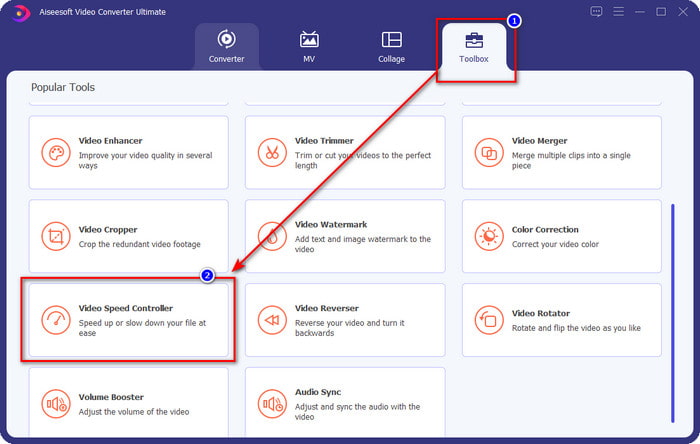
Trinn 2. Når du har åpnet programvaren, går du til delen Verktøykasse, og under den åpner du Video Speed Controller. Du trenger ikke å bekymre deg; du trenger ikke å laste ned ekstra ressurser for å bruke verktøyet.
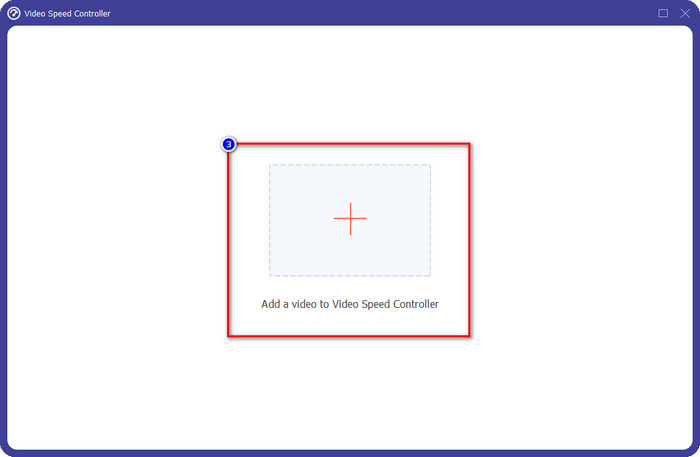
Trinn 3. Trykk på +-ikonet, legg til filen du har i mappen, klikk på den og trykk Åpne for å laste opp videofilen du har.
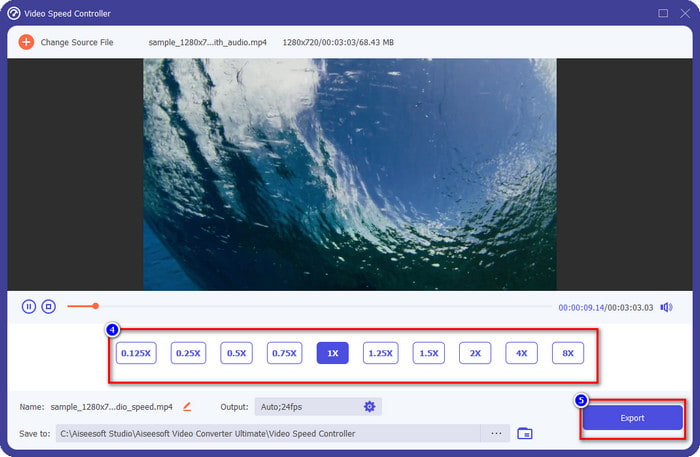
Trinn 4. Velg fra listen den avspillingshastigheten du ønsker å oppnå – vi har alle ulike avspillingshastigheter vi foretrekker. Klikk Eksporter for å lagre sluttresultatet av videoen hvor du har endret hastigheten. På under ett minutt har du allerede endret hastigheten på videoen du har. Nå kan du nyte å se den på kortere tid.
Del 2. Beste gratis måte å endre videohastigheten på nettet
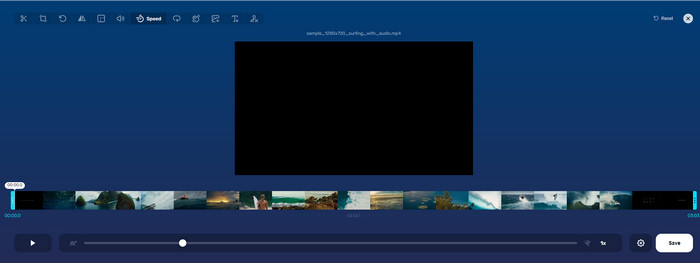
Med hjelp av Online Video Cutter kan du endre videohastighet gratis på nett. I motsetning til det første verktøyet trenger du ikke laste ned ekstra ressurser eller installasjonsprogram på datamaskinen for å bruke nettverktøyet. I tillegg til funksjonen for å endre hastigheten kan du også bruke dette verktøyet til enkel redigering. Selv om verktøyet er bra, kan du ikke laste opp alle formatene du har, fordi formatstøtten er begrenset. For å bruke det følger du trinnene nedenfor.
Trinn 1. Åpne nettleseren du vil bruke, og søk etter nettverktøyet.
Trinn 2. Åpne nettverktøyet, klikk Open File, finn videofilen du har og last den opp.
Trinn 3. Dra skyvekontrollene til venstre eller høyre for å endre hastigheten; klikk på Lagre‑knappen når du er fornøyd med hastigheten.
Del 3. Beste videoredigerer på iOS for å endre videohastighet gratis
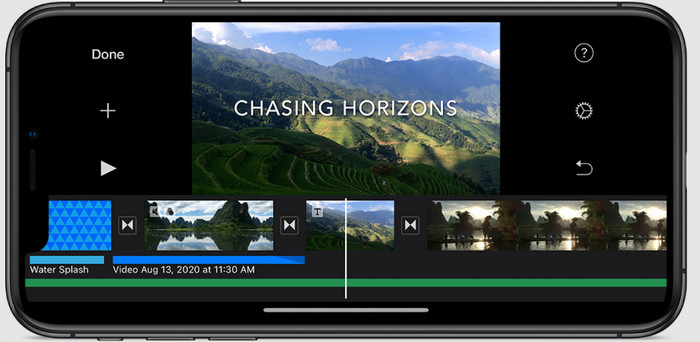
For iOS-brukere kan du bruke iMovie for å lære hvordan du endrer videohastighet på iPhone gratis. Selv om verktøyet er en innebygd videoredigerer på Mac, har du fortsatt et valg om å laste ned appen på enheten din eller ikke. Dette valget beviser at iOS-brukere kan beholde editoren eller ikke, for å spare plass på lagringen. Men hvis du har appen på din iPhone, kan du følge trinnene vi legger til nedenfor for å vite hvordan dette verktøyet fungerer.
Trinn 1. Last ned og åpne appen på iPhone‑en din, gå til Prosjekt, klikk på +-tegnet og klikk deretter Movie.
Trinn 2. Trykk på videoen du vil øke hastigheten på, og nederst på skjermen trykker du på Create Movie for å laste den opp på tidslinjen.
Trinn 3. Ved å trykke på klippet du har lastet opp, klikker du på ikonet for speed controller og justerer hastigheten på videoen ved å dra skyvekontrollene på iPhone‑en. Klikk Done for å lagre den, og eksporter hvis du ønsker.
Del 4. Beste måten å endre avspilling av videohastighet på Android-enheter ved hjelp av den innebygde editoren
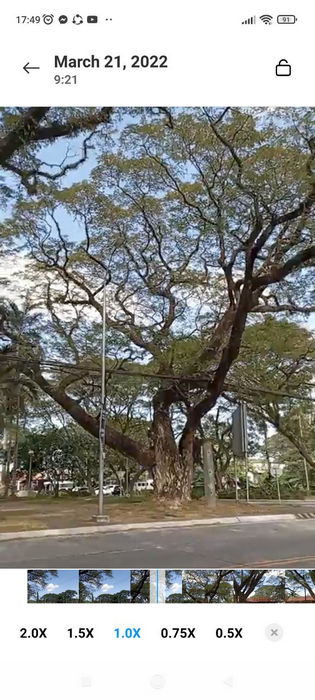
Å laste ned en app er ikke tilfelle hvis du er en Android-bruker; endre videohastighet på telefonen med det innebygde videoredigeringsprogrammet. Med denne editoren kan du gjøre den grunnleggende redigeringen som trengs på videoen din for å få den til å se bedre ut enn før. Du finner denne editoren i Galleri eller Album på Android. Hvis du vil vite hvordan du bruker det, vil følgende informasjon hjelpe deg.
Trinn 1. Åpne Galleri eller Album, og trykk på videoen du vil endre hastigheten på.
Trinn 2. Klikk Rediger for å fortsette.
Trinn 3. Trykk på delen Playback Speed, og endre deretter hastigheten etter behov.
Del 5. Vanlige spørsmål om endring av videohastighet
Kan jeg endre hastigheten på YouTube?
Absolutt ja, du kan endre avspillingen av videoen på YouTube selv om du ikke laster ned programvare for å gjøre det. Følg trinnene for å vite hvordan du endrer hastigheten på videoen på YouTube. Først er det åpne YouTube, finn videoen du vil se i en modifisert bevegelse, klikk på tannhjulikonet, og under det, avspillingshastigheten, velg hastigheten du vil oppnå, og nyt.
Forkorter det å endre hastigheten varigheten av videoen?
Det avhenger av hvordan du endrer hastigheten; Hvis du bremser videoen, kan du forvente at varigheten vil strekke seg over fordi du spiller den i sakte modus. Men hvis du endrer hastigheten til høy, vil varigheten av videoen du spiller av være kortere enn originalen. For å vite mer om å endre videohastigheten, må du lese følgende detaljer vi legger til ovenfor.
Etter å ha endret hastigheten, vil kvaliteten ha en effekt?
Avhengig av videohastigheten du angir, kan kvaliteten reduseres eller forbli. Hvis du spiller av en video åtte ganger eller mer, forvent videoen du vil spille. Du vil imidlertid ikke merke mye forskjell annet enn avspillingen, kvalitetsmessig vil den forbli den samme.
Konklusjon
Nå som vi har en idé om hvordan vi endrer videohastighet på datamaskiner, på nett og på telefoner, er det på tide å bestemme hva vi bør bruke. Hvis du ikke vil laste ned programvare på datamaskinen for å spare plass og slippe installasjonstrinn, må du lese del to av denne artikkelen. Men hvis du er iOS‑ eller Android‑bruker, er del tre og fire for deg. Hvis du vil bruke den beste videoredigereren på Windows og Mac, må du laste ned FVC Video Converter Ultimate. Det er den beste videohastighetskontrolleren for enkelt å endre videoplaybacken du har på datamaskinen. Hva venter du på? Last den ned nå og benytt deg av vårt tilbud som kun er for deg!
-
 Hvordan øke hastigheten på video i Premiere Pro og med dens alternativer
 Vil du vite hvordan du bruker premiere pro for å øke hastigheten på en video? Da er du inne i den riktige artikkelen da vi tilbyr trinn og andre rimelige alternativer.
-
 2 uanstrengte måter å øke hastigheten på en video på TikTok
 Vil du vite hemmeligheten om hvordan du kan øke hastigheten på video på TikTok? Les deretter denne artikkelen for å få ideen om hvordan du gjør det og vite hva som er de to andre verktøyene som vil hjelpe deg.
-
 Utmerkede tips fra 2021: Hvordan øke hastigheten på en video på iMovie
 Vennen din foreslår iMovie for å hjelpe deg med problemet med hvordan du kan øke hastigheten på en video ved å bruke iOS-operativsystemet, men du vet ikke hva du skal gjøre? Se mer om dette når du leser mer gjennom denne artikkelen.
