


 Video Converter Ultimate
 Skjermopptaker
 Videoreparasjon
 Sikker nedlasting
Topp videobeskjæringsapper for iPhone-brukere | Brede bilder for perfekte avlinger
Har du noen gang tatt en video på iPhone-en din bare for å innse at den ikke er helt riktig størrelse eller ikke passer til sideforholdet til plattformen du vil legge den ut på? Å beskjære iPhone-videoene dine kan hjelpe deg med å lage den perfekte komposisjonen og eliminere eventuelle uønskede elementer fra opptakene dine. Heldigvis er det flere videobeskjæringsapper tilgjengelig for iPhone som lar deg enkelt og presist beskjære videoene dine.
Dette innlegget lar deg utforske noen av de beste appene for videobeskjæring for iPhone og viser deg hvordan du bruker dem for å ta redigeringsferdighetene dine til neste nivå. I tillegg kan sosiale medier‑påvirkere, innholdsskapere eller vanlige brukere som vil forbedre hjemmevideoer, ha nytte av denne guiden. Disse appene vil garantert hjelpe deg å nå målene dine.

Del 1. Veiledning for hvordan du beskjærer en video på en iPhone ved hjelp av bilder
Enten du ønsker å lage en video for sosiale medier eller bare vil trimme ut uønsket innhold fra hjemmevideoene dine, er Photos-appen et flott alternativ. Ikke bare lar den deg organisere og se mediene dine, men den har også en rekke redigeringsfunksjoner som kan hjelpe deg med å forbedre og tilpasse innholdet ditt. En av de forbløffende funksjonene til Photos-appen er dens evne til å beskjære videoer. Følg den korte veiledningen nedenfor for å finne ut hvordan du endrer størrelse på videoer på iPhone.
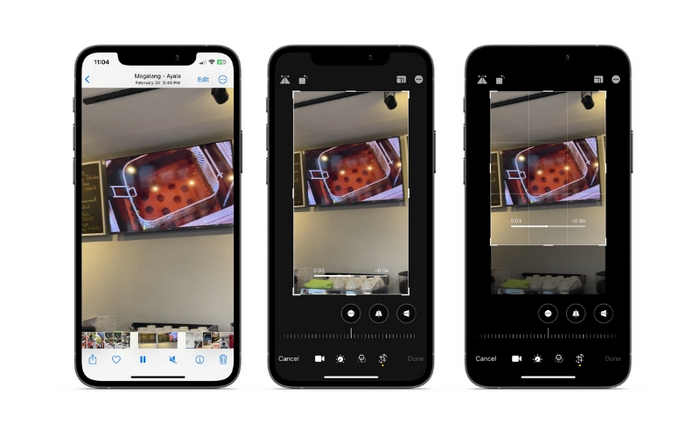
Trinn 1. Åpne Bilder‑appen på iPhone og gå til videoen du vil beskjære.
Trinn 2. Trykk på videoen for å åpne den, og trykk deretter på Rediger-knappen øverst til høyre.
Trinn 3. Trykk nå på ikonet for Beskjær og roter nederst på skjermen.
Trinn 4. Bruk fingrene til å justere størrelsen og plasseringen på beskjæringsboksen til ønsket størrelse og form.
Trinn 5. Trykk på den gule Ferdig-knappen nederst til høyre for å lagre endringene.
Del 2. Hvordan endre størrelse på en video på en iPhone ved hjelp av en tredjepartsapp
For deg som ser etter tredjepartsverktøy og vil utforske mer, kan du stole på InShot. Nye redigerere vil sette pris på verktøyene og valgmulighetene i kombinasjon med det intuitive grensesnittet. Brukere kan beskjære og endre størrelse på videoer, justere lysstyrke og farge på opptakene sine og legge til tekst eller klistremerker. I tillegg får du ulike videoeffekter som gir et profesjonelt preg på videoene. For å lære mer om dette programmet, finner du her en gjennomgang av denne iPhone‑appen for å endre videostørrelse:
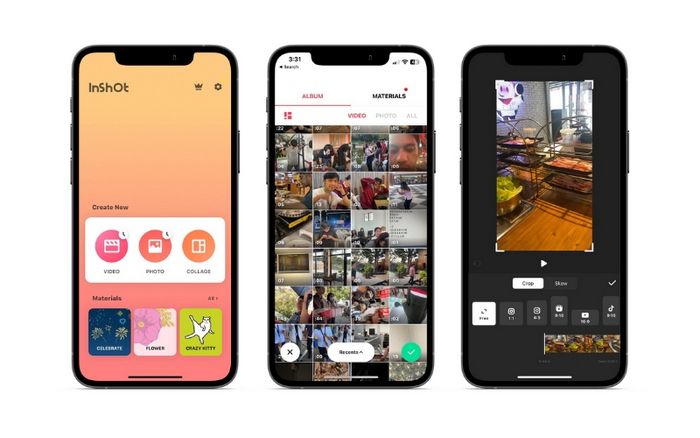
Trinn 1. Skaff og installer først InShot‑appen fra App Store.
Trinn 2. Start appen og velg Video fra startskjermen. Velg videoen du vil beskjære, fra kamerarullen.
Trinn 3. Når videoen er importert, trykker du på Beskjær-alternativet i menyen nederst.
Trinn 4. Bruk glidebryteren til å justere videoens sideforhold til ønsket størrelse. Du kan også justere beskjæringen manuelt ved å dra i hjørnene på videorammen.
Trinn 5. Når du er fornøyd med beskjæringen, trykker du på hakeikonet øverst til høyre for å bruke endringene. Til slutt trykker du på Lagre-knappen øverst til høyre for å lagre den beskårne videoen i kamerarullen.
Del 3. Hvordan beskjære en video på en iPad
Hvis du ønsker å beskjære videoer på iPad, kan du prøve iMovie. iMovie er Apples egen videoeditor og har en rekke funksjoner som lar deg endre størrelse og tilpasse videoene dine. Det er et flott alternativ for mer avansert videoredigering, med mange effekter og overganger å velge mellom. Du kan til og med spole opp en video med dette verktøyet. Det er kompatibelt med både iPad og iPhone. Uten videre om og men følger her trinnene for å endre sideforhold i iMovie på en iPhone eller iPad:
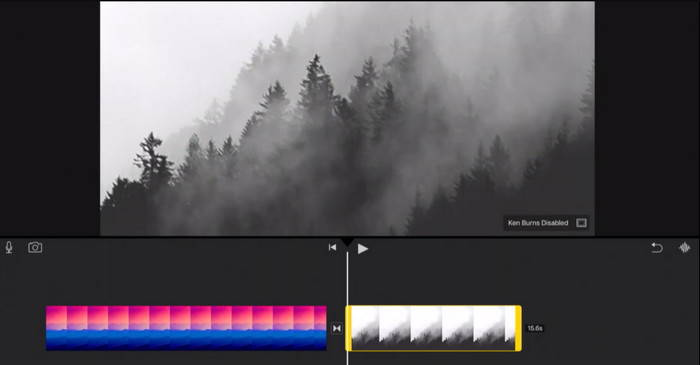
Trinn 1. Åpne iMovie på iPad og velg prosjektet du vil jobbe med. Trykk deretter på videoklippet du vil beskjære, i tidslinjen nederst.
Trinn 2. Trykk på Beskjær-ikonet nederst til venstre på skjermen, som ser ut som to overlappende rektangler med en diagonal linje gjennom.
Trinn 3. Bruk beskjæringsverktøyet som vises til å justere størrelsen og plasseringen på videoklippet. Du kan dra i kantene på videorammen for å endre størrelse på klippet, eller knipe med to fingre for å zoome inn og ut av klippet.
Trinn 4. Etter at du har beskjært videoen, trykker du på Ferdig-knappen øverst til høyre på skjermen. Til slutt trykker du på Eksporter-knappen øverst til høyre på skjermen for å lagre den beskårne videoen i kamerarullen eller dele den direkte på sosiale medier.
Del 4. Hvordan beskjære iPhone-videoer på PC
FVC Video Converter Ultimate er en alt‑i‑ett videokonverteringsprogramvare som kan hjelpe deg med å beskjære iPhone‑videoene dine på PC-en. En av de beste egenskapene ved FVC Video Converter Ultimate er at den er kompatibel med et bredt spekter av videoformater, som MP4, AVI, HEIV og WMV. Det betyr at du enkelt kan konvertere videoene dine til ulike formater og dele dem på forskjellige enheter og plattformer. Alt i alt er FVC Video Converter Ultimate en allsidig og kraftig videokonverteringsprogramvare som kan hjelpe deg å beskjære iPhone‑videoene dine på PC-en. Følg trinnene til denne video‑beskjæringsappen nedenfor for å lære hvordan du bruker den.
Trinn 1. Skaff programmet
Du kan få programmet ved å krysse av for Gratis nedlasting-knappen nedenfor. Deretter installer og start den på datamaskinen din.
Gratis nedlastingFor Windows 7 eller nyereSikker nedlasting
Gratis nedlastingFor MacOS 10.7 eller nyereSikker nedlasting
Trinn 2. Legg til en iPhone‑video
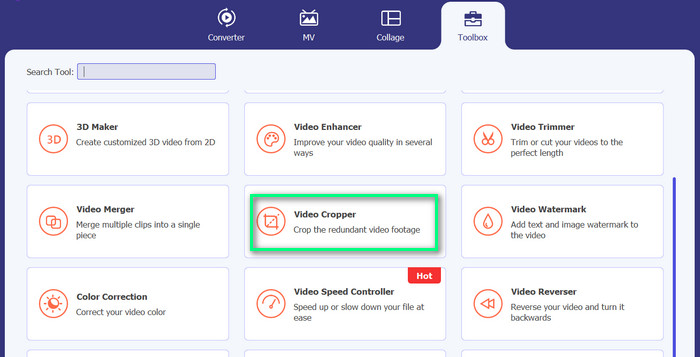
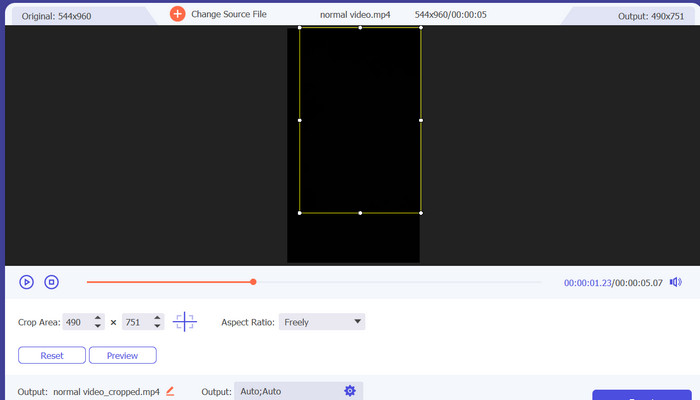
Gå nå til fanen Verktøykasse og se etter alternativet Video Cropper. Etter det klikker du på pluss-ikonet og legger til den aktuelle iPhone‑videoen fra den lokale stasjonen på PC-en.
Trinn 3. Beskjær videoen
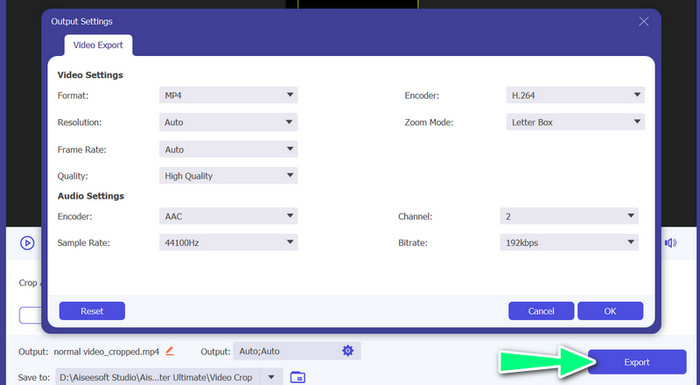
Nå beskjærer du videoen ved å justere sideforholdet. Alternativt kan du dra i kantene ved hjelp av skyvebryterne for å angi sideforholdet. Deretter klikker du på menyen Output for å endre video‑ og lydinnstillingene.
Trinn 4. Eksporter videoen
Forhåndsvis endringene i sanntid og trykk på Eksporter-knappen for å lagre den beskårne videoen.
Del 5. Vanlige spørsmål om beskjæring av iPhone-videoer
Hvordan endre iPhone-videooppløsning?
For å endre oppløsningen til en video på en iPhone, gå til Innstillinger-appen og velg Kamera etterfulgt av Ta opp video. Herfra velger du oppløsningen og bildefrekvensen du vil bruke for videoene dine.
Vil beskjæring av en video påvirke kvaliteten?
Beskjæring av en video kan føre til noe tap av kvalitet, spesielt hvis du reduserer størrelsen på videoen betydelig. Men hvis du beskjærer videoen moderat, bør forskjellen i kvalitet være ubetydelig
Kan jeg beskjære en video som jeg allerede har lagt ut på sosiale medier?
Nei, når en video først er lagt ut på sosiale medier, kan du ikke beskjære den eller gjøre andre endringer i den. Du må redigere den originale videofilen og legge den på nytt.
Konklusjon
Apper for videobeskjæring til iPhone gir en praktisk måte å redigere videoer direkte på enheten din. Fra den innebygde Bilder‑appen til tredjepartsapper som InShot og FVC Video Converter Ultimate, finnes det mange alternativer å velge mellom. Med disse verktøyene for hånden kan du enkelt lage og dele videoer som er tilpasset dine spesifikke behov og preferanser.
-
 Opplæring - 4 gratis måter å slå sammen videoer på iPhone til en ny
 Les og få 4 enkle måter å slå sammen videoer på iPhone. Alle iPhone-modeller og iOS-versjoner støttes. Du kan raskt kombinere 2 og flere videoer på iPhone til en ny video.
-
 [Løst] Hvordan fikse videoer som ikke spilles av på iPhone med detaljerte trinn
 Lokale videoer på galleriet kan ikke spilles av på iPhone via standard videospiller? Online YouTube -videoer som ikke spilles av på iPhone, skjer alltid? Her er 5 løsninger for å hjelpe deg i denne artikkelen.
-
 Hvordan forkorte en video på iPhone [Detaljerte veiledninger]
 Er du iPhone-bruker og vil trimme videoene dine? Ikke bekymre deg mer. Denne guideposten vil gi alle detaljer om hvordan du klipper en video på iPhone og iPad.
