


 Video Converter Ultimate
 Skjermopptaker
 Videoreparasjon
Se det fulle potensialet til Final Cut Pro i å lage slowmotion-videoer
Final Cut Pro er et kraftig verktøy for videoredigering i etterarbeid som kun er tilgjengelig for Mac‑brukere. Videoredigering og lydredigering, avansert fargekorrigering, undertekster og mer er alt mulig med dette programmet. På lik linje med annen redigerings- og leveringsprogramvare inneholder Final Cut Pro alt du trenger fra start til slutt. Denne programvaren er også svært god til å lage saktefilmvideoer, takket være et av verktøyene som kan justere avspillingshastigheten på videoen. For å oppnå den saktefilmseffekten du ønsker, les videre for å få alle detaljene om hvordan du kan lage saktefilmvideoer med Final Cut Pro. Les videre for mer informasjon.

Del 1. Hvordan lage slowmotion-videoer på Final Cut Pro?
Når det brukes i video eller film, kan sakte film bidra til å trekke oppmerksomhet til en bestemt handling eller forsterke den dramatiske eller emosjonelle effekten av det aktuelle arbeidet. Å slippe hastigheten på et klipp ser kult ut uansett hva du bruker det til. Vi viser deg hvordan du lager Final Cut Pro sakte filmeffekter i noen få enkle trinn. La oss gå for det, skal vi?
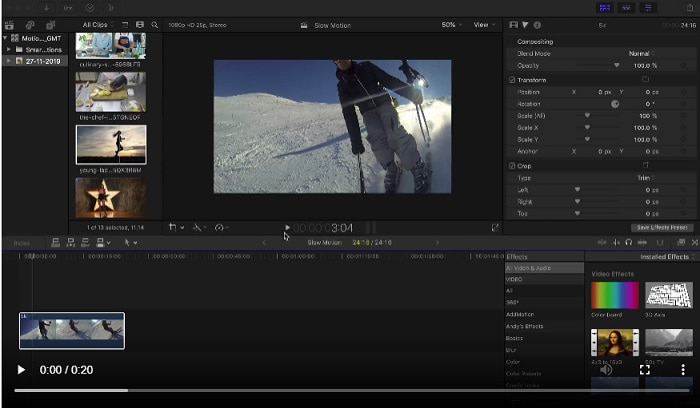
Trinn 1. Finn og klikk på klippet du vil redigere i Tidslinjen.
Trinn 2. For å åpne Retime-menyen kan du enten klikke på Speed Meter-ikonet i visningsvinduet eller trykke Kommando + R på tastaturet.
Trinn 3. Velg mellom to hastighetsnivåer: Slow og Fast. Alternativt kan du trykke Kommando + R på tastaturet for å få opp en rullegardinmeny over klippet ditt.
Trinn 4. Å endre klippets timing er like enkelt som å justere hastighetsprosentene som finnes under hvert alternativ. Hvis du øker hastigheten, vil det korte ned klippet, og hvis du senker hastigheten, vil det forlenge klippet når du bruker denne effekten. Varigheten på klippet vil endre seg avhengig av hastigheten.
Del 2. Utmerkede alternativer for å lage sakte film på Windows
Metode 1. Bruk Video Converter Ultimate
Hvis vi antar at Final Cut Pro er veldig vanskelig programvare å bruke for å lage en saktefilmvideo, anbefaler vi å bruke Video Converter Ultimate. Denne programvaren er gratis å laste ned og tilgjengelig både på Windows og Mac, så du trenger ikke å bekymre deg for nedlastingen. Den har ulike typer verktøy som kan redigere videoen din på samme måte som Final Cut Pro kan.
Blant disse verktøyene finnes det en Video Speed Controller som kan lage saktefilmvideoer ved å justere avspillingshastigheten på en video i normal hastighet. I motsetning til Final Cut Pro er denne programvaren lett tilgjengelig å bruke, og det tar ikke lang tid å lære hvordan hvert verktøy fungerer. I tillegg støtter den en rekke videoformater slik at du slipper å bruke mye tid på å finne den beste programvaren for videoformatet du trenger å konvertere. Nå som du har en idé om hvor bra Video Converter Ultimate er, la oss se på fremgangsmåten for hvordan du lager saktefilm ved hjelp av denne programvaren.
Trinn 1. Du må først laste ned og installere programvaren før du kan bruke den. For å gjøre dette klikker du ganske enkelt på Free Download-knappen som er plassert nedenfor. Last den ned til datamaskinen din og start installasjonen ved å klikke på Start Now-knappen.
Gratis nedlastingFor Windows 7 eller nyereSikker nedlasting
Gratis nedlastingFor MacOS 10.7 eller nyereSikker nedlasting
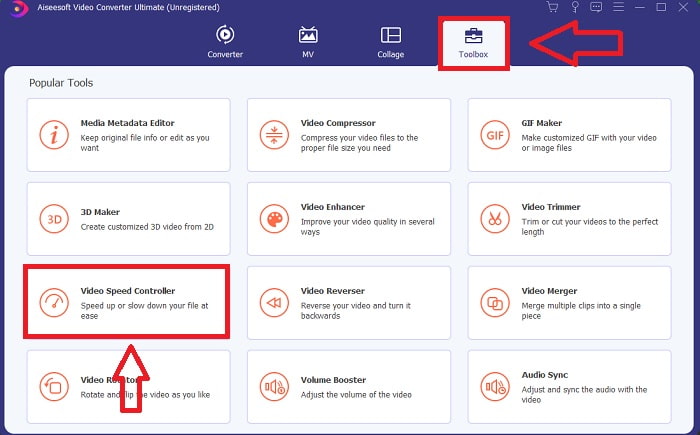
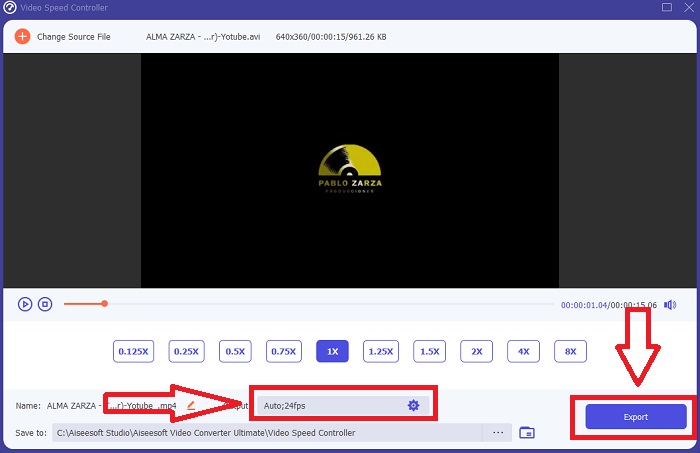
Trinn 2. Når programmet er installert, vil du se oppstartsmenyen i hovedgrensesnittet etter at installasjonen er fullført. Ved å klikke på Toolbox-fanen i menylinjen kan du raskt og enkelt se alle verktøyene denne programvaren tilbyr. Hvis du vil senke hastigheten på videoen eller endre hastigheten, velger du Video Speed Controller fra listen over tilgjengelige verktøy.
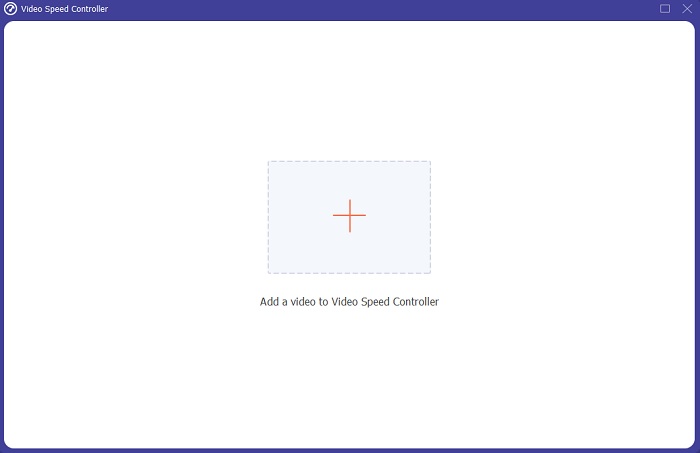
Trinn 3. Hvis du velger å fortsette, vil et nytt vindu vises på dataskjermen din. Du kan begynne å laste opp videoen din og starte med å endre avspillingshastigheten ved å klikke på pluss‑tegnet +.
Trinn 4. I motsetning til Final Cut Pro kan du gjøre en video i normal hastighet om til saktefilm med ett klikk. For å lage en saktefilmvideo med dette verktøyet, senker du nå avspillingshastigheten på videoen ved å klikke på alle verdiene under 1; disse heltallene fungerer som multiplikatorer for hvor mye du skal redusere bildefrekvensen på videoen din.
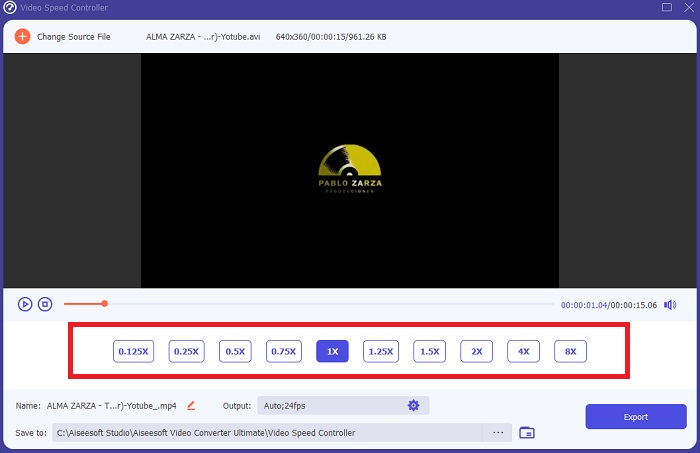
Trinn 5. Når du er fornøyd med den totale hastigheten, kan du finjustere kvaliteten på videoen ved å justere format, oppløsning, bildefrekvens og andre parametere. Du vil også ha muligheten til å gi videofilen et nytt navn hvis du ønsker det. Du kan lagre arbeidet ditt ved å velge Export fra Fil‑menyen og bla deg frem til et sted i filsystemet på datamaskinen.
Metode 2. Bruk Motion 5
Motion er et kraftig bevegelsesgrafikkverktøy designet for videoredigerere som gjør det enkelt å lage filmiske 2D- og 3D-titler, flytende overganger og realistiske effekter i sanntid. Motion er designet for videoredigerere. Motion er også et annet alternativ til Final Cut Pro for å lage saktefilmer siden det også er tilgjengelig på Mac. Med de nyttige verktøyene kan du nå enkelt lage saktefilmer. For å vite mer om hvordan du lager sakte film med Motion 5, her er trinnene som følger med.
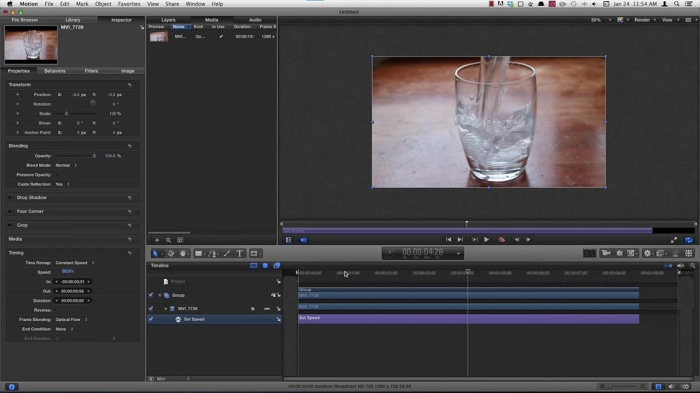
Trinn 1. Åpne Motion 5, og dra videofilen til Tidslinjen.
Trinn 2. Velg filmklippet, og finn Gear-ikonet i redigeringsverktøyene over videosporet. Klikk deretter på Retiming og fortsett med Set Speed.
Trinn 3. Etter at du har gått videre, klikker du på Properties oppe i venstre hjørne av grensesnittet og finner Inspector-vinduet. Der vil du se Retiming-innstillingen nederst. Sett hastigheten til under 100 for å oppnå saktefilmseffekten. For at saktefilmen skal spilles av jevnt, klikk på Frame Blending og velg Optical Flow.
Relatert:
Hvordan gjøre MP4‑videoer saktere
Del 3. Vanlige spørsmål om Final Cut Pro
Hvordan utjevner du lyd i Final Cut Pro?
Velg videoen på tidslinjen i Final Cut Pro. Velg en annen utjevningsinnstilling fra popup-menyen Utjevning i delen Lydforbedringer i lydinspektøren. Velg alternativet Flat hvis du vil fjerne all EQ.
Hvordan stabiliserer du video i Final Cut Pro?
Videoinspektøren kan nås ved å velge et klipp på tidslinjen i Final Cut Pro og deretter klikke på inspektørknappen. Bytt mellom stabilisering og rullende lukker ved å merke av i den aktuelle boksen. Du kan bruke Final Cut Pros stabiliseringsfunksjon ved å merke av i boksen, og Final Cut Pro vil se etter den beste stabiliseringsmetoden basert på analysen.
Hvordan balanserer du venstre og høyre lyd i Final Cut Pro?
Velg Stereo venstre/høyre fra modus-lokalmenyen i lydinspektørens Pan-seksjon. En av følgende vil føre til at lyden beveger seg til venstre eller høyre: Pan Beløp er der du legger pengene dine. Bare pass på at du ikke overskrider det.
Konklusjon
Alt i alt er Final Cut Pro den beste programvaren som er tilgjengelig på Mac. Den har ulike typer verktøy som kan gjøre etterarbeidsprosessen din ekstraordinær. Men den er bare tilgjengelig på Mac – hvordan skal du lage saktefilmvideoer hvis du bruker Windows? Video Converter Ultimate er svaret på problemet ditt, alle detaljene om denne programvaren er allerede gitt ovenfor. Og den er så god at den kan gjøre om videoene dine til saktefilm.
-
 3 måter å øke hastigheten på video på iPhone [Bevist]
 Har du problemer med å justere avspillingshastigheten til videoen din fordi du bruker en iPhone? Dette er en utmerket artikkel for å hjelpe deg med problemet ditt.
-
 Slik bremser du en video: Perfekte tips [stasjonær/mobiltelefon]
 Er du lei av å søke etter de beste verktøyene som hjelper til med å redusere hastigheten på en video på nettet? Les denne artikkelen for å bli opplyst med informasjonen som er oppført nedenfor.
-
 Windows Media Player | Lær hvordan du kan øke hastigheten på videoer [Bevist]
 Du vil senke videoklippet ditt ved å bruke Windows Media Player, men du har problemer med hvordan du gjør det? Denne artikkelen er ideell for lesing og kan opplyse ditt synspunkt om hvordan du kan øke hastigheten på videoer ved hjelp av Windows Media Player.
