


 Video Converter Ultimate
 Skjermopptaker
 Videoreparasjon
 Sikker nedlasting
Slik inverterer du en video på en iPhone eller Android som gjør det enkelt å snu
Statiske videoer er kjedelige, er de ikke? Med denne vanskeligheten vil du legge til et nytt perspektiv til videoinnholdet ditt og fengsle publikum. I så fall er det på tide å begynne å snu videoene dine på Android- eller iPhone-enheten din. Å snu videoer er en enkel, men kraftig måte å transformere innholdet ditt og skape en dynamisk seeropplevelse. Med de riktige programmene og teknikkene kan du enkelt snu og rotere videoene dine for å gi et unikt preg på vloggene, innleggene på sosiale medier eller et hvilket som helst videoprosjekt du har i tankene.
Ved å lære hvordan du speilvender en video på iPhone eller Android‑enhet, vil du bli overrasket over hvordan det å vende videoene dine kan forvandle innholdet ditt. La oss derfor komme i gang og finne ut hvordan du kan snu videoer på mobile enheter som en proff!

Del 1. Veiledning for hvordan du snur en video på en iPhone
InShot er gratis å laste ned og bruke, med mange av funksjonene tilgjengelige uten kjøp i appen. Dessuten lar appen deg snu og rotere videoer uten problemer. Du kan vende eller speile videoer horisontalt og vertikalt. I tillegg er det mulig å rotere klips 90 eller 180 grader ved å bruke dette programmet. For å finne ut hvordan du snur en video på en iPhone, følg de angitte trinnene:
Trinn 1. Hvis du ikke allerede har gjort det, går du til App Store og laster ned InShot‑appen.
Trinn 2. For å vende en video åpner du InShot‑appen og trykker på pluss-ikonet på hovedskjermen. Verktøyet Flip, sammen med andre redigeringsalternativer, vil dukke opp. Når du velger Flip‑verktøyet, kan du velge mellom Horisontal og Vertikal.
Trinn 3. Bare velg ønsket alternativ, så blir videoen din umiddelbart speilvendt. Med Play-knappen kan du se en forhåndsvisning av den speilvendte videoen.
Del 2. Veiledning Hvordan snu en video på en Android
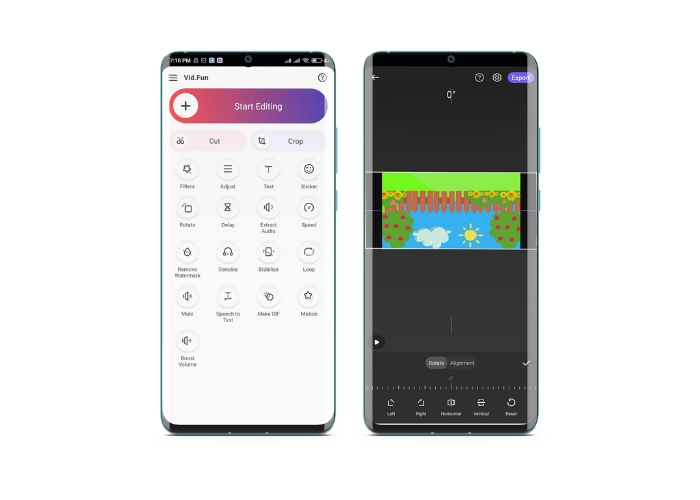
Vid.Fun er en kraftig videoredigeringsapp utviklet spesielt for Android‑enheter. I tillegg til å speilvende videoer horisontalt og vertikalt, har du tilgang til andre nyttige redigeringsverktøy. Det inkluderer trimming, klipping, sammenslåing og splitting av videoene dine. Samtidig kan du vise kreativiteten din ved hjelp av appens lysbildefunksjon. Nedenfor finner du en trinnvis veiledning for hvordan du speilvender en video på en Android‑enhet:
Trinn 1. Start appen og trykk på knappen Start Editing for å velge videoen du vil speilvende. Trykk på Yes nederst på skjermen for å bekrefte den valgte videoen.
Trinn 2. Deretter trykker du på All nederst i høyre hjørne, og ulike redigeringsalternativer vil dukke opp. Trykk nå på alternativet Motion.
Trinn 3. Du vil se en rekke redigeringsverktøy, inkludert flip‑verktøyet. Trykk på de aktuelle alternativene mellom Horizontal og Vertical. Velg ønsket alternativ, og videoen din blir speilvendt deretter. Du kan forhåndsvise den speilvendte videoen ved å trykke på Play-knappen.
Trinn 4. Hvis du er fornøyd med den speilvendte videoen, trykker du på Export-knappen for å lagre den på enheten din eller dele den direkte på sosiale medier. Slik bruker du denne appen til å speilvende video.
Bonus: Hvordan snu en video på en datamaskin
Hvis du er på utkikk etter en enkel og effektiv måte å speilvende videoer på datamaskinen din, trenger du ikke lete lenger enn FVC Video Converter Ultimate. Denne populære videoredigeringsprogramvaren tilbyr en rekke redigeringsverktøy og funksjoner, inkludert muligheten til å speilvende og rotere videoer med bare noen få klikk. Den støtter speilvending av videoer horisontalt og vertikalt eller rotering av videoer. I tillegg kommer programmet med en verktøykasse som inneholder en rekke redigeringsverktøy tilpasset dine behov.
Trinn 1. Skaff deg programmet
Først og fremst må du laste ned installasjonsfilen til programmet ved å klikke på knappen Free Download nedenfor. Sørg for å velge riktig installasjonsfil for datamaskinens operativsystem. Deretter installerer du programmet og starter det.
Gratis nedlastingFor Windows 7 eller nyereSikker nedlasting
Gratis nedlastingFor MacOS 10.7 eller nyereSikker nedlasting
Trinn 2. Start videorotatoren
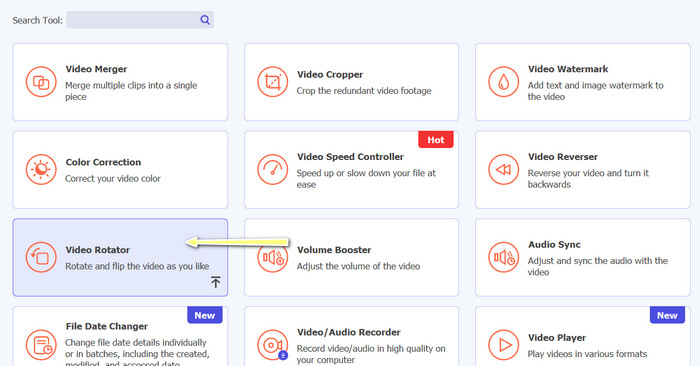
Når programmet er startet, vil du se at hovedvinduet har fire faner. Velg Video Rotator fra menyen Toolbox. Du kan også bruke søkefeltet til å finne dette verktøyet og få rask tilgang til det.
Trinn 3. Sett inn en videofil
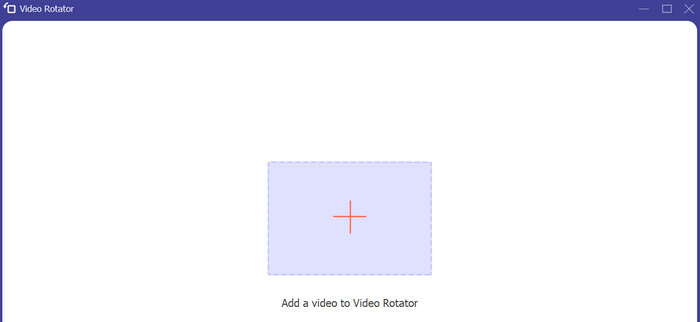
Video Rotator har en +-knapp for opplasting av videoer. Trykk på den knappen, og grensesnittet for speilvending vil deretter lastes inn.
Trinn 4. Vend videoen
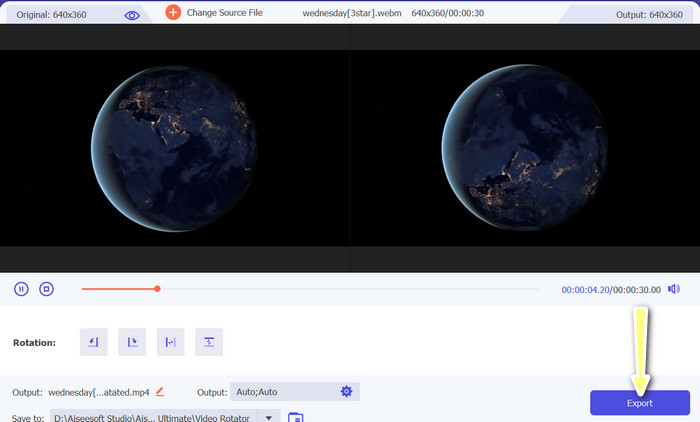
Du kan bruke flip‑knappene i grensesnittet når det vises. Du kan velge om videoen skal spilles av horisontalt eller vertikalt. For å fullføre prosessen klikker du på riktig knapp og deretter på Export-knappen.
Mer lesing:
Enkleste måter å øke hastigheten på en video på Android‑enhetene dine [2023]
Hvordan korte ned en video på iPhone [Detaljerte veiledninger]
Del 3. Vanlige spørsmål om å vende videoer på Android og iPhone
Kan jeg snu en video tilbake til den opprinnelige retningen?
Ja, du kan enkelt snu en video tilbake til dens opprinnelige retning ved å bruke en app for å snu videoen på Android eller iPhone. Bare bruk flip-effekten igjen, og den vil gå tilbake til sin opprinnelige orientering.
Kan jeg snu en video ved å bruke den innebygde kameraappen på min Android- eller iPhone-enhet?
Nei, den innebygde kameraappen har ikke en video-flipping-funksjon. Du må bruke en videoredigeringsapp eller -programvare for å snu videoene dine.
Vil vending av en video redusere kvaliteten?
Å snu en video bør ikke redusere kvaliteten, men det kan påvirke retningen til tekst eller grafikk i videoen. Hvis du er bekymret for kvaliteten, er det best å bruke en videoredigeringsapp eller -programvare av høy kvalitet.
Konklusjon
Så hvorfor ikke laste ned en av disse appene i dag og begynne å speilvende videoene dine for å skape spennende og unikt innhold for publikum? Du vil garantert få flere visninger og samle flere likes etter at du har lært hvordan du speilvender en video på iPhone eller Android‑enhet.
-
 Opplæring - 4 gratis måter å slå sammen videoer på iPhone til en ny
 Les og få 4 enkle måter å slå sammen videoer på iPhone. Alle iPhone-modeller og iOS-versjoner støttes. Du kan raskt kombinere 2 og flere videoer på iPhone til en ny video.
-
 Tips om hvordan du endrer videometadata på iPhone innen rekkevidde
 Har du problemer med å endre videometadata på iPhone-enheter? Heldigvis snakker denne artikkelen om den beste måten å endre videometadata på iPhone.
-
 Rediger som en proff: Slik beskjærer du iPhone-videoer uten problemer
 Hvis du ønsker å ta iPhone-videoredigeringsferdighetene dine til neste nivå, er videobeskjæringsapper en endring i spillet. Vi vil dekke noen av de beste videobeskjæringsappene for iPhone.
