


 Video Converter Ultimate
 Skjermopptaker
 Videoreparasjon
Hvordan endre MOV-filers metadata på Mac med trinn uten problemer
Vi vet alle at MOV er et av de beste formatene du kan bruke for avspilling av video på Apple-enheter og til redigering. Men hva gjør MOV unikt? Det støtter en videokomprimering som ofte brukes av profesjonelle. Selv om det kan lagre flere elementer i én enkelt fil, er det likevel mulig at MOV-filen kan få sammenblandede tagger som kan føre til problemer. Det er derfor lurt å redigere dem slik at du får riktig metadata og kan rette det opp med én gang. Med et nyttig verktøy er denne oppgaven svært enkel. I dag presenterer vi derfor de beste måtene å redigere MOV-filmetadata umiddelbart på.

Del 1. Hvordan redigere MOV-metadata med Ultimate Tag Editor på Mac
FVC Video Converter Ultimate er din alt‑i‑ett‑løsning på metadata‑problemer og støtter mer enn 1000+ formater på Mac og Windows. Med dette verktøyet kan du umiddelbart fjerne, redigere eller legge til metadata i MOV‑filen din. Hva mer? Du kan gjøre flere typer redigering på MOV-filen, som å klippe, trimme, slå sammen, beskjære og mye mer, selv om du ikke er profesjonell videoredigerer. Det er virkelig imponerende å ha dette verktøyet tilgjengelig, og det er mye mer du kan gjøre med det med bare noen få klikk. Men i dag presenterer vi den detaljerte veiledningen vi har lagt til, som du kan følge for å redigere metadataene i MOV‑filene dine på en vellykket måte.
Trinn 1. Du kan laste ned den ultimate konverteren på Mac eller Windows ved å trykke på nedlastingsknappen nedenfor. Gå videre til installasjonsprosessen ved å klikke på filen du har lastet ned, og klikk deretter på Start Now for å starte verktøyet umiddelbart.
Gratis nedlastingFor Windows 7 eller nyereSikker nedlasting
Gratis nedlastingFor MacOS 10.7 eller nyereSikker nedlasting
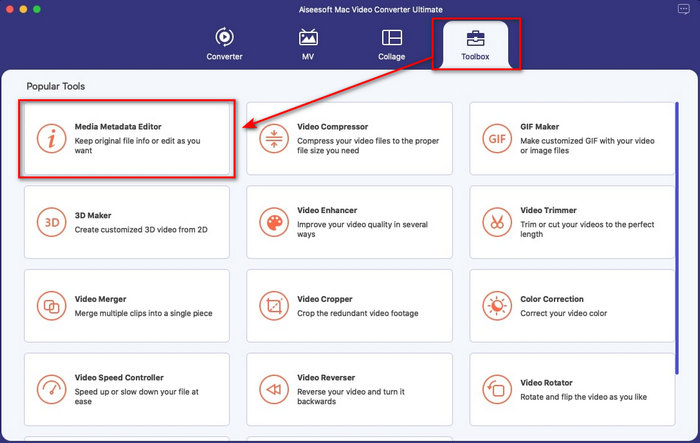
Trinn 2. Grensesnittet til verktøyet vises på skjermen; gå til delen Toolbox og åpne Media Metadata Editor.
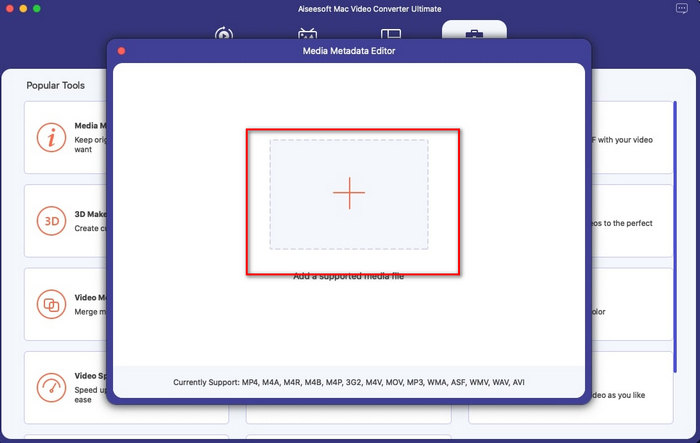
Trinn 3. Når du har åpnet redigeringsverktøyet, vises et lite vindu; trykk på +-knappen for å åpne en mappe der du kan finne filen, og klikk deretter Open for å sette den inn.
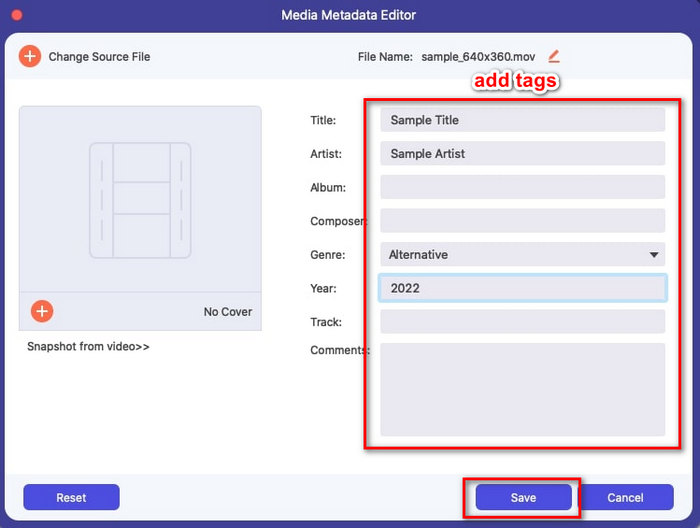
Trinn 4. Nå kan du legge til, redigere eller fjerne tagger i MOV-filen din her i tekstboksen. Når du er ferdig, klikker du på Save-knappen. Nå har du redigert metadataene i MOV‑filen din så raskt som det.
Relatert:
Del 2. 3 av de beste MOV-tag-editorene for å endre MOV-metadata
VLC Media Player
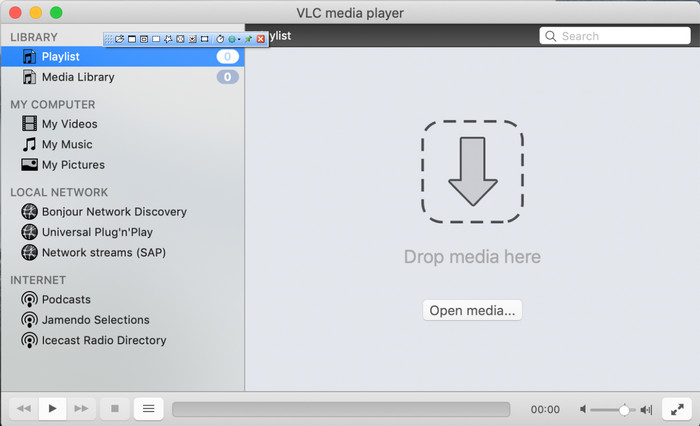
VLC Media Player er en kjent mediespiller som er tilgjengelig på Mac og Windows. Selv om den kan spille av ulike videoformater, kan den også endre metadataene i mediefilen din, for eksempel MOV. I tillegg kan du enkelt bruke den til å vise metadataene til filen din. Likevel er den ikke like effektiv som andre dedikerte metadataredigerere du kan bruke på Mac eller Windows. Men det er fortsatt mulig å redigere MOV‑filmetadata med denne mediespilleren.
Trinn 1. Last ned mediespilleren fra den offisielle nettsiden til VLC, og åpne den.
Trinn 2. Trykk Command + I på tastaturet, så vises mediainformasjonen, der du kan legge til eller slette metadata for MOV-filen din.
Trinn 3. Klikk på Save Metadata når du er ferdig med å legge inn tagger i MOV-filen.
iTunes
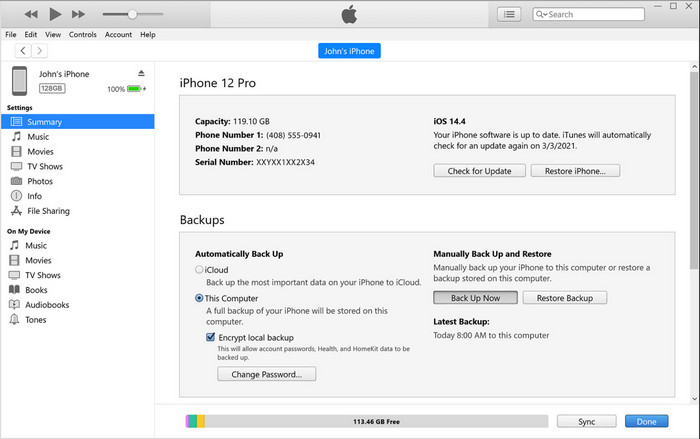
iTunes er den beste innebygde strømmeappen du har tilgang til på alle Apple-enheter. Dette verktøyet er stappfullt av funksjoner, som musikkspiller og butikk for musikk, filmer, podkaster og mye mer, beskyttet med DRM for å unngå opphavsrettsproblemer. Til tross for at det er en flott innebygd app, er konkurransen blant metadataredigerere for tøff til at iTunes kan hevde seg. Likevel tar vi det med her, fordi det kan endre MOV‑metadata på Mac.
Trinn 1. Åpne og importer MOV-filen til iTunes-biblioteket.
Trinn 2. Høyreklikk deretter på .mov-filen du har lagt til, og velg Get Info. Etter at du har klikket på dette, vil du se ulike alternativer for å endre metadata, som detaljer, illustrasjon, sangtekst, alternativer, sortering og fil; juster dem etter behov.
Trinn 3. Trykk på OK for å lagre endringene.
MetaZ
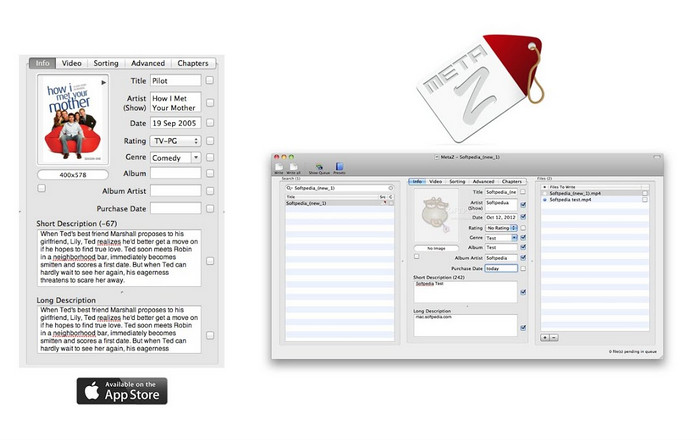
For macOS X kan du fritt laste ned Metaz for å enkelt endre filenes metadata. Dette metadataredigeringsprogrammet kan hjelpe deg med å endre videotaggene dine i de fleste formater, som MOV. Med denne appen kan du enkelt gjøre trikset og organisere MOV-en i biblioteket ditt. Imidlertid har det skjedd mange rapporter i det siste med appen; brukere støter på mange plagsomme problemer mens de bruker appen. Selv om det kan oppstå problemer, er det fortsatt en av de mest valgte MOV-metadataredigererne du kan laste ned på din Mac.
Trinn 1. Last ned appen på Mac, start den, og tre seksjoner i verktøyets grensesnitt vises på skjermen, der du kan legge til filen, redigere tagger og søke etter tagger.
Trinn 2. Dra og slipp MOV-filen til venstre side; på høyre side av den vil du se at programmet automatisk vil søke etter tagger til MOV-filen din basert på tittelen, men du kan endre dem i midtseksjonen hvis du vil.
Trinn 3. Trykk på Write, så blir taggene lagt til MOV-filen.
Del 3. Vanlige spørsmål om MOV Metadata Editor
Kan jeg bruke QuickTime-metadataredigering til å endre tagger?
Dessverre kan du ikke fordi dette verktøyet bare kan spille av medieformat, redigere videoer og ta opp. Men du kan fritt se metadataene til filen din på Quicktime ved å følge disse enkle trinnene. Først åpner du MOV-filen på Quicktime og spiller den av. Du vil se ulike alternativer i den øvre delen; klikk på Vindu, og under det, trykk Vis Inspektør, så vil et nytt vindu vises på skjermen din for å se den lille informasjonen om MOV-filen din.
Påvirker endring av MOV-taggene kvaliteten?
Heldigvis vil det ikke gjøre det fordi du har justert taggene, ikke oppløsningen eller kvaliteten på MOV-filen. Så hvis du er bekymret for at videooppløsningen kan reduseres etter å ha endret taggene, vil vi gjenta det; det vil ikke.
Vil det å legge til metadata på MOV øke filstørrelsen?
I alle filer, når du har lagt til metadata på den filen, vil du se forskjellen mellom filen som ikke har noen tag og den som har. Disse kodene er imidlertid ikke så store som filens innhold. Så hvis du legger til metadata på MOV-en din, forvent at den vil øke litt i størrelse fordi du har lagt til informasjon om videofilen.
Konklusjon
Nå som vi er ferdige med å lære deg hvordan du endrer metadata i en MOV-fil, er det på tide at du velger hvilken veiledning du vil følge. Hvis du vil laste ned et gratis verktøy på Mac, kan du laste ned VLC og Metaz for å reparere eller redigere metadataene i MOV-filen din. Men hvis du ikke ønsker det, kan du bruke iTunes til å redigere metadataene enkelt. Selv om disse verktøyene er gode å bruke, finnes det fortsatt ikke noe verktøy med så kraftige metadataredigeringsfunksjoner du kan laste ned på Mac, slik som FVC Video Converter Ultimate kan tilby. Så hvis du fortsatt lurer på hva du skal bruke, vil vi på det sterkeste anbefale at du bruker dette ultimate verktøyet til denne oppgaven, fordi det er lett å bruke, men har den komplette pakken du trenger når som helst.
-
 Hva er metadata: Lær grunnleggende informasjon om metadata
 Hva er metadata? Er dette viktig? Hva er delene av metadata? Har du det samme spørsmålet? I denne artikkelen vil du lære grunnleggende informasjon om metadata.
-
 4 av de beste metadataviserne på nett og uten nett [Oppdatert 2022]
 Kan jeg sjekke metadataene til filen min? Ja, det kan du, ved hjelp av dette innlegget vil vi introdusere deg de forskjellige metadataviserne du kan bruke.
-
 Topp 4 mest valgte WMV Tag Editors på skrivebordet [Oppdatering 2022]
 Trenger du en pålitelig WMV-tag-editor for å redigere WMV-taggene? Vel, denne artikkelen gir nok kunnskap om verktøyet som støtter WMV.
