


 Video Converter Ultimate
 Skjermopptaker
 Videoreparasjon
Enkle måter å legge til bilde på video i iMovie raskt
Å legge til bilder i en video har blitt en av de beste måtene å formidle budskapet til publikum enda bedre på. De fleste videoredigerere kan hjelpe deg med raskt å legge et bilde over en video, og hvis du er Apple‑bruker, har du kanskje allerede vært borti iMovie. Det er kjent som et av de beste redigeringsverktøyene du kan bruke på Apple‑enheten din. Likevel synes mange gjennomsnittlige Apple‑brukere at det er utfordrende å bruke iMovie fordi de ikke har erfaring med det. Så hvis du er en Apple‑bruker som har problemer med å bruke programmet og ønsker å legge et bilde inn i en video, kan du lese denne artikkelen – det er enkelt å lære hvordan legge til bilder i video i iMovie hvis du leser detaljene nedenfor.

Del 1. Hvordan legge over et bilde på en video i iMovie [Mac]
Hvis du har en iMovie på Mac, kan du bruke den og legge til bildet i videoen. Så nå, hvis du vil lære hvordan du legger et bilde på video iMovie, vil trinnene nedenfor hjelpe deg.
Trinn 1. Søk etter iMovie i Finder, og klikk på det for å åpne programmet.
Trinn 2. Øverst til venstre i iMovie klikker du på Importer-knappen for enkelt å importere video og bilde. Dra og plasser mediefilen du har lagt inn på Tidslinjen.
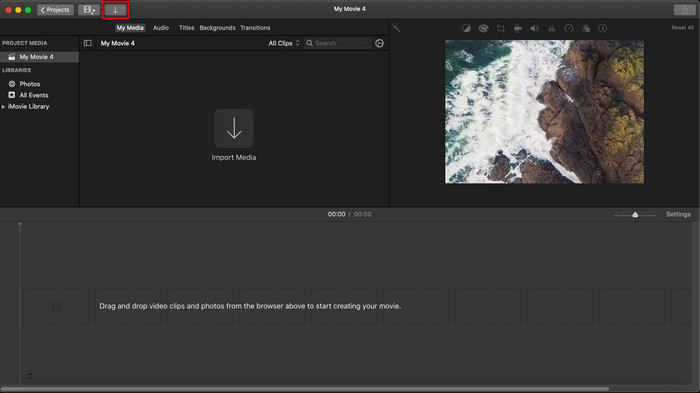
Trinn 3. Juster bildet du har importert og varigheten på det. Deretter klikker du på Eksporter for å laste ned filen til datamaskinen din.
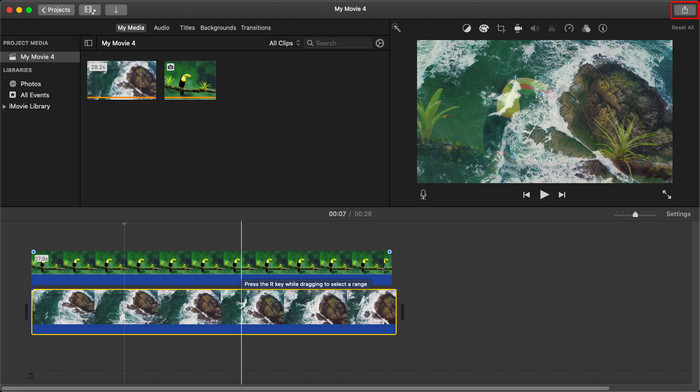
Trinnene vi presenterte her er fra den praktiske opplevelsen av å bruke iMovie. Trinnene kan variere hvis det er en oppdatering på verktøyet eller noen endringer skjer snart.
Del 2. Slik setter du inn bilder på video med iMovie [iOS]
Hva om du bruker en iOS-enhet og vil bruke iMovie som redaktør for å legge til et bilde i en video? Er det mulig? Vel, ja, det er det. Vi kan lære deg hvordan du legger inn et bilde i en video iMovie på iPhone ved å lese detaljene nedenfor med trinnene vi ga.
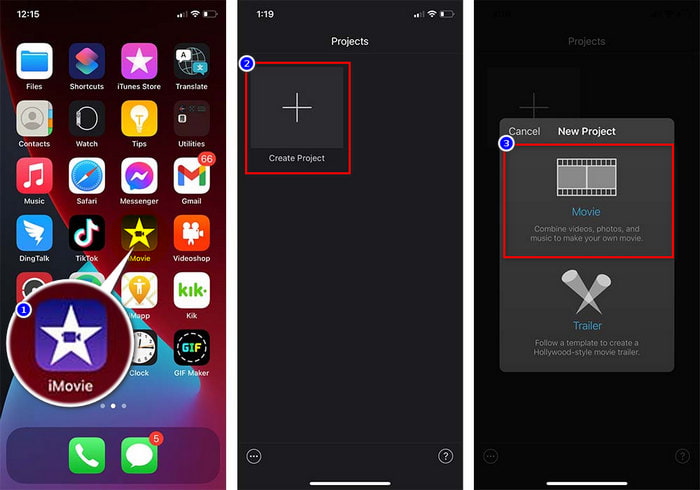
Trinn 1. Start iMovie‑appen på iOS‑enheten din, klikk på Opprett prosjekt, deretter Film. Legg til videoen som ligger i biblioteket ditt.
Trinn 2. Klikk på +-knappen for å legge til bilde‑vannmerket i videoen. Søk etter det i biblioteket, klikk på det, trykk på treprikk‑ikonet, og velg Grønn/Blå skjerm. Trykk på bildet for automatisk å fjerne bakgrunnen.
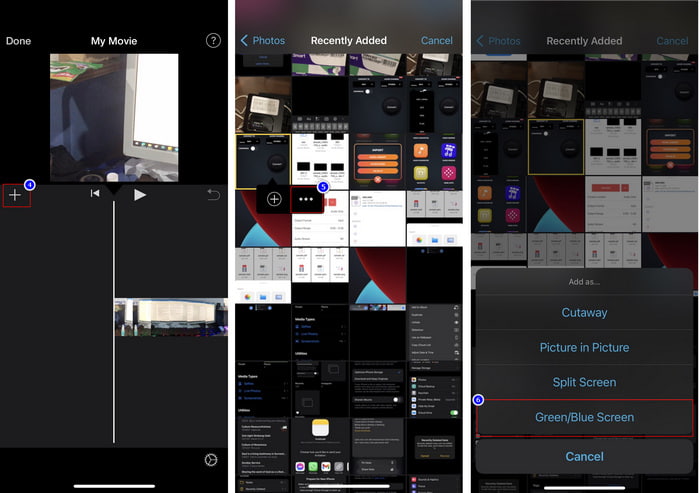
Trinn 3. Trykk på Ferdig, klikk Eksporter, og deretter Lagre videoer.
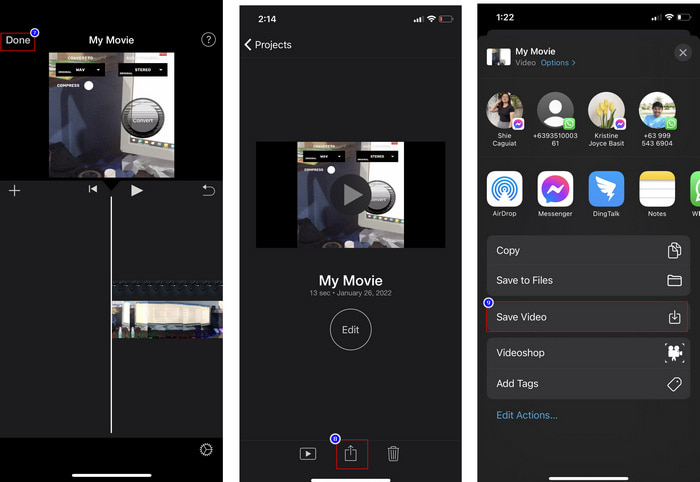
Alle trinnene vi presenterte her er fra den praktiske opplevelsen av å bruke iMovie på iOS. Men noen av trinnene kan endres hvis en oppdatering skjer på redigeringsappen snart.
Del 3. Enkleste løsning for å sette inn bilde i video med den beste videovannmerkeprogramvaren på Mac
Har du de samme vanskelighetene med å legge bilder over video i iMovie? Prøv å bruke Video Converter Ultimate, for dette verktøyet er det beste alternativet til iMovie. Den samlede ytelsen har allerede blitt rost av millioner av brukere som har prøvd det. Selv om de har ulike problemer med videoene sine, velger de likevel dette ultimate verktøyet for å løse dem. Dessuten kan du med dette verktøyet gjøre nesten alt som har med video å gjøre, som å klippe, legge til bilder, slå sammen, beskjære osv. Uansett hva problemet er, er dette en alt‑i‑ett‑løsning. Vil du løse problemet? Følg trinnene vi har skrevet nedenfor, så blir det enkelt å henge med.
Funksjoner:
◆ Det ultimate verktøyet støtter flere formater, så det vil ikke være vanskelig å laste opp formatet.
◆ Den støtter et lettfattelig grensesnitt for raskt å legge til bilder til en video i løpet av få sekunder.
◆ Den støtter forskjellige plattformer som Mac og Windows for å la brukerne nyte på alle plattformer.
Trinn 1. Du kan laste ned verktøyet ved å klikke på nedlastingsknappen nedenfor, installere det raskt etterpå og åpne det når installasjonen er fullført.
Gratis nedlastingFor Windows 7 eller nyereSikker nedlasting
Gratis nedlastingFor MacOS 10.7 eller nyereSikker nedlasting
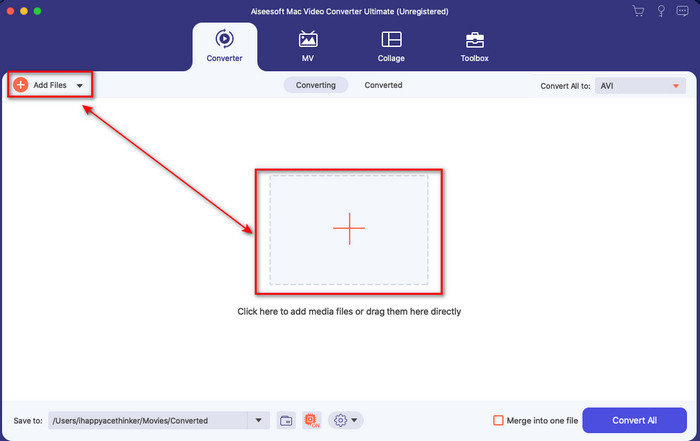
Trinn 2. Etter at du har åpnet det, klikker du på +-knappen som vises for å importere videofilen. Deretter åpnes en mappe der du finner videofilen, og så klikker du på Åpne.
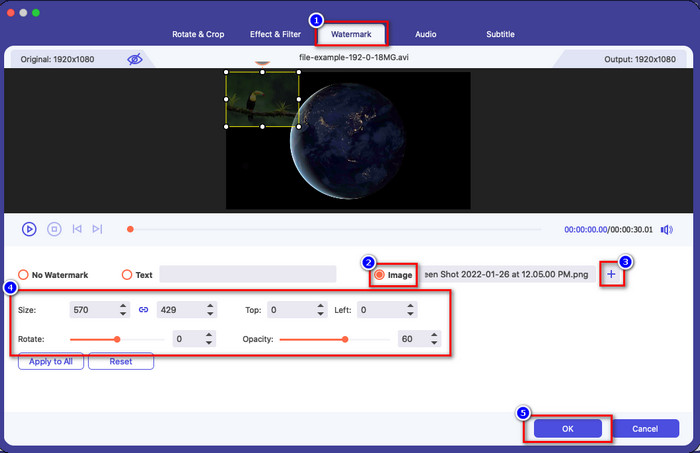
Trinn 3. Trykk på tryllestav-knappen for å åpne redigeringsvinduet i konverteren. Gå til Vannmerke, klikk på bilde, og trykk deretter på legg til for å laste opp bildet. Du kan også redigere bildeopasiteten eller rotere det etter behov, og for å bruke endringene klikker du på OK.
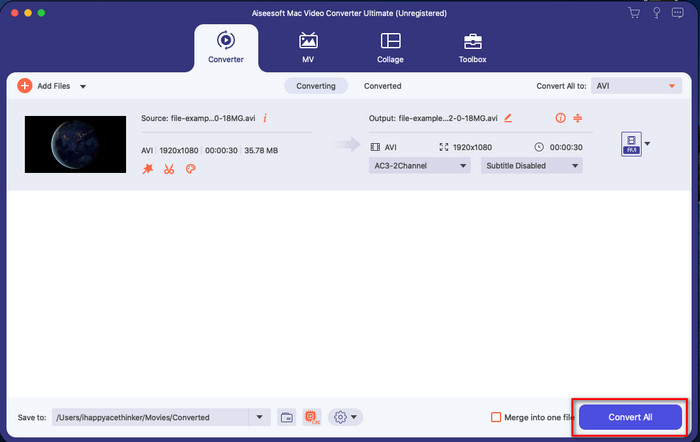
Trinn 4. Klikk på knappen Konverter alle for å eksportere videofilen. Den blir lagret i en mappe på datamaskinen din etter at eksportprosessen er ferdig, og like enkelt har du nå et bilde‑vannmerke på videoen din. Tror du nå på kapasiteten til Video Converter Ultimate? Du har allerede lagt til bilde‑vannmerket i videoen så raskt som det.
Relatert:
Hvordan legge til undertekster i video
Del 4. Vanlige spørsmål om å legge til bilder på video i iMovie
Er det begrensninger på antall bilder som legges til i iMovie-videoer?
Så langt har vi ikke opplevd noen ulempe med å legge til flere bilder på videoen mens vi brukte iMovie. Eksporteringsprosessen tar imidlertid tid hvis du legger til for mange bilder på videoen, men den vil ikke krasje, som per erfaring.
Hvilke bildeformater kan jeg bruke på iMovie?
Det er mange stillbildeformater som iMovie støtter som BMP, PNG, JPG eller JPEG, HEIF, PSD, RAW TIFF og TGA, men hvis du vil ha et animert bilde, kan du bruke GIF. Selv om disse formatene er mange, støtter det fortsatt ikke alle bildeformater som EXIF, WebP og lignende.
Hvorfor bør jeg bruke iMovie?
For Apple-brukere er iMovie et av de beste valgene for å lage en kortfilm, reklame, vlogger og mer; alle disse er gratis. Redaktøren gir et semi-avansert grensesnitt for å hjelpe brukerne med å få en praktisk opplevelse av hvordan et avansert grensesnitt eller verktøy ser ut. Dessuten er programvaren mindre teknisk, men den er spesialisert. Det er ikke vanlig å se en editor som gir en mindre teknisk bruksmåte, men den kan hjelpe deg å være en proff og legge til noen spesialiserte teknikker som avanserte verktøy har.
Konklusjon
Til slutt kan vi si at vi nå har nok kunnskap til enkelt å legge bilder over video i iMovie. Med det beste verktøyet på Apple kan du nesten gjøre komplisert redigering her. Men ikke alle funksjonene du trenger finnes i iMovie, og da kan du bruke Video Converter Ultimate for å få en lettvint redigerer på alle plattformer. Kanskje du lurer på hvorfor du bør bruke det ultimate verktøyet? Det trengs egentlig ikke så mye forklaring når vi snakker om dette ultimate verktøyet, siden vi allerede har lagt fram bevisene ovenfor. Så hva bør du gjøre nå? Du kan klikke på nedlastingsknappen for å få praktisk erfaring med det ultimate verktøyet og løse dette problemet.
-
 5 mest utvalgte lydopptakerapper på Android og iOS [2022 oppdatert]
 Vet du ikke hvilken lydopptaker-app du bør bruke? I så fall vil denne artikkelen hjelpe deg med å velge hvilken app som vil hjelpe deg med lydopptaksoppgaven din.
-
 Talememo på iOS – Fordeler, ulemper, funksjoner og 4 beste erstatninger
 Hva er talememo? Er det den beste lydopptakeren på iOS? Søker du svar på det spørsmålet? I så fall, les hele omfanget av denne artikkelen for å vite mer.
-
 7 siste gratis MOD-konverterere for å endre MOD-fil til et nytt format
 Hva er MOD-konvertererne du kan bruke? Tenker du det samme spørsmålet? Så her er vi, og tilbyr de syv verktøyene du kan bruke til å konvertere MOD-filene dine.
