


 Video Converter Ultimate
 Skjermopptaker
 Videoreparasjon
 Sikker nedlasting
Slik fjerner du lett vannmerke fra videoene dine
Hvis du leter etter gode og enkle måter å fjerne Biteable‑vannmerker fra videoene dine på, trenger du ikke å bekymre deg lenger. Helt ærlig er det irriterende og frustrerende å se en video med vannmerker. Du klarer ikke å nyte videoen du ser på. I tillegg virker disse vannmerkene forstyrrende på seerne. Det er forståelig at vannmerker skal beskytte rettighetene til eieren av videoen. Men å bruke et stort vannmerke er ikke bra. Det gir bare negativ tilbakemelding fra folk som liker å se favorittvideoene sine. Ett eksempel er Biteable‑vannmerker. Disse Biteable‑vannmerkene kommer fra Biteable‑applikasjonen, der vannmerker automatisk legges til etter at du har laget eller lagret en video. Heldigvis kan du bruke ulike programmer for å fjerne disse vannmerkene fra videoene dine. Da kan du se favorittvideoene dine uten å føle irritasjon og frustrasjon. Hvis du vil vite hvilke gode og pålitelige programmer du bør bruke for å fjerne disse vannmerkene, kan du lese videre i denne artikkelen.

Del 1: Beste måten å fjerne bitebart vannmerke fra videoer
Video Converter Ultimate er det mest glimrende programmet du kan bruke for å fjerne Biteable‑vannmerker fra videoene dine. I tillegg kan denne utmerkede programvaren også fjerne andre irrelevante og forstyrrende elementer, som logoer, tekst, signaturer og lignende. Prosessen med å fjerne og lagre går dessuten svært raskt, slik at du ikke trenger å bruke mye tid. Videre kan Video Converter Ultimate tilby to enkle metoder for å fjerne vannmerker fra videoene dine: videobeskjæreren og verktøyet for fjerning av videovannmerker. Det har også flere andre redigeringsverktøy du kan ha glede av, som videohastighetskontroll, videokonverterer, videokompressor, fargekorrigering, kollasjemaker, GIF‑maker, videobeskjærer, bildekontroller og mer. Det beste med dette verktøyet er at det er enkelt å bruke, siden det har et brukervennlig grensesnitt som passer perfekt for nybegynnere. Det støtter også en rekke filformater, som MP4, MOV, FLV, MKV, OGV, DIVX og flere. Til slutt er Video Converter Ultimate tilgjengelig både på Windows og Mac, noe som er veldig praktisk for brukerne. Hvis du vil fjerne et vannmerke fra en video, følger du de enkle trinnene nedenfor.
Bruke Video Watermark Remover-verktøyet
Trinn 1: Gå til nettsiden til Video Converter Ultimate og last ned programmet. Fortsett deretter til installasjonsprosessen. Når installasjonen er fullført, starter du programmet.
Gratis nedlastingFor Windows 7 eller nyereSikker nedlasting
Gratis nedlastingFor MacOS 10.7 eller nyereSikker nedlasting
Trinn 2: Etter at du har åpnet Video Converter Ultimate, klikker du på Verktøykasse > Fjerner for videovannmerke. Deretter vises et nytt grensesnitt på skjermen.
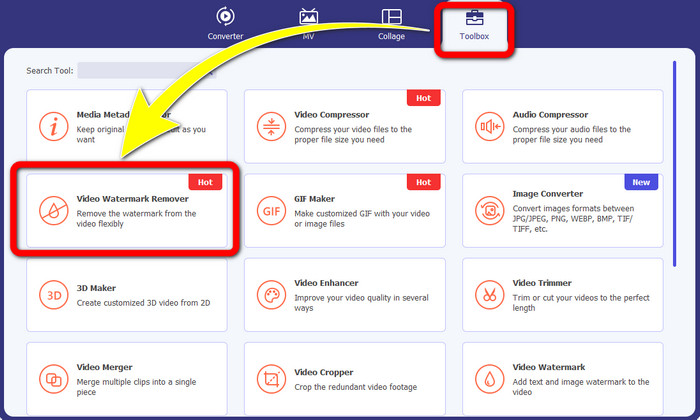
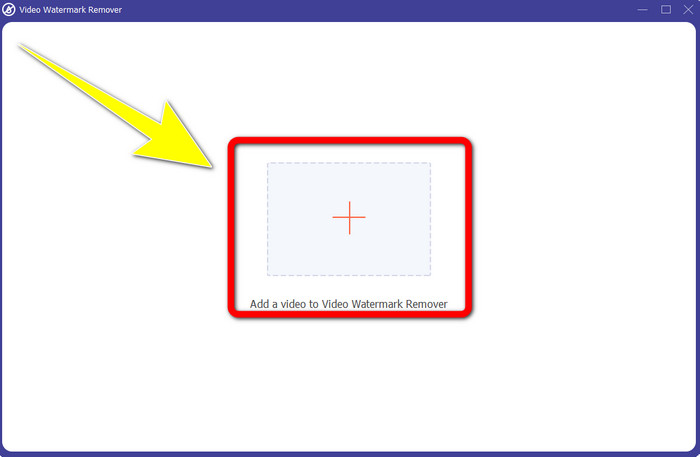
Trinn 3: Når det nye grensesnittet har dukket opp på skjermen, klikker du på Pluss-knappen for å legge til videoen din med Biteable‑vannmerket.
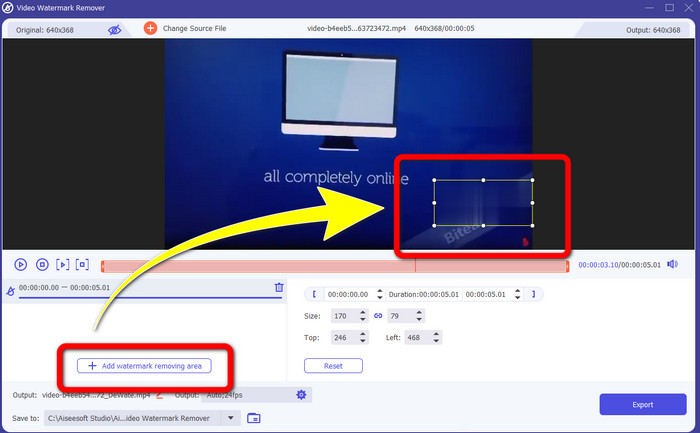
Trinn 4: Etter at du har lagt til videoen din, klikker du på Legg til område for fjerning av vannmerke. Da vil en liten boks vises på videoen. Dra boksen slik at den dekker vannmerkene.
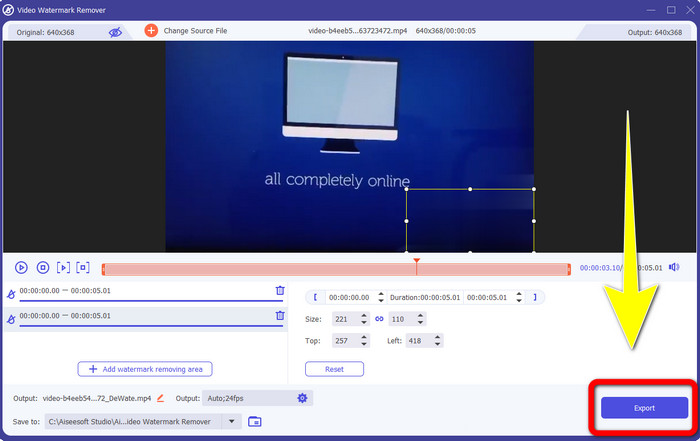
Trinn 5: Når du har fjernet Biteable‑vannmerket fra videoen din, klikker du på Eksporter-knappen for å lagre det endelige resultatet.
Bruke Video Cropper-verktøyet
Trinn 1: Start Video Converter Ultimate. Klikk på Verktøykasse > Videobeskjærer.
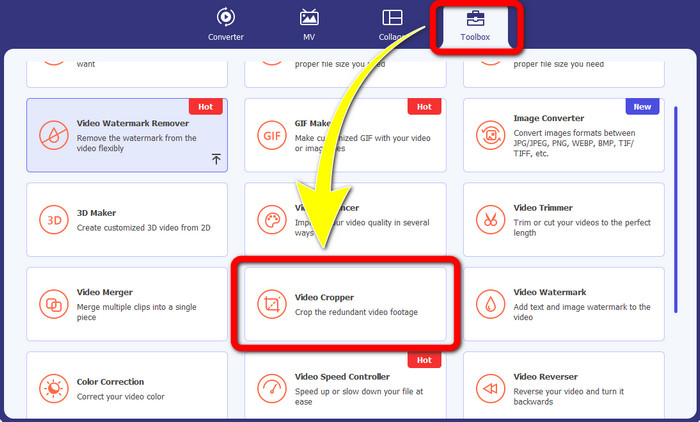
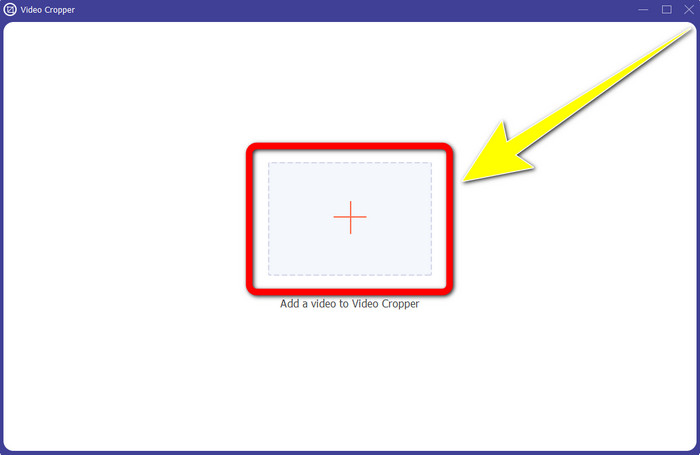
Trinn 2: Etter at du har klikket på Videobeskjærer, vil et nytt grensesnitt dukke opp på skjermen. Klikk på Pluss-ikonet og legg til videoen din med Biteable‑vannmerket.
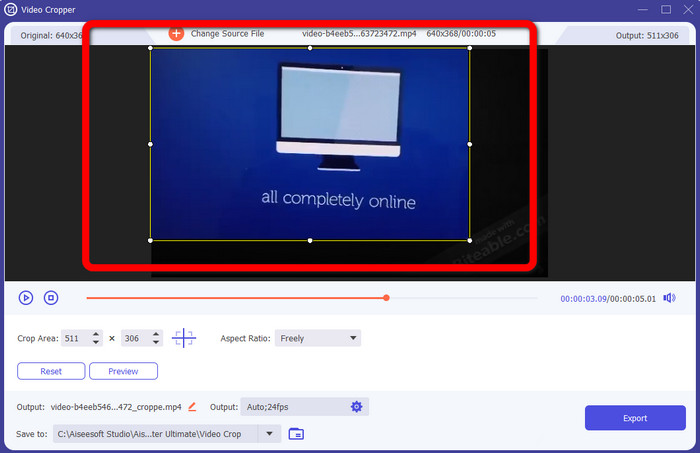
Trinn 3: Når du har lagt til videoen din, kan du nå beskjære den for å fjerne vannmerkene.
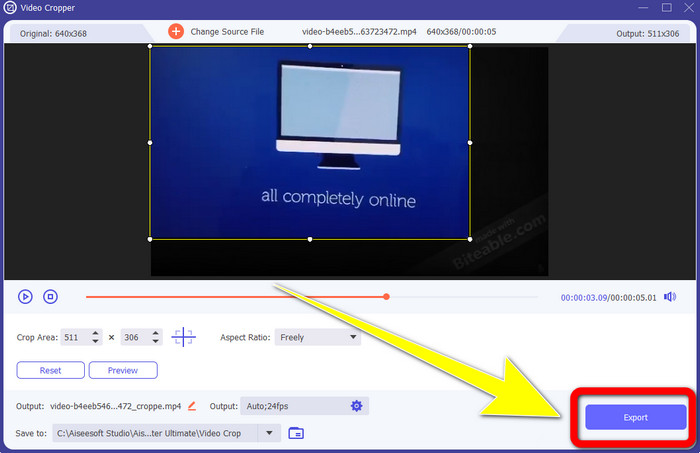
Trinn 4: Når du er ferdig med å beskjære videoen, klikker du på Eksporter-knappen og lagrer videoen uten Biteable‑vannmerket.
Del 2: Slik fjerner du biteable vannmerke fra videoer på nettet
1. Bruke BeeCut
Hvis du ønsker å fjerne det bitbare vannmerket gratis online, er BeeCut den beste nettapplikasjonen du kan bruke. Den er i stand til å fjerne vannmerker fra videoene dine. Det er et enkelt nettverktøy du kan bruke, som er perfekt for nybegynnere. Du kan fjerne bitbare vannmerker fra fire videoer med bare noen få trinn.
Dessuten har BeeCut mange redigeringsverktøy, som trimming, klipping, splitting og kombinasjon av videoer. I tillegg, hvis du vil lage en video, kan du legge til undertekster til videoen din nedenfor, noe som er praktisk for seerne. Imidlertid er det tregt med å laste opp filer og lagre prosesser ved å bruke dette verktøyet. Du kan heller ikke bruke dette verktøyet hvis du ikke har en internettforbindelse. Hvis du vil fjerne bitbare vannmerker fra videoen din ved å bruke dette nettbaserte verktøyet, følg trinnene nedenfor.
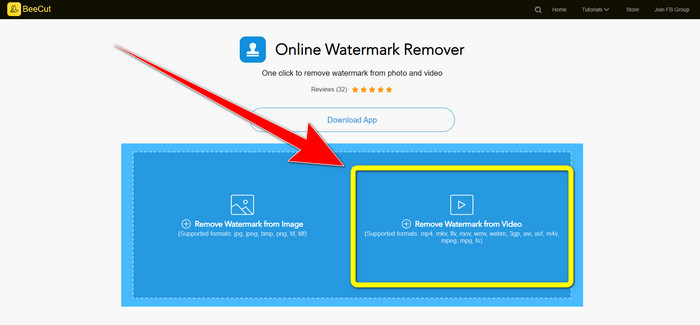
Trinn 1: Gå til nettsiden til BeeCut. Klikk deretter på Remove Watermark from Video-knappen og legg til videoen din med Biteable‑vannmerke.
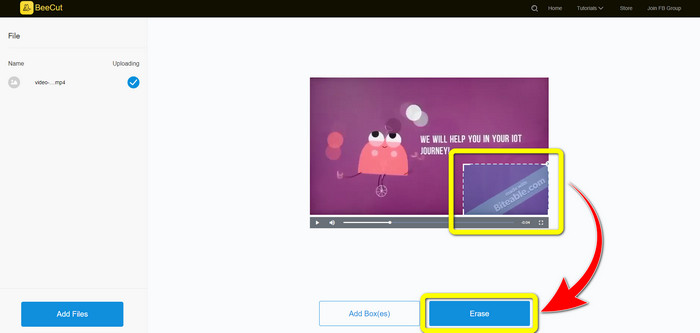
Trinn 2: Etter at du har lagt til filen, vises en liten boks på videoen. Dra den og dekk Biteable‑vannmerket. Når du er ferdig med å dekke vannmerkene, klikker du på Erase-knappen.
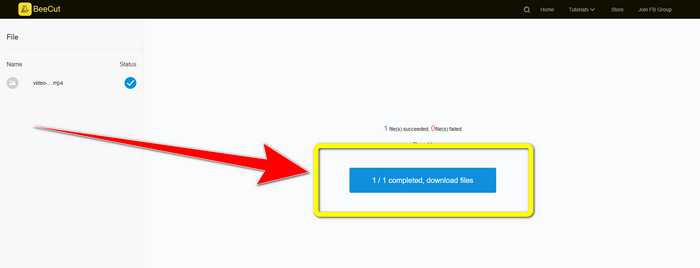
Trinn 3: Når du har klikket på Erase-knappen, venter du på at fjerningsprosessen skal fullføres. Deretter kan du laste ned filen og nyte videoen uten Biteable‑vannmerket.
2. Bruke Blur Video Online
Hvis du fortsatt leter etter et annet program du kan bruke til å fjerne det bitbare vannmerket fra videoen din på nettet, er Blur Video Online et flott verktøy for deg. Og Blur Video Online er tilgjengelig for nesten alle enheter og nettlesere, som Google Chrome, Opera, IE, Mozilla Firefox og mer. Denne nettavhengige applikasjonen er imidlertid for treg med å importere videofiler, og prosessen med å fjerne vannmerker er tidkrevende. Det er også et internettavhengig verktøy, noe som betyr at det bare fungerer hvis du har en internettforbindelse. Følg de enkle trinnene nedenfor for å fjerne/sløre et bitebart vannmerke fra videoen din.
Trinn 1: Gå til nettsiden til Blur Video Online. Klikk deretter på Click to Add File-knappen og legg til videoen din med vannmerke.

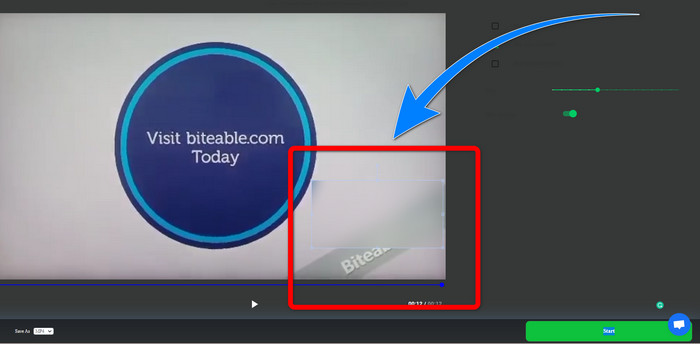
Trinn 2: Når du har lagt inn videoen, vises en boks på videoen. Dra den for å dekke vannmerkene og lagre det endelige resultatet.
Relatert til:
Beste måte å fjerne vannmerket fra Camtasia 9 på Windows
Hvordan raskt fjerne vannmerkebanneren fra AVS Video Editor
Del 3: Vanlige spørsmål om fjerning av bitbare vannmerker fra videoer
Kan jeg fjerne et datostempel med Video Converter Ultimate?
Ja det kan du! Video Converter Ultimate kan hjelpe deg med å eliminere forstyrrende objekter fra videoene dine, som datostempler, vannmerker, tekst osv.
Er det tidkrevende å fjerne vannmerker fra videoene mine?
Det avhenger av applikasjonene du bruker. Noen applikasjoner kan umiddelbart fjerne vannmerkene fra videoene dine, og noen applikasjoner tar tid å fjerne vannmerkene.
Er det en vannmerkefjerner jeg kan bruke uten å miste kvaliteten på videoene mine?
Ja, det finnes! Du kan bruke Video Converter Ultimate. Det er ikke bare bra til å fjerne vannmerker og redigere videoer. Dette programmet lar deg fjerne vannmerker fra videoene dine uten kvalitetstap.
Konklusjon
Å fjerne vannmerket fra videoene dine er flott, spesielt hvis du vil se favorittvideoene dine uten unødvendige elementer. Denne artikkelen har presentert praktiske programmer du kan bruke til å fjerne Biteable‑vannmerker fra videoene dine. Til slutt er bruk av Video Converter Ultimate det beste valget hvis du er på jakt etter det mest fremragende og imponerende programmet for å fjerne vannmerker fra videoene dine.
-
 Slik fjerner du Powtoon-vannmerket ved hjelp av 4 effektive metoder
 Les denne artikkelen for å lære hvordan du fjerner Powtoon-vannmerket ved å bruke de beste verktøyene vi inkluderte her og en veiledning.
-
 Apowersoft Watermark Remover Review – Funksjoner, fordeler og ulemper og priser
 Apowersoft Watermark Remover er en av de beste fjerning av vannmerker som støtter online og offline, klikk på denne for å vite mer!
-
 3 av de nyeste Shutterstock-vannmerkefjernerne du noen gang vil trenge
 Liker du ikke Shutterstock-vannmerket knyttet til eksportert video? Du kan bruke en Shutterstock vannmerkefjerner for å slette den effektivt.
