


 Video Converter Ultimate
 Skjermopptaker
 Videoreparasjon
 Sikker nedlasting
2 enkle metoder for hvordan du fjerner Dxtory Watermark
Når det gjelder opptak av spill og andre programmer, er Dxtory et av mange menneskers mest populære skjermopptaksprogrammer. Mange bruker denne skjermopptakeren fordi den er en av de få appene som kan ta opp med opptil 120 fps. I tillegg tar den raskt opp DirectX- og OpenGL-videoinformasjon på systemet ditt. Men når du gjør opptak med Dxtory Screen Recorder, legger den igjen et vannmerke på videoen din. Som et resultat ser folk etter en metode for å fjerne dette plagsomme vannmerket. Denne artikkelen vil lære deg hvordan du fjerner Dxtory-vannmerket fra skjermopptaket ditt.

Del 1. Hvordan skjermopptak med Dxtory
Hvis du søker etter en programvareapplikasjon som kan registrere høydepunktene dine i spillet, er Dxtory en passende app. Dxtory er en app som kan hjelpe deg med å ta opp skjermen mens du spiller et spill, diskuterer en leksjon på nettet eller ser på videoer på datamaskinen. Det er en kjent programvareapplikasjon for skjermopptak. Dxtory skjermopptaker har de nødvendige verktøyene for å komme til Global, Advanced, Hotkey, Screenshot, Video og Audio-innstillinger, etc.
Dessuten lar denne skjermopptakeren deg ta et skjermbilde mens du tar opp. Du kan også endre disse skjermbildene med alternativer for kanting, skalering og skjæring. Den har også opptak av flere lydkilder, noe som betyr at Dxtory kan ta opp spillet og mikrofonlyden samtidig. Det er også den raskeste filmopptaket for DirectX- og OpenGL-applikasjoner. Så hvis du vil bruke Dxtory til å skjermopptak, fortsett å lese denne delen.
Slik tar du opp spilling med Dxtory-skjermopptakeren:
Trinn 1. Først må du laste ned Dxtory på enheten din. Følg installasjonsprosessen. Du kan kjøpe en lisens slik at du ikke får noen begrensninger på opptak, og det vil ikke være noe vannmerke på videoen din.
Trinn 2. Start appen du vil ta opp, og start Dxtory.
Trinn 3. Gå til fanen Target, og klikk på spillet du spiller. Prosesslisten vil umiddelbart vises på mål-listen.
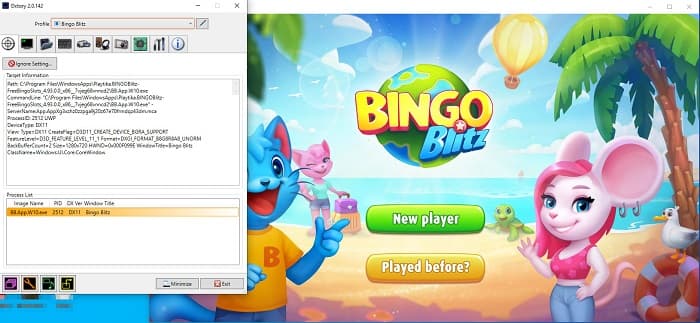
Trinn 4. Gå deretter til fanen Folder og velg hvor filen skal lagres. Gå så til Hotkeys for å velge tastene du vil bruke til skjermopptaket. Du kan også justere lydnivået.
Trinn 5. Minimer Dxtory og start spillet ditt. Du vil se et nummerikon øverst til venstre i spillgrensesnittet som viser FPS-en din. Trykk på hurtigtasten for videoopptak som du valgte i Hotkeys-panelet for å starte opptaket.
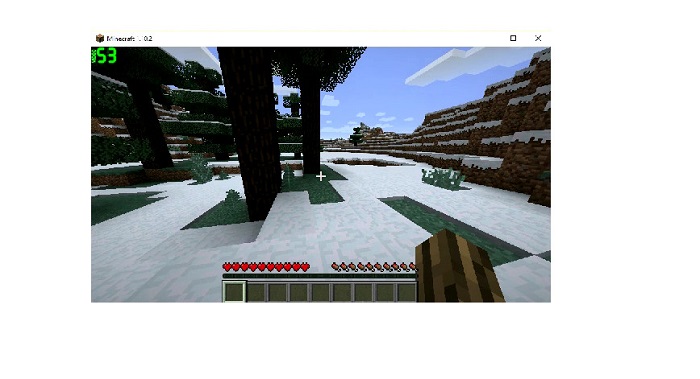
Trinn 6. Hvis du vil stoppe opptaket, trykker du på den samme tasten som du brukte for å starte opptaket. Videoen lagres på destinasjonen du valgte når du stopper opptaket.
Nå kan du kose deg med å se på skjermopptaket ditt. Hvis du ikke kjøpte lisensen, vil du se et vannmerke på videoen. Så hvis du vil fjerne vannmerket fra videoen, kan du lese neste del.
Del 2. Slik fjerner du Dxtory vannmerke ved å bruke det ultimate verktøyet
Hvis du vil fjerne Dxtory Watermark fra skjermopptakervideoen, vil du sannsynligvis bruke denne fantastiske programvareapplikasjonen. Les denne delen for å lære de fullstendige beskrivelsene om dette verktøyet og hvordan du bruker det til prosessen for fjerning av Dxtory vannmerke.
FVC Video Converter Ultimate er et av de mest kjente programmene som lar deg fjerne vannmerker fra hvilken som helst video. Det har et brukervennlig grensesnitt som gjør det enkelt å bruke. I tillegg støtter FVC Video Converter Ultimate en rekke filformater, blant annet MP4, MKV, MOV, M4V, AVI, FLV og over 1000 til. Og hvis du vil ha en app med mange redigeringsfunksjoner, er dette verktøyet det beste for deg. Det inneholder mange avanserte redigeringsfunksjoner, som videobeskjæring, fjerning av videovannmerke, videofletting, videoklipping og mer i Verktøykassen.
Med det raske prosesseringsgrensesnittet kan du enkelt fjerne vannmerker som er innebygd i videoen din. Følg derfor trinnene nedenfor for å ha en Dxtory-video uten vannmerke.
Det er to måter å fjerne Dxtory-vannmerket på videoen din.
Metode 1: Slik fjerner du Dxtory vannmerke ved hjelp av videobeskjæringsfunksjonen:
Trinn 1. Installer først FVC Video Converter Ultimate på enheten din ved å klikke på Download-knappen nedenfor for Windows eller Mac. Følg installasjonsprosessen og åpne appen.
Gratis nedlastingFor Windows 7 eller nyereSikker nedlasting
Gratis nedlastingFor MacOS 10.7 eller nyereSikker nedlasting
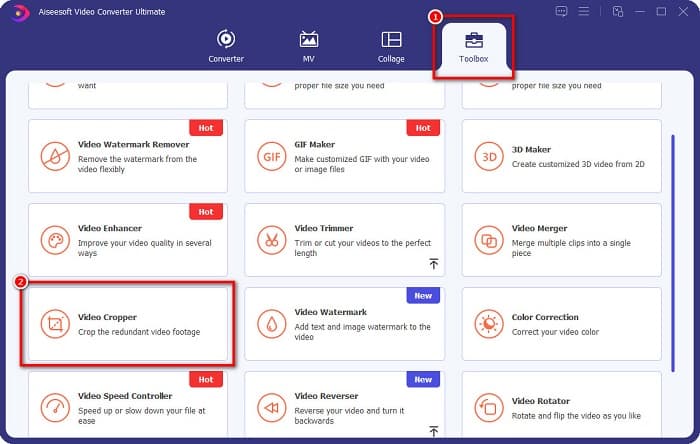
Trinn 2. På hovedgrensesnittet klikker du på panelet Toolbox og velger funksjonen Video Cropper.
Trinn 3. Klikk deretter på pluss (+)-knappen for å laste opp videoen du vil fjerne vannmerket fra. Du kan også dra og slippe videoen din fra datamaskinen.
Trinn 4. Deretter kan du forhåndsvise resultatet. Du vil se en beskjæringsboks, og så justerer du kantene på beskjæringsboksen til vannmerket ikke lenger er med i videoen.
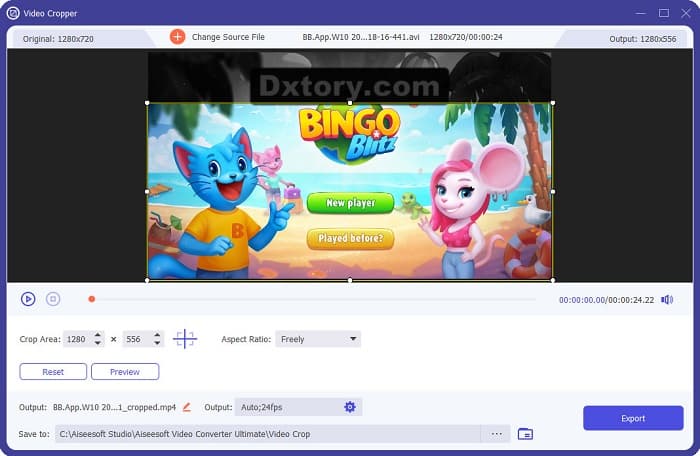
Du kan justere størrelsen på beskjæringsområdet ved å klikke på opp-ned-knappen under forhåndsvisningen av videoen.
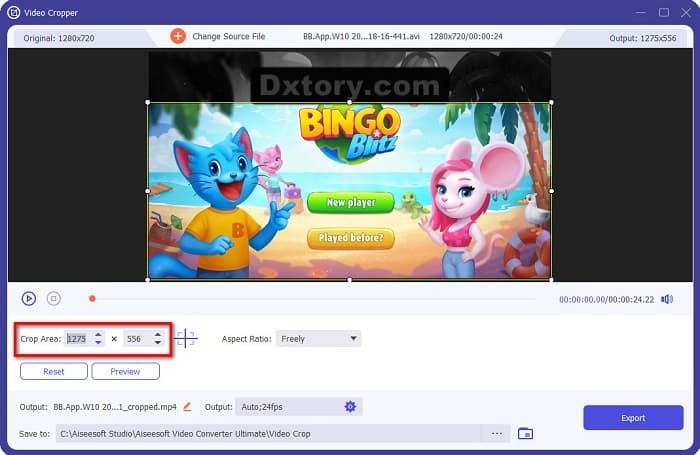
Trinn 5. Til slutt klikker du på knappen Preview for å se resultatet av videoen, og klikker på Export hvis du er fornøyd med resultatet.
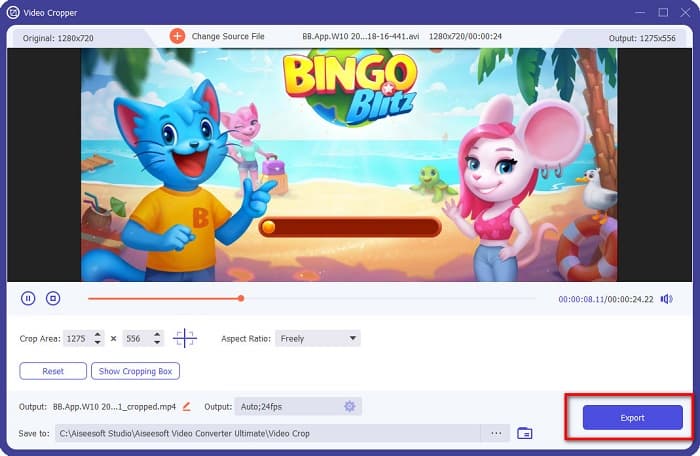
Med disse enkle trinnene kan du fjerne Dxtory-vannmerket på videoen din ved å bruke Video Cropper-funksjonen til FVC Video Converter UItimate.
Metode 2: Slik fjerner du Dxtory-vannmerket ved å bruke Video Watermark Remover fra FVC Video Converter Ultimate:
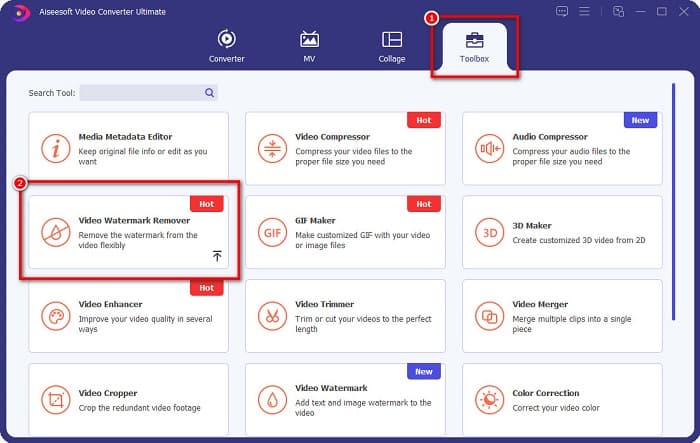
Trinn 1. Hvis programmet allerede er lastet ned på enheten din, åpner du appen. Gå deretter til Toolbox og velg Video Watermark Remover.
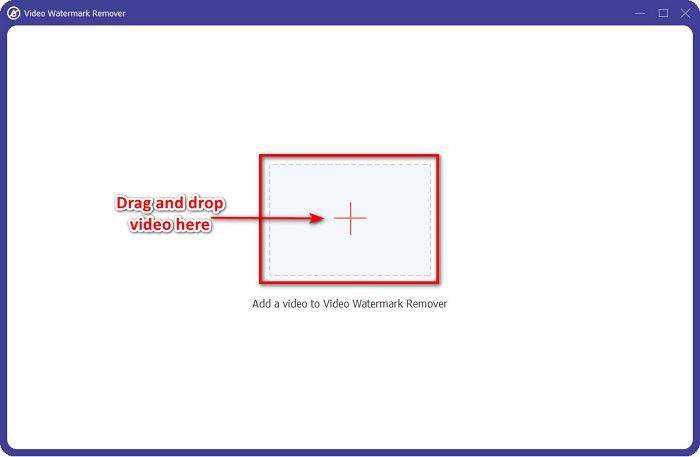
Trinn 2. Klikk deretter på +-knappen eller dra og slipp Dxtory-videoen din i + sign box.
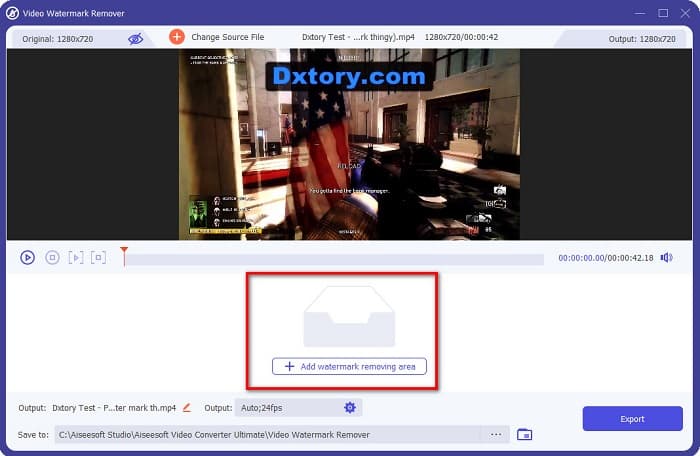
Trinn 3. Etter at du har lastet opp videoen, vil du se en forhåndsvisning. Klikk på området Add watermark removing.
Trinn 4. Deretter vil et watermark remover area vises på videoen din. Plasser det over Dxtory-vannmerket.
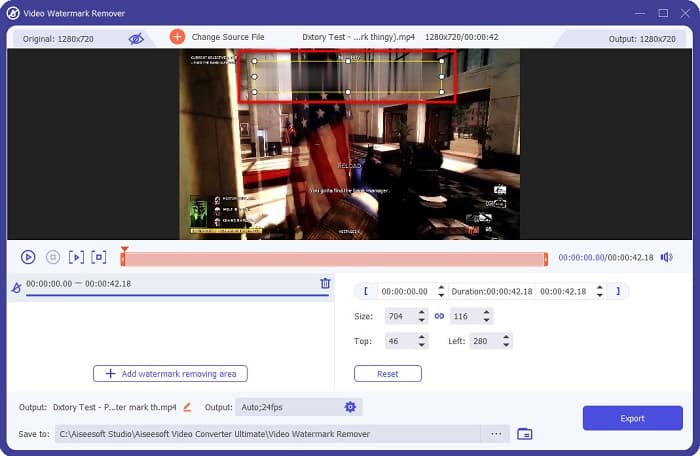
Valgfritt. Hvis det er to eller flere vannmerker på videoen din, klikker du på add watermark removing area for å legge til en ekstra fjerningsboks.
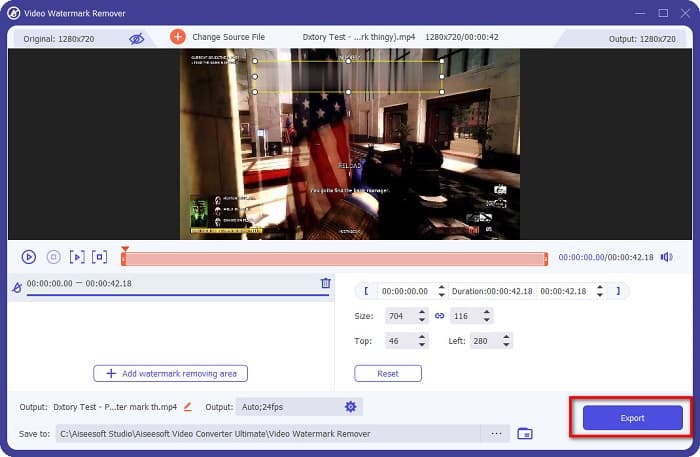
Trinn 5. Til slutt klikker du på knappen Export for å lagre videoresultatet på enheten din. Og det var det!
Enkelt, ikke sant? Du kan fjerne Dxtory-vannmerket på videoen din så lett som det. Du kan også fjerne TikTok-vannmerker med metodene som er nevnt ovenfor.
Del 3. Vanlige spørsmål om fjerning av Dxtory Watermark
Kan Adobe After Effects fjerne Dxtory-vannmerket?
Ja. Adobe After Effects er det mest populære verktøyet for å fjerne videovannmerker som kan fjerne alle vannmerker i videoen din (logo, tekst, bilder). Det kan også fjerne Dxtory-vannmerket i videoen din. Men mange brukere synes det er vanskelig å bruke. Finn vannmerket på bildet ditt. Plasser boksen for fjerning av vannmerket over vannmerket. Gå til panelet Layer. Lag Null Objects. Klikk på Save Frame as. Importer de redigerte videoene dine. Reduser Opacity på bildet ditt. Bruk funksjonen Pick-up whip.
Kan du fjerne vannmerket fra bildene dine?
Du kan fjerne vannmerker, som logoer, tekst eller andre elementer på bildene dine. Du kan bruke FVC gratis vannmerkefjerner til å fjerne alle vannmerker fra bildet ditt.
Hvorfor setter Dxtory vannmerker på videoer?
Dxtory satte et vannmerke på videoene deres slik at du kan kjøpe den betalte versjonen. Dessuten legger de inn vannmerker på videoene sine slik at de blir forhindret fra opphavsrett.
Konklusjon
Som diskutert ovenfor, finnes det dokumenterte måter å fjerne Dxtory-vannmerker fra videoene dine på. Og ved å bruke FVC Video Converter Ultimate kan du enkelt fjerne alle plagsomme vannmerker fra bildet ditt. Last det ned nå og opplev de beste funksjonene.
-
 Slik fjerner du vannmerke fra Wondershare DVD Creator på en enkel måte
 Denne artikkelen dekker informasjon om hvordan du fjerner vannmerket fra Wondershare DVD Creator. For å få all informasjonen du trenger er det et must å lese dette.
-
 Slik fjerner du Coub vannmerke med enkle trinn
 Lær hvordan du fjerner coub-vannmerke på videoene dine ved å bruke disse populære vannmerkefjernerne. Les denne artikkelen for å vite disse fantastiske verktøyene og hvordan du bruker dem.
-
 Slik fjerner du Lumion-vannmerket på Windows og Mac enkelt
 Trenger du å fjerne Lumion-vannmerket for å presentere det profesjonelt? Vel, det er verktøy du kan bruke for å hjelpe deg med å bli kvitt vannmerket det etterlater.
