


 Video Converter Ultimate
 Skjermopptaker
 Videoreparasjon
 Sikker nedlasting
Enkleste måter å fjerne logo fra video ved hjelp av Windows Movie Maker
Hvordan fjerne logoen fra videoer med Windows Movie Maker? Dette er spørsmålet som oftest stilles av folk som elsker å se på favorittfilmer, videoklipp, lysbildefremvisninger og mer. Det er ikke tilfredsstillende å se en video mens en logo hele tiden vises. Men du trenger ikke å bekymre deg for det lenger. Vi har effektive metoder for å fjerne logoen fra videoene dine ved hjelp av Windows Movie Maker. I tillegg finnes det et annet verktøy du kan bruke til å fjerne logoen, i tillegg til Windows Movie Maker. Hvis du vil vite mer om dette andre programmet og disse enkle metodene, fortsett å lese denne artikkelen.

Del 1: Slik fjerner du logo fra video ved hjelp av Windows Movie Maker
Hvis du er Windows‑bruker, bør du prøve Windows Movie Maker for å fjerne en logo fra videoene dine. Dette verktøyet kan også bruke ulike metoder for å fjerne elementer fra videoene dine, som logoer, vannmerker, tekst, stempler og mer. I tillegg er Windows Movie Maker et videoredigeringsprogram som hjelper brukere å lage og forbedre videoer. Dessuten har det et enkelt grensesnitt som gjør prosessen mer oversiktlig og er perfekt for ikke‑profesjonelle brukere. Når du fjerner logoen, kan du erstatte den med andre elementer, som bilder eller tekst. Videre har dette programmet mange redigeringsverktøy du kan dra nytte av, som å klippe, slå sammen, rotere og beskjære videoene dine. Du kan også legge til overganger, tekst, effekter og mer. Hvis du vil lære denne enkle metoden, følger du trinnene nedenfor.
Trinn 1: Last først ned Windows Movie Maker på Windows‑maskinen din. Vent til installasjonsprosessen er ferdig, og åpne deretter programmet.
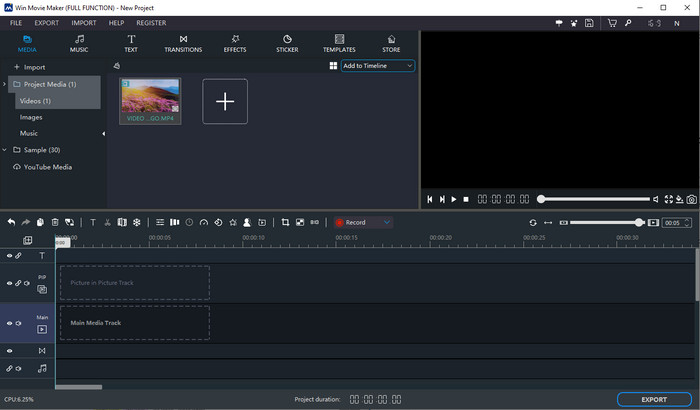
Trinn 2: Klikk på Plusstegn-ikonet for å legge til videoen din med logo. Når videoen er lagt til, drar du den ned på Main Media Track.
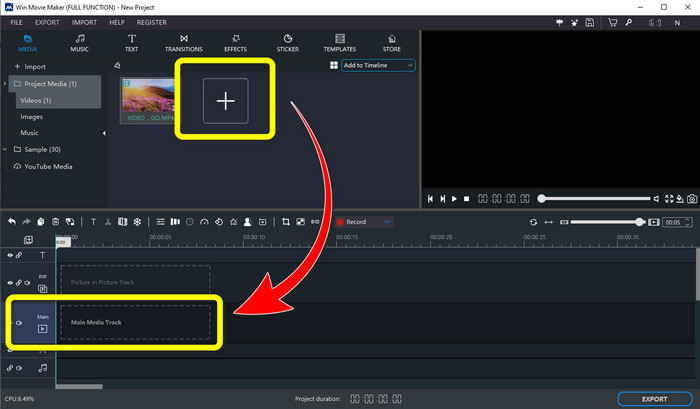
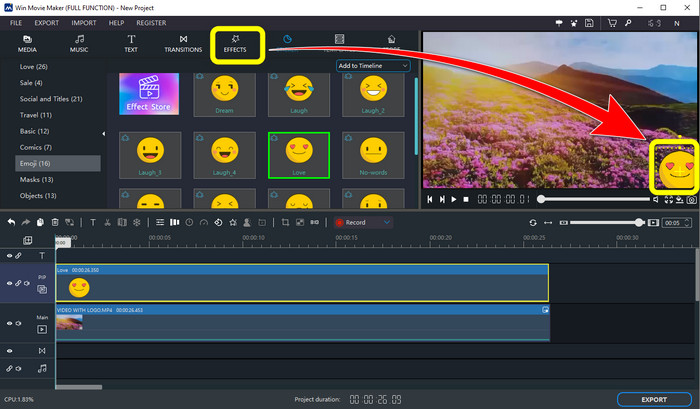
Trinn 3: For å erstatte logoen klikker du på knappen Sticker. Velg deretter ønsket klistremerke eller andre elementer, og plasser det over området med logoen for å dekke den.
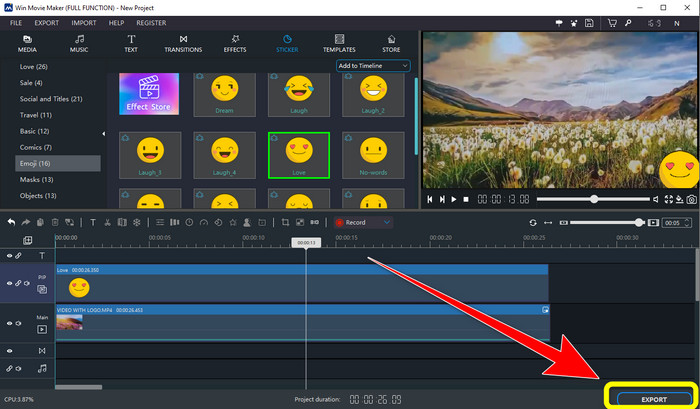
Trinn 4: Til slutt, når du er ferdig med å dekke til logoen i videoen, velger du knappen Export for å lagre det endelige resultatet.
Del 2: Beste alternative måte å fjerne logo fra video
Video Converter Ultimate er et av de beste alternativene til Windows Movie Maker for enkelt å fjerne logoer fra videoene dine. Dette programmet gjør det mulig å fjerne uønskede elementer som vannmerker, logoer, signaturer, stempler og mer. I tillegg kan du bruke beskjæringsverktøyet til å fjerne logoer som er plassert ytterst i kanten eller i hjørnet av videoen. Video Converter Ultimate har et oversiktlig og intuitivt grensesnitt som passer godt for ikke‑profesjonelle brukere. I tillegg til å fjerne logoer fra videoene dine, gir denne programvaren deg en rekke redigeringsverktøy du kan bruke. Den har videokompressor, videohastighetskontroll, GIF‑maker, kollasjemaker, verktøy for å legge til og fjerne vannmerker, videorotator og mye mer. Den støtter også ulike filformater, som MP4, MKV, FLV, MOV, XVID, DIVX, TRP, MTS osv. Til slutt er Video Converter Ultimate tilgjengelig både for Windows og Mac, noe som er praktisk for brukerne. Følg disse detaljerte veiledningene for å fjerne logoer fra videoene dine ved hjelp av Video Watermark Remover og videobeskaringsfunksjonen.
Bruke funksjonen for fjerning av videovannmerke
Trinn 1: Last først ned Video Converter Ultimate og installer det på Windows‑ eller Mac‑maskinen din.
Gratis nedlastingFor Windows 7 eller nyereSikker nedlasting
Gratis nedlastingFor MacOS 10.7 eller nyereSikker nedlasting
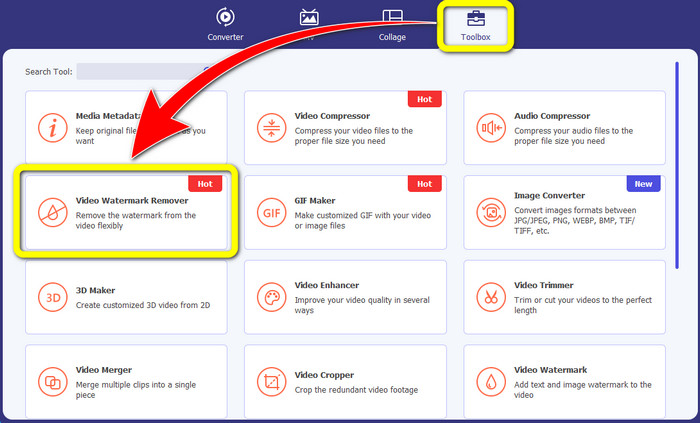
Trinn 2: Etter at du har startet programmet, går du til panelet Toolbox, finner Video Watermark Remover og velger det.
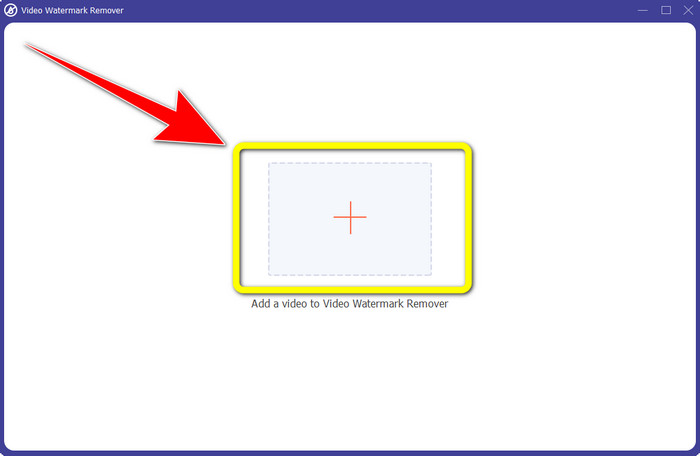
Trinn 3: Deretter åpnes et nytt grensesnitt. Klikk på plusstegnikonet for å legge til videoen du vil fjerne logoen fra.
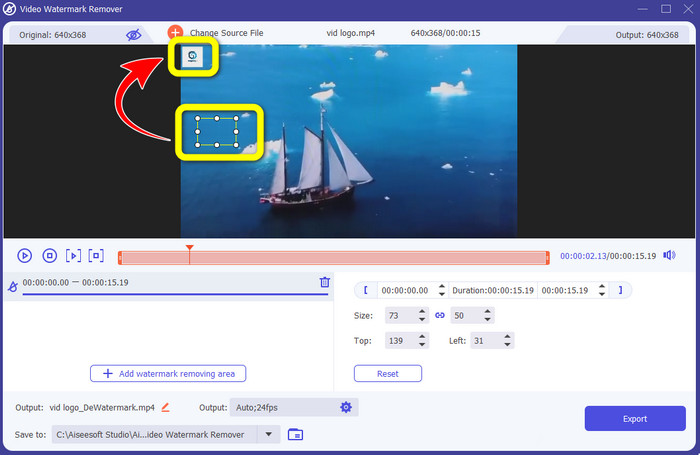
Trinn 4: En miniboks vises på skjermen når du har lagt til filen. Dra boksen slik at den dekker logoen.
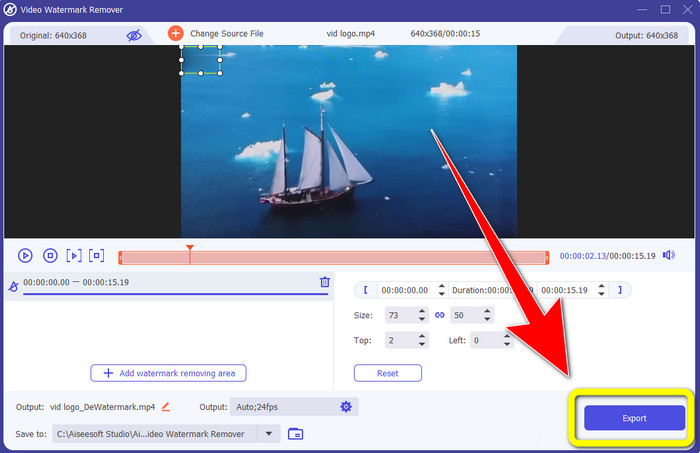
Trinn 5: Når du er ferdig med å fjerne logoen fra videoene dine, velger du knappen Export for å eksportere og lagre videoen uten logo.
Bruke videobeskjæringsfunksjonen
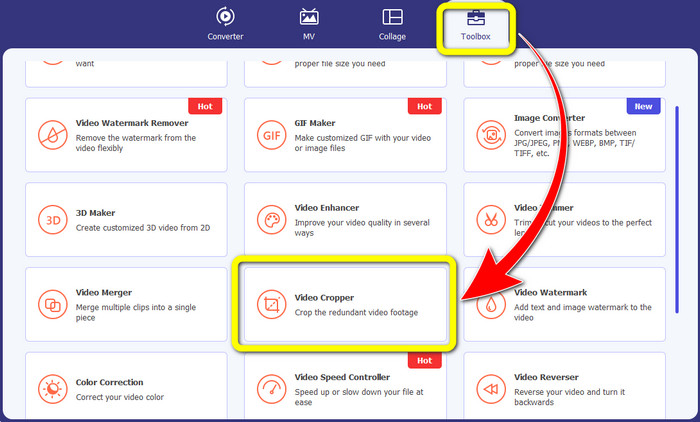
Trinn 1: Først klikker du på panelet Toolbox. Deretter finner du verktøyet Video Cropper og velger det.
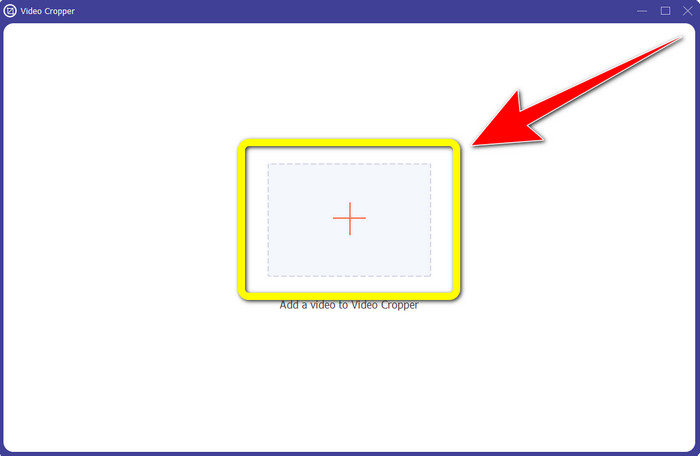
Trinn 2: Så kan du klikke på knappen med Plusstegn for å importere videoen med logo.
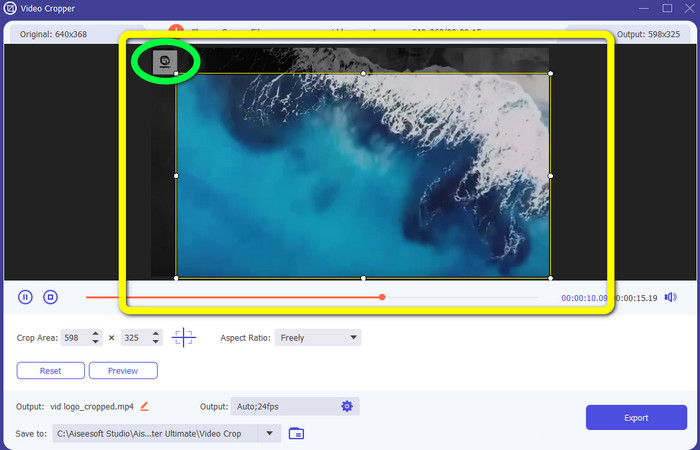
Trinn 3: I denne funksjonen kan du kutte begge sider, eller den øvre og nedre delen av videoen for å fjerne logoen fra videoen.
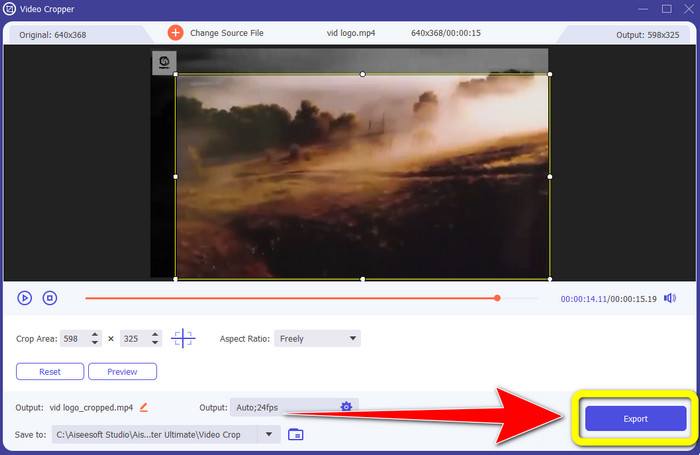
Trinn 4: Til slutt klikker du på knappen Export og lagrer videoen på datamaskinen din.
Del 3: Vanlige spørsmål om fjerning av logo fra video ved hjelp av Windows Movie Maker
Hvor lang tid vil det ta å eksportere videoen min i Windows Movie Maker etter å ha fjernet logoen?
Når du bruker Windows Movie Maker, kan du eksportere videoen din på bare et minutt etter at du har fjernet logoen.
Hvilken applikasjon er best når du fjerner logoer fra en video?
Hvis du ser etter det beste og mest pålitelige programmet med logofjerner, kan du bruke Video Converter Ultimate. Med dette programmet kan du nyte videoen din etter at du har fjernet logoene fra den.
Er det et nyttig program jeg kan bruke til å fjerne logoer fra videoer med telefonen min?
Ja, selvfølgelig finnes det det! Du kan bruke programmet PicLab. Det er tilgjengelig både på Android og iPhone. Her er en generell veiledning:
1. Last ned PicLab på telefonen din og åpne det.
2. Legg til filen din og velg markeringsverktøyet.
3. Velg hvilken del som skal fjernes, trykk deretter på «erase» og lagre.
Er det mulig å fjerne logoen fra en video uten å miste kvalitet?
Ja, det er det! Det mest anbefalte programmet du kan bruke er Video Converter Ultimate.
Finnes det et nettbasert verktøy jeg kan bruke til å fjerne en logo fra videoene mine?
Absolutt ja! Du kan bruke mange nettbaserte verktøy til å fjerne en logo fra videoene dine. Du kan bruke Apowersoft Online Watermark Remover. Her er enkle trinn for å bruke dette verktøyet:
1. Gå til nettstedet Apowersoft Online Watermark Remover og klikk på knappen remove watermark from video.
2. Legg til filen din. Bruk boksen til å dekke logoen.
3. Klikk på Erase og last ned videoen din.
Konklusjon
Denne artikkelen har gitt deg gode metoder for hvordan du fjerner en logo fra en video med Windows Movie Maker på datamaskinen din. I tillegg til å bruke Windows Movie Maker presenterer artikkelen også et av de beste alternativene for å fjerne en logo fra videoene dine. Dette pålitelige programmet er Video Converter Ultimate. Denne programvaren kan hjelpe deg med å fjerne logoen på to enkle måter. Den første er verktøyet Video Watermark Remover, og det andre er verktøyet Video Cropper.
-
 Hvordan fjerne Bandicam-vannmerket uten problemer [3 effektive måter]
 Hvordan fjerne Bandicam vannmerket? Med verktøyene legger vi til her at du vet hvordan du skal håndtere det effektivt!
-
 Slik fjerner du iStock-vannmerket ved å bruke de mest effektive måtene
 Hvordan fjerne iStock vannmerket på videoer og bilder? Hvis du leter etter en vei ut for å bli kvitt vannmerket, les dette!
-
 Fjern DaVinci Resolve Watermark på eksporterte videoer med komplett opplæring
 For å fjerne Davinci Resolve-vannmerket må du bruke et verktøy eller kjøpe den offisielle versjonen av det, fortsett å lese dette for å vite mer.
