


 Video Converter Ultimate
 Skjermopptaker
 Videoreparasjon
 Sikker nedlasting
Flott måte å fjerne vannmerke fra Camtasia 9 som du må prøve
Hvis du ser etter en enkel og best mulig måte å fjerne vannmerket i Camtasia 9 på, er dette det rette stedet. Det finnes mange flotte videoer vi har lyst til å se. Men noen av dem har et stort vannmerke, noe som gjør dem mer irriterende og gjør at man ikke klarer å sette pris på selve videoinnholdet. I tillegg, med disse unødvendige elementene, er det deler av videoen du ikke kan se, noe som skuffer seerne ytterligere. Heldigvis finnes det enkelte programvarer med verktøy for å fjerne vannmerker som du kan bruke til å fjerne vannmerker fra videoene dine, slik at du kan nyte å se favorittfilmene dine uten forstyrrelser. Hvis du vil lære mer om hvordan du raskt kan fjerne vannmerker fra videoene dine, les denne artikkelen fra begynnelse til slutt.

Del 1: Beste måten å fjerne vannmerke fra Camtasia
Bruke Video Converter Ultimate
Hvis du ser etter et flott og pålitelig program med verktøy for å fjerne vannmerker, er Video Converter Ultimate en utmerket programvare du kan bruke. Du kan fjerne vannmerker på videoene dine ved hjelp av dette programmet. Du kan også bruke dette programmet hvis videoen din har vannmerker fra andre apper som Camtasia. Dessuten er det enkelt og brukervennlig, noe som passer for nybegynnere. I tillegg har det forskjellige redigeringsverktøy du kan dra nytte av, som Video Compressor, Video Enhancer, Video Trimmer, Audio Compressor, Video Reverser, Video Rotator og mer. Denne artikkelen vil vise to måter å fjerne vannmerker fra videoene dine ved hjelp av Video Converter Ultimate.
1. Bruke Video Watermark Remover
Trinn 1: Last ned Video Converter Ultimate på datamaskinen din. Gå deretter videre til installasjonsprosessen.
Gratis nedlastingFor Windows 7 eller nyereSikker nedlasting
Gratis nedlastingFor MacOS 10.7 eller nyereSikker nedlasting
Trinn 2: Når installasjonen er fullført, åpner du programmet og går til Toolbox > Video Watermark Remover. Deretter vil et nytt vindu vises på skjermen.
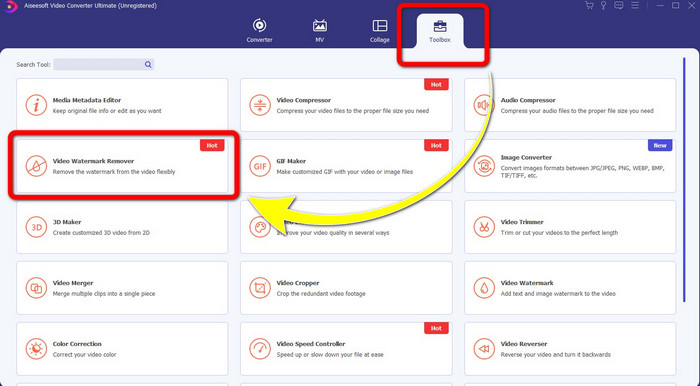
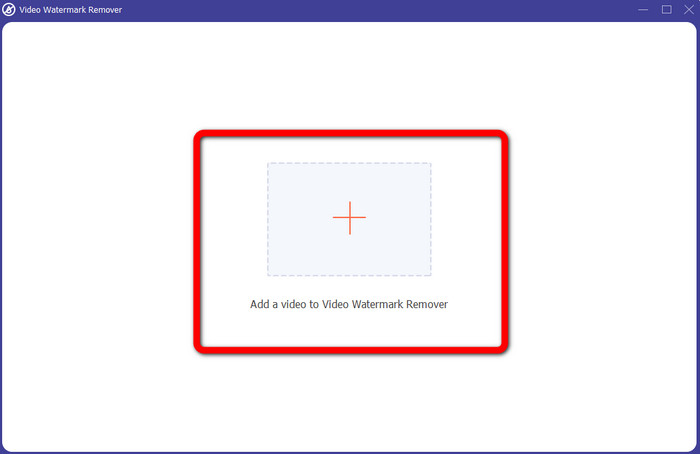
Trinn 3: Når det nye grensesnittet har dukket opp, klikker du på Plus-knappen og legger til videoen med vannmerket.
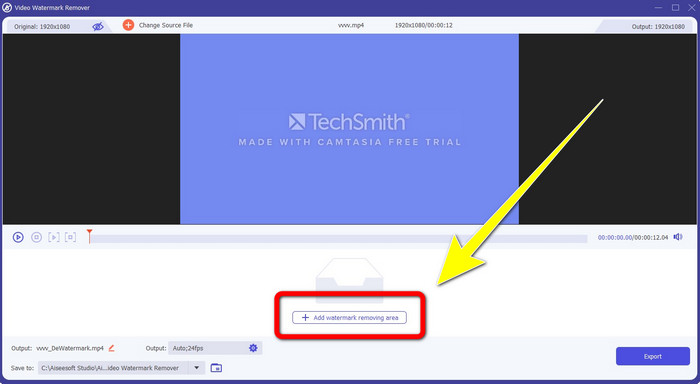
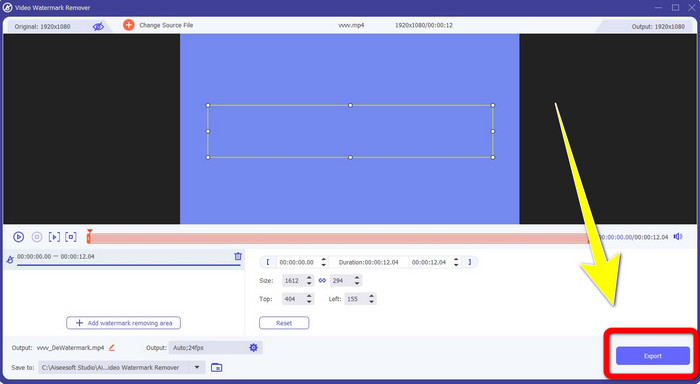
Trinn 4: Etter at du har lagt til videoen din med vannmerke, klikker du Add Watermark Removing Area.
Trinn 5: Det vil komme opp et boksformet felt på skjermen. Bruk boksen til å dekke vannmerket på videoen din.
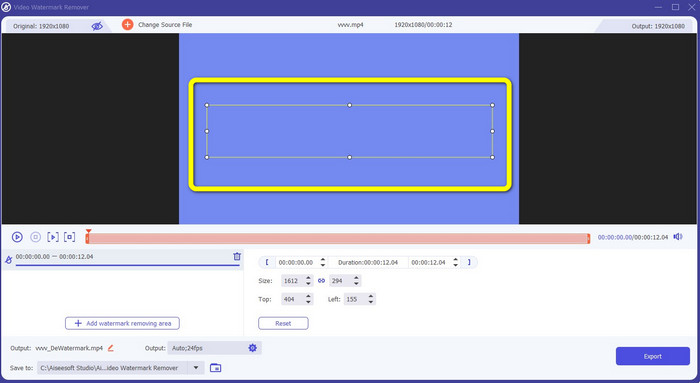
Trinn 6: Når vannmerket er dekket, vil vannmerkene forsvinne fra videoen din. Klikk Export for å lagre videoen. På denne måten kan du nå fjerne videoen med vannmerke laget i Camtasia.
2. Bruke beskjæringsfunksjonene
En annen metode du kan prøve, er beskjæringsfunksjonene i Video Converter Ultimate. Det er en av de enkleste måtene å fjerne vannmerker på videoene dine, spesielt hvis vannmerket bare er i hjørnet eller langs kanten av videoene dine. Ved å beskjære videoene kan du umiddelbart fjerne de unødvendige elementene i videoen. Følg disse enkle trinnene for å fjerne vannmerker ved hjelp av et beskjæringsverktøy.
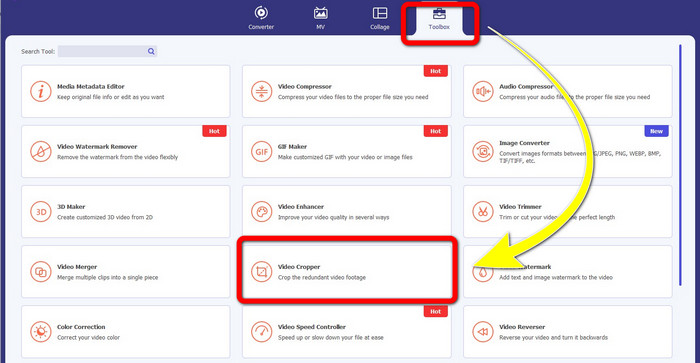
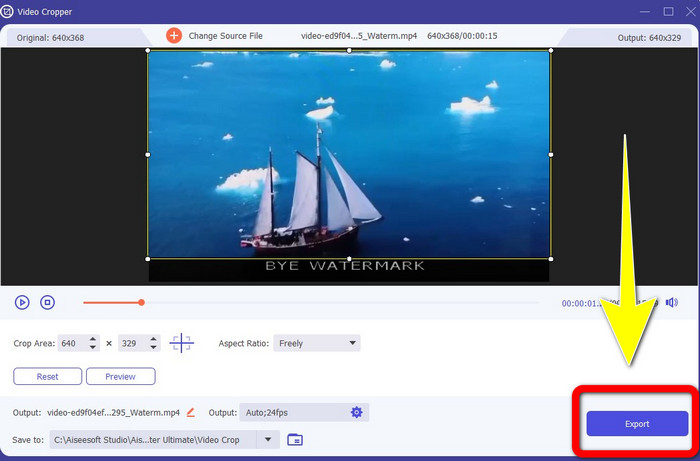
Trinn 1: Åpne Video Converter Ultimate. Klikk Toolbox > Video Cropper. Deretter vil et nytt vindu vises på skjermen.
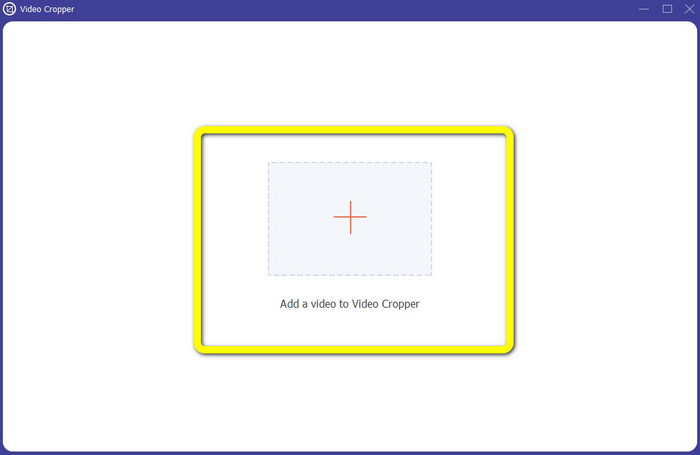
Trinn 2: Klikk på Plus-knappen og legg til videoen med vannmerke som du vil fjerne.
Trinn 3: Når du har lagt til videoen med vannmerke, kan du nå beskjære kanten av videoen til området der vannmerket er. På denne måten kan du fjerne vannmerkene.
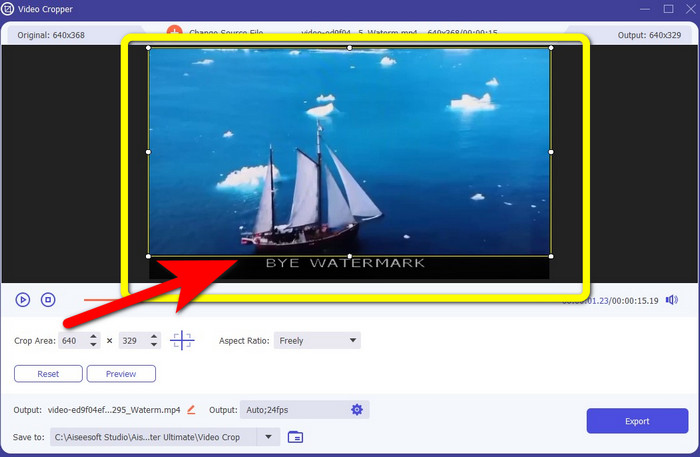
Trinn 4: Hvis du allerede har beskåret videoen og ser at vannmerket er borte, klikker du Export for å lagre den redigerte videoen. Nå kan du nyte å se videoen uten vannmerker på skjermen.
Del 2: Hvordan produsere videoer i Camtasia uten vannmerke
Vil du lære hvordan du lager en Camtasia-video uten vannmerker? La oss først definere hva Camtasia er. Camtasia er et enkelt og nyttig redigeringsverktøy du kan bruke. I tillegg er det også et program for skjermopptak. Videre har det ulike redigeringsfunksjoner du kan dra nytte av, som merknader, overganger, animasjoner, lydeffekter, videoeffekter og mer. Du kan også lage lysbildefremvisninger i dette programmet.
Ved hjelp av denne applikasjonen kan du gjøre videoene dine mer attraktive og unike for seerne. I Camtasia kan du produsere vakre videoer som du kan nyte. Denne applikasjonen har imidlertid et vannmerke etter at du har eksportert videoen din med mindre du kjøper applikasjonen. Følg disse enkle trinnene for å lære mange ting i denne applikasjonen, spesielt å lage videoer i Camtasia.
Ved hjelp av denne applikasjonen kan du gjøre videoene dine mer attraktive og unike for seerne. I Camtasia kan du produsere vakre videoer som du kan nyte. Denne applikasjonen har imidlertid et vannmerke etter at du har eksportert videoen din med mindre du kjøper applikasjonen. Følg disse enkle trinnene for å lære mange ting i denne applikasjonen, spesielt å lage videoer i Camtasia.
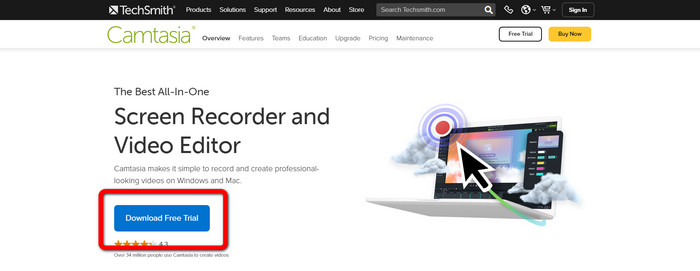
Trinn 1: Du må laste ned Camtasia på Windows-maskinen din. Klikk på knappen Download Free Trial for å laste ned programmet. Åpne deretter programmet etter installasjonsprosessen.
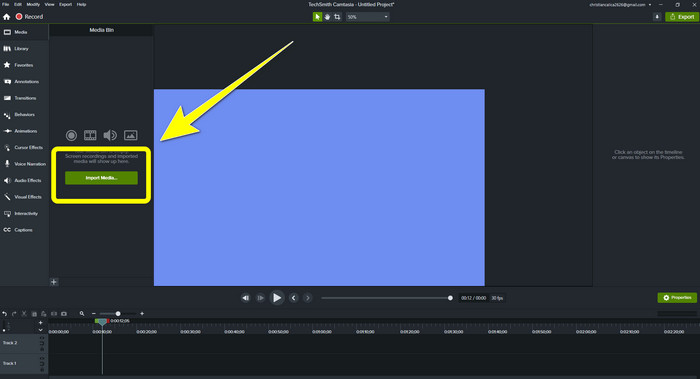
Trinn 2: Etter at du har startet programmet, klikker du på Import Media-knappen for å legge til filen du vil redigere.
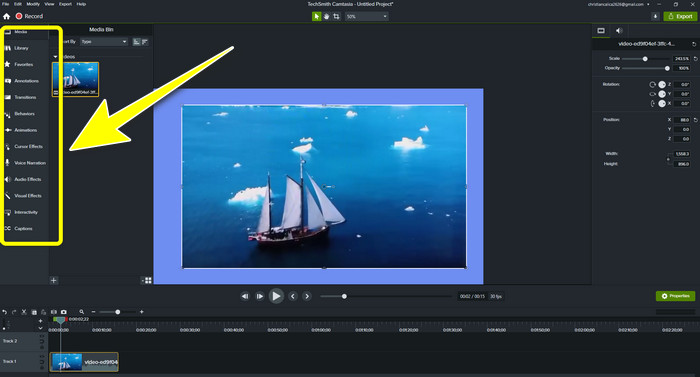
Trinn 3: Du kan nå redigere filene dine i dette programmet ved hjelp av redigeringsverktøy, som å legge til teksting, overganger, animasjoner, merknader, behaviors og mer.
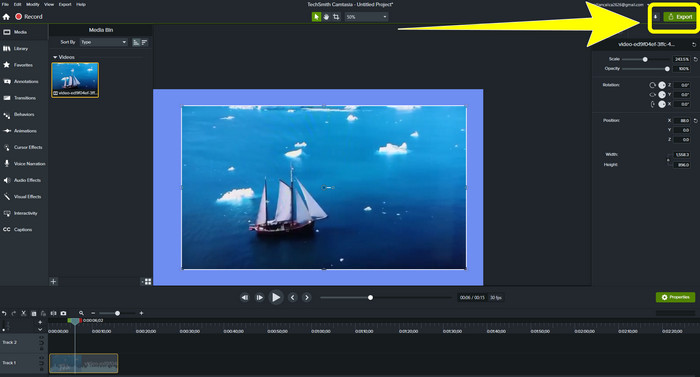
Trinn 4: Når du er ferdig og fornøyd med redigeringen av videoene dine, kan du klikke på knappen Export > Local File for å lagre resultatet.
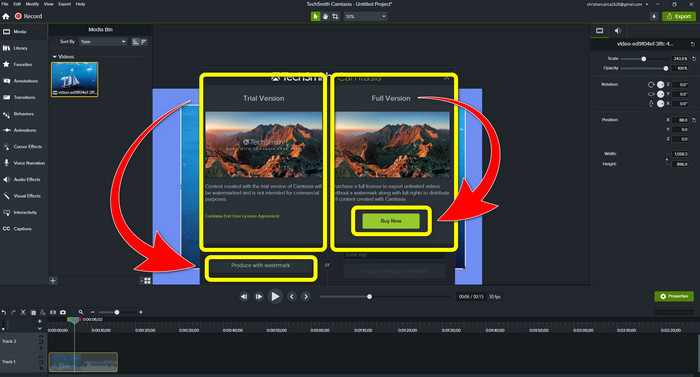
Trinn 5: Etter å ha klikket på Export > Local File Button vil et nytt vindu vises. Hvis du vil kjøpe programmet, klikker du på Buy-knappen for å kunne produsere en video i Camtasia uten vannmerke. Men hvis du bare bruker en gratis prøveversjon, vil videoen din ha et vannmerke etter eksport og lagring.
Relatert til:
Hvordan fjerne Filmora-vannmerke fra videoene eller prosjektene dine gratis
Raskeste triks for å fjerne Adobe Stock-vannmerke fra en video [veiledning]
Del 3: Vanlige spørsmål om fjerning av vannmerker
Er det en utmerket vannmerkefjerner jeg kan bruke på min Mac?
Absolutt ja! Du kan bruke programmer med verktøy for å fjerne vannmerker, som Video Converter Ultimate. Det er i stand til å fjerne vannmerker fra videoene dine. I tillegg er dette programmet tilgjengelig både på Windows og Mac, noe som gjør det mer praktisk.
Er det en måte jeg kan fjerne vannmerker fra bilder?
Absolutt ja! Du kan bruke mange applikasjoner på enheten din for å fjerne vannmerker fra bilder. Det beste du trenger å gjøre er å søke i nettleserne dine etter verktøy for fjerning av vannmerker og se etter de 10 beste resultatene på resultatsiden.
Kan jeg fjerne vannmerker med telefonen?
Ja det kan du! Noen av programmene med vannmerkefjernere er nå tilgjengelige på Mac og Windows og mobiltelefoner som Android-telefoner og iPhones.
Hvordan kan jeg fjerne vannmerker med et beskjæringsverktøy?
Å fjerne vannmerker på bildene eller videoene dine ved hjelp av et beskjæringsverktøy er et stykke kake, spesielt hvis vannmerket er på kanten av bildet. Alt du trenger å gjøre er å beskjære det, fjerne vannmerket, og du er ferdig.
Konklusjon
Som du ser, viser denne artikkelen de beste måtene å fjerne vannmerket fra Camtasia 9 på. Den presenterer også et utmerket og pålitelig program med to metoder for å fjerne unødvendige elementer fra videoene dine. Dette programmet er Video Converter Ultimate.
-
 5 måter å fjerne et vannmerke fra en video på en profesjonell måte
 Trenger du å fjerne et vannmerke fra en video for å få den til å se profesjonell ut? Vel, les denne artikkelen mens vi legger til en veiledning om hvordan du gjør det!
-
 3 av de nyeste Shutterstock-vannmerkefjernerne du noen gang vil trenge
 Liker du ikke Shutterstock-vannmerket knyttet til eksportert video? Du kan bruke en Shutterstock vannmerkefjerner for å slette den effektivt.
-
 Enkleste metoder for hvordan du fjerner vannmerke fra bilder
 Er du irritert over vannmerkene på bildet ditt? Ikke bekymre deg! Denne artikkelen vil gi enkle og enkle metoder for å fjerne vannmerker fra bildene dine
