


 Video Converter Ultimate
 Skjermopptaker
 Videoreparasjon
Sett sammen tankene dine. Ta tak i hvordan du kan øke hastigheten på en video på iMovie
Du elsker å se dokumentarer på din nye iPhone, og du ser alltid på dem på grunn av historiene de forteller. Uten noen spesiell grunn vil du samle alle sammen og redigere dem på en rask måte. Du leter etter den beste appen som både kan redigere og samtidig øke hastigheten på videoen din, og dermed finner du iMovie. Men siden du er ny både på iPhone og i selve appen, vet du ikke hvordan du bruker den og hvordan du øker hastigheten på en video med iMovie. Les videre, for denne artikkelen gir deg mange detaljer slik at du kan lære mer om denne appen.

Del 1. Hvordan øke hastigheten på video i iMovie
Spørsmålet om hvordan du kan øke hastigheten på en video kan besvares ved hjelp av iMovies funksjoner. Dens høykvalitets videoutgang, ulike maler og etterbehandlingsverktøy kan bringe avspillingshastighetskontroll til iPhone for første gang. iMovie har også kraften til å øke hastigheten på en video som andre programmer. Et av verktøyene kan gjøre justeringer av videoen din sammen med de andre tilgjengelige verktøyene. Det er nå enkelt å få tilgang til videoer du vil øke hastigheten ved å bruke denne applikasjonen som bare er tilgjengelig på iOS-operativsystemer og Mac. Nå vet du om verktøyet, la oss gå og snakke om prosedyrene du må følge.
For iPhone-brukere
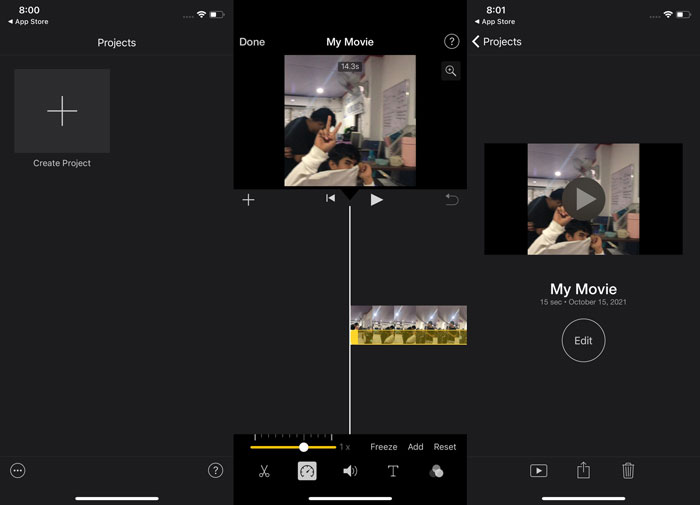
Trinn 1: Gå til App Store på iPhone eller iPad og last ned iMovie-appen. Når det vises en introduksjon til grensesnittet, velger du Fortsett. Når du er på siden Prosjekter, trykker du på +-ikonet for å starte et helt nytt videoklipp. Fortsett ved å velge Film i vinduet Nye prosjekter.
Trinn 2: Etter at du har valgt en video fra kamerarullen, trykker du på knappen Opprett film nederst på skjermen. Trykk på tidslinjen og vent til redigeringsverktøyene vises før du bruker hastighetsverktøyet, som ser ut som en speedometer. For å spole framover eller bakover i videoen flytter du bare den gule nederste glideren. Du kan øke hastigheten opptil to ganger eller senke den ned til en åttendedel av originalhastigheten.
Trinn 3: Når du er ferdig, går du til øvre venstre hjørne av skjermen og trykker på Ferdig. For å lagre den ferdige videoen går du til Del-menyen og velger hvor du vil lagre den blant de tilgjengelige alternativene.
For Mac-brukere
Trinn 1: Velg et klipp i tidslinjen i iMovie-appen på Macen din, og endre deretter klippets hastighet.
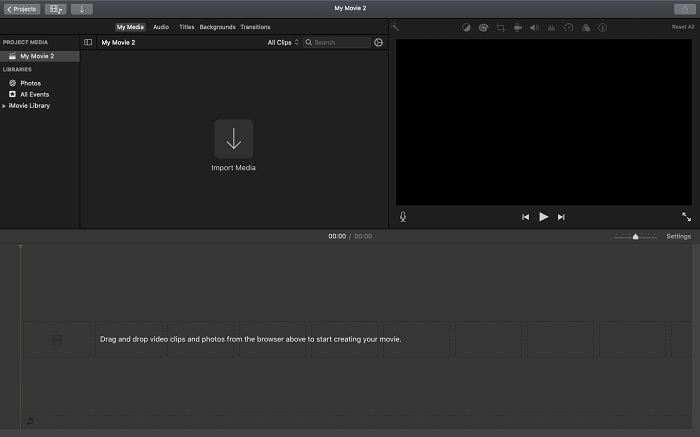
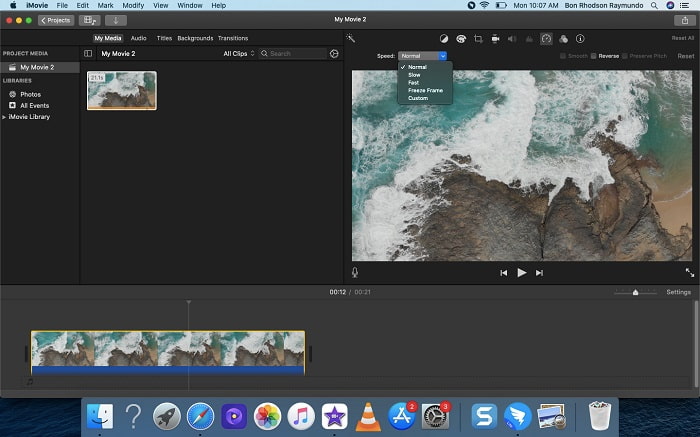
Trinn 2: Ved å klikke på knappen Hastighet øverst i grensesnittet får du fram hastighetsinnstillingene. Velg ganske enkelt mellom Sakte og Rask fra en hastighetsknapp for å finjustere avspillingshastigheten.
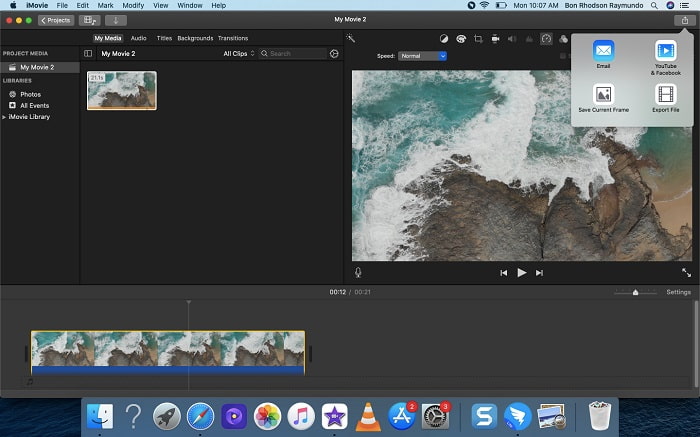
Trinn 3: Klikk på ikonet Last opp øverst i grensesnittet for å eksportere filen til skrivebordet ditt.
Del 2. En annen enklere måte å øke hastigheten på video
Å bruke en iPhone eller andre nettbaserte apper som bare finnes på iPhone som videoredigeringsverktøy kan være vanskelig hvis du vil øke avspillingshastigheten på videoen din. Video Converter Ultimate vil være det beste alternativet å vurdere, siden det lar deg øke hastigheten på videoen permanent. Du kan justere avspillingshastigheten på videoen med dette verktøyet, som du kan få gratis. Det har ulike funksjoner, blant annet Video Speed Controller, som kan få videoen din til å øke avspillingshastigheten med høy bildekvalitet og svært rask konvertering. For å lære mer om detaljene følger du trinnene nedenfor:
Trinn 1: Klikk på Gratis nedlasting for å lagre programvaren på datamaskinen. Deretter tilpasser du programvaren ved å installere den.
Gratis nedlastingFor Windows 7 eller nyereSikker nedlasting
Gratis nedlastingFor MacOS 10.7 eller nyereSikker nedlasting
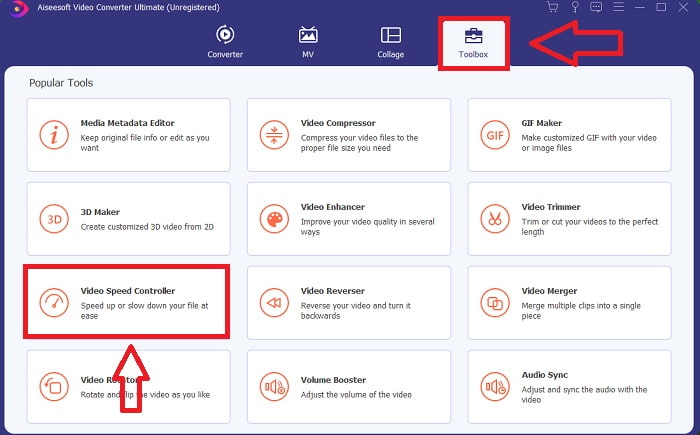
Trinn 2: Etter at du har startet programvaren for første gang etter installasjon, velger du funksjonen Verktøykasse og deretter funksjonen Video Speed Controller.
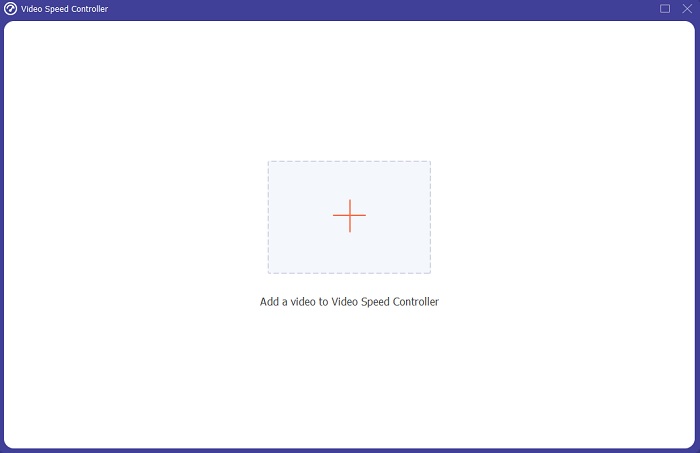
Trinn 3: For å starte redigeringsfasen kan du nå laste opp en videofil fra datamaskinen ved å klikke på +-tegnet som vises etter at du har gått videre ved å klikke på verktøyet Video Speed Controller.
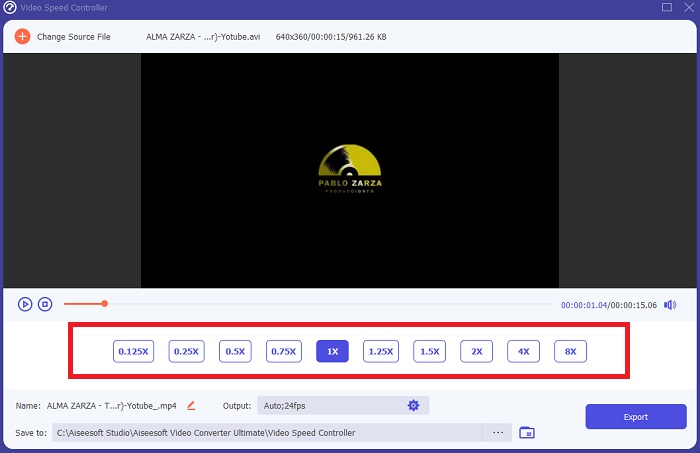
Trinn 4: Nå kan du øke hastigheten på en video mer enn iMovie, fordi dette verktøyet gir deg flere valg for hvor mye du vil øke hastighetsmultiplikatoren på videoen din. Du kan også spille av en forhåndsvisning av videoen etter at du har valgt ønsket hastighetsjustering for å se om den tilfredsstiller deg.
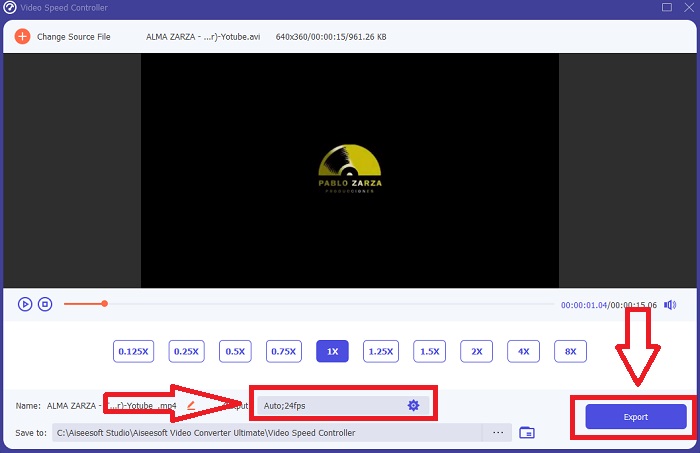
Trinn 5: Du kan velge ønsket resultat ved å endre format, oppløsning og kvalitet på videoklippet etter at du er ferdig med å justere avspillingshastigheten, blant annet. Når du er klar til å lagre arbeidet ditt, velger du Eksporter og angir en plassering.
Relatert:
Hvordan slå sammen videoer på iPhone
Del 3. Vanlige spørsmål om hvordan du kan øke hastigheten på videoer
Hva om jeg sender en rask video og mottar en treg video for å redusere videostørrelsen?
Nei, det påvirker kun presentasjonen av dataene og ikke selve datamengden. Det er imidlertid mulig å redusere størrelsen på videoen ved å få den til å kjøre med en lavere bildefrekvens. Med færre bilder per sekund holder den samme hastighet som originalen. 60 versus 30 bilder per sekund har en betydelig innvirkning på videofilstørrelsen. På grunn av bilde-til-bilde-variasjoner som vurderes under videokoding. Reduser videoens oppløsning, for eksempel fra 1080p til 720p, for å redusere størrelsen ytterligere. Filstørrelsen vil bli betydelig redusert på grunn av dette.
Hva er alternativene dine for å øke hastigheten på videoavspilling på en Mac?
For å øke avspillingshastigheten med to eller flere ganger (5 eller mer), klikk på frem- eller tilbake-knappen til videoen spilles av med ønsket hastighet, for eksempel 30 eller 60 ganger. Mens videoen spilles av, kan du endre avspillingshastigheten i trinn på 1,1x ved å klikke på frem- eller tilbake-knappen.
Hvordan endrer jeg videoavspillingshastighet permanent?
Tenk over hvor mange trinn det tar å endre avspillingshastigheten på videoene dine. Selv om verktøy og videoredigerere er lett tilgjengelige på nettet, er du fortsatt på jakt etter det beste verktøyet for å løse problemer med avspillingshastigheten på videoklippet ditt. Det finnes en rekke nettbaserte verktøy på internett, noen er gratis å bruke, men krever betaling for å låse opp alle funksjonene. Video Converter Ultimate, et gratisprogram for å øke hastigheten på videoer, er ditt beste alternativ for å endre avspillingshastigheten permanent.
Konklusjon
Avslutningsvis er iMovie en flott app som er tilgjengelig på iOS-enheter som Mac og iPhone for å løse problemer med avspillingshastigheten på en video. Den er tilgjengelig for svært mange brukere, den er praktisk, og den er gratis. Ja, den er flott til å redigere avspillingshastigheten, men hva med de andre viktige videofaktorene? Derfor anbefaler vi Video Converter Ultimate som det beste programmet for å fikse avspillingshastigheten på en video; ikke bare det, den har også en rekke funksjoner som kan hjelpe deg å lage en imponerende video du aldri hadde sett for deg.
-
 Android DVD -spiller - Slik spiller du DVD -videoer på Android -mobiler
 Hvordan spille DVD -filer på Android -mobiler? Er det noen Android DVD -spillere? I denne artikkelen lærer du om 3 måter å spille DVD -videoer på Android -mobiler med eller uten den eksterne driveren.
-
 De beste 10 gratis Android MP4 -spillerne for å spille HD/4K -videoer
 Selv om Android-mobiler har standardspillere for å spille av MP4-videoer, støtter de ikke justering av avspillingsinnstillinger og andre funksjoner. Dermed kan du lære om de 10 beste Android MP4-spillerne fra denne artikkelen.
-
 Samsung videospiller fast: Topp 5 beste videospillere for Samsung
 Når du spiller av videoer via standard Samsung -videospiller, kan det hende at den alltid blir sittende fast. For å få en jevn og bedre seeropplevelse, kan du lære om de fem beste videospillerne for Samsung fra denne artikkelen.
