


 Video Converter Ultimate
 Scherm opnemer
 Videoreparatie
Een GIF maken van uw foto's die op uw iPhone zijn opgeslagen
We gebruikten GIF’s om onze platte tekst aantrekkelijker te maken en zo een betere variant te worden dan gewone afbeeldingen. Dat komt doordat het bewegende geanimeerde statische beelden zijn. Bovendien proberen veel gebruikers, door de populariteit van het formaat, al hun eigen GIF’s te maken, zowel op computers als op telefoons. We gaan het nu hebben over hoe je een GIF maakt op een iPhone van foto’s die je op je toestel hebt opgeslagen. Lees dit artikel verder terwijl we uitleggen hoe je GIF’s maakt en welke verschillende software je kunt gebruiken.

Deel 1. Live Photo opslaan als GIF in de app Foto's
Wist je dat je eenvoudige GIF’s kunt maken van je foto’s op een iPhone? Door de app Foto’s te gebruiken. Deze voorgeïnstalleerde app slaat veel afbeeldingen en video’s op je telefoon op. In feite is het de opslag van de foto’s die je maakt, vergelijkbaar met de Galerij op Android. Maar deze tool biedt ook bewerkingsfuncties waarvan je misschien niet op de hoogte bent. Hoewel er een GIF-maker in zit, mist hij nog steeds een aantal belangrijke bewerkingsmogelijkheden om je GIF’s echt opvallend en verfrissend te maken. Als je de tool wilt proberen, volg dan de stappen hieronder en leer hoe je een GIF maakt op iPhone via Foto’s.
Stap 1. Open de voorgeïnstalleerde Camera op je iPhone.
Stap 2. Tik vervolgens bovenaan in het midden op Live-foto en druk op de knop Maak foto.
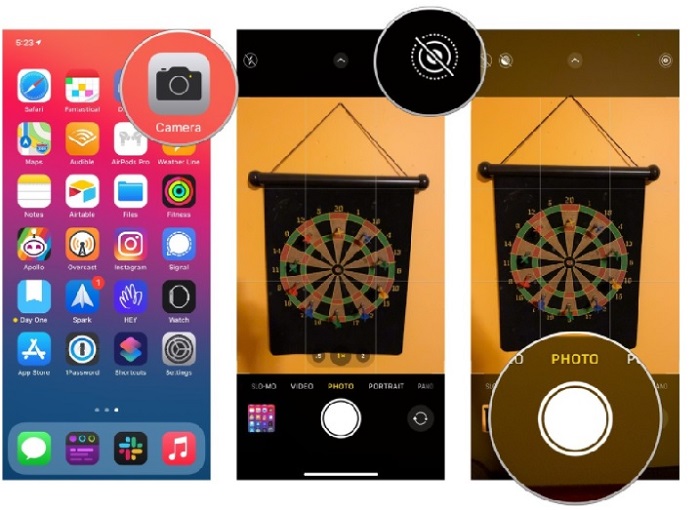
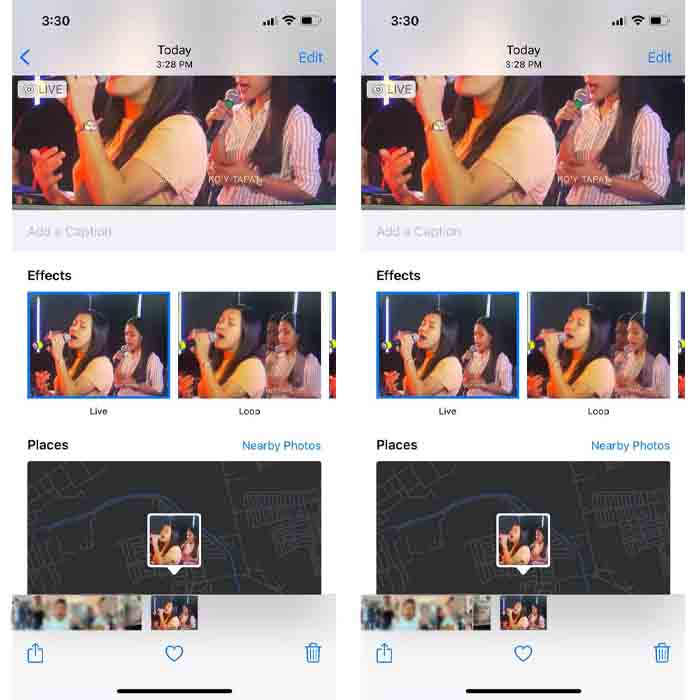
Stap 3. Tik daarna op de kleine vierkante foto links onderaan in de camera-interface. Veeg de foto omhoog en kies daar de GIF-effecten. Na het selecteren wordt de GIF automatisch opgeslagen en is hij klaar om met anderen of op sociale media te delen.
Voordelen
- U hoeft het niet te downloaden omdat het al vooraf op uw iPhone is geïnstalleerd.
- Eenvoudig te gebruiken als bewerkingstool.
Nadelen
- Je kunt afbeeldingen niet omzetten in GIF's als het geen live foto is.
- Het biedt niet veel bewerkingsfuncties om je GIF geweldig te maken.
Deel 2. Hoe maak je een GIF op iPhone met GIPHY
GIPHY is een gigantische GIF-bibliotheek die je gratis kunt gebruiken, zeker als je je registreert. Je kunt hier ook je zelfgemaakte GIF’s delen om anderen te helpen met jouw creaties. De tool ondersteunt echter niet het combineren van meerdere afbeeldingen tot één GIF. De filters die beschikbaar zijn, zijn daarentegen uitstekend en makkelijk te gebruiken. Als je GIPHY wilt gebruiken en GIF’s wilt maken, volg dan de onderstaande stappen.
Stap 1. Download GIPHY eerst op je iPhone en start de app daarna.
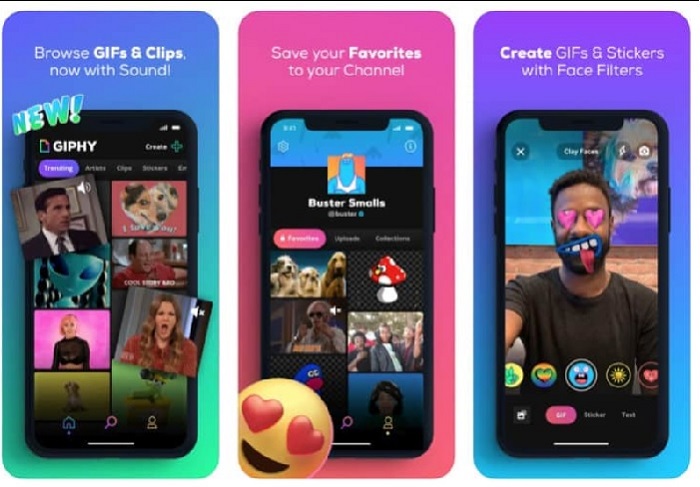
Stap 2. Tik op Create en tik linksboven op de knop album en sta de app toe om toegang te krijgen tot je afbeeldingen.
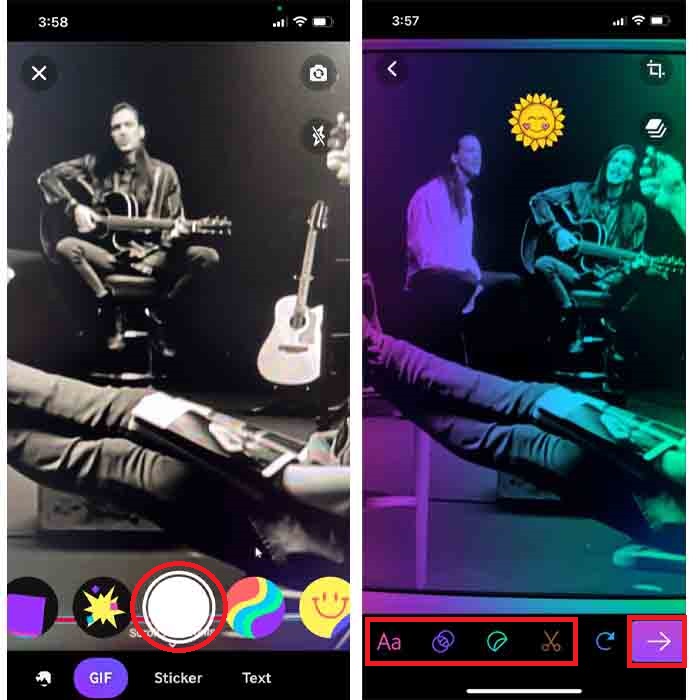
Selecteer vervolgens uw afbeelding waarvan u een GIF wilt maken en voer de bewerking uit in de interface.
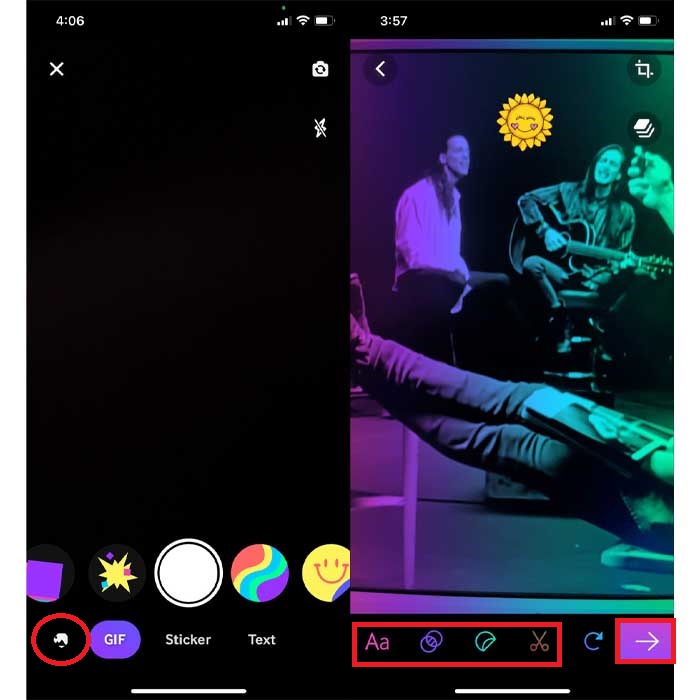
Stap 3. Je kunt de GIF niet direct op je iPhone opslaan, dus je hebt twee opties. De eerste is om hem te uploaden naar de GIPHY-cloudopslag en hem openbaar of privé te maken, of hem meteen te delen.
Voordelen
- Het is een enorme bibliotheek met GIF's.
- Het heeft een beter effect dan de Foto's kunnen bieden.
Nadelen
- U kunt de voltooide GIF niet rechtstreeks in uw opslag opslaan. Het is of je het opslaat op het account dat je op GIPHY hebt gemaakt of het deelt.
- Kan geen afbeeldingen compileren om GIF's te maken.
Deel 3. De meest professionele tool om GIF's te maken van meerdere foto's
Als de eerst voorgestelde tool niet het gewenste resultaat oplevert, probeer dan Video Converter Ultimate. Deze tool kan van je foto’s betere GIF’s maken dan de twee andere (voor)geïnstalleerde of te downloaden apps. De tool is echter alleen beschikbaar op de desktop, dus je moet de meerdere foto’s eerst naar je computer overzetten voordat je GIF’s kunt maken. De filters die je hier kunt gebruiken zijn bovendien fenomenaal en zullen je verbazen. Volg de onderstaande stappen om te leren hoe je een GIF maakt op iPhone van meerdere foto’s.
Stap 1. Download eerst Video Converter Ultimate en installeer het programma.
Gratis downloadVoor Windows 7 of nieuwerVeilige download
Gratis downloadVoor MacOS 10.7 of nieuwerVeilige download
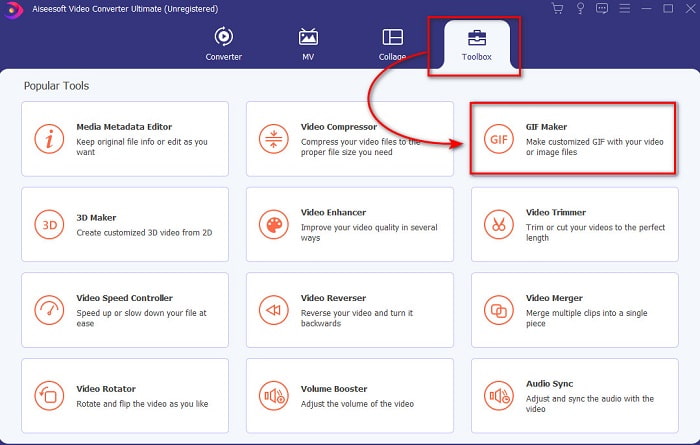
Stap 2. Klik in de sectie Toolbox op GIF Maker.
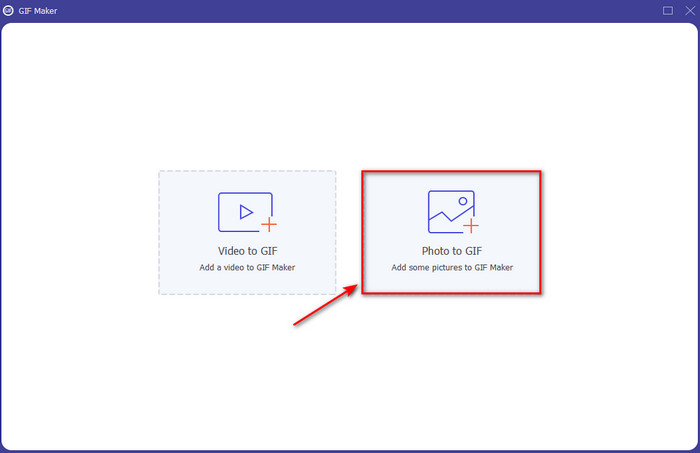
Stap 3. Klik op Photos to GIF, selecteer de foto die je in een GIF wilt omzetten en klik op Open. Je kunt in eerste instantie geen meerdere afbeeldingen toevoegen, maar dat kan later wel. Pas vervolgens de Output Settings voor de GIF aan en klik op OK.
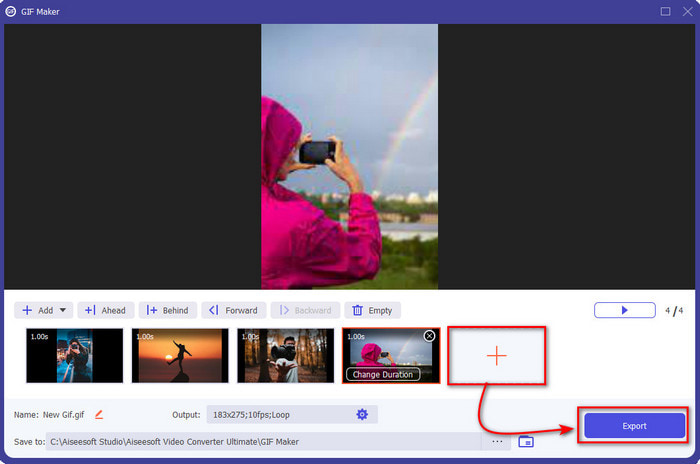
Stap 4. Klik op de +-knop om de andere afbeeldingen toe te voegen en selecteer ze. Zodra alle afbeeldingen zijn ingevoegd, klik je op Export.
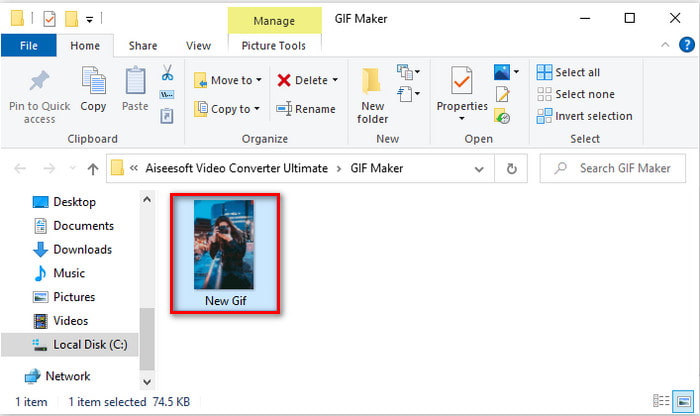
Stap 5. Wacht enkele seconden; er verschijnt een map op je scherm met de GIF die je zojuist hebt gemaakt.
Voordelen
- De fenomenale editor waarop u kunt vertrouwen om uw GIF uitstekend te maken.
- Het heeft veel geavanceerde functies die u kunt gebruiken.
- Het is gemakkelijker om te leren hoe u deze tool moet gebruiken omdat deze op het punt staat.
Nadelen
- U moet de afbeeldingen op uw iPhone naar het bureaublad overbrengen.
- Moet eerst op uw bureaublad worden gedownload voordat u toegang kunt krijgen.
Deel 4. Veelgestelde vragen over GIF maken van foto's op iPhone
Hoe maak je een GIF op Android van foto's?
U kunt de stappen van deel 3 herhalen en gewoon hetzelfde doen. Kortom, je moet alle video's die je in GIF's wilt veranderen, naar je schijf overbrengen. Volg dan de onderstaande stappen.
Wat is een GIF?
GIF’s zijn tegenwoordig erg populair, omdat ze ons eenvoudige bericht betekenisvoller dan ooit kunnen maken. Wil je meer weten over wat een GIF is, klik dan op deze link en lees de uitleg.
Waarom worden mijn afbeeldingen wazig als ik ze in GIF's verander?
Omdat GIF's maximaal 256 verschillende kleuren ondersteunen. In tegenstelling tot JPEG en PNG ondersteunt dit beeldformaat meer dan 16 miljoen kleurencombinaties. JPEG en PNG produceren dus de hoogste beeldkwaliteit in vergelijking met GIF's. Maar JPEG en PNG kunnen geen bewegende animatie bevatten zoals GIF's dat wel doen.
Gevolgtrekking
Nu we aan het einde zijn gekomen, is het voor ons een stuk eenvoudiger geworden om GIF’s te beheren en te maken, zelfs op onze iPhones. Hoewel alle in dit artikel genoemde tools je kunnen helpen om eenvoudige GIF’s te maken, blijft Video Converter Ultimate de beste keuze. De software biedt namelijk veel verschillende functies waarmee je je video nog indrukwekkender kunt maken, zodat je haast niet kunt geloven dat jij die GIF hebt gemaakt. Neem geen genoegen met eenvoudige software als je de beste tool tot je beschikking kunt hebben. Download de tool nu meteen en verander je verzameling afbeeldingen in GIF’s.
-
 Kies de beste GIF-cropper online en offline om GIF's bij te snijden [2021]
 Het kiezen van de beste bijsnijdtool is een must en sommige GIF-makers hebben deze functie niet geleverd. Maar wat is de beste tool voor het bijsnijden van GIF's en hoe deze te gebruiken?
-
 5 beste opties om GIF-indeling op te nemen met GIF-recorders voor pc en Mac
 Wat is de beste GIF-recorder die u moet gebruiken om GIF's op te nemen? De onderstaande lijst geeft aan welke de beste schermrecorder is.
-
 Hoe MPG naar GIF-formaat te converteren [Online & Offline]
 Wil je een veel betere emotie uitdrukken? Dan moet u in plaats daarvan GIF gebruiken. Dit artikel leert je hoe je een MPG-bestand naar GIF converteert om je gevoel veel beter uit te drukken.
