


 Video Converter Ultimate
 Scherm opnemer
 Videoreparatie
Eenvoudige manieren om snel afbeeldingen aan video toe te voegen in iMovie
Afbeeldingen toevoegen aan een video is een van de beste manieren geworden om de boodschap nog beter over te brengen op het publiek. De meeste videobewerkers kunnen je helpen om snel een afbeelding over een video heen te leggen, en als je een Apple‑gebruiker bent, ben je iMovie misschien al tegengekomen. Het staat bekend als een van de beste editors die je op je Apple‑apparaat kunt gebruiken. Toch vinden veel gemiddelde Apple‑gebruikers het lastig om met iMovie te werken, omdat ze er nog geen ervaring mee hebben. Dus, als jij ook een Apple‑gebruiker bent die moeite heeft met het programma en een afbeelding aan een video wilt toevoegen, kun je dit artikel lezen—leren hoe je in iMovie afbeeldingen aan een video toevoegt is eenvoudig als je de onderstaande uitleg volgt.

Deel 1. Een afbeelding over een video heen leggen in iMovie [Mac]
Als je een iMovie op Mac hebt, kun je deze gebruiken en de afbeelding aan de video toevoegen. Dus als u nu wilt leren hoe u een foto op video-iMovie kunt zetten, zullen de onderstaande stappen u helpen.
Stap 1. Zoek iMovie via de Finder en klik erop om het te openen.
Stap 2. Klik linksboven in iMovie op de knop Importeren om de video en de afbeelding eenvoudig te importeren. Sleep en plaats het ingevoerde mediabestand op de Tijdlijn.
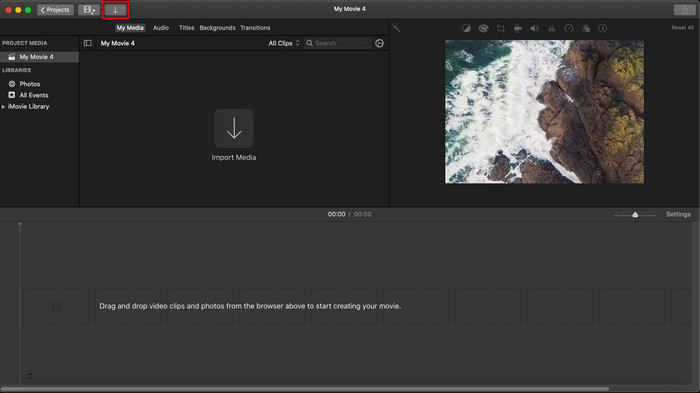
Stap 3. Pas de geïmporteerde afbeelding en de duur ervan aan. Klik daarna op Exporteren om het bestand naar je computer te downloaden.
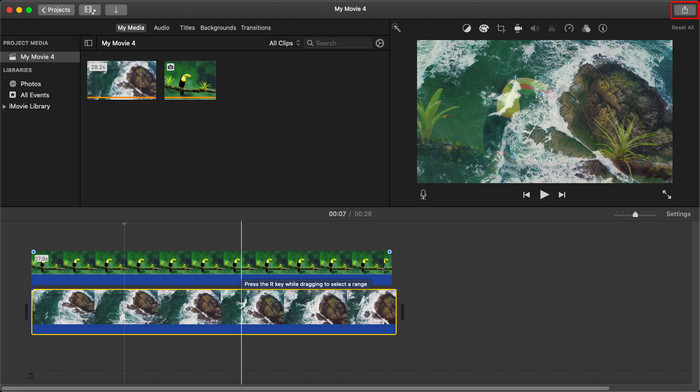
De stappen die we hier hebben gepresenteerd, zijn gebaseerd op de praktische ervaring van het gebruik van iMovie. Stappen kunnen variëren als er een update voor de tool is of als er binnenkort wijzigingen plaatsvinden.
Deel 2. Foto's op video invoegen met iMovie [iOS]
Wat als u een iOS-apparaat gebruikt en iMovie als editor wilt gebruiken om een afbeelding aan een video toe te voegen? Is dit mogelijk? Nou ja, dat is het. We kunnen u leren hoe u een afbeelding in een video-iMovie op de iPhone kunt plaatsen door de onderstaande details te lezen met de stappen die we hebben gegeven.
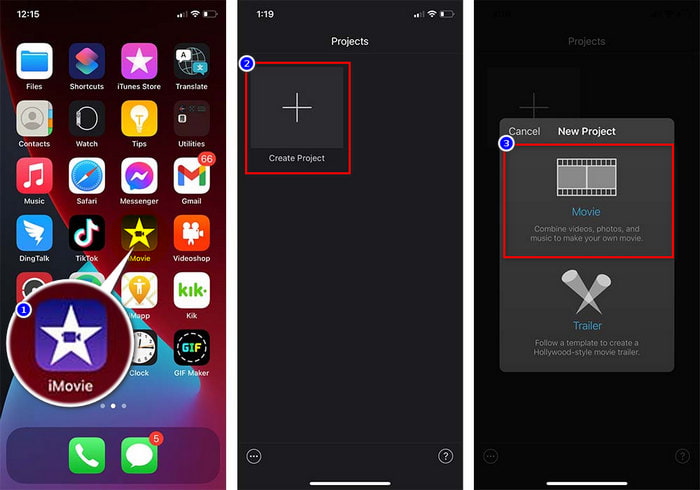
Stap 1. Start de iMovie‑app op je iOS‑apparaat, klik op Nieuw project en vervolgens op Film. Voeg de video toe die in je bibliotheek staat.
Stap 2. Klik op de knop + om de afbeeldingswatermerk aan de video toe te voegen. Zoek de afbeelding in de bibliotheek, klik erop, druk op de drie puntjes en kies Groen/blauw scherm. Tik op de afbeelding om de achtergrond automatisch te verwijderen.
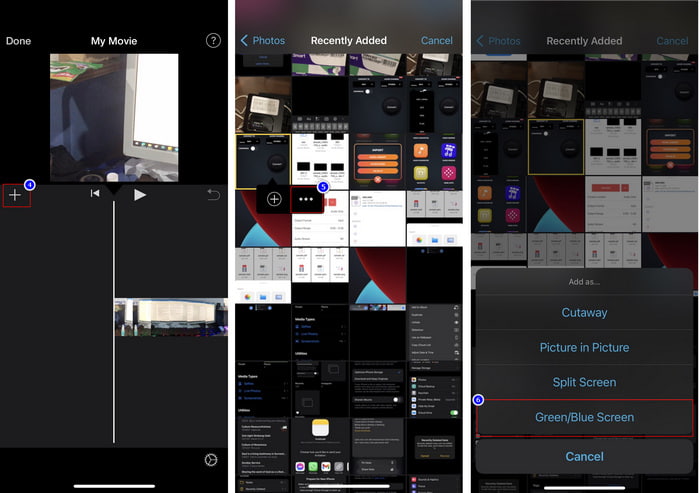
Stap 3. Druk op Gereed, klik op Exporteren en vervolgens op Video’s bewaren.
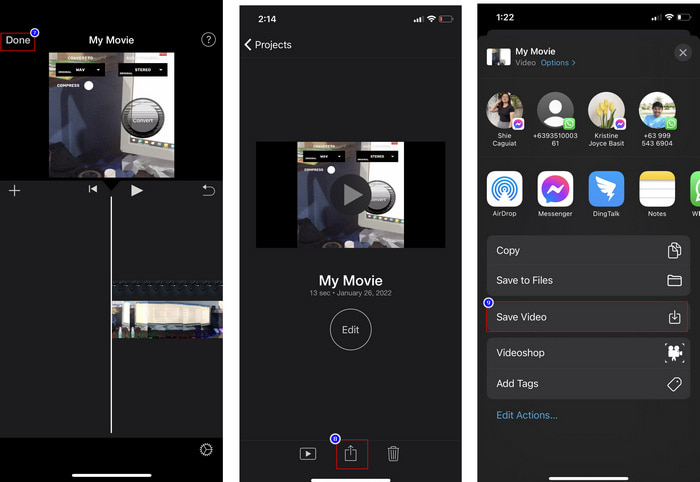
Alle stappen die we hier hebben gepresenteerd, zijn gebaseerd op de praktische ervaring van het gebruik van iMovie op iOS. Maar sommige stappen kunnen veranderen als er binnenkort een update plaatsvindt in de editor-app.
Deel 3. Eenvoudigste oplossing om foto in video in te voegen met de beste videowatermerksoftware op Mac
Heb je dezelfde problemen met het toevoegen van foto’s over een video in iMovie? Probeer dan Video Converter Ultimate, want dit is het beste alternatief voor iMovie. De algehele prestaties van deze tool zijn al door miljoenen gebruikers geprezen. Ook al hebben zij uiteenlopende problemen met hun video’s, toch kiezen ze voor deze ultieme tool om die op te lossen. Bovendien kun je met deze tool bijna alles doen wat met video te maken heeft, zoals knippen, afbeeldingen toevoegen, samenvoegen, bijsnijden, enzovoort. Wat het probleem ook is, dit is de alles‑in‑één oplossing. Wil je het probleem oplossen? Volg dan de stappen hieronder, die we voor je hebben uitgeschreven zodat je ze gemakkelijk kunt volgen.
Functies:
◆ De ultieme tool ondersteunt meerdere formaten, dus het uploaden van uw formaat zal niet moeilijk zijn.
◆ Het ondersteunt een gemakkelijk te begrijpen interface om binnen een paar seconden snel afbeeldingen aan elke video toe te voegen.
◆ Het ondersteunt verschillende platforms zoals Mac en Windows, zodat gebruikers op alle platforms kunnen genieten.
Stap 1. Je kunt de tool downloaden door op de downloadknop hieronder te klikken, installeer hem vervolgens direct en open hem na de installatie.
Gratis downloadVoor Windows 7 of nieuwerVeilige download
Gratis downloadVoor MacOS 10.7 of nieuwerVeilige download
Stap 2. Klik, nadat je het programma hebt geopend, op de gepresenteerde knop + om het videobestand te importeren. Daarna verschijnt er een map waarin je het videobestand kunt opzoeken; klik vervolgens op Openen.
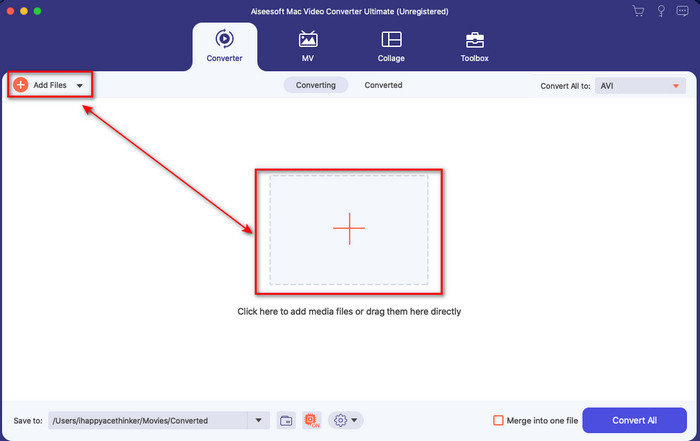
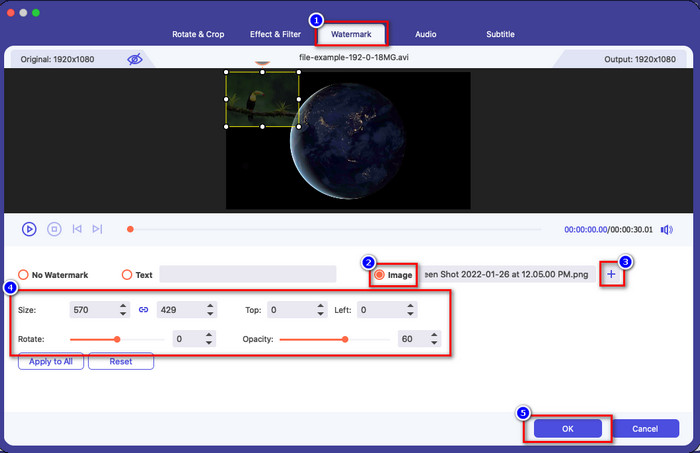
Stap 3. Druk op de knop met het toverstokje om het bewerkingsvenster van de converter te openen. Ga naar Watermerk, klik op Afbeelding en druk daarna op Toevoegen om de afbeelding te uploaden. Je kunt ook de dekking van de afbeelding aanpassen of deze draaien, afhankelijk van je behoefte, en om de wijzigingen toe te passen klik je op OK.
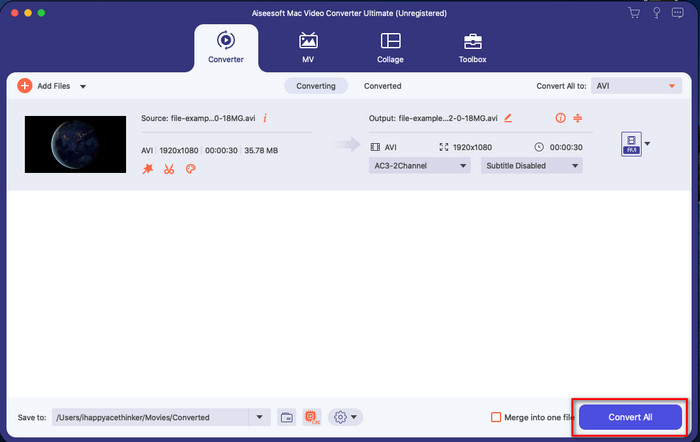
Stap 4. Klik op de knop Alles converteren om het videobestand te exporteren. Na het exporteren wordt het opgeslagen in een map op je computer, en zo eenvoudig heb je al een watermerkafbeelding op je video. Geloof je nu in de mogelijkheden van Video Converter Ultimate? Je hebt zojuist in een handomdraai een afbeeldingswatermerk aan de video toegevoegd.
Gerelateerd:
Hoe ondertiteling aan een video toevoegen
Deel 4. Veelgestelde vragen over het toevoegen van foto's aan video in iMovie
Zijn er beperkingen op het aantal afbeeldingen dat wordt toegevoegd aan iMovie-video's?
Tot nu toe hebben we geen ongemak ondervonden bij het toevoegen van meerdere afbeeldingen aan de video tijdens het gebruik van iMovie. Het exportproces kost echter tijd als je te veel foto's aan de video toevoegt, maar het zal niet crashen, zoals uit ervaring blijkt.
Wat zijn de afbeeldingsindelingen die ik in iMovie kan gebruiken?
Er zijn talloze indelingen voor stilstaande beelden die iMovie ondersteunt, zoals BMP, PNG, JPG of JPEG, HEIF, PSD, RAW TIFF en TGA, maar als u een geanimeerde afbeelding wilt, kunt u GIF gebruiken. Hoewel deze formaten veel zijn, ondersteunt het nog steeds niet alle afbeeldingsformaten zoals EXIF, WebP en dergelijke.
Waarom zou ik iMovie gebruiken?
Voor Apple-gebruikers is iMovie een van de beste keuzes om een korte film, advertentie, vlogs en meer te maken; deze zijn allemaal gratis. De editor biedt een semi-geavanceerde interface om de gebruikers te helpen een praktische ervaring te hebben met hoe een geavanceerde interface of tool eruitziet. Ook is de software minder technisch, maar wel gespecialiseerd. Het is niet gebruikelijk om een editor te zien die een minder technische manier biedt om te gebruiken, maar het kan je helpen een professional te worden en een aantal gespecialiseerde technieken toe te voegen die geavanceerde tools hebben.
Gevolgtrekking
Tot slot kunnen we zeggen dat we nu genoeg kennis hebben om eenvoudig foto’s over een video in iMovie te plaatsen. Met de beste tool op Apple kun je hier vrijwel alle ingewikkelde bewerkingen uitvoeren. Toch zitten niet alle functies die je nodig hebt in iMovie, maar je kunt Video Converter Ultimate gebruiken als een gebruiksvriendelijke editor op alle platforms. Misschien vraag je je af waarom je juist deze ultieme tool zou moeten gebruiken. Er is niet veel uitleg nodig als we het over deze tool hebben, want we hebben hierboven al het bewijs geleverd. Wat moet je dan doen? Klik op de downloadknop om zelf met de ultieme tool aan de slag te gaan en dit probleem op te lossen.
-
 5 Meest gekozen audiorecorder-apps op Android en iOS [2022 bijgewerkt]
 Weet u niet welke audiorecorder-app u moet gebruiken? Als dit het geval is, helpt dit artikel u bij het kiezen van de app die u zal helpen bij uw audio-opnametaak.
-
 Spraakmemo op iOS - voor- en nadelen, functies en 4 beste vervangingen
 Wat is spraakmemo? Is het de beste audiorecorder op iOS? Zoek je een antwoord op die vraag? Lees daarom de volledige reikwijdte van dit artikel om meer te weten.
-
 7 nieuwste gratis MOD-converters om MOD-bestanden naar een nieuw formaat te wijzigen
 Wat zijn de MOD-converters die u kunt gebruiken? Denk je aan dezelfde vraag? Dus hier zijn we, met de zeven tools die u kunt gebruiken om uw MOD-bestanden te converteren.
