


 Video Converter Ultimate
 Scherm opnemer
 Videoreparatie
Hoe u een watermerk uit een GIF online verwijdert [stap voor stap]
Een watermerk aan een GIF toevoegen is een van de manieren geworden om de GIF te beveiligen, maar wat als je het watermerk dat je aan je GIF hebt toegevoegd weer wilt verwijderen? Wat moet je dan doen? Heeft je GIF‑maker deze functie? Heeft hij geen watermerkverwijderaar? We weten dat dit probleem lastig is, toch? Maar geen zorgen, want al deze vragen worden later beantwoord: we hebben namelijk vier watermerkverwijderaars gevonden die je zowel offline als online kunt gebruiken. Deze tools zijn zorgvuldig uit de markt geselecteerd om je het beste te bieden waarmee je het watermerk op een GIF kunt verwijderen.

Een blik op deze apps
| Video Converter Ultimate | Online GIF-tools | WatermarkRemover.io | Pixlr | FotoShop | |
| Resolutie | 8K | 1080P | 5K | 8K | 300K |
| Processnelheid | Snel | Medium | Medium | Snel | Hangt af van uw hardware |
| Hardwarevereisten | Laag | Nvt | Medium | Hoog | Zeer hoog |
Deel 1. Eenvoudigste manier om watermerk snel van GIF op Windows en Mac te verwijderen
Video Converter Ultimate kan je uitstekend helpen om het watermerk uit een GIF te verwijderen, als je dat wilt. Met deze tool kun je een watermerk toevoegen én verwijderen; het is in feite een alles‑in‑één tool die je op Windows of Mac nodig hebt. Bovendien kun je met deze tool je eigen GIF maken en het gewenste watermerk toevoegen om de door jou gemaakte GIF te beveiligen. Om het uit te proberen, kun je de eenvoudige stappen volgen die we geven, en dat is alles. Daarna kun je je GIF binnen minder dan een minuut gebruiken, zonder watermerk.
Voordelen van Video Converter Ultimate:
◆ Het is de beste keuze om een watermerk op uw GIF te verwijderen en toe te voegen.
◆ Een gebruiksvriendelijke GUI kan u snel helpen begrijpen wat er met de interface van de tool gebeurt.
◆ Het ingebouwde ultrasnelle conversieproces en hardwareversnelling kunnen u helpen met razendsnel importeren en exporteren.
◆ Beschikbaar op alle platforms zoals Windows en Mac om te downloaden.
◆ Het heeft de beste geavanceerde functies voor GIF-makers die u op uw bureaublad kunt gebruiken om een gepersonaliseerde GIF te maken.
Stappen om een watermerk uit een GIF te verwijderen met de Ultimate Watermark Remover
Stap 1. Download de software naar de schijf van je computer door op de onderstaande knop te klikken. Start hem vervolgens en upload een gif of video.
Gratis downloadVoor Windows 7 of nieuwerVeilige download
Gratis downloadVoor MacOS 10.7 of nieuwerVeilige download
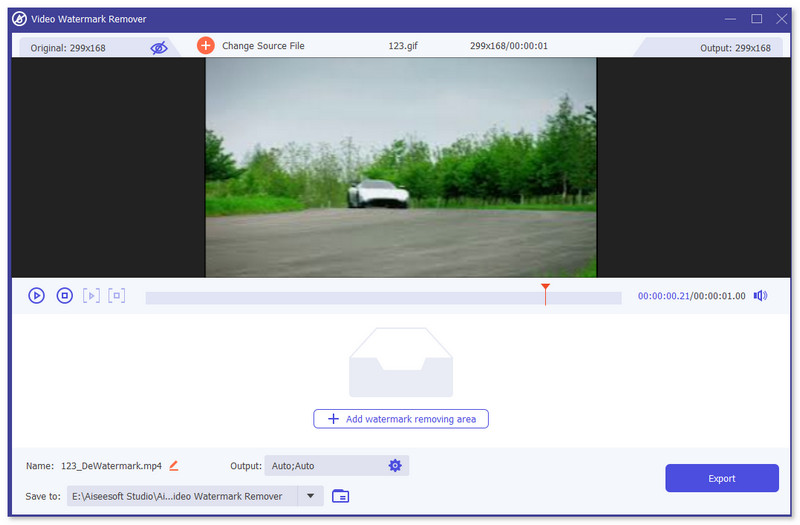
Stap 2. Open de watermerkverwijderaar, ga naar Toolbox en zoek naar Video Watermark Remover.

Stap 3. Upload een gif of video en klik op Exporteren.
Gerelateerd:
Watermerk uit GIF verwijderen met Adobe Photoshop
Als je Adobe PhotoShop op je computer hebt geïnstalleerd, kun je er ook op vertrouwen om watermerken of schaduwen uit een foto te verwijderen. PhotoShop staat bekend als een van de populairste en krachtigste fotobewerkingsprogramma's waarmee je effecten kunt toevoegen, filters kunt gebruiken, objecten kunt wissen, enzovoort. Hoewel het geen gratis fotobewerkingsprogramma is, biedt het je wel een gratis proefperiode van 30 dagen. Volg nu de onderstaande handleiding om ongewenste objecten uit je foto te verwijderen.
Stap 1. Start PhotoShop op je computer. Je kunt naar de officiële Adobe‑site gaan om PhotoShop gratis te downloaden en een proefversie te gebruiken.
Stap 2. Je kunt het afbeeldingsbestand dat je wilt bewerken rechtstreeks slepen en neerzetten om het te importeren. Je kunt ook bovenaan in de menubalk op File klikken en vervolgens op Open om een lokale foto op je computer te selecteren.
Stap 3. Je kunt de Select and Mask‑tool gebruiken om de ongewenste objecten te selecteren. Tijdens deze stap kun je vrij een geschikt gereedschap kiezen om het gebied te selecteren dat je wilt verwijderen.
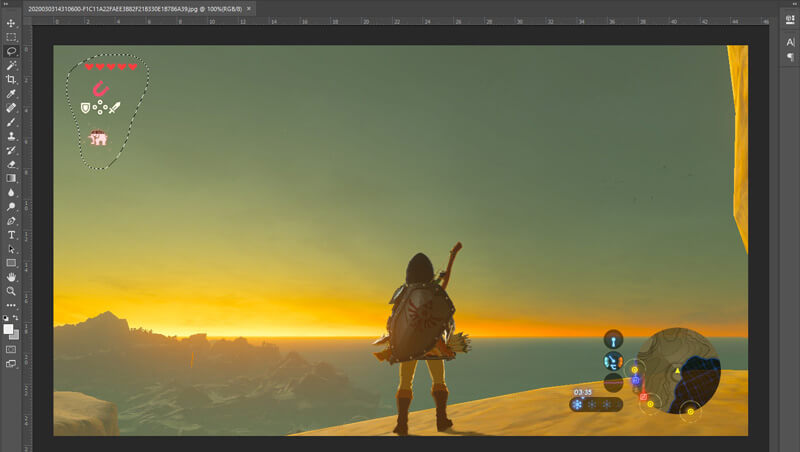
Stap 4. Nu kun je vertrouwen op de Content‑Aware Fill-tool van Photoshop om een object uit de foto te verwijderen en dit deel te vervangen door passende inhoud. Relatief gezien, als je niet alleen simpelweg een paar objecten in een foto wilt uitwissen, kan de functie Content‑Aware Fill je een beter resultaat geven.
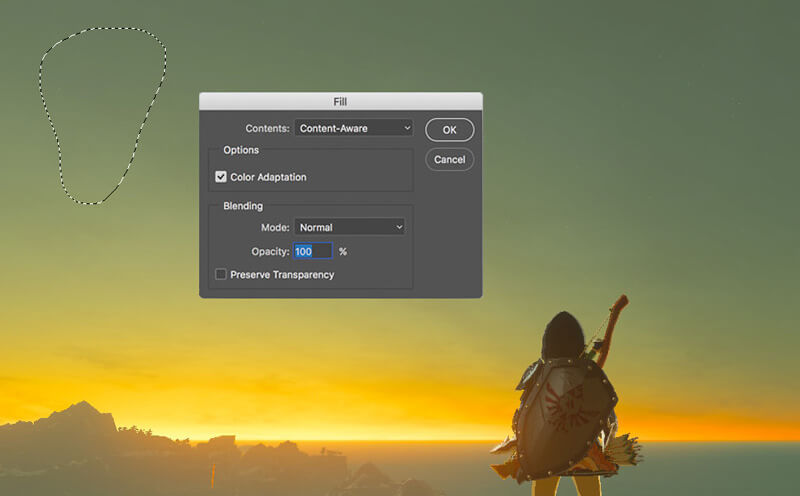
Stap 5. Nadat PhotoShop het object heeft verwijderd, kun je op File en vervolgens op Save klikken om de bewerkte afbeelding op je computer op te slaan. Je kunt elk populair afbeeldingsformaat zoals JPG, PNG, GIF en meer kiezen als uitvoerformaat. Je kunt hier ook op Ctrl + S drukken om je afbeeldingsbestand vanuit PhotoShop op te slaan en te exporteren.
Deel 2. Hoe verwijder je een watermerk uit een GIF online?
Met deze gratis online tools kun je watermerken op GIF's verwijderen. Maar u moet er rekening mee houden dat deze hulpprogramma's niet werken als u geen internetverbinding heeft, omdat alle hulpprogramma's netwerkafhankelijk zijn. Het kan ook enige tijd duren om ze te gebruiken, omdat het buffert terwijl u deze webtools gebruikt. Dus, als je de gratis GIF-verwijderaar online wilt weten, lees dan de details hieronder.
Watermerk uit GIF verwijderen met online GIF-tools
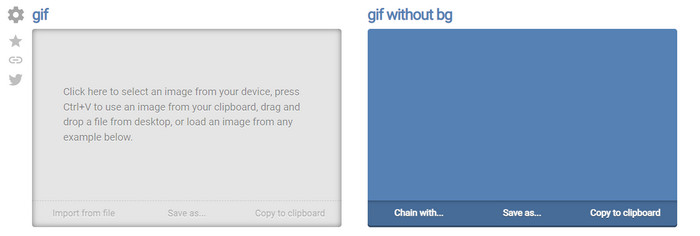
Online GIF Tools is een gratis tool die je kunt gebruiken om watermerken van GIF’s te verwijderen. Deze tool biedt gebruikers geavanceerde verwijderfuncties, zoals het verwijderen van het achtergrondwatermerk van de GIF. Hoewel de tool indrukwekkend is, kan het verwijderen van het watermerk ingewikkeld zijn omdat hij de pixels per kleur in het frame elimineert.
Stap 1. Open Online GIF Tools in je webbrowser.
Stap 2. Klik op Import File om de GIF te uploaden. Klik onder Background Color op de options color coder om de watermerkkleur te lokaliseren.
Stap 3. Klik op Save As en daarna op Download om de GIF op je schijf op te slaan.
Watermerk van GIF verwijderen met Watermark Remover Online
Met WatermarkRemover.io wordt het watermerk op je GIF automatisch verwijderd. Deze tool is uitstekend om gratis watermerken te verwijderen. Hij zorgt ervoor dat gebruikers minder moeite hoeven te doen bij het weghalen van het watermerk, omdat jij dat niet zelf hoeft te doen: de tool doet het voor je. Sommige regio’s hebben echter geen toegang tot deze tool; in feite kun je de GIF met verwijderd watermerk dan niet downloaden.
Stap 1. Start WatermarkRemover.io en voeg het GIF‑bestand toe door onder het logo te klikken.
Stap 2. Nadat je het bestand hebt toegevoegd, begint het proces automatisch en hoef je alleen maar te wachten.
Stap 3. Klik op de downloadknop om het op je computer op te slaan.
Watermerk van GIF verwijderen met Pixlr

Als je de beste webtool wilt om het watermerk op je GIF te verwijderen, gebruik dan Pixlr. In tegenstelling tot de twee eerder genoemde webtools is deze tool heel anders, omdat hij veel functies heeft die je kunt gebruiken om het watermerk te verwijderen. Hoewel de tool vergelijkbaar is met Photoshop, zijn sommige onderdelen hier niet zo effectief als wat Photoshop je kan bieden, vooral bij het verwijderen van een watermerk uit een GIF, en bovendien voegt hij zelf een watermerk toe aan het einde van de export.
Stap 1. Zoek naar Pixlr en open het.
Stap 2. Klik op Advance Editor, voeg de GIF toe en klik op Open Image. Klik na het toevoegen van de GIF op het druppel-pictogram om het watermerk te vervagen, klik herhaaldelijk op het watermerk en zorg ervoor dat je het verwijdert.
Stap 3. Klik op File en daarna Save.
Deel 3. Veelgestelde vragen over het verwijderen van watermerk uit GIF
Maakt het verwijderen van het watermerk de bestandsgrootte kleiner?
De bestandsgrootte zal veranderen, maar het heeft geen significante impact omdat je gewoon een beetje van het watermerk op je video verwijdert. Dus als de oorspronkelijke bestandsgrootte en het geëxtraheerde watermerk niet bijna hetzelfde zijn, zit het probleem in wat je hebt gebruikt.
Waarom is mijn video wazig nadat ik het watermerk heb verwijderd?
Je video is wazig nadat je het watermerk hebt verwijderd, want dat is de manier waarop de tool het watermerk verwijdert. Het is een van de methoden die tools bieden om het watermerk op een video of afbeelding te verwijderen door het te vervagen.
Zal de kwaliteit van de GIF veranderen na het verwijderen van het watermerk?
U zult geen kwaliteitsverandering merken na het verwijderen van het watermerk op uw GIF. Maar sommige tools verlagen de kwaliteit van je GIF omdat ze geen GIF's van hoge kwaliteit ondersteunen. Denk er dus aan om de juiste tool te kiezen die het exporteren van uitvoer van hoge kwaliteit ondersteunt, ook al heb je het watermerk ervan verwijderd.
Gevolgtrekking
Al met al geeft deze blog ons de kans om effectief het watermerk op de GIF of video te verwijderen die we gebruiken. De tools die we presenteren zijn dus effectief en ideaal voor het verwijderen van het watermerk op onze GIF. Toch blijft Video Converter Ultimate de sterkste troeven bieden voor het verwijderen of toevoegen van een watermerk aan je GIF. Dus, als we op één lijn zitten wat betreft deze tool, dan moet je hem gebruiken; en als dat nog niet zo is, moet je hem zeker eens downloaden en het watermerk op je GIF verwijderen. Daarna helpt de tool je dit snel te doen, en zul je van gedachten veranderen over de mogelijkheden van deze tool.
-
 De beste manier om een watermerk aan een video toe te voegen in Photoshop op Windows en Mac
 Wilt u weten hoe u een watermerk toevoegt aan een video in Photoshop? In dat geval zal dit artikel je voorzien van de dingen die je moet weten.
-
 3 beste oplossingen voor het gemakkelijk verwijderen van watermerken uit video's
 Wil je het vervelende watermerk op de video verwijderen? Met deze blog leer je de verschillende ideeën over het verwijderen van het watermerk op een video.
-
 5 beste manieren om afbeelding te veranderen in geanimeerde GIF [Bijgewerkt 2022]
 Een converterafbeelding naar GIF nodig? Dit artikel biedt de vijf beste converters die we op de markt kunnen vinden. Laten we deze tools dus ontdekken door dit artikel te lezen.
