


 Video Converter Ultimate
 Scherm opnemer
 Videoreparatie
 Beveiligde download
Afbeeldingen ongedaan maken met de krachtigste toepassingen
Het is behoorlijk frustrerend om erachter te komen dat de foto die je hebt gemaakt onscherp is. Je foto is wazig omdat het onderwerp dat je fotografeert beweegt, de camera trilt of omdat de belichting op de locatie niet goed is. Bovendien kun je het moment waarop je de foto hebt genomen niet terughalen, wat erg teleurstellend is. Die foto herstellen lijkt onmogelijk, maar dat is het niet. Gelukkig zijn er specifieke methoden waarmee je een wazige foto weer scherp kunt maken. Met de beste toepassingen voor beeldherstel kun je je onscherpe foto corrigeren. In dit artikel leer je moeiteloos hoe je een afbeelding kunt ontscherpen.

Deel 1. Hoe maak je een afbeelding online ongedaan?
Mensen gebruiken liever een online applicatie om afbeeldingen onscherp te maken, omdat ze zo ruimte op hun apparaten kunnen besparen. Wanneer u een online tool gebruikt, hoeft u deze alleen maar in uw browser te openen. Handig toch? Daarom gaan we op zoek naar de beste online image upscaler om de wazigheid van je foto op te lossen.
FVC Free Image Upscaler is de beste keuze als je zoekt naar een manier om online een afbeelding scherper te maken. Daarnaast is het gratis en veilig in gebruik. Je kunt het in alle webbrowsers openen, waaronder Google, Firefox en Safari. Bovendien kun je de kwaliteit van je afbeelding verbeteren met een vergroting van 2x, 4x, 6x en 8x. Ook maakt het gebruik van AI‑technologie (Artificial Intelligence) die automatisch de wazige delen van je afbeelding detecteert en vervolgens verbetert.
Bovendien stelt FVC Free Image Upscaler u in staat om verloren pixels, kleurstructuren en meer details nauwkeurig te herstellen. En ondanks dat het een online applicatie is, heeft het een snel opschalingsproces en bevat het geen advertenties die je zouden kunnen afleiden. Dus, als u geïnteresseerd bent in het gebruik van de gratis upscaler voor afbeeldingen, volg dan de eenvoudige gids hieronder.
Afbeeldingen onscherp maken met FVC Free Image Upscaler:
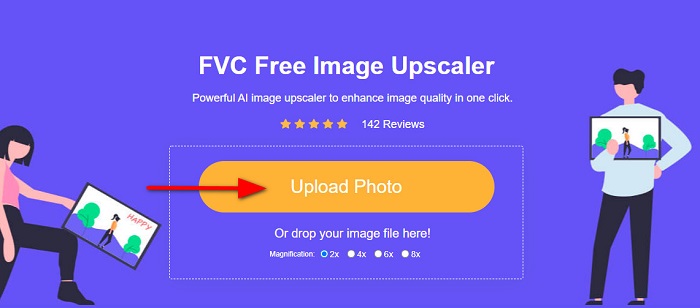
Stap 1. Open eerst je browser en typ FVC Free Image Upscaler in de zoekbalk. Je kunt ook direct op de link naar de hoofdpagina klikken. Start vervolgens de app door op de knop Upload Photo te klikken. Ga na het starten van de app door naar de volgende stap.
Stap 2. Klik in de eerste interface op de knop Upload Photo om de afbeelding te importeren die je wilt ontscherpen. Je computermappen worden geopend, waar je je foto kunt zoeken. Klik op Open om deze te uploaden.
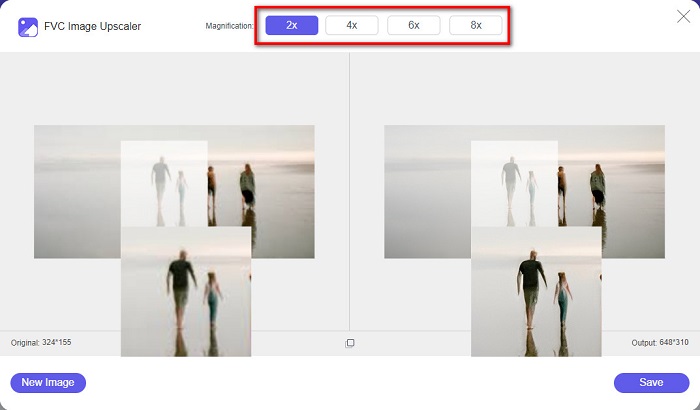
Stap 3. Nadat je je afbeelding hebt geüpload, kies je de vergrotingsvoorinstelling die je voor je afbeelding wilt gebruiken. Je kunt kiezen tussen 2x, 4x, 6x en 8x vergroting. Vervolgens zie je rechts de voorbeeldweergave van je resultaat, zodat je het verschil met je originele bestand kunt bekijken.
Stap 4. Sla ten slotte je resultaat op door op de knop Save rechtsonder in de interface te klikken.
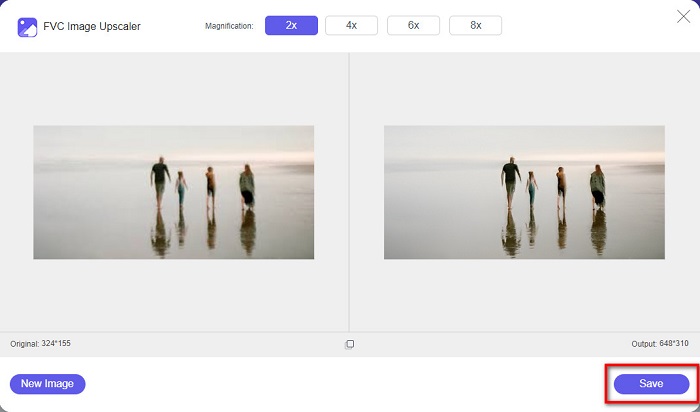
En dat zijn de stappen voor het onscherp maken van een afbeelding online. U zult aan het resultaat zien hoe deze gratis upscaler voor afbeeldingen u kan helpen de kwaliteit van uw afbeelding te verbeteren.
Deel 2. Hoe een afbeelding offline op het bureaublad ongedaan te maken?
Veel professionals gebruiken een computer om afbeeldingen of video's te bewerken. Ook zijn veel fotobewerkingsprogramma's alleen beschikbaar op desktops. En in dit deel leren we je de beste methoden om een afbeelding offline op je bureaublad onscherp te maken.
Afbeelding onscherp maken met Photoshop
Adobe Photoshop is waarschijnlijk de beste fotobewerkingsapplicatie die je kunt gebruiken om je afbeeldingen te ontscherpen. Deze offline toepassing heeft veel bewerkingsfuncties en -tools die je kunt gebruiken om een afbeelding te verbeteren. Bovendien kun je extra scherpte aan je foto toevoegen als de kwaliteit niet goed is of als deze wazig is. En met de geavanceerde bewerkingstools kun je zeker uitstekende resultaten produceren. Daarnaast kun je mensen of objecten uit je afbeelding verwijderen, een tekening of object maken met het potlood- of pentool, de kleur van je foto aanpassen en nog veel meer. Met Adobe Photoshop kun je geweldige, zelf bewerkte afbeeldingen creëren. Adobe Photoshop is echter geen gebruiksvriendelijke tool. Je hebt diepgaande kennis nodig van het gebruik van de tools om je afbeelding te ontscherpen of te bewerken. Toch geven we je de stappen om Photoshop te gebruiken om afbeeldingen te ontscherpen. We laten je ook twee manieren zien om met Photoshop de wazigheid van je afbeelding te verminderen.
Vervagingsproces voor afbeeldingen met Adobe Photoshop:
Stap 1. Download Adobe Photoshop op je computer en installeer het. Zodra je de app hebt gedownload en geïnstalleerd, start je deze op je apparaat.
Stap 2. Open vervolgens in de hoofdinterface de afbeelding die je wilt ontscherpen. Je kunt ook op CTRL + O op je toetsenbord drukken om je afbeelding eenvoudig te openen.
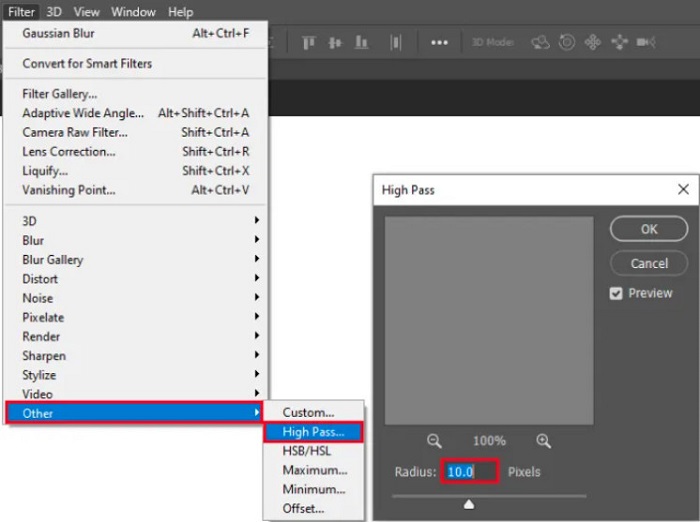
Stap 3. Dupliceer daarna de achtergrondlaag en selecteer deze. Klik vervolgens op Filter > Other > High Pass. Stel de High Pass in op 10%.
Stap 4. Stel in het venster Layer Style de overvloeimodus in van normaal naar Hard Light en pas daarna de Opacity aan totdat de foto duidelijker of verbeterd is.
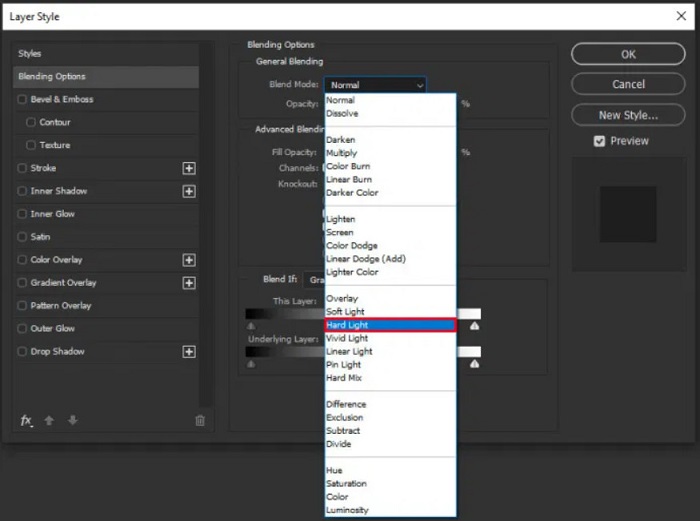
Als je de nieuwe versie van Photoshop gebruikt, kun je de optie voor het verminderen van cameratrilling gebruiken om een afbeelding scherper te maken met Photoshop.
Stap 1. Importeer de afbeelding die je wilt ontscherpen in Photoshop.
Stap 2. Ga vervolgens naar Filter > Sharpen > Shake Reduction.
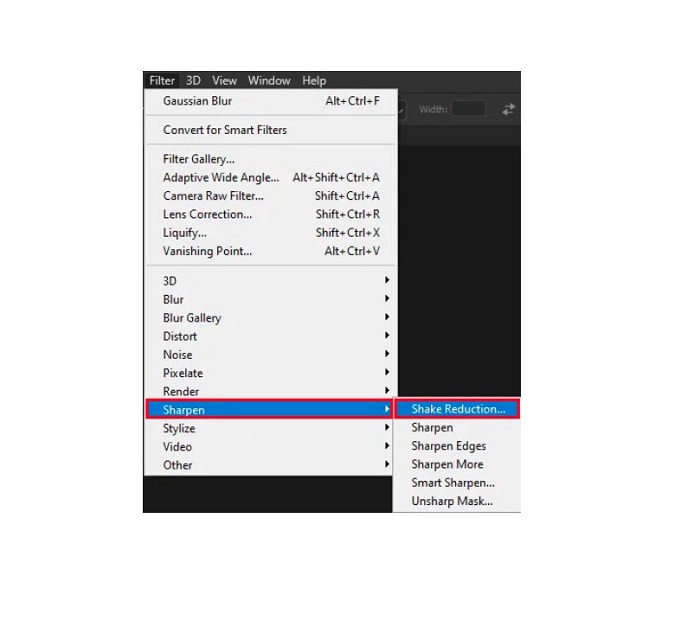
Stap 3. Daarna zal Photoshop je afbeelding verwerken en kun je je resultaat bekijken.
Afbeelding ongedaan maken met Paint.net
Een andere gratis offline fotobewerkingssoftware die je kunt gebruiken is Paint.net. Een van de krachtige functies van deze applicatie is het verscherpen van een afbeelding. Door de schuifregelaar te bewegen, kun je de hoeveelheid scherpte in je afbeelding aanpassen, waardoor de afbeelding scherp en helder wordt en de wazigheid wordt verminderd. Bovendien is het makkelijker te gebruiken dan Adobe Photoshop. Het heeft ook andere bewerkingsfuncties die je kunt gebruiken om je foto’s te bewerken. En als je niet weet hoe je deze applicatie moet gebruiken, kun je online de handleidingen en how‑to‑tutorials raadplegen. Daarnaast is het een van de populairste beeldbewerkingsapps voor Windows‑gebruikers, omdat het veel correctiefuncties heeft waarmee je je foto kunt verbeteren. Een klein nadeel van Paint.net is dat je de tekst die je hebt ingevoerd niet meer kunt aanpassen nadat je effecten hebt toegepast. Desondanks kun je met deze software bewerkingen met meerdere lagen uitvoeren.
Een afbeelding onscherp maken met Paint.net:
Stap 1. Open om te beginnen je afbeelding in Paint.net door op CTRL + O op je toetsenbord te drukken. Je kunt ook naar File gaan en de optie Open zoeken. Vervolgens verschijnen je desktopbestanden, waar je je afbeelding selecteert en opent.
Stap 2. Klik daarna op Effects > Picture en kies vervolgens Sharpen.
Stap 3. In het paneel Sharpen zie je de schuifregelaar, waarmee je de scherpte van je afbeelding aanpast om deze te ontscherpen. Je kunt ook op de knop met de omhoog/omlaag‑pijl klikken om de hoeveelheid scherpte van je foto te wijzigen.
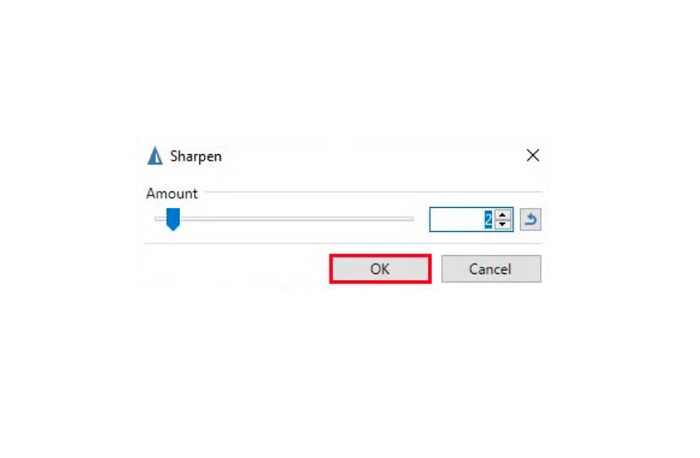
Stap 4. Druk op de knop OK en sla je resultaat op.
Deel 3. Hoe u een afbeelding op de iPhone kunt vervagen
Als u een iPhone-apparaatgebruiker bent, kunt u ook enkele apps downloaden om uw afbeelding onscherp te maken. U kunt kiezen uit de apps uit uw App Store om uw afbeelding onscherp te maken. Sommige apps kunnen echter worden gekocht, waardoor u ze moet kopen voordat u ze gebruikt. Maar in dit deel zullen we u leren hoe u uw afbeelding op uw iPhone kunt vervagen met behulp van een gratis en opmerkelijke applicatie.
Foton is een van de meest gebruikte apps om afbeeldingen te ontscherpen op de iPhone. Je kunt deze app gratis downloaden in de App Store. Daarnaast heeft het andere bewerkingsfuncties die je kunt gebruiken, zoals collage, bijsnijden, templates toevoegen, splitsen en meer. Het heeft ook een gebruiksvriendelijke interface, waardoor het een makkelijk te gebruiken app is. Met deze app kun je je afbeelding ontscherpen door de scherpte van je afbeelding aan te passen. En als je extra helderheid aan je foto wilt toevoegen om deze nog indrukwekkender te maken, kun je het contrast, de helderheid (clarity), verzadiging en dehaze van je afbeelding aanpassen. Bovendien is het veilig in gebruik, dus je hoeft je geen zorgen te maken over de veiligheid van je beeldbestanden. Het nadeel van deze app is dat je de pro‑versie moet aanschaffen om de andere functies te gebruiken.
Een afbeelding op de iPhone ongedaan maken:
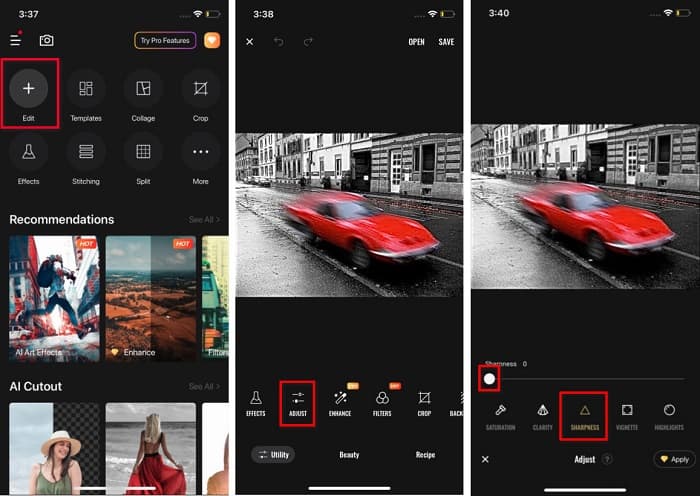
Stap 1. Open de App Store op je iPhone en zoek naar Foton. Installeer de app op je telefoon en open deze zodra de installatie voltooid is. Tik vervolgens in de hoofdinterface van de app op de optie Edit.
Stap 2. Selecteer de afbeelding die je wilt ontscherpen; daarna kom je op een andere interface. Tik onder je afbeelding op de optie Adjust en veeg naar links om de functie Sharpness te vinden.
Stap 3. Verschuif in het paneel Sharpness de schuifregelaar naar de gewenste scherpte totdat de wazigheid van je afbeelding is verminderd.
Stap 4. Tik ten slotte op de knop Save rechtsboven in de interface om je resultaat op je iPhone op te slaan. Klik hier om te leren hoe je een afbeelding op een iPhone kunt verkleinen of vergroten.
Deel 4. Hoe een afbeelding op een Android-telefoon ongedaan te maken?
Veel mensen hebben ook Android-apparaten, en als je er ook een gebruikt, kun je dit deel lezen om te leren hoe je een afbeelding op Android onscherp maakt. We hebben gezocht naar de populairste apps voor het onscherp maken van foto's voor Android en hebben ze een voor een uitgeprobeerd. Gelukkig hebben we een app gevonden die we het beste kunnen aanbevelen.
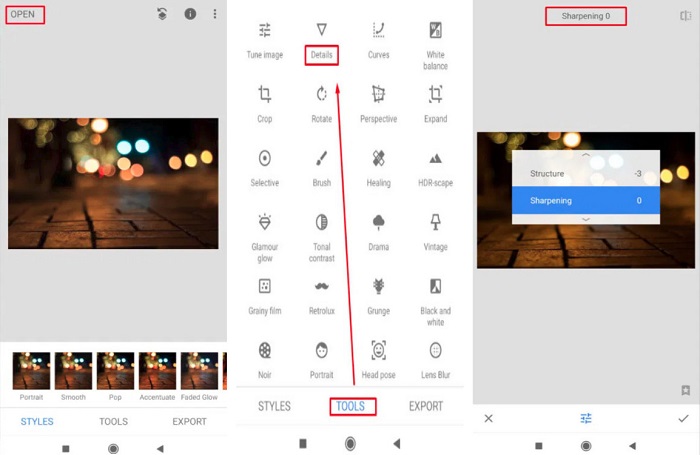
Snapseed is de beste applicatie als je je afbeelding op een Android‑apparaat wilt ontscherpen. Met de functies Sharpen en Structure kun je extra scherpte aan je afbeelding toevoegen om de wazige delen te verwijderen. Bovendien heeft het veel bewerkingsfuncties die je kunnen helpen de kwaliteit van je afbeelding te verbeteren. En net als de andere hierboven genoemde tools heeft het een eenvoudige gebruikersinterface. Dus als je beginner bent, kun je deze app gebruiken om je afbeelding te ontscherpen. Je moet echter wel je wifi inschakelen voordat je deze app gebruikt.
Een afbeelding op Android onscherp maken met Snapseed:
Stap 1. Download de app op je Android‑apparaat en open deze. Open daarna je afbeelding in de app.
Stap 2. Selecteer vervolgens in het paneel Tools de optie Details.
Stap 3. Kies daarna de optie Sharpen of Structure voor je afbeelding om een verschil te maken in je wazige foto. Door deze twee opties aan te passen, verwijder je de wazigheid uit je afbeelding.
Deel 5. Veelgestelde vragen over het onscherp maken van een afbeelding
Wordt de bestandsgrootte groter als u een afbeelding onscherp maakt?
Ja. Wanneer u een afbeelding onscherp maakt, neemt de PPI ervan toe, waardoor de bestandsgrootte groter wordt dan het origineel.
Waarom wordt mijn afbeelding wazig als ik hem groter maak?
Het is waarschijnlijk te wijten aan een compressieprobleem. Wanneer u het formaat van een afbeelding probeert te wijzigen, vergroot u ook de pixels van uw foto. Het comprimeren van een afbeelding kan dus de kwaliteit van uw afbeelding beïnvloeden.
Kan ik de vervaging van een JPG-afbeelding op Adobe ongedaan maken?
Vast en zeker! U kunt Adobe Photoshop gebruiken als u een JPG-afbeelding onscherp wilt maken. Adobe Photoshop ondersteunt standaard afbeeldingsformaten, zoals PNG, JPG en JPEG
Gevolgtrekking
Nu je weet hoe je een afbeelding kunt ontscherpen met de eenvoudigste methoden, kun je je foto’s scherper maken. Alle manieren die we hierboven hebben laten zien, zullen je zeker helpen het gewenste resultaat te bereiken. Maar als je opslagruimte op je apparaat wilt besparen, raden we aan om FVC Free Image Upscaler te gebruiken, die je gratis en online kunt openen.
-
 Het formaat van een afbeelding in PowerPoint wijzigen [Snelste manier om de grootte te wijzigen]
 Leren hoe u afbeeldingen in PowerPoint kunt verkleinen, is essentieel, vooral als u het in uw presentatie wilt gebruiken. Lees dit artikel om te weten hoe u dit moet doen.
-
 1440p-afbeelding – All-inclusive informatie die u nodig heeft [2022 bijgewerkt]
 Wilt u meer weten over 1440p-afbeeldingen? Of waar je die kunt krijgen? Zet je afbeelding naar 1440p? Lees dit om ze allemaal te kennen.
-
 Tutorial om een afbeelding uit de pixels te halen met behulp van de 3 beste foto-unpixelator
 Heeft u problemen met het verwerken van gepixelde afbeeldingen? Vandaag hebben we het probleem opgelost en kunt u de tools gebruiken die we hier toevoegen.
