


 Video Converter Ultimate
 Scherm opnemer
 Videoreparatie
 Beveiligde download
Converteer uw PPT naar MP4 met 3 effectieve methoden
PPT is een geweldig hulpmiddel voor het geven van presentaties, bijvoorbeeld op school, op het werk, etc. Soms vragen mensen na een presentatie om een kopie van het PPT-materiaal als referentiemateriaal.
Het is echter belangrijk om te erkennen dat sommige mensen het bestand niet kunnen openen omdat ze de applicatie of softwaretool niet op hun apparaten hebben geïnstalleerd. Hierdoor hebben de meeste presentatoren een geconverteerde MP4-versie van de presentatie om het materiaal eenvoudig met iedereen te delen.
Dus als je op zoek bent naar een manier om je PPT naar MP4 te converteren voor snel delen en betere toegankelijkheid van de inhoud, dan ben je hier op de juiste pagina. Lees dit artikel verder en dompel je onder in de 3 verschillende methoden waarmee je je PPT-bestand in een video kunt omzetten.

Deel 1: Hoe PowerPoint naar MP4 converteren binnen PPT
Met behulp van de PowerPoint-presentatie kunnen gebruikers hun PPT eenvoudig converteren naar MP4. Het is een geweldige ingebouwde functie voor gemak en flexibiliteit.
Stap 1. Open je presentatie met de PowerPoint-presentatiesoftware op je apparaat.
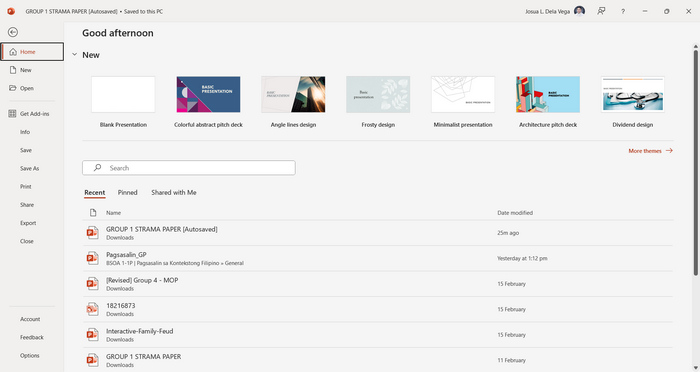
Stap 2. Ga naar het tabblad Bestand, zoek de knop Exporteren en klik erop.
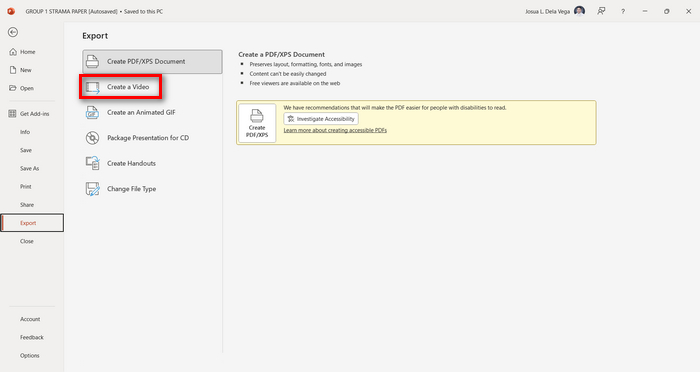
Stap 3. Zodra je in het tabblad Exporteren bent, klik je op de optie Video maken.
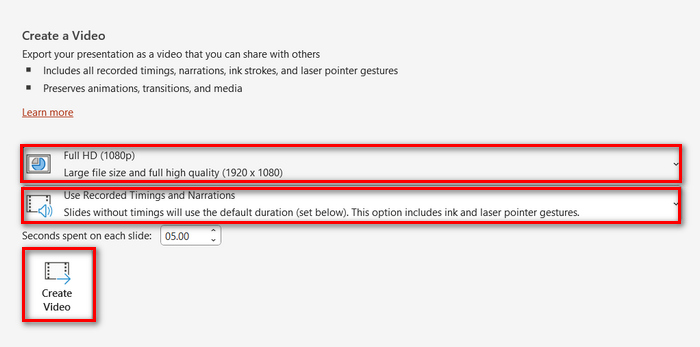
Stap 4. Stel nu je gewenste videoresolutie in. Je kunt kiezen tussen 480p en 4K. Daarnaast kun je bij de optie Opgenomen tijden en vertelling gebruiken de weergaveduur van je dia’s handmatig instellen. Klik daarna op de knop Video maken.
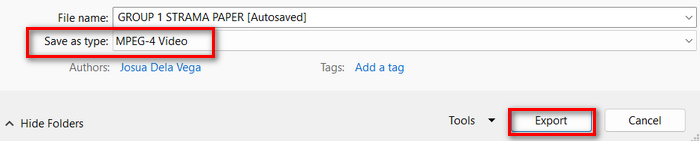
Stap 5. Nadat je op de knop Video maken hebt geklikt, verschijnt er een nieuw venster waarin je het formaat van het uitvoerbestand en de opslaglocatie kunt controleren. Als alles is ingesteld, klik je gewoon op de knop Exporteren en wacht je tot het proces is voltooid.
Het is inderdaad handig om PowerPoint naar MP4 te converteren met de ingebouwde functie. Toch ontbreekt er een aanpassingsfunctie als je bijvoorbeeld achtergrondmuziek wilt toevoegen. Als je doel echter uitsluitend delen is, dan is dit voor jou geen probleem.
Deel 2: Converteer PPT naar MP4 met audio online gratis
Als u het PPT-bestand hebt en u wilt het online converteren omdat u geen PowerPoint-presentatiesoftware-app of -tool op uw apparaat hebt, kunt u MagicSlides gebruiken. Met deze online convertertool kunt u PowerPoint eenvoudig converteren naar MP4 door het bestand eenvoudigweg te importeren naar hun systeem.
Stap 1. Upload het PPT-bestand dat je naar MP4 wilt converteren door op de knop Upload your source file te klikken.
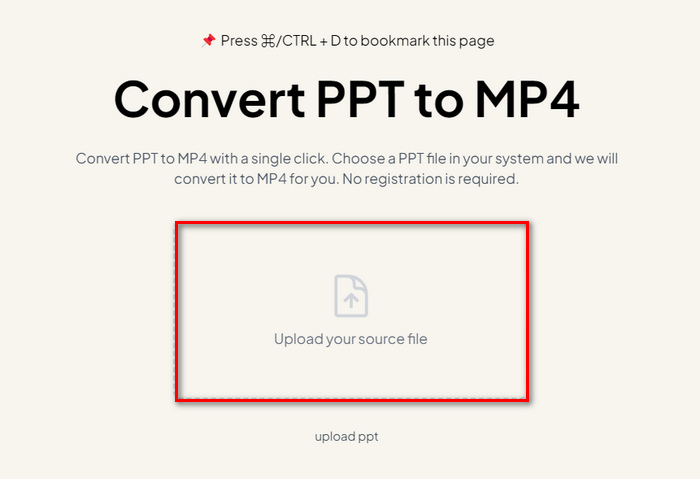
Stap 2. Zodra het bestand is geïmporteerd, klik je op de knop Create MP4 om het conversieproces te starten.
Stap 3. Wanneer het klaar is, kun je eerst een voorbeeld van het geconverteerde PPT-bestand bekijken en, als je tevreden bent met het resultaat, klik je op de knop Download om het rechtstreeks op je apparaat op te slaan.
Hoewel deze tool zeer eenvoudige stappen biedt om PPT naar MP4 te converteren, kost het importeren van PPT-bestanden veel tijd, wat verontrustend kan zijn, vooral als je haast hebt. Ook heeft het geen aanpassingsopties. Het transformeerde PPT-bestanden letterlijk in een video.
Deel 3: Hoe u PPT naar MP4 converteert met effecten en audio
Als je je PPT naar MP4 wilt converteren, maar dit keer mét effecten en audio, dan is dit zeker iets voor jou. Met FVC Screen Recorder kun je je PowerPoint-presentatie omzetten in een creatieve en interactieve MP4 met behulp van de ingebouwde bewerkingsfuncties. Bovendien hoef je je geen zorgen te maken over de uitvoerkwaliteit, want het ondersteunt videoresoluties tot 4K. Volg de onderstaande handleiding om het te gebruiken:
Stap 1. Download eerst de software en installeer deze op je computer.
Gratis downloadenVoor Windows 7 of nieuwerVeilig downloaden
Gratis downloadenVoor macOS 10.7 of nieuwerVeilig downloaden
Stap 2. Open je PowerPoint-presentatie en zorg ervoor dat deze op volledig scherm wordt weergegeven.
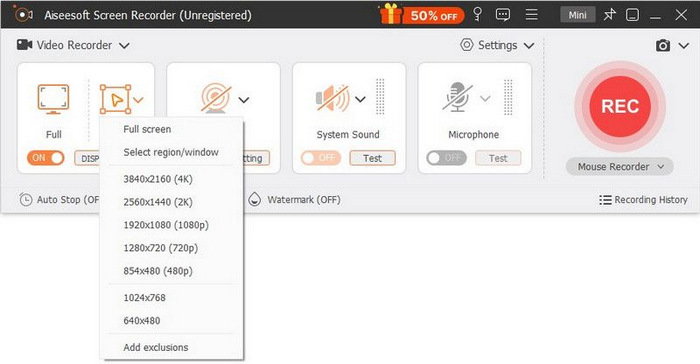
Stap 3. Kies nu in de schermopname-tool de functie Video Recorder en stel het opnamegebied in op Full.
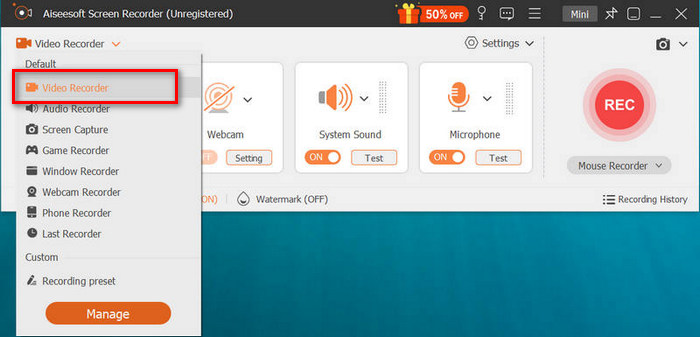
Stap 4. Start daarna de PowerPoint-diavoorstelling. Klik tegelijkertijd op de knop REC om de PowerPoint-opname te starten.
Stap 5. Als je klaar bent, klik je op de knop Stop; je komt dan in het voorbeeldscherm. Daar vind je in de hoek onderaan de bewerkingsfuncties die je kunt gebruiken om audio en effecten te bewerken bij het converteren van je PPT naar MP4.

Stap 6. Tot slot kun je je bestand openen door op de knop Open Folder te klikken.
Het goede aan het gebruik van FVC Screen Recorder bij het omzetten van PowerPoint naar MP4 is dat u de controle over de timing en het tempo van de dia's kunt nemen. Bovendien heeft deze tool, in tegenstelling tot andere tools die alleen een basisconversie bieden, bewerkingsfuncties die kunnen worden gebruikt om het geconverteerde MP4-bestand verder te verbeteren.
Deel 4: Veelgestelde vragen over het converteren van PPT naar MP4
Hoe lang duurt het om PPT naar MP4 te converteren?
De tijd van het conversieproces hangt af van de bestandsgrootte die wordt geconverteerd. Maar meestal nemen eenvoudige presentaties niet veel tijd in beslag tijdens de conversie.
Kan ik animaties en overgangen behouden bij het converteren van PPT naar MP4 in PPT?
Ja. De ingebouwde functie stelt gebruikers in staat om animaties en overgangen te behouden tijdens het conversieproces. Dit is om ervoor te zorgen dat de visuele elementen in de presentatie, zoals overgangen en animaties, behouden blijven tijdens de conversie naar MP4-formaat. Het is echter belangrijk om op te merken dat de compatibiliteit van animaties en overgangen kan variëren, afhankelijk van de versie van PowerPoint die wordt gebruikt en de complexiteit van de toegepaste effecten.
Blijft de kwaliteit van mijn PowerPoint-presentatie behouden bij het converteren naar MP4?
Ja. PowerPoint-presentaties ondersteunen videoresoluties tot 4K. Daarom helpt het kiezen van een hogere resolutie om de kwaliteit van de presentatie te behouden. Bovendien, wanneer u ervoor kiest om uw PPT naar MP4 te converteren met behulp van een geavanceerde convertertool die opties biedt voor het aanpassen van bitrate- en compressie-instellingen om de videokwaliteit verder te optimaliseren, kunt u een kwaliteitsoutput garanderen.
Gevolgtrekking
Het converteren van PPT naar MP4 biedt zeker gemak en toegankelijkheid bij het delen van het bestand op verschillende platforms en apparaten. Nu je een idee hebt hoe je ze kunt converteren, is het tijd om deze kennis in de praktijk te brengen. Begin vandaag nog met converteren en vergroot het bereik en de impact van je presentaties!
-
 Het formaat van een afbeelding in PowerPoint wijzigen [Snelste manier om de grootte te wijzigen]
 Leren hoe u afbeeldingen in PowerPoint kunt verkleinen, is essentieel, vooral als u het in uw presentatie wilt gebruiken. Lees dit artikel om te weten hoe u dit moet doen.
-
 Apowersoft Watermark Remover Review - Functie, voor- en nadelen en prijs
 Apowersoft Watermark Remover is een van de beste watermerkenverwijderaars die online en offline ondersteunt, klik hier voor meer informatie!
-
 Hoe u kunt repareren dat video niet wordt afgespeeld in PowerPoint | Snelgids
 Wordt uw PowerPoint-video niet afgespeeld? Overwin de frustratie dat ingebedde video's nu niet worden afgespeeld met onze vijf beste oplossingen om ze moeiteloos op te lossen.
