


 Video Converter Ultimate
 Scherm opnemer
 Videoreparatie
 Beveiligde download
Hoe FLV-bestanden naar iPhone-video's te converteren zonder kwaliteitsverlies
Het is algemeen bekend dat de iPhone en iPad zijn uitgerust met de nieuwste generatie beeldschermen. Het is dan ook logisch dat films kijken op iDevices een populaire bezigheid is. iOS‑gebruikers stuiten echter altijd op een bestandsformaatbarrière bij het afspelen van films. Zo worden de veelvoorkomende FLV‑bestanden niet ondersteund door de eigen software van Apple. Daarom delen we deze gids, waarmee je eenvoudig op desktop of online FLV naar iPhone‑video kunt converteren.

Deel 1: Beste freeware om FLV naar iPhone-video te converteren
Standaard ondersteunt de iPhone M4V, een deel van MP4, MOV en een deel van AVI. Dat maakt het converteren van FLV naar iPhone‑formaat lastig. FVC Free FLV Converter is een krachtige tool. Hij biedt voorinstellingen om multimediabestanden direct naar iPhone‑formaat te converteren. Belangrijker nog: hij is volledig gratis te gebruiken.
Belangrijkste functies van de beste gratis FLV‑naar‑iPhone‑videoconverter
- 1. Converteer FLV-bestanden eenvoudig naar iPhone-videoformaat.
- 2. Voeg veel voorinstellingen toe voor iPhone, iPad en meer.
- 3. Bied uitgebreide bonusfuncties, zoals videoverbetering.
Gratis downloadenVoor Windows 7 of hogerVeilige download
Gratis downloadenVoor macOS 10.7 of hogerVeilige download
Hoe FLV naar iPhone-video in batch te converteren
Stap 1: FLV-bestanden toevoegen
Start de beste gratis FLV‑naar‑iPhone‑videoconverter nadat je hem op je computer hebt geïnstalleerd. Klik vervolgens op de knop Add File(s) om het dialoogvenster voor het openen van bestanden te openen. Zoek en selecteer alle FLV‑bestanden die je op de iPhone wilt afspelen en klik op Open. De converter ondersteunt batchconversie.

Stap 2: Stel het uitvoerformaat in
Na het laden van de FLV‑bestanden zie je ze allemaal in het bibliotheekgebied. Ga naar de onderste sectie, klik op de optie Output format en vouw deze uit. Selecteer Apple iPhone in de lijst en kies je apparaattype. De software optimaliseert vervolgens automatisch de parameters. Het uitvoerformaat wordt ingesteld voor alle FLV‑bestanden. Als je specifieke parameters wilt wijzigen, klik je op het Gear-pictogram om het profieldialoogvenster te openen.

Stap 3: Converteer FLV naar iPhone-video
Klik daarna op de knop Open Folder, kies de doelmap en bevestig. Standaard slaat de software iPhone‑video’s op in je videobibliotheek, maar je kunt dit naar wens aanpassen. Klik ten slotte op de knop Convert om te beginnen met het converteren van FLV naar iPhone‑video’s.

Daarnaast ondersteunt het programma ook het converteren van FLV‑video’s naar Xbox, PS4, Samsung, Apple TV of andere populaire apparaten.
Deel 2: Hoe FLV online naar iPhone-formaat te converteren
Sommige mensen installeren liever geen software op hun harde schijf. Soms hoef je misschien maar af en toe FLV naar iPhone‑video’s te converteren. In dergelijke gevallen is een online videoconverter, zoals FVC Free Online Video Converter, een handige keuze. Deze voldoet aan je behoeften zonder dat je software hoeft te installeren. Bovendien is hij volledig gratis en zonder registratie te gebruiken. In tegenstelling tot andere webapps heeft hij ook geen limiet voor de bestandsgrootte, zodat je onbeperkt FLV‑bestanden kunt uploaden om te converteren.
Stap 1: Open https://www.free-videoconverter.net/free-online-video-converter/ in een webbrowser om de startpagina te openen. Druk op de knop Add Files to Convert en download de launcher.

Stap 2: Wanneer het downloaden is voltooid, verschijnt de launcher automatisch. Klik vervolgens op de knop Add File in de linkerbovenhoek en upload de FLV‑bestanden die je op de iPhone wilt afspelen.
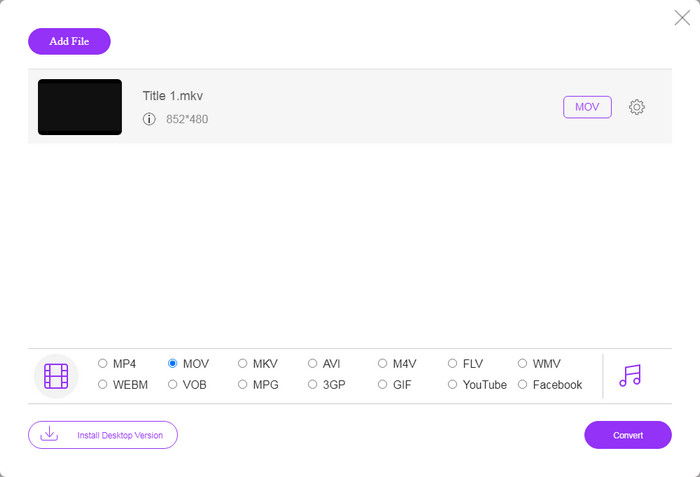
Stap 3: Ga naar het onderste formaatgebied en selecteer MOV, het meest geaccepteerde videoformaat voor iOS‑apparaten. Klik op de knop Convert en de webapp zal online FLV naar iPhone‑formaat converteren. Wacht tot het proces is voltooid en download daarna het resultaat naar je harde schijf.
Als u de opties opnieuw wilt instellen, klikt u op het pictogram Instellingen en u vindt ze in het dialoogvenster Instellingen, zoals resolutie, codec, enz.
Deel 3: Veelgestelde vragen over het converteren van FLV naar iPhone-video
Kun je FLV-bestanden op de iPhone afspelen zonder te converteren?
De enige manier om FLV‑bestanden op een iPhone af te spelen zonder te converteren, is door een externe FLV‑speler te installeren, zoals VLC voor iOS. Daarna kun je eenvoudig je favoriete films bekijken.
Waar worden video's opgeslagen op de iPhone?
De video's die u opneemt en overzet op de iPhone, worden opgeslagen in de Foto's-app. Als u een video downloadt met een app, wordt deze opgeslagen in de app. Hoe dan ook, je hebt geen toegang tot het bestandssysteem op iPhone of iPad.
Welke bestandstypen worden iPhone gebruikt voor video's?
Op iPhone is H.264 de enige videocodec die wordt ondersteund. Als het gaat om videoformaten, zijn MOV en MP4 nauw verwant. Voor video-opname op iOS gebruikt Apple de nieuwere H.265-videocodec of HEVC.
Gevolgtrekking
Nu zou u moeten begrijpen hoe u FLV-bestanden op de iPhone kunt openen en afspelen. Blijkbaar kun je FLV-video's niet rechtstreeks op de iPhone openen. De beste manier is om uw bestanden te converteren naar een door de iPhone ondersteund formaat, zoals MOV. Dan kun je de video's soepel afspelen. FVC Free FLV Converter is een van de beste gratis FLV naar iPhone videoconverters. Het is niet alleen gemakkelijk te gebruiken, maar kan ook een uitstekende uitvoerkwaliteit produceren. Meer vragen? Schrijf het hieronder op.
-
 3 eenvoudige methoden om FLV naar AVI op desktop en online te converteren
 1. Converteer FLV-video's eenvoudig naar andere multimedia-indelingen. 2. Ondersteuning van bijna alle videoformaten, zoals AVI, MP4, MKV, enz. 3. Batchverwerking van honderden FLV-bestanden per conversie.
-
 Top 3 manieren om FLV naar WMV te converteren op Windows en Mac
 Op zoek naar de beste manier om FLV naar WMV te converteren zonder kwaliteitsverlies op pc of Mac? Je hebt geluk, want hier delen we drie methoden om het werk gemakkelijk te doen.
-
 Concrete gids voor het uploaden van uw FLV-video's naar YouTube
 Upload FLV naar YouTube maar mislukt? U kunt dit probleem zelf oplossen en FLV converteren naar door YouTube ondersteunde codecs volgens onze stapsgewijze handleiding.
