


 Video Converter Ultimate
 Scherm opnemer
 Videoreparatie
Een GIF bijsnijden met behulp van de beste GIF-croppers
Het kiezen van de juiste GIF’s voor je bericht is essentieel om de juiste toon over te brengen bij wat je bedoelt. Maar sommige GIF’s moeten worden bijgesneden om de echte bedoeling van de GIF duidelijk te maken. Bovendien mag, als je je GIF’s gaat bijsnijden, de kwaliteit van de GIF niet achteruitgaan en moet dezelfde fps behouden blijven. Op een bepaald moment kan het lastig zijn om de juiste cropper te kiezen om je GIF bij te snijden. Niet alle tools bieden namelijk de mogelijkheid om te croppen. En sommige tools die wel kunnen croppen, verminderen de kwaliteit en fps van de GIF’s. In dit artikel kun je de voor jou beste GIF-cropper kiezen; alle genoemde tools zijn al door ons getest om je van betrouwbare informatie te voorzien. Ook laten we je de beste GIF‑cropper zien die op alle platforms beschikbaar is en hoe je die gebruikt. Lees dit artikel verder om er meer over te weten te komen.

Deel 1. De beste GIF-cropper die Windows- en Mac-besturingssystemen ondersteunt
1. FVC gratis video naar GIF Maker
Deze tool is beschikbaar op alle platforms zoals Windows en Mac. Het is de beste animated GIF‑cropper ontwikkeld door FVC: de FVC Free Video to GIF Maker. Met deze software kunnen gebruikers hun bestaande GIF’s verkennen en verbeteren of nieuwe GIF’s maken. Dus als je je GIF wilt bijsnijden, helpt deze tool je dat te doen, zelfs zonder internetverbinding. Snijd je GIF dus met gemak en effectief bij, zodat hij duidelijker en opvallender wordt. Volg de onderstaande stappen om te weten hoe je je GIF kunt bijsnijden.
Stap 1. Installeer de tool op je schijf en pas de voorkeuren aan volgens jouw wensen.
Gratis downloadenVoor Windows 7 of hogerVeilige download
Gratis downloadenVoor MacOS 10.7 of hogerVeilige download
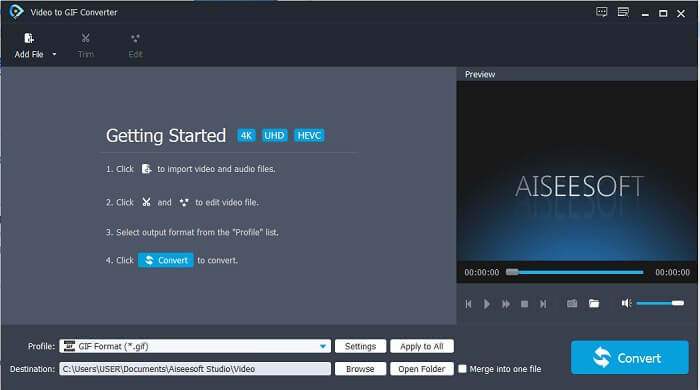
Stap 2. Een kleine interface zoals deze verschijnt op je scherm nadat je de tool hebt gestart.
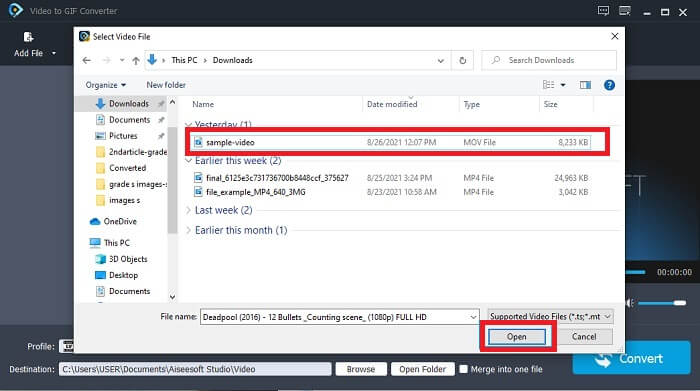
Stap 3. Klik op Add File of sleep en zet neer het videobestand in de interface van de tool.
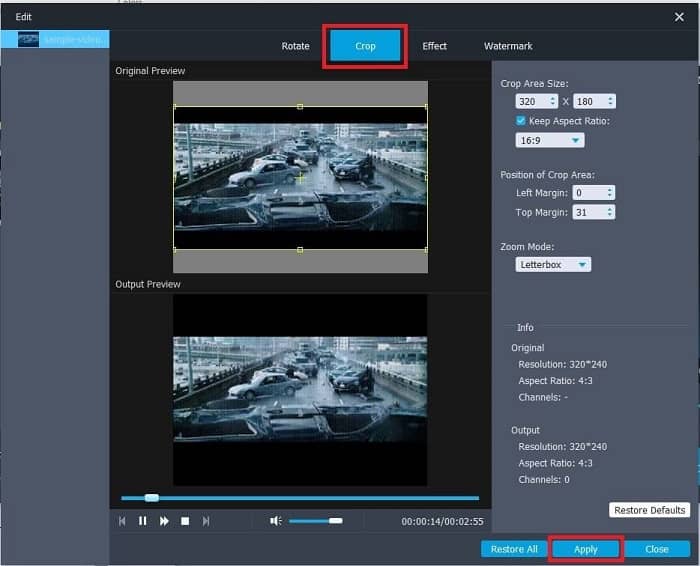
Stap 4. Klik op Edit om je GIF te verbeteren. Ga naar Crop en pas de grootte van je GIF aan. Je kunt ook de Aspect Ratio en Zoom Mode wijzigen. Klik op Apply om de aanpassingen die je hebt gedaan op te slaan.
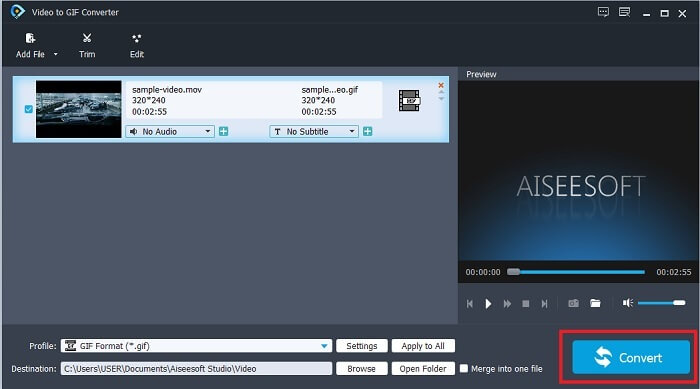
Stap 5. Klik op Convert om de conversie van je video naar GIF te starten. Als de conversie is voltooid, kun je het eindresultaat in de bestandsverkenner controleren door de naam van de video in te typen.
Voordelen
- Alle kleine functies zijn hier beschikbaar.
- Het is veel beter dan de online tool en ook enkele van de downloadbare tools.
- Maak eenvoudig je GIF met deze tool.
Nadelen
- U kunt geen gebruik maken van de belangrijkste functies die de Ultimate-versie biedt.
- Het ondersteunt video in een kleiner formaat in plaats van de premium-versie.
2. Video Converter Ultimate
De gratis versie van deze tool kan het eenvoudige werk doen, maar de premium-versie is de beste GIF-cropper. Video Converter Ultimate is niet alleen in naam, maar ook dat deze tool de ultieme is in het converteren van elke video naar een GIF-bestand. In tegenstelling tot de gratis versie en de onderstaande tool, kan deze tool je simpele GIF nog mooier maken. Transformeer uw GIF naar een uitmuntende door effecten toe te voegen die deze tool alleen kan bieden. Het biedt ook de conversie van een video naar GIF, zoals MP4 naar GIF, het samenvoegen van video's tot één, 3D-maker en nog veel meer. Gebruik deze tool dus als je persoonlijke cropper en hij zal je nooit teleurstellen. Lees bovendien de onderstaande stappen door om te weten hoe u uw GIF kunt bijsnijden om een specifieker bericht aan uw ontvanger te bezorgen.
Stap 1. Voordat je deze tool kunt gebruiken, moet je hem eerst downloaden. Installeer de tool op je schijf, wijzig de voorkeuren volgens jouw wensen en klik op finish om de tool op je scherm te laten draaien.
Gratis downloadVoor Windows 7 of nieuwerVeilige download
Gratis downloadVoor MacOS 10.7 of nieuwerVeilige download
Stap 2. Als de tool volledig op je schijf is gedownload, verschijnt er een overzichtelijke interface als deze op je scherm. Klik op de Toolbar en klik in de toolbar op GIF Maker.
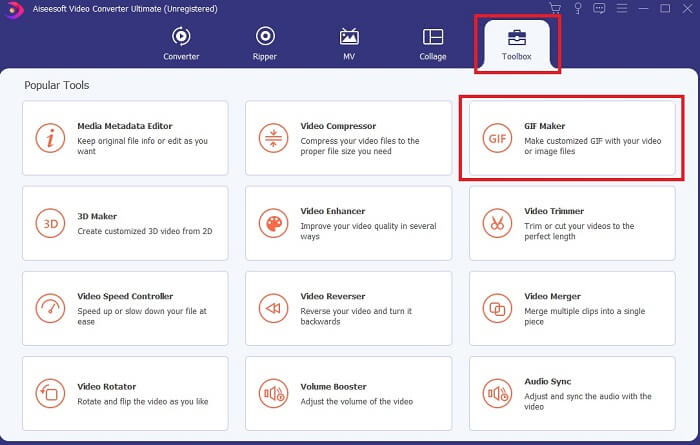
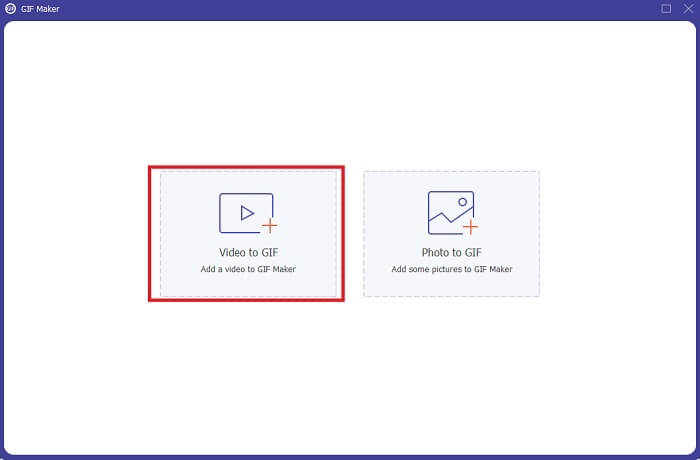
Stap 3. Klik op Video to GIF om de video toe te voegen en zoek de GIF die je wilt bijsnijden of bewerken. Nadat je de video hebt geselecteerd, klik je op Open om de GIF Maker te starten.
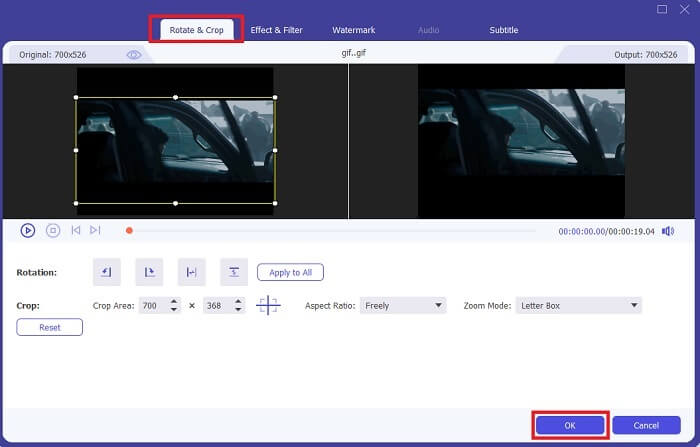
Stap 4. Klik op de knop met een ster-icoon om te beginnen met bewerken. Klik op Rotate & Crop om de GIF te gaan bijsnijden. Je kunt ook effecten & filters, een watermerk en ondertitels toevoegen. Als alle aanpassingen gedaan zijn, klik je op OK om de wijzigingen op te slaan.
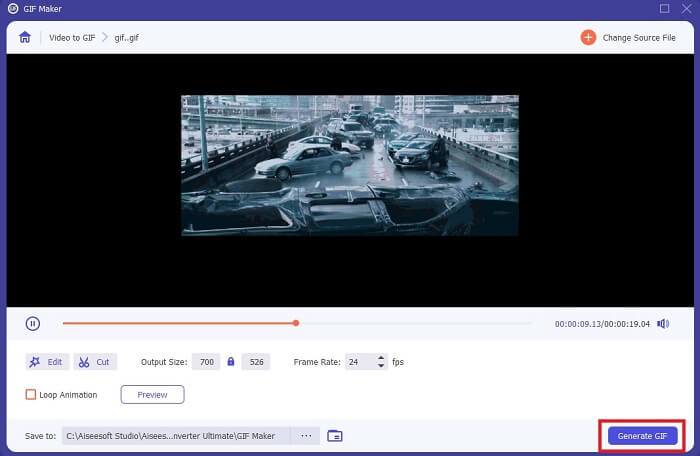
Stap 5. Wijzig de locatie waar je het eindresultaat wilt opslaan, zodat je het gemakkelijker terugvindt. Klik op Generate GIF om de conversie te starten. Als de conversie 100% voltooid is, zoek je het eindresultaat op de locatie waar je het wilde opslaan of in de bestandsbeheerder.
Voordelen
- Uw go-to-use tool als u uw GIF wilt verbeteren tot een veel interactievere. Gebruik je fantasie om de dingen in je GIF's op te fleuren.
- Het kan van je GIF een indrukwekkende output maken door gebruik te maken van de belangrijkste functies die het biedt die de andere premiumversie niet kan bieden.
- Meer dan een miljoen gebruikers kiezen deze tool als hun eerste keus tool voor premiumversies.
Nadelen
- Om de tool te gebruiken, moet u eerst betalen, maar het is zeker niet zo duur. Je mag dus niets minder verwachten als je deze tool hebt gekocht.
- Download de tool voordat u deze start. Zelfs als u geen internet heeft, kunt u deze tool toch gebruiken omdat deze niet internetafhankelijk is.
Deel 2. Top 5 beste GIF-croppers die je via internet kunt gebruiken
1. iLoveIMG
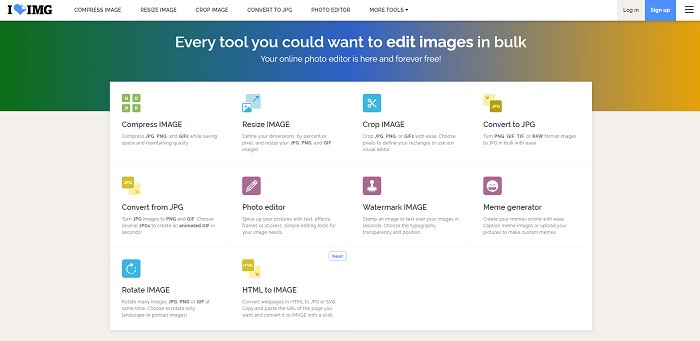
Snijd je GIF bij met behulp van deze online GIF‑cropper. iLoveIMG staat bekend als de beste online cropper voor GIF, JPG en PNG. Hoewel de tool geen video’s naar GIF-formaat kan converteren omdat hij zich alleen richt op het bewerken van GIF, JPG en PNG, is de website-interface beter dan verwacht: niet alleen eenvoudig, maar ook heel interactief. Je hoeft je dus niet te vervelen terwijl je de website gebruikt. Als we hem beoordelen, krijgt hij een 7 op 10, wat uitstekend is voor een online webapplicatie.
Voordelen
- Het beste om uw GIF, JPG en PNG te verbeteren.
- De interface van de website is verbazingwekkend mooi.
- U hoeft niet te downloaden.
Nadelen
- Er is een kans op gegevensverlies als de verbinding is verbroken.
- U kunt het videoformaat niet converteren naar een GIF-formaat.
2. Rode Ketchup
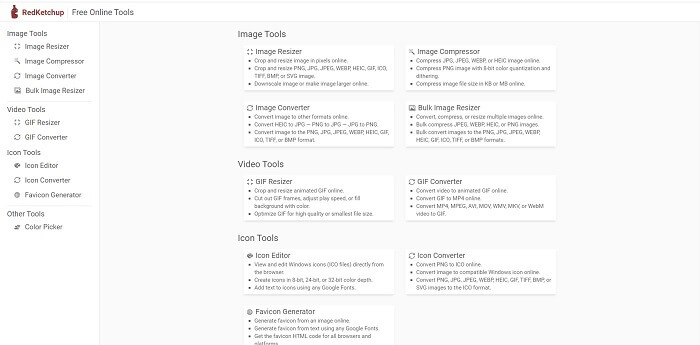
Als iLoveIMG niet de juiste keuze voor je is, moet je deze online GIF‑cropper proberen. RedKetchup is zeer informatief dankzij de beschrijving die bij elk bewerkingstooltje wordt gegeven. Daardoor wordt het makkelijker om te begrijpen hoe elke functie werkt als je er nog geen idee van hebt. Daarnaast kun je je afbeeldingen converteren naar GIF, PNG, JPG, WEBP en meer. Het ondersteunt meer formaten dan iLoveIMG, maar het nadeel van deze tool is dat de interface van de webpagina behoorlijk saai is. De volledige achtergrond van de website is alleen wit, en het enige dat kleur heeft, is de naam en het pictogram RedKetchup.
Voordelen
- Het ondersteunt meer beeldformaten dan de iLoveIMG.
- Elke functie van het gereedschap heeft een korte beschrijving, zodat de gebruiker de functies ervan kan begrijpen.
- Het is een gratis online tool.
Nadelen
- De webpagina van deze tool is zo saai om naar te kijken vanwege de monotone kleur ervan.
- De kans bestaat dat het bestand niet goed wordt opgeslagen als je internet instabiel is.
3. Kapwing
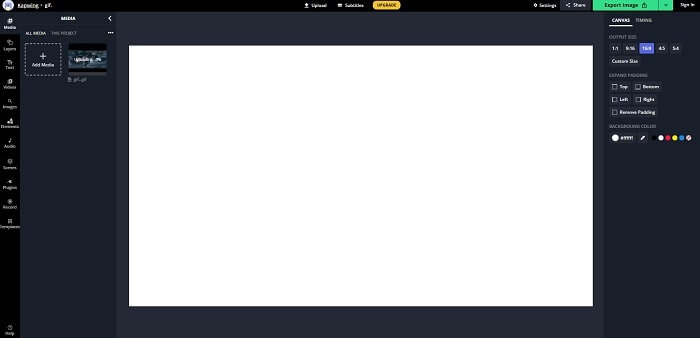
Deze tool heeft bijna dezelfde functies als Photoshop, maar dan online. Het is de beste GIF‑frame‑cropper online. Kapwing staat bekend om het maken van de beste GIF’s die je met je vrienden wilt delen. In tegenstelling tot de eerste twee tools hierboven ondersteunt deze tool enkele videoformaten om ze naar GIF te converteren. Het kost wel wat tijd om te leren hoe je deze tool gebruikt, maar het loont de moeite. En als je een eenvoudige GIF wilt maken, dan is deze tool daar juist erg goed in. Deze tool heeft bijna dezelfde functies als Photoshop, maar dan online. Het is de beste GIF‑frame‑cropper online. Kapwing staat bekend om het maken van de beste GIF’s die je met je vrienden wilt delen. In tegenstelling tot de eerste twee tools hierboven ondersteunt deze tool enkele videoformaten om ze naar GIF te converteren. Het kost wel wat tijd om te leren hoe je deze tool gebruikt, maar het loont de moeite. En als je een eenvoudige GIF wilt maken, dan is deze tool daar juist erg goed in.
Voordelen
- De interface van de toolwebsite geeft je bijna dezelfde sfeer met Photoshop.
- Converteer uw video naar een GIF-formaat.
- Basisbewerkingsfuncties zijn aanwezig.
Nadelen
- De verwerking van de uiteindelijke uitvoer van de video is altijd afhankelijk van hoe snel je internet is. Er is dus veel geduld nodig om de uiteindelijke output te produceren.
- U moet zich aanmelden om het watermerk uit uw uitvoer te verwijderen. Verwacht dus een e-mail bij elke update die erin staat en enkele vervelende aankondigingen. Omdat je ze toegang geeft tot je account.
4. GIFGIF's
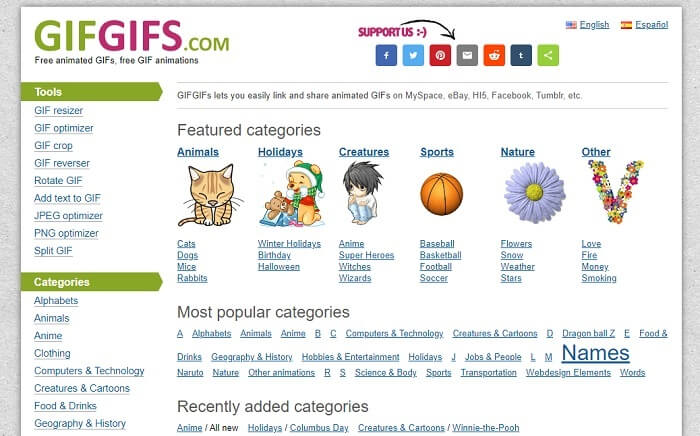
Je kunt je GIF’s bijsnijden met deze GIF‑cropper zonder kwaliteitsverlies. GIFGIFs biedt je de beste kant‑en‑klare GIF’s online. Je kunt kiezen uit categorieën zoals alfabet, sport, anime, kleding, enzovoort. Daarnaast biedt deze tool niet alleen de beste functies om je GIF te verbeteren, maar kun je ook JPG en PNG optimaliseren.
Voordelen
- Het is een goede keuze om je GIF te verbeteren tot een betere.
- Het ondersteunt het optimaliseren van JPEG, PNG en GIF.
- Kies reeds gemaakte GIF's in de categoriesecties.
Nadelen
- Het biedt geen zoekbalk, dus het is moeilijk om de perfecte GIF te vinden die je wilt gebruiken.
- De interface is in orde. Het is niets bijzonders of moeten we zeggen dat het niet goed maar ook niet slecht is.
5. VEED.IO
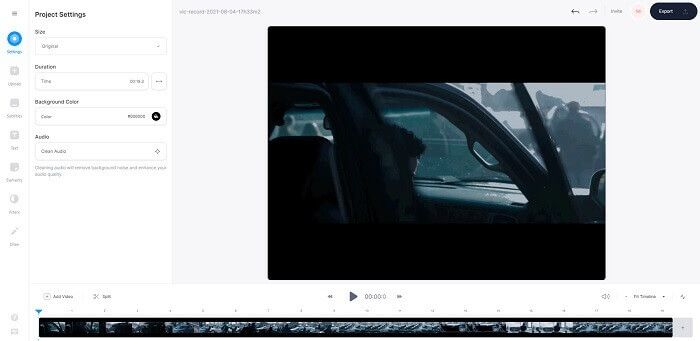
Kies dit als je eerste keuze gratis GIF-cropper online, maar het kan ook worden geüpgraded naar een premium-versie als je wilt. De VEED.IO is een van de beste online tools om je GIF's te verbeteren tot een betere. Maar de gratis versie van de tool ondersteunt slechts 50 MB GIF-bestandsgrootte en om meer bestandsgrootte toe te voegen, moet je de premium-versie van de tool kopen.
Voordelen
- Het biedt een geweldige bewerkingsfunctie om je GIF beter te maken.
- Eenvoudige gebruikersinterface.
- Je kunt ook ondertitels toevoegen als je dat wilt.
Nadelen
- Het biedt geen 3D-maker om uw 2D-afbeeldingen te verbeteren.
- In sommige gevallen crasht de software wanneer u probeert in te zoomen op de tijdlijn.
Deel 3. Veelgestelde vragen over GIF Cropper
Is er een formaat dat beter is dan het GIF-formaat?
Hoewel het heel bekend is dat GIF het beste formaat voor bewegende beelden op internet is. Maar wist je dat er een beter formaat is dan GIF? Dit is de APNG. Dit formaat biedt een meer kleurenpalet dan de GIF en het is ook beter in compressie. Maar u kunt ook WEBP, MNG, FLIF en AVIF gebruiken.
Wat is de reden waarom GIF's worden gemaakt?
Eind 1987 vroeg een man genaamd Steve Wilhite zich af of het mogelijk was om een afbeeldingsbestand te maken met een kleine bestandsgrootte voor computerschermen, en in die tijd werd de GIF geboren. Als je meer wilt weten over GIF’s, kun je hier klikken.
Welke is beter? JPG of GIF?
Het JPG-formaat biedt u een gedetailleerder beeld omdat het een breed scala aan kleuren ondersteunt, dus het is de beste in het maken van foto's. De GIF biedt een kleine hoeveelheid kleurenpalet, maar het is goed in het maken van een statische afbeelding.
Gevolgtrekking
Samenvattend moet je de beste GIF‑cropper kiezen die je de bijsnijdfuncties biedt die je nodig hebt, zonder dat de kwaliteit van de GIF zelf achteruitgaat, zelfs niet als je erin bijsnijdt. Het is echter duidelijk dat je de ultieme tool van FVC zou moeten kiezen. Deze biedt je de beste GIF‑functies die je aan je GIF wilt toevoegen om hem opvallender te maken dan andere GIF’s. Het bijsnijden van je GIF wordt dus makkelijker dan ooit als je de Video Converter Ultimate gebruikt.
-
 Tutorial om GIF te comprimeren en de bestandsgrootte met hoge kwaliteit te verkleinen
 Hier zijn 2 eenvoudige manieren om GIF te comprimeren op je computer of mobiele telefoon. U kunt FVC Free Online Video Compressor en Photoshop gebruiken om de GIF-bestandsgrootte in verschillende opzichten te verkleinen.
-
 GIF Player - 5 beste GIF-spelers voor Windows-pc, Mac, Android en iPhone
 Welk programma opent GIF-bestanden? Hoe bekijk ik GIF's op Android? Heeft de iPhone een GIF-speler om GIF's te openen? Dit bericht deelt 5 beste GIF-spelers voor jou.
-
 Hoe AVI-video's naar geanimeerde GIF-bestanden op Windows/Mac te converteren
 Wilt u de interessante AVI-segmenten selecteren om GIF-memes te maken? Dit artikel vertelt je de 2 beste methoden om de AVI-video's te knippen en AVI gratis naar geanimeerde GIF-bestanden te converteren.
