


 Video Converter Ultimate
 Scherm opnemer
 Videoreparatie
5 Beste MP4-snijder: leer hoe u video's kunt knippen op pc, Mac en mobiele apparaten
Als je een vlogger of een aspirant bent, is het zo gewoon om een video van jezelf te maken. Dit zou veel inspanning en vertrouwen vergen, net zoals je voor een camera fotografeert. Het meest voorkomende dat alle professionals en nieuwkomers in vloggen zijn, zijn de fouten die je maakt. In plaats van de video opnieuw op te nemen, hebben ze de neiging om deze te knippen en samen te voegen met de originele video's. Om een geheel nieuwe video te maken die bestaat uit verschillende hoeken, weergaven, montages en meer, knippen ze deze uit verschillende video's en voegen ze deze toe aan één. Maar als nieuw voor dit soort werk of zelfs voor een professional, is het kiezen van de juiste trimmer moeilijk. Omdat niet alle functies zoals ze in de advertentie van de tool zeiden, niet in de tools zitten. In plaats van naar het andere artikel te gaan en de aanbeveling te lezen, waarom leer je hier niet eerst van. Omdat we alleen het echte bewijs hebben verzameld voor je eigen gewin. Dus, hier in de lijst zijn de MP4-snijders die u kunt gebruiken om te beginnen met vloggen. Blijf gefocust om te weten wat de beste trimmers zijn die je kunt gebruiken en die je video's een eenvoudige maar professionele uitstraling geven.

Deel 1. Download de beste MP4-videosnijdersoftware op pc en Mac
Als we het gaan hebben over de beste tools, dan moet je dit eerst lezen. Zoals eerder gezegd, is het maken van vlogs veel moeilijker dan we hadden verwacht: het gaat niet alleen om zelfvertrouwen voor de camera en het online plaatsen. Je moet ook rekening houden met een multifunctionele tool. Die zorgt voor een aantrekkelijkere video voor de ogen van elke kijker. FVC Video Converter Ultimate biedt fantastische bewerkingsfuncties en conversiemogelijkheden die door iedereen gebruikt kunnen worden. Of je nu beginner of professional bent, we moeten kijken naar de beste van de besten op de markt. Hoewel dit een betaalde versie is, levert het nog steeds het beste dat je maar kunt wensen. En als je dit als jouw persoonlijke keuze neemt, dan ligt er een veelbelovende toekomst voor je. Wil je vandaag nog met vloggen beginnen? Volg dan deze stappen om te leren hoe je deze MP4‑videocutter gebruikt.
Stap 1. Klik op de downloadknop hieronder en installeer het op je pc of Mac. Volg de installatie-instructies van de tool en klik op Voltooien om de software te starten.
Gratis downloadVoor Windows 7 of nieuwerVeilige download
Gratis downloadVoor MacOS 10.7 of nieuwerVeilige download
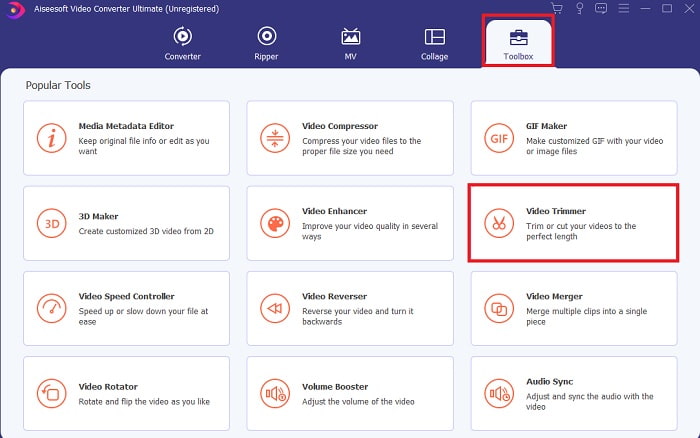
Stap 2. Als dit op je scherm verschijnt, klik je op de werkbalk en zoek je hieronder naar de Video Trimmer.
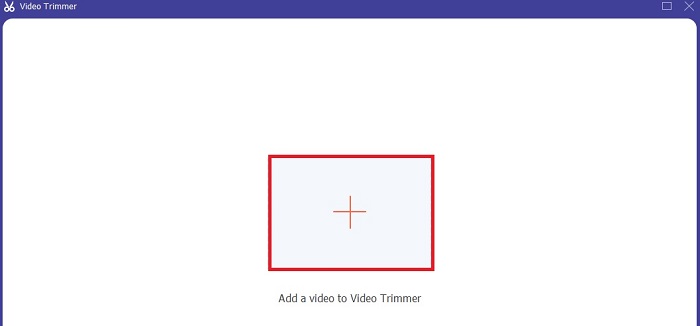
Stap 3. Klik op de plus-knop om het bestand toe te voegen. Selecteer het bestand op je schijf dat je wilt knippen en klik op openen om de video in te voegen.
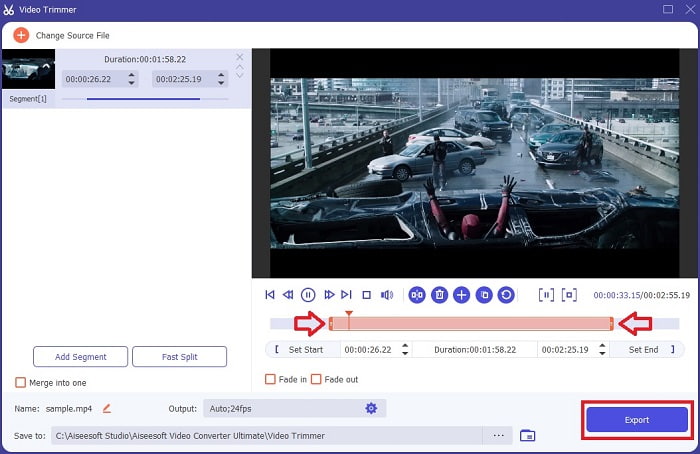
Stap 4. Stel het begin- en eindpunt van je video in door de playback in en out te verplaatsen om de gewenste duur te bepalen. Voeg desgewenst fade‑in en fade‑out toe. Je kunt ook het media‑uitvoerformaat wijzigen door op de tandwiel-knop te klikken. Wanneer je klaar bent, klik je op de knop Exporteren om het trimproces te starten.
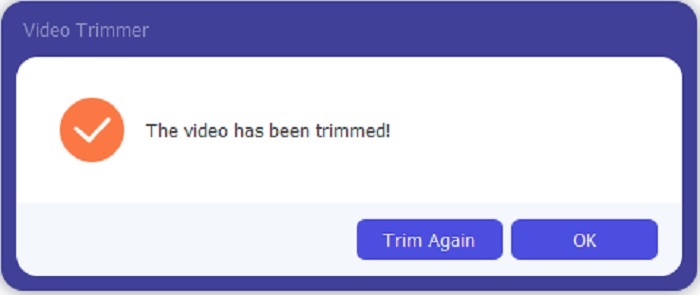
Stap 5. Wacht een paar seconden en je video is getrimd. Klik vervolgens op OK of op Opnieuw trimmen als je nog een video moet knippen. Als je de zojuist gemaakte video verder wilt verbeteren, klik je opnieuw op de werkbalk en zoek je de video‑enhancer.
Voordeel van het hebben van een samenvoegtool van de FVC Video Converter Ultimate met Steps
In tegenstelling tot andere apps is het samenvoegen van video's in FVC Video Converter Ultimate supereenvoudig om te doen. Dit is een bonusfunctie als u deze tool aanschaft. Zoals gezegd, deze tool is multifunctioneel, dus laten we zonder verder oponthoud verschillende video's samenvoegen tot één.
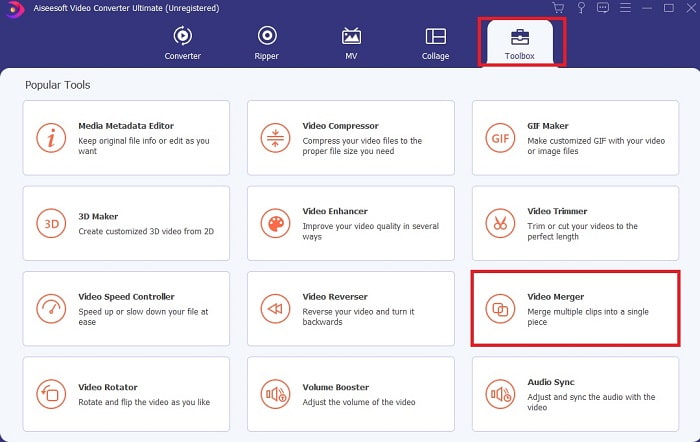
Stap 1. Open de software, ga naar de werkbalk en zoek de Video Merger, en klik daarop.
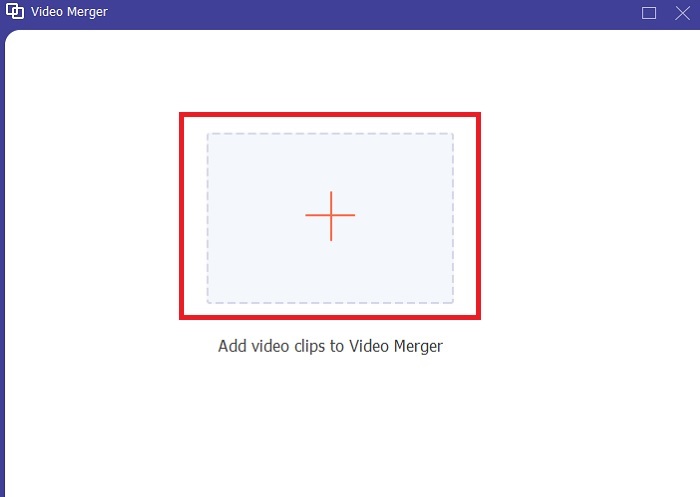
Stap 2. Klik op de knop Toevoegen, selecteer de video die je wilt samenvoegen en klik op openen om verder te gaan. Nadat je het eerste bestand hebt gekozen, klik je op het plus‑teken om het andere bestand toe te voegen dat je wilt samenvoegen.
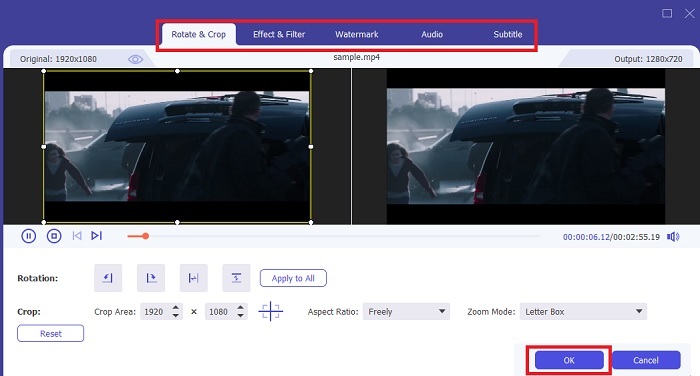
Stap 3. Klik in de interface op de toverstaf-knop om effecten toe te voegen, de audio te verbeteren, te draaien of bij te snijden en ondertitels toe te voegen. Klik op OK om de zojuist aangebrachte bewerkingen op te slaan. Volg dezelfde procedure ook voor de andere video’s als je dat wilt.
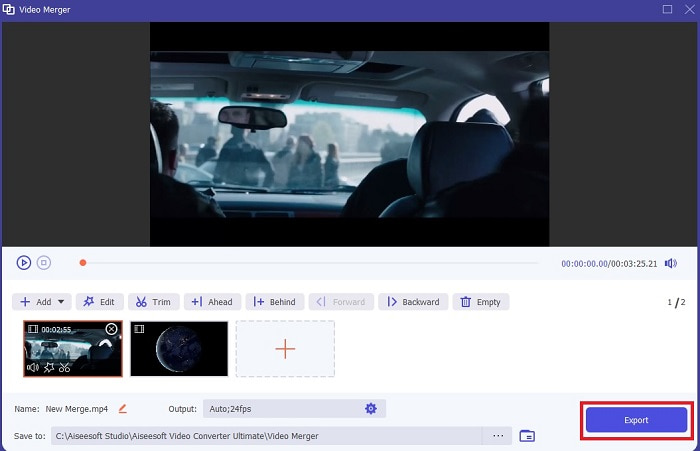
Stap 4. Als je klaar bent om het proces te starten, klik je op Exporteren. Nadat het exporteren is voltooid, verschijnt er een bestandsbeheerder op je scherm. Om de geëxporteerde video te bekijken, klik je erop en geniet je ervan.
Deel 2. Beste MP4-snijders online
Dit is misschien een goede trimmer, maar ze zijn niet zo goed als de FVC Video Converter Ultimate. Maar het is in elk geval de moeite waard om deze online MP4‑cutters eens te proberen.
1. 123Apps online videosnijder
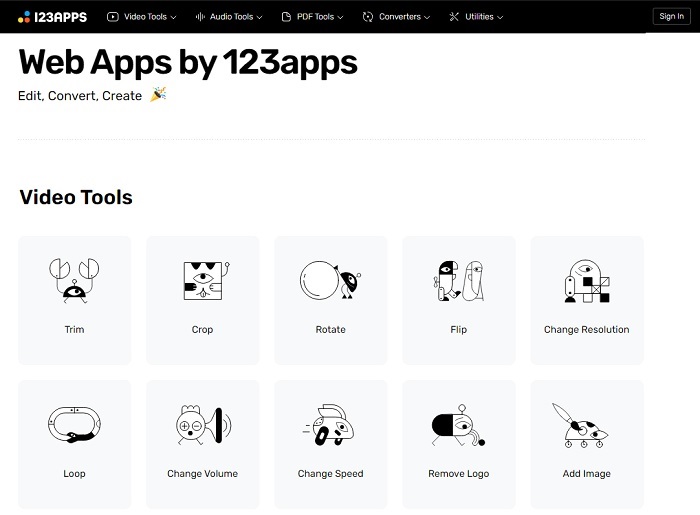
Deze eerste online tool is bedoeld om je video's beter te maken. Het kan de duur van de video aanpassen, bijsnijden, tekst toevoegen en meer. Maar deze tool kost veel tijd om te worden geëxporteerd. Nadat je hebt geëxporteerd, moet je het downloaden en dit proces is afhankelijk van je internetsnelheid. Ook kun je de kwaliteit van je video's niet aanpassen. Dus als je video een beetje wazig is en de fps ervan moet aanpassen, kun je het hier niet doen. Maar toch, het is het proberen waard.
2. Clideo
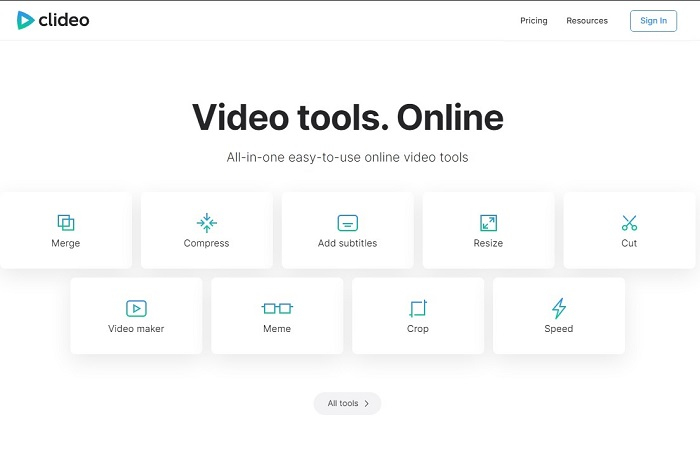
Als we het hebben over trimmen, dan is dit ook een goede keuze. Clideo is een van de beste online MP4‑trimmers die je kunt vinden. Net als de eerste eerder genoemde online tool biedt deze tool ook basisbewerkingsfuncties. Hoewel het alleen basisbewerking ondersteunt, is dat nog steeds niet genoeg als je een echt opvallende video wilt maken. Maar je kunt het online uitproberen, zonder zorgen: het is gratis en ook veilig.
Deel 3. 3 Beste MP4 Cutter-apps op Android en iOS
Wat als je geen desktop hebt om de bovenstaande tools te gebruiken en een vlogger wilt worden, is het dan nog steeds mogelijk? Als je een telefoon zoals Android of iOS hebt, kun je deze apps gebruiken om bewerkingen op je telefoons uit te voeren. Maar er zijn enkele functies die hierboven beschikbaar zijn en die hier niet zijn. Dus lees hieronder verder om te weten wat deze tools zijn en om er uit te kiezen.
1. iMovie voor iOS
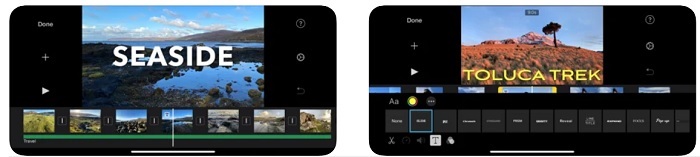
Als je een Hollywood‑achtige sfeer aan je video wilt toevoegen, dan is iMovie de juiste software. Deze MP4‑cutter‑app is uitsluitend ontwikkeld voor iOS‑gebruikers. Maar hoewel de tool geavanceerde bewerkingsfuncties biedt, zijn sommige bugs nog steeds niet opgelost. In sommige gevallen crasht de app telkens wanneer je probeert te bewerken en wordt het scherm zwart. Soms zijn video en audio niet synchroon door storingen. Dit zijn enkele voorbeelden van bugs; ze lijken misschien klein, maar ze zijn vaak erg irritant. Als je iMovie toch wilt proberen, kun je het nog steeds downloaden in de App Store.
2. Video-editor en maker - Viva Video voor Android
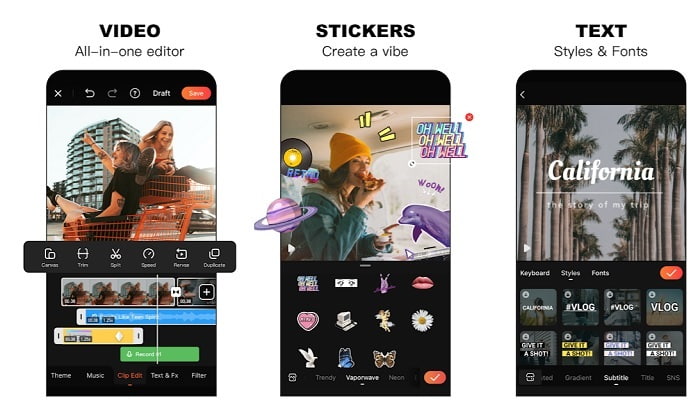
Een van de beste gratis MP4‑cutters op Android is Video Editor & Maker – Viva Video. Net als de hierboven genoemde tool bieden ze allebei uitstekende bewerkingsfuncties op telefoons, zoals overgangen voor video, glitch‑effecten en meer, maar dit is een betaalde tool. Er is een probleem waardoor het niet ideaal is: er is geen knop om je abonnement te beëindigen. Je denkt misschien dat de beste manier is om de app te verwijderen om het abonnement te stoppen, maar dat gebeurt niet. De kosten worden nog steeds van je creditcard afgeschreven als je die betaalmethode hebt gekozen. Maar al met al is de tool van A‑klasse, niets meer en niets minder.
Deel 4. Veelgestelde vragen over MP4 Cutter
Wat is een MP4?
MP4 is ook bekend als het multifunctionele mediaformaat. In plaats van een code op te slaan, slaat het gegevens van de video's, foto's, ondertitels of teksten op. Het is ook het meest gebruikte videoformaat over de hele wereld.
Is MP4 lossy of lossless?
Omdat het een multifunctioneel formaat is, is MP4 een compressie met verlies.
Wat is het beste formaat behalve MP4?
Er zijn enkele formaten die een betere media‑uitvoer bieden dan MP4, maar ze zijn niet zo flexibel als dit formaat. Neem WMV als voorbeeld: dit formaat levert kleinere bestanden op dan MP4, maar is niet compatibel met Apple‑apparaten, omdat het bedoeld is als een eigen formaat voor Windows Media Player. Je kunt ervoor kiezen om je MP4‑bestanden naar WMV te converteren voor betere weergave.
Gevolgtrekking
Tot slot is het nu makkelijker om het verschil tussen de tools te begrijpen die je kunt gebruiken. Maar zoals eerder gezegd, bieden ze niet allemaal de uitstekende knipfuncties die de FVC Video Converter Ultimate heeft. Zeker als je een aantrekkelijkere video wilt maken om meer weergaven én inkomsten te krijgen. Dus in plaats van je tevreden te stellen met een tijdelijke oplossing, waarom kies je niet voor de FVC Video Converter Ultimate om met vertrouwen de toekomst tegemoet te gaan en de beste versie van jezelf te maken?.
-
 Gids voor het converteren van RMVB naar MP4 op Windows / Mac (3 gratis manieren)
 Wilt u RMVB naar MP4 converteren voor eenvoudig afspelen op uw computer of mobiele telefoon? In deze handleiding vindt u eenvoudige manieren om uw RMVB-bestanden naar MP4 te converteren.
-
 4 Beste MP4 naar M4V-converters om MP4-video's met gemak in M4V om te zetten
 Wanneer u MP4- naar M4V-bestanden moet wijzigen, moet u meer informatie vinden over de verschillen tussen de twee formaten, evenals de beste MP4 naar M4V-converters uit het artikel.
-
 AMV Converter - 3 beste methoden om MP4 naar AMV te converteren op Win / Mac
 Wat zijn de beste MP4 naar AMV-converters om de video's om te zetten in Amine Music Video, je kunt meer leren over de 3 meest efficiënte methoden om gemakkelijk de gewenste video's te krijgen in het artikel.
