


 Video Converter Ultimate
 Scherm opnemer
 Videoreparatie
Kies de beste GIF-schermrecorder voor het opnemen van GIF [online en offline]
Het is het feit dat GIF's eenvoudig maar gemakkelijk toegankelijk zijn voor bestandsindelingen op internet. De bestandsgrootte van GIF's is zo klein dat het een van de meest effectieve manieren werd om video- of bewegende beelden via internet te verzenden. Tijdens het kijken naar een film heb je een geweldige scène gevonden over de film die je aan het kijken bent en die je wilt delen met je vrienden, geliefden of familie. Maar de meeste schermrecorders hebben de indeling MP4 en MOV, een van de grootste bestandsindelingen. Het is niet nieuw voor ons dat het overzetten van dit type bestandsformaat een uur of langer duurt en meestal mislukken ze vanwege de internetonderbreking of in andere gevallen is het formaat niet beschikbaar omdat niet alle lokale mediaspelers alle formaten.
Tijdens het surfen op het web op zoek naar een oplossing kom je GIF’s tegen. Dit bestandsformaat is veel kleiner van omvang en gemakkelijk te delen. Dus vraag je je af wat de beste GIF-recorder is die je kunt gebruiken om een scène uit de film die je kijkt op te nemen. De onderstaande lijst bespreekt enkele populaire GIF-opnameprogramma’s die je online misschien al bent tegengekomen, of juist niet. Lees verder om te weten wat deze tools zijn en hoe je ze gebruikt om animaties in GIF-formaat vast te leggen.

Deel 1. Beste eigenschappen die een GIF-recorder zou moeten hebben
Voor je iets anders doet, is het kiezen van de beste schermrecorder een absolute must. Maar misschien vraag je je af waar je prioriteit aan moet geven bij het kiezen van een GIF-recorder? De onderstaande lijst geeft je een idee welke eigenschappen een goede recorder zou moeten hebben.
● Gebruiksvriendelijk – Kies een product dat je geen problemen oplevert bij het opnemen.
● Budgetvriendelijk – dit speelt alleen een rol als de tool betaald is. Het is prima om voor een goedkope oplossing te gaan in plaats van veel geld uit te geven aan iets dat een voordelige premiumversie ook kan leveren. Het is een feit dat een premiumtool de beste output oplevert. Dit is alleen van belang bij betaalde tools. Gratis online of offline tools hoeven zich hier geen zorgen over te maken.
● Beschikbaarheid van het programma – bijvoorbeeld als je overstapt van pc naar Mac of andersom. Je hoeft je dan niet aan een nieuwe recorder aan te passen. Het is dus belangrijk een GIF-schermrecorder te kiezen die op alle platforms beschikbaar is. Dat zorgt ook voor minder gedoe, en als er iets verandert, is het waarschijnlijk iets simpels zoals de naam en niet de hele interface.
● Geen malware of virussen – dit geldt zowel voor online als offline tools. Elk programma zou je de beste opname moeten bieden met tevens de beste beveiliging. Zo voorkom je dataverlies en datalekken.
Hoewel dit de eenvoudige kenmerken zijn die een recorder moet bieden, staat het unieke karakter van de tool die u kunt kiezen in de onderstaande lijst. Zoek het verschil tussen elke tool en kies de beste GIF-recorder uit de lijst voor uw opname.
Deel 2. Beste GIF-recorders via internet
1. FVC gratis schermrecorder
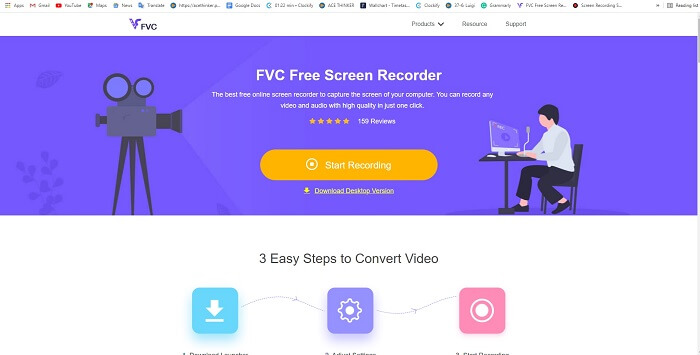
De beste manier om een moment te delen is het op te nemen, en de beste manier om een scène of actie op je scherm op te nemen is de FVC Free Screen Recorder. Deze open-sourcetool laat de gebruiker opnemen met behulp van internet. Als er een internetverbinding is, kun je deze tool gebruiken. Daarnaast ondersteunt hij de basisbestandsformaten, codecs enzovoort. Hoewel het een lichtgewicht online GIF-recorder is voor pc en Mac, biedt hij je de mogelijkheid onbeperkt en zonder watermerk op te nemen. Volg onderstaande stappen om te zien hoe je de tool gebruikt.
Stap 1. Klik op deze link om naar de hoofdwebpagina te gaan.
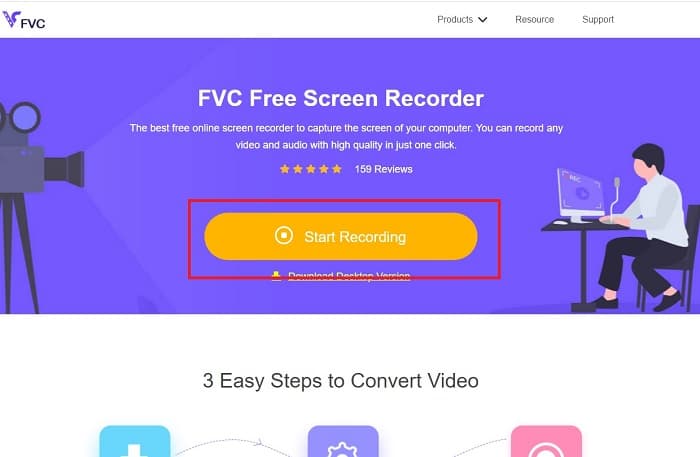
Stap 2. Een website als deze verschijnt op je scherm. Klik op Start Recording en vervolgens op Allow om de online tool te starten.
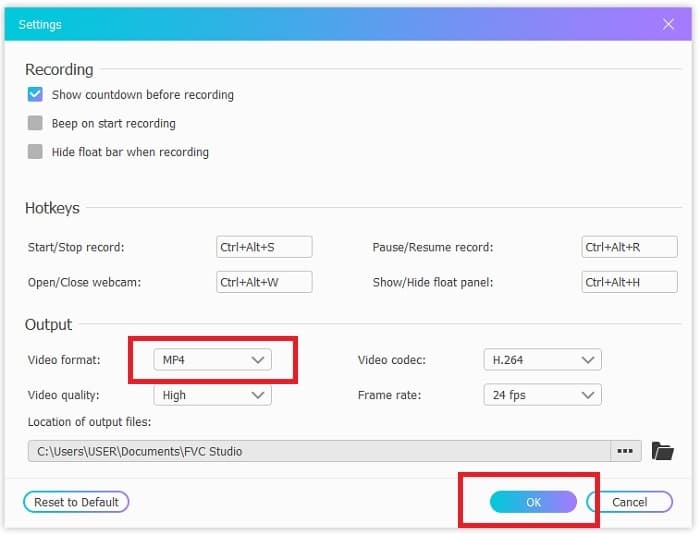
Stap 3. Er verschijnt een zwevende werkbalk op je scherm. Klik op het tandwielpictogram om naar de instellingen te gaan, wijzig het videoformaat en andere instellingen indien nodig. Klik op OK om de aanpassingen op te slaan.
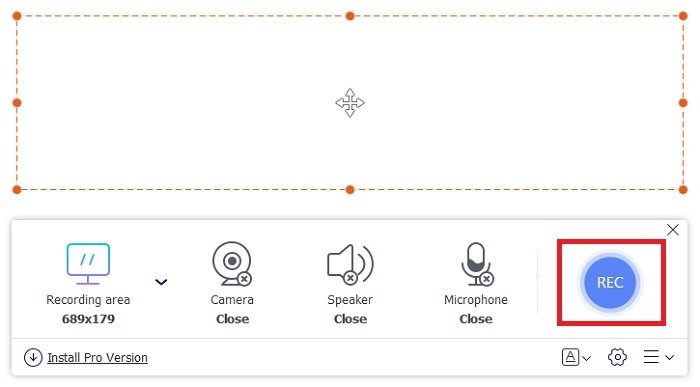
Stap 4. Pas het opnamedeel aan of klik op Full screen voor een volledig scherm. Speaker en microfoon worden niet gebruikt bij het maken van GIF’s, omdat er geen geluid is. Maar je kunt wel je gezicht toevoegen door de Webcam te openen. Als je klaar bent om met de opname te beginnen, klik je op de knop REC.
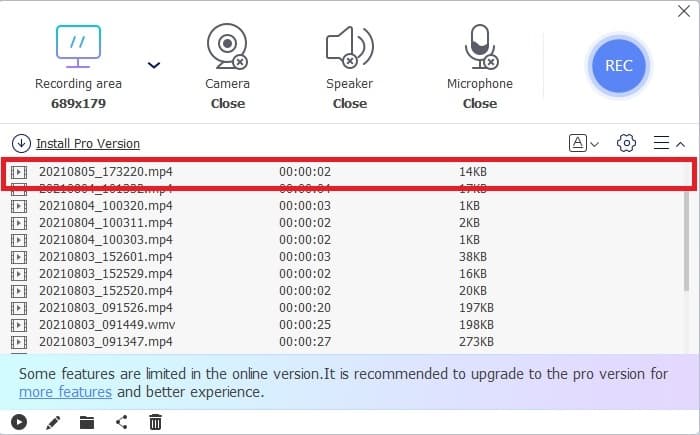
Stap 5. Klik op de vierkante knop om de opname te beëindigen. Je kunt de gemaakte opnames ook terugvinden in de geschiedenis.
2. FVC-schermrecorder
Als de gratis onlinetool van FVC je al kippenvel bezorgt, dan zal het installeren van deze beste GIF-recorder – FVC Screen Recorder – je pas echt de wowfactor geven waar je naar verlangt. Wat biedt deze tool dat zo indrukwekkend is? Hij is niet alleen bedoeld voor GIF-opnames. Hij biedt ook video- en audio-opname en geweldige gameplay-opnames. Maar dat zijn slechts bijkomende functies: hij kan daarnaast verschillende uitvoerformaten produceren zoals MP4, GIF, MOV en nog veel meer.
Een ander kenmerk ervan is de functie voor het vergrendelen van het scherm, dit is het unieke kenmerk van deze tool, zelfs een zwaargewicht recorder zoals Bandicam kan deze functie niet bieden. Neem op en maak een screenshot in een GIF-formaat zonder de tool zelf te tonen. FVC Screen Recorder geeft het pond voor pond koning in de opname. Dus wat u ook opneemt, deze recorder kan het opnemen. Om te weten hoe u deze tool moet gebruiken, volgt u deze eenvoudige stappen op weg naar het succes van GIF-opname.
Stap 1. Hier vind je het installatiebestand van de tool. Kies uit de twee beschikbare besturingssystemen. Installeer de tool op je harde schijf, pas de voorkeuren aan je wensen aan en klik op Finish om op te slaan.
Gratis downloadenVoor Windows 7 of nieuwerVeilig downloaden
Gratis downloadenVoor macOS 10.7 of nieuwerVeilig downloaden
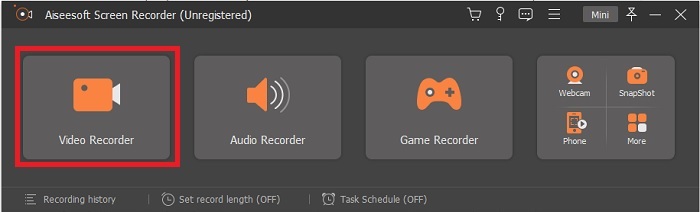
Stap 2. Kies de Video Recorder om op te nemen wat er op je scherm gebeurt. Andere beschikbare opties zoals de audiorecorder en gameplay-recorder zijn later zeker ook de moeite waard om te gebruiken.
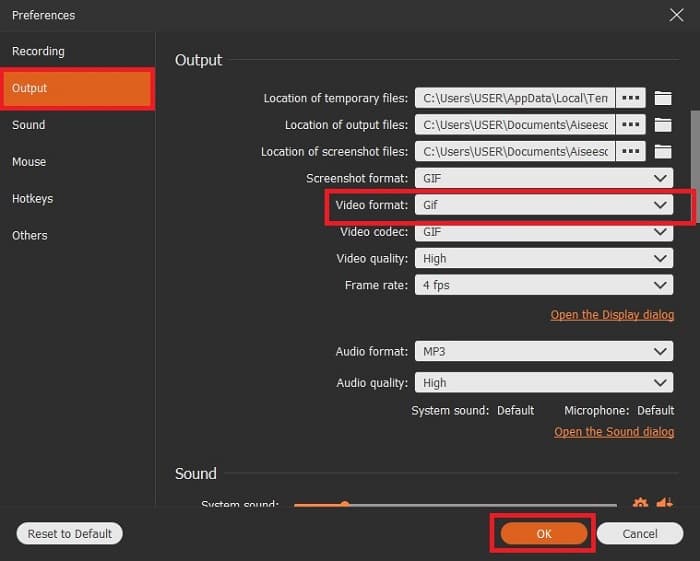
Stap 3. De zwevende werkbalk verschijnt op je scherm. Klik op de tandwielknop om naar de instellingen te gaan en wijzig onder Output het formaat naar GIF of een ander gewenst formaat. Klik op OK om de aanpassing op te slaan.
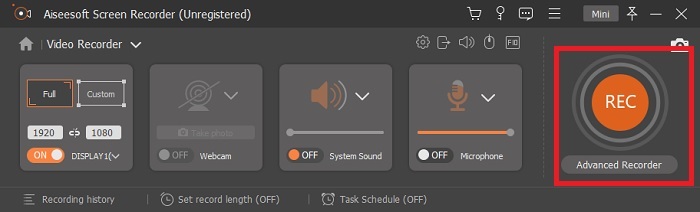
Stap 4. In de hoofdwerkbalk pas je de schermverhouding aan, of klik je op Full screen voor volledig scherm. Bij opnemen in GIF-formaat spelen systeemgeluid en microfoon geen rol. Je kunt echter wel de Webcam inschakelen om je reactie te laten zien. Als je klaar bent, klik je op de ronde knop om met de opname te beginnen.
Stap 5. Als de opname klaar is, kun je op de kubusknop klikken om te stoppen. Klik op Save en Next om de voortgang op te slaan. Om de GIF die je eerder hebt opgenomen te bekijken, klik je op het pictogram met de drie lijntjes; daarna verschijnt de opnamesgeschiedenis op je scherm.
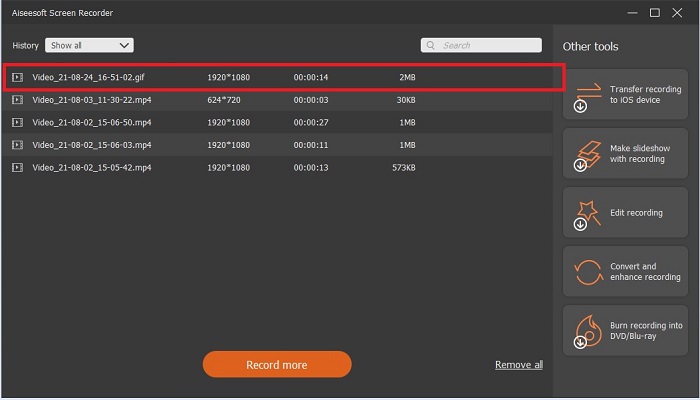
3. ScreenToGif
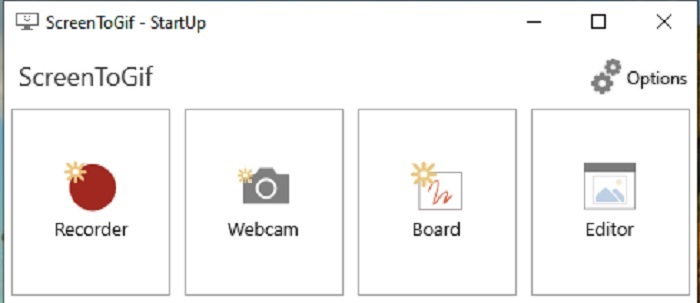
Deze tool is een downloadbare GIF-recorder voor Mac en pc en heeft twee verschillende versies: de Installer en de Portable. Kies welke van de twee je wilt downloaden. Houd er wel rekening mee dat je tijdens het gebruik van de tool soms kleine bugs kunt tegenkomen. Bovendien is het enige beschikbare formaat voor de uiteindelijke export .gif. Als je een ander formaat wilt, kan deze tool dat niet leveren. Maar hij is wel gratis te gebruiken, dus als je alleen GIF’s wilt opnemen, kun je deze tool gebruiken. De interface en de tools ogen echter wat eenvoudig, mede door de witte achtergrond. Het ziet er misschien wat saai uit, maar het doet wat het moet doen.
4. Gyazo
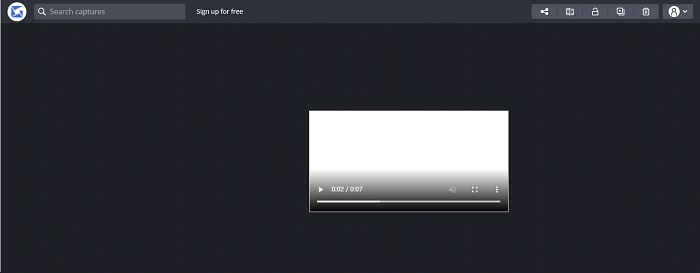
Dit is een van de beste GIF-recorders voor Windows. Gyazo is software die speciaal is ontwikkeld voor het opnemen van GIF’s. Na de installatie worden er automatisch drie tools op je opslag geïnstalleerd. Ze maken deel uit van het pakket, maar verschillen van elkaar in functie. Deze drie tools zijn Gyazo, Gyazo GIF en Gyazo Replay. Het opnemen van een GIF met Gyazo GIF is beperkt tot 7 seconden. Dus als je opname langer is dan 7 seconden, is dit niet de beste keuze. Ook wordt de opgenomen video niet automatisch op je computer opgeslagen. Er wordt een nieuw tabblad in je browser geopend en je moet het bestand daar downloaden. Het downloaden van de uiteindelijke output is afhankelijk van je internetverbinding, dus houd daar rekening mee.
5. Neem het op!
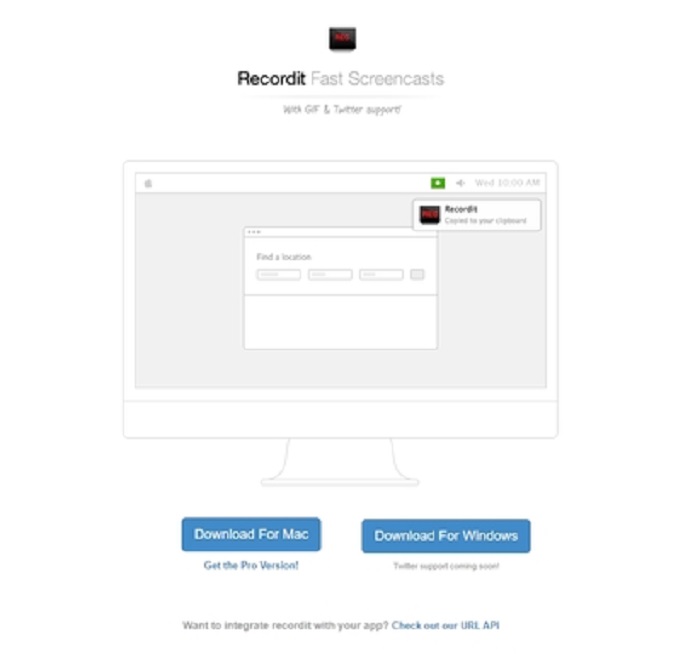
Een andere tool om GIF’s te maken is RecordIt!, de beste GIF-recorder voor Mac. Deze tool heeft ook een Windowsversie. Het probleem is echter de installatie. Na het doorlopen van alle stappen kun je problemen ondervinden bij het installeren van het programma. Dit is normaal, want als je de toepassingen in je systeem niet bijwerkt, wordt de tool niet gedownload. Er is wel een optie, maar die kan je computer in gevaar brengen: je kunt op ‘Ignore’ klikken om toch te downloaden en alle meldingen te negeren. Download dus op eigen risico; bovendien bevat de tool advertenties, en wees ook voorzichtig met deze advertenties, want sommige zijn niet beperkt of gefilterd. Daarnaast is er een pro-versie beschikbaar die de advertenties verwijdert en extra functies toevoegt.
Deel 3. Veelgestelde vragen over GIF Recorder
Kan ik GIF converteren naar een MOV-formaat?
Ja, je kunt GIF naar MOV-formaat converteren met behulp van een online video-omzetter zoals FVC Free Online Video Converter.
Wat zijn de verschillende soorten GIF's?
Er zijn 5 GIF's: de Replay GIF's, Reaction GIF, Cinemagraph, Perfect loop en de Technical GIF. Dit kunnen allemaal op animaties, video's en stickers zijn gebaseerd.
Wat zijn de andere alternatieven voor GIF's?
Ondanks de creatie van GIF's voor meer dan 30 jaar. Er zijn enkele concurrenten op internet die zowel films als GIF's maken. Dit zijn de beste alternatieven voor geanimeerde GIF's: APNG, WebP, AVIF, MNG en FLIF.
Gevolgtrekking
We zijn aan het einde gekomen; men zegt dat elk goed verhaal eindigt met een goede conclusie. Samenvattend laten GIF’s een expressieve emotie zien aan de ontvanger. Maar niet alle video’s die je leuk vindt, zijn al in GIF-formaat beschikbaar. In plaats van te wachten tot iemand er een GIF van maakt, waarom maak je er niet zelf een? Met behulp van de beste GIF-recorder, namelijk de FVC Screen Recorder. Deze tool stelt je in staat een GIF op te nemen en er je persoonlijke touch aan toe te voegen. Als je nog steeds twijfelt wat je moet gebruiken, lees dan de beste eigenschappen nog eens terug; al die eigenschappen zijn te vinden in de uitverkorene, de FVC Screen Recorder.
-
 [2 Oplossingen] Hoe u SWF-bestanden gemakkelijk en gratis kunt converteren naar GIF
 Als u de GIF-indeling niet kunt exporteren via Flash-software, kunt u proberen de bestanden eerst in SWF-indeling op te slaan. Dan kunt u in dit artikel 2 eenvoudige manieren leren om SWF naar GIF-bestanden te converteren.
-
 4 manieren om video's gratis samen te voegen op Windows / Mac / online
 Hier zijn 4 snelle manieren om video's samen te voegen tot een nieuwe video. Geen videobestandsgrootte of formaatlimiet. U kunt met succes deelnemen aan 2, 3, 4 en zelfs meer videoclips in verschillende formaten en resoluties.
-
 (2 oplossingen) Hoe WMV-video's gratis naar GIF-bestanden te converteren
 Als je de prachtige delen van de WMV-video's wilt knippen en er GIF's van wilt maken, kun je in dit artikel 2 eenvoudige methoden leren om WMV-video's naar GIF's over te zetten.
