


 Video Converter Ultimate
 Scherm opnemer
 Videoreparatie
Best toegankelijke GIF-naar-videoconverters op digitale apparaten [2021]
GIF is een bekende memegenerator voor Android- en iOS-apparaten. Ondanks deze reputatie accepteren sommige platforms, zoals Instagram en Twitter, dit type formaat niet. In plaats van GIF’s gebruikten we andere geldige formaten zoals MOV, MP4, AVI en meer. Toch kunnen we een GIF converteren en dezelfde kwaliteit behouden. Als je dus klaar bent om te gaan converteren en wilt weten wat de beste apps zijn om GIF‑video’s te maken, lees dan vooral verder in dit artikel om te bepalen welke tools je het best kunt gebruiken om GIF‑bestanden naar een nieuw videoformaat te converteren.

Deel 1. 2 Beste GIF naar Video Converter-applicaties voor iOS
1. GIF naar MP4
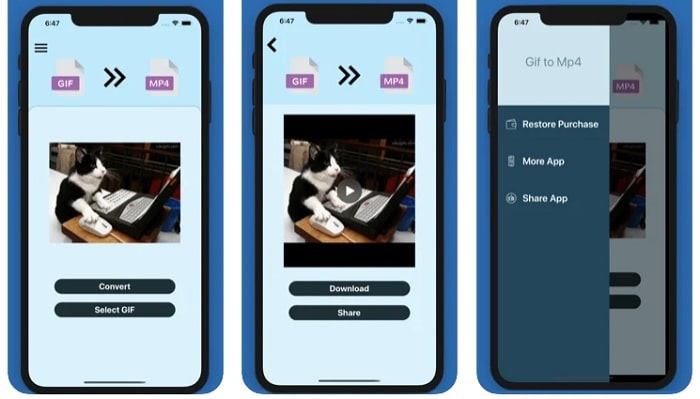
Je kunt deze app gebruiken om GIF‑video’s te maken op iOS. De GIF to MP4 heeft een beoordeling van 4,7 sterren, wat betekent dat dit een goede GIF‑converter is. De tool is erg gebruiksvriendelijk, waardoor je hem ook kunt gebruiken als je geen idee hebt hoe je moet converteren. Hoewel de app veel lof krijgt, is de klantenservice ronduit slecht. Er wordt niet gereageerd op opmerkingen van gebruikers om de tool te verbeteren. Als je dus een vraag hebt over deze app, kun je hieronder een reactie achterlaten, maar verwacht geen directe reactie.
2. GIF Cracker - GIF naar video
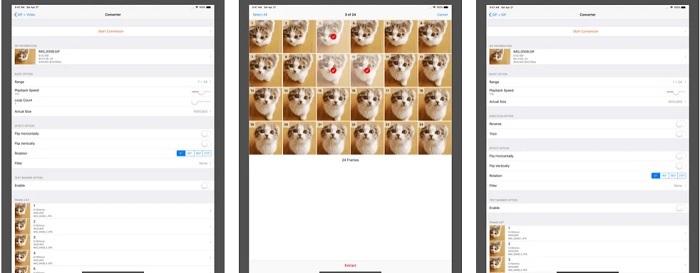
Een andere iOS‑tool die je kunt gebruiken om GIF naar elk gewenst videoformaat te converteren, is deze. GIF Cracker ondersteunt meer formaten dan de eerste app. Bovendien biedt hij GIF‑naar‑afbeelding‑conversie, zodat je er ook een JPG van je GIF mee kunt maken. Op het eerste gezicht lijkt de app perfect, maar eerlijk gezegd kampt hij ook met enkele bugs. Sommige kleine bugs zijn opgelost, maar niet allemaal. Je kunt echter de pro‑versie aanschaffen voor een betere ervaring.
Deel 2. 3 Beste GIF naar Video Converter-applicaties voor Android
1. GIF Maker - Video naar GIF, GIF-editor
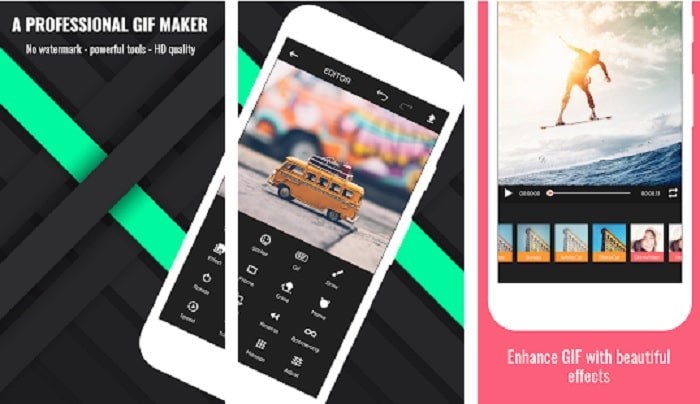
Je kunt deze app gebruiken om GIF‑video’s te maken. Maar niet alleen dat: hij ondersteunt ook bewerkingsfuncties, zodat je GIF’s kunt maken terwijl je op je telefoon werkt. Sommige belangrijke functies van desktop‑editors zijn niet beschikbaar in deze tool, omdat die te veel ruimte zouden innemen. Toch kun je met deze app je eigen originele GIF’s maken, want hij biedt meer dan 30 effecten, 20 fps per afbeelding, de mogelijkheid om emoji’s of tekst toe te voegen en video’s te trimmen. Er worden echter advertenties weergegeven in de app; om die te verwijderen moet je de app aankopen.
2. GIF naar video
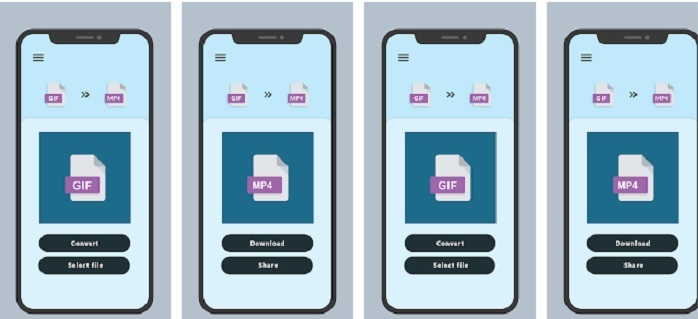
Een van de beste tools om GIF naar een nieuw formaat te converteren. Selecteer een GIF uit je galerij en converteer ze allemaal met behulp van deze GIF to VIDEO. Net als de eerste iOS‑tool hierboven biedt deze alleen conversie van GIF naar MP4. Maar je kunt GIF’s heel eenvoudig converteren met deze tool. De bediening is precies goed, dus je hoeft je geen zorgen te maken: de app richt zich uitsluitend op conversie. Bovendien heeft deze app onlangs een update gekregen van de ontwikkelaar, RAYO INNOVATIONS PRIVATE LIMITED.
3. GIF2VIDEO- trans GIF naar VIDEO
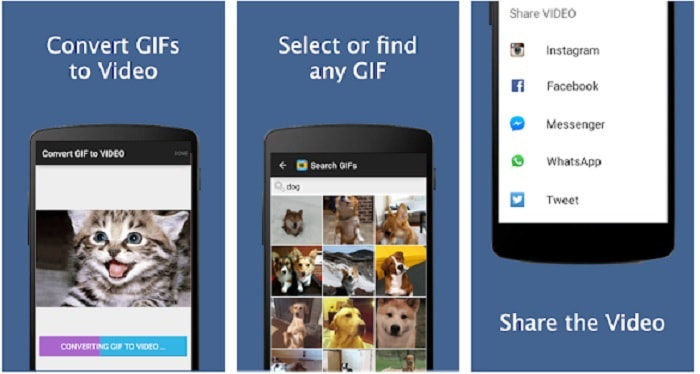
Converteer je GIF naar een nieuw videoformaat dat wél gedeeld mag worden op andere platforms. Daarnaast kun je je GIF gemakkelijk terugvinden via de zoekbalk met behulp van GIF2VIDEO. Ook kun je de video‑uitvoer eenvoudig instellen op 1:1 of 4:3. Hoewel de app zijn werk effectief doet, is de interface wat onder de maat. In sommige gevallen kun je geen GIF’s downloaden en als het wel lukt, gaat de kwaliteit achteruit.
Deel 3. Aanbevolen GIF naar Video Converter op Windows of Mac
Bijvoorbeeld als je een preciezere methode wilt hebben om te converteren en je eigen speciale touch aan de video wilt toevoegen. U kunt de Video Converter Ultimate-tool gebruiken die beschikbaar is op pc en Mac en het is een must om de stappen in de juiste volgorde te volgen.
Tegenwoordig staat vast dat mobiele telefoons soortgelijke functies hebben als minicomputers. Maar niet alle apps die je op je telefoon ziet, zijn beschikbaar op de computer, of omgekeerd. Video Converter Ultimate, een GIF‑naar‑video‑app voor de computer, is veel krachtiger dan welke converter dan ook die je in de Play Store of App Store vindt. Geen enkele mobiele software kan meer dan alleen converteren. Bovendien kun je de kwaliteit van je video en audio verbeteren, zowel tijdens het maken als achteraf. Als je dus wilt ervaren hoe krachtig deze tool is, moet je de onderstaande stappen nauwkeurig volgen. Ze zijn allemaal belangrijk om de perfecte conversie te maken die je wilt bereiken.
Stap 1. Download de tool op je computer. Pas de instellingen aan volgens je behoeften en klik op Voltooien om de aanpassingen op te slaan.
Gratis downloadVoor Windows 7 of nieuwerVeilige download
Gratis downloadVoor MacOS 10.7 of nieuwerVeilige download
Stap 2. Start het programma op je desktop. Klik op de knop Add Files om bestanden toe te voegen. Maar als je meer dan twee GIF’s hebt, is het makkelijker om ze via slepen‑en‑neerzetten naar de interface van de tool te verplaatsen.
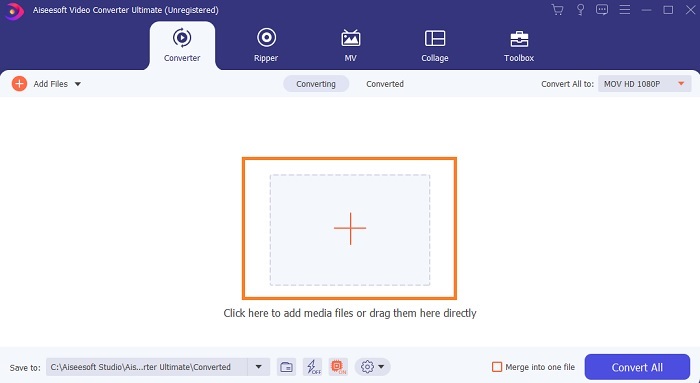
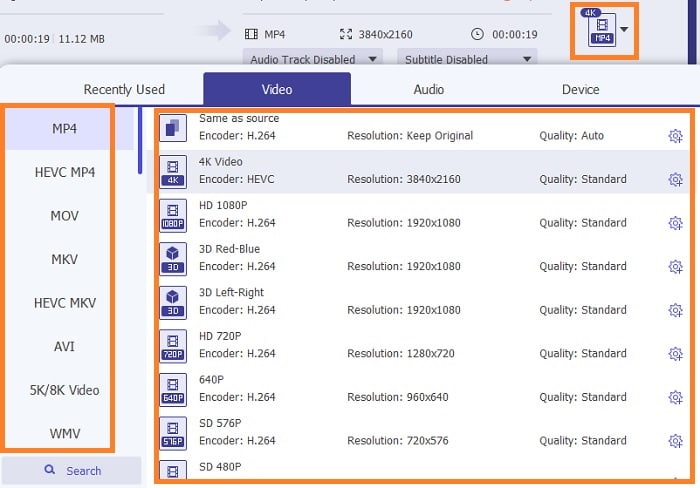
Stap 3. Kies het gewenste formaat in het vervolgkeuzemenu van Convert All to. Klik daarna op de knop Convert All om de conversie te starten.
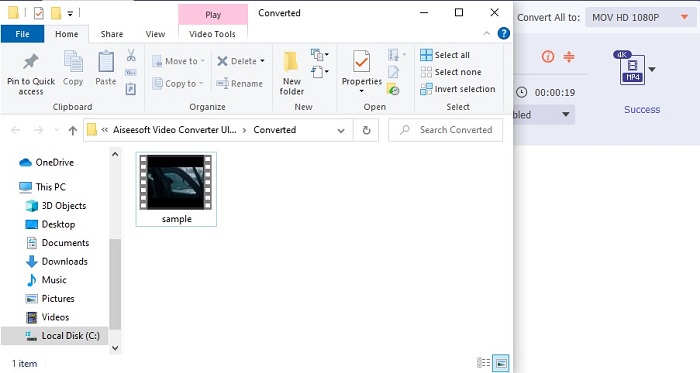
Stap 4. De conversie kost maar weinig van je tijd. Daarna kun je het bestand controleren en later naar je mobiele apparaat overzetten. Als dit allemaal gedaan is, ben je klaar en kun je genieten van de geconverteerde video die je zojuist hebt gemaakt.
Verder lezen
Deel 4. Veelgestelde vragen over de GIF to Video-app
Hoe hoog is de fps van een enkel GIF-bestand?
Sommige van de standaard GIF's kunnen oplopen tot 15 of 24 frames per seconde, maar vanwege de technologie kan het nu 30 tot 50 fps per GIF gaan, wat meer opslagruimte in beslag neemt als je ze naar je telefoon downloadt.
Wat zijn de verschillende soorten GIF's?
Als het je niet is opgevallen dat er 5 verschillende soorten GIF's zijn, zijn dit de: replay, reactie-GIF, bioscoopgrafiek, technische en de perfecte loop-GIF's.
Wat is de binnenkant van een GIF?
Alle GIF's bevatten een reeks afbeeldingsgegevens die een geanimeerde afbeelding kunnen zijn, korte clips over de films en een bewegende afbeelding als deze op internet staat.
Gevolgtrekking
Tot slot, alle gekozen tools in dit artikel zijn correct gekozen voor de gebruiker om te weten. Leren hoe je een GIF maakt, is een geweldig talent dat zelfs jij kunt doen als je toewijding hebt en als je de juiste tool gebruikt. Gebruik je bijvoorbeeld wel een hamer om een blikje te openen? Dus, als je een hamer gebruikt, open dan een blikje en haal eruit wat erin zit. De substantie op het blik is nu vernietigd. Net als bij het converteren, als je de verkeerde tool gebruikt, is er een grote kans dat de conversie mislukt. Kies dus de juiste tool voor de klus, zoals Video Converter Ultimate.
-
 [Gids] M4V-video's converteren naar geanimeerde GIF's op Windows/Mac
 Als je geanimeerde GIF-bestanden wilt maken van je favoriete M4V-video's, kun je leren over 2 eenvoudige en efficiënte manieren om M4V-video's naar GIF's te converteren met aangepaste instellingen.
-
 WebM naar GIF - 3 gratis WebM naar GIF-converters om uw eigen GIF's te maken
 Is WebM een GIF? Hoe maak je van een video een GIF? Is er een gratis WebM naar GIF-converter? Dit bericht deelt 3 gratis manieren om u te helpen WebM naar GIF te converteren.
-
 Hoe MKV-video's naar geanimeerde GIF's te converteren zonder Photoshop/FFmpeg
 Na het downloaden en bekijken van MKV-films op uw computer, wilt u misschien enkele prachtige momenten delen met vrienden of op internet als GIF's. In dit artikel leert u over de 2 gemakkelijkste manieren om MKV naar GIF te converteren.
