


 Video Converter Ultimate
 Scherm opnemer
 Videoreparatie
3 manieren om achtergrond toe te voegen aan foto online, op iPhone, Android en computer
Bij het bewerken van een foto moet je vaak de originele achtergrond verwijderen en er een andere achtergrond aan toevoegen. Voor een afbeelding met een transparante achtergrond kun je de achtergrond eenvoudig wijzigen met een afbeeldingseditor. In de meeste gevallen moet je echter eerst de huidige achtergrond verwijderen en daarna een nieuwe aan de foto toevoegen. Ben je op zoek naar een goede foto-editor‑app om een achtergrond aan een foto toe te voegen?
Dit bericht vertelt 3 effectieve methoden om een achtergrond aan een foto toe te voegen. Of u nu direct online een witte achtergrond aan een foto wilt toevoegen, een achtergrond aan een foto op een iPhone wilt toevoegen of de afbeeldingsachtergrond op een Android-apparaat wilt wijzigen, u kunt de specifieke methode volgen om dat te doen.

Deel 1. Hoe u gratis online een achtergrond aan een foto kunt toevoegen
Om snel een achtergrond aan een foto toe te voegen, kun je eerst enkele online foto-editors proberen. We raden je hierbij sterk de gebruiksvriendelijke Free Background Remover Online aan, waarmee je de originele achtergrond van je foto kunt verwijderen en er een andere achtergrond aan kunt toevoegen. Deze gratis tool voor het wijzigen van afbeeldingsachtergronden ondersteunt alle veelgebruikte bestandsindelingen zoals JPG, PNG, GIF en meer. Hij biedt je een eenvoudige manier om een witte achtergrond aan een foto toe te voegen of de huidige achtergrond door een andere afbeelding te vervangen.
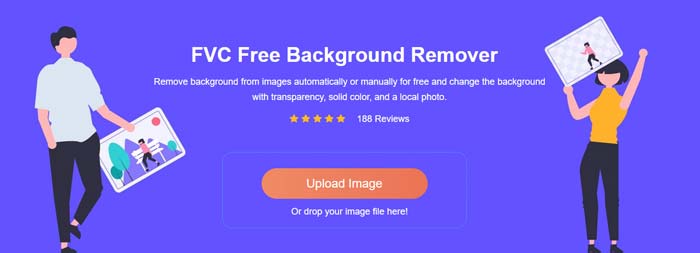
Stap 1. Open je webbrowser, zoals Chrome, Safari, Yahoo, IE of Firefox, en ga naar deze gratis website voor het wijzigen van fotobackgrounds. Zodra je op de pagina bent, kun je eenvoudig op de knop Upload Portrait klikken om je foto te selecteren en toe te voegen voor verdere bewerking.
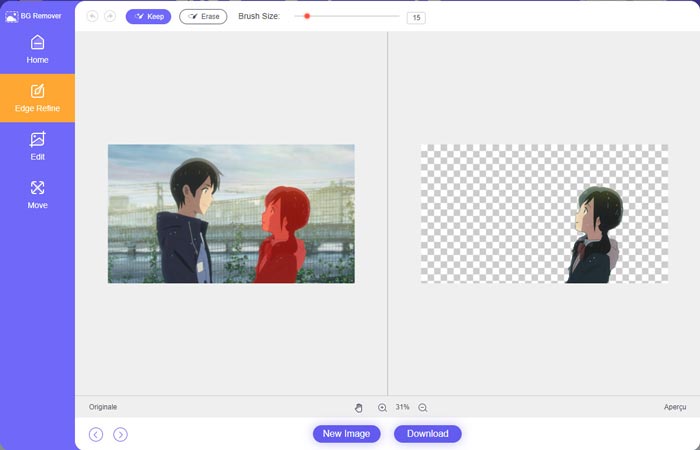
Stap 2. Met geavanceerde AI‑technologie wordt het hoofdobject van je geüploade foto automatisch geselecteerd. Vervolgens kun je de functie Keep or Erase gebruiken voor verdere bewerkingen.
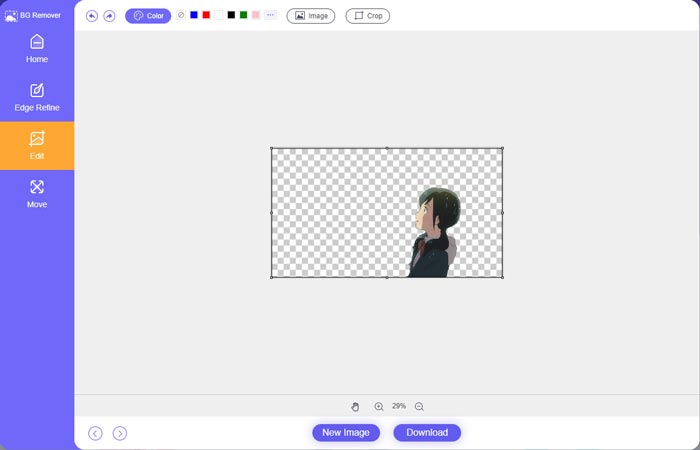
Stap 3. Klik links op de optie Edit en kies daarna of je de achtergrondkleur wilt wijzigen of een achtergrond aan de foto wilt toevoegen. Tijdens deze stap kun je ook de functie Crop gebruiken om het afbeeldingsformaat naar wens aan te passen.
Stap 4. Nadat je een geschikte achtergrond aan de foto hebt toegevoegd, kun je op de knop Download klikken om deze op je computer op te slaan. Je bewerkte afbeeldingsbestand wordt standaard in PNG‑indeling opgeslagen.
Deel 2. Een achtergrond aan een foto toevoegen met Adobe Photoshop
Adobe Photoshop is een van de beroemdste afbeeldingseditors met veel functies waarmee u afbeeldingen, aangepaste effecten en andere bewerkingen kunt bewerken. Als je Photoshop op je computer hebt geïnstalleerd, kun je ervoor kiezen om in Photoshop een achtergrond aan de foto toe te voegen.
Stap 1. Open de Photoshop‑software op je computer en voeg je foto eraan toe. Je kunt de nieuwste versie van Photoshop gratis downloaden van de officiële Adobe‑website. Let op dat Adobe slechts een gratis proefperiode van 7 dagen biedt om Photoshop te gebruiken.
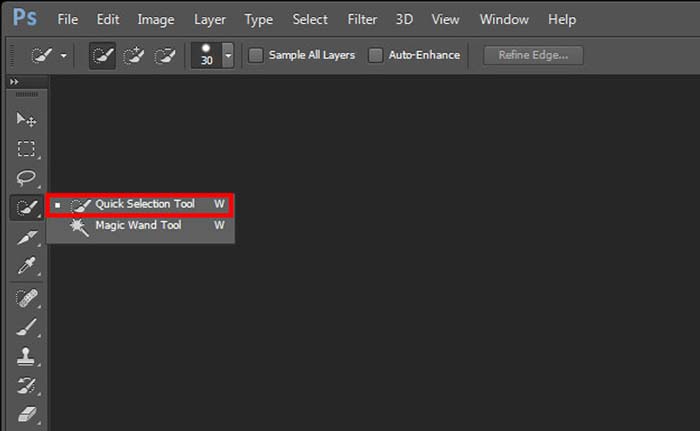
Stap 2. Wanneer je foto in Photoshop is geladen, kun je op het pictogram van de Quick Selection Tool or Magic Wand Tool in de gereedschapsbalk links klikken om de achtergrond te selecteren die je wilt wijzigen.
Stap 3. Nadat je de fotoachtergrond hebt geselecteerd, kun je er met de rechtermuisknop op klikken en de optie Fill kiezen. Nu kun je eenvoudig een witte achtergrond aan de foto toevoegen of de achtergrond wijzigen in een andere kleur, zoals zwart, blauw, grijs of een andere gewenste kleur.
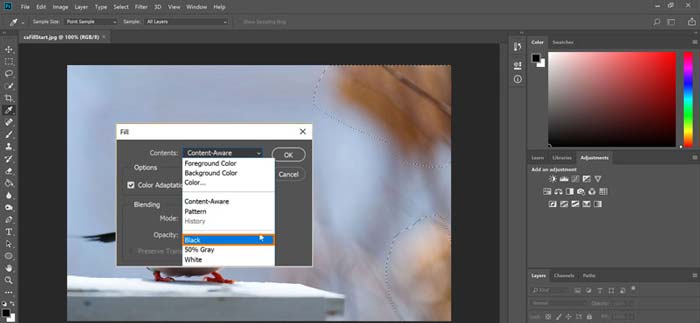
Stap 4. Als je een nieuwe afbeelding als achtergrond wilt toevoegen, moet je eerst de geselecteerde achtergrond verwijderen. Je kunt op de Delete‑toets van je toetsenbord drukken om de huidige achtergrond te verwijderen. Vervolgens kun je het afbeeldingsbestand aan Photoshop toevoegen en de laag daarvan onder de achtergrondlaag slepen. Op die manier kun je de originele achtergrond eenvoudig door een nieuwe afbeelding vervangen.
Stap 5. Nadat je in Photoshop een achtergrond aan een foto hebt toegevoegd, kun je bovenaan op het menu File klikken en vervolgens de optie Save As kiezen in de vervolgkeuzelijst. Selecteer de juiste afbeeldingsindeling voor deze foto en sla hem op je computer op.
Deel 3. Een achtergrond toevoegen aan een foto op iPhone en Android-telefoon
Als u achtergrond wilt toevoegen aan een foto op een iPhone, iPad of Android-telefoon, moet u een goede app voor het bewerken van afbeeldingen voor de achtergrond vinden.
LightX is een complete foto-editor‑app voor zowel iOS‑ als Android‑gebruikers. Hij biedt een handige manier om ongewenste achtergronden te verwijderen, nieuwe achtergronden aan foto’s toe te voegen, verschillende effecten toe te passen, hoogwaardige selfies te maken en meer, rechtstreeks op je telefoon. In de LightX‑app zijn veel geavanceerde fotobewerkingshulpmiddelen beschikbaar, zoals kleurmenging, aangepaste fotosaturatie, contrast, tint, curven en meer. Je kunt de app downloaden uit de App Store of Google Play Store.
Stap 1. Installeer en open de LightX‑app op je iPhone, iPad of Android‑telefoon. Geef deze app toestemming om toegang te krijgen tot de foto’s op je apparaat. Voeg je foto toe voor verdere achtergrondbewerking.
Stap 2. Om de huidige fotoachtergrond te verwijderen en te vervangen door iets anders, kun je naar links vegen om veel verschillende opties te laten verschijnen. Onder Creative kun je de functie Cutout kiezen om een achtergrond aan de foto toe te voegen. Je moet nu handmatig het hoofdobject selecteren en de originele achtergrond wissen.
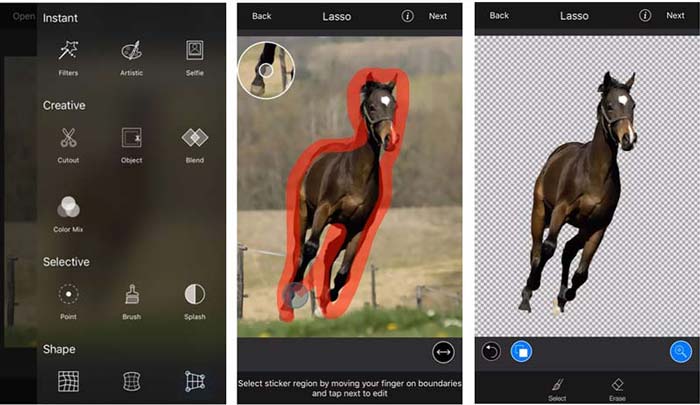
Stap 3. Nadat je de achtergrond hebt verwijderd, kun je rechtsboven op Next tikken om verder te gaan. Daarna kun je met de functie Crop de foto bijsnijden. Tik op Done om je bewerking te bevestigen. Daarna kun je onderaan op BG Image tikken om een andere achtergrond aan de foto toe te voegen. Je kunt de effecten van de nieuwe achtergrond vrij aanpassen naar eigen wens.
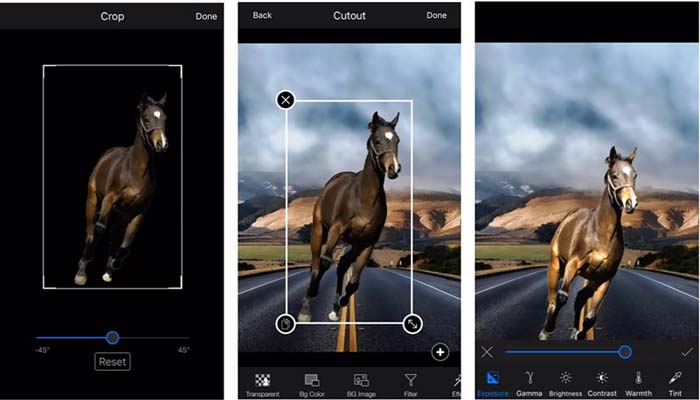
Of je nu een iOS- of Android-apparaat gebruikt, je kunt vergelijkbare stappen volgen om een achtergrond aan een foto toe te voegen met de LightX-app. Houd er rekening mee dat u als iOS-gebruiker $3,99 moet betalen voor deze app voor het toevoegen van achtergronden. Als u een Android-gebruiker bent, kunt u deze installeren vanuit de Google Play Store. Voor het upgraden naar een premium-versie moet u dezelfde prijs betalen.
Gerelateerd:
Wat is videoresolutie: diepgaand inzicht in resolutie & meer
6 favoriete geanimeerde Snapchat-filters op Snapchat
Deel 4. Veelgestelde vragen over het toevoegen van een achtergrond aan een foto
Hoe voeg ik een andere achtergrond toe aan een foto op mijn Mac?
Je kunt de eerste twee methoden gebruiken om eenvoudig de achtergrond van je foto op een Mac te wijzigen. Naast de aanbevolen Free Background Remover Online en Adobe Photoshop kun je ook andere afbeeldingseditors gebruiken om een nieuwe achtergrond aan je foto toe te voegen.
Hoe verander je de achtergrond op een iPhone?
iOS biedt een eenvoudige manier om de achtergrond op een iPhone of iPad te wijzigen. U kunt naar de app Instellingen gaan, op de optie Achtergrond tikken en vervolgens op Een nieuwe achtergrond kiezen tikken.
Kan ik een achtergrond toevoegen aan een live foto op mijn iPhone?
Nee. iPhone biedt je geen directe manier om de achtergrond van een live foto te wijzigen. Je mag het alleen bijsnijden, filters toepassen, effecten aanpassen en het veranderen in een stilstaand beeld.
Gevolgtrekking
Dit bericht deelt 3 handige methoden om achtergrond aan een foto toe te voegen. Wanneer u de originele foto-achtergrond moet verwijderen en er een nieuwe aan moet toevoegen, kunt u de gewenste afbeeldingseditor selecteren om dat te doen.
-
 Top 3 manieren om filters toe te voegen aan GIF met de beste GIF-editors [favoriet]
 Wil je weten hoe je een filter aan GIF kunt toevoegen om het beter te maken? In deze blog leer je eenvoudig de verschillende technieken om filters toe te voegen aan je GIF's.
-
 3 eenvoudigste manieren om online en offline een watermerk aan een GIF toe te voegen
 Het toevoegen van een watermerk aan een GIF kan zo eenvoudig zijn als 1-2-3 als u de juiste tool correct gebruikt. De tools in de markt zijn te breed, maar we zullen de drie tools presenteren waarop u kunt vertrouwen.
-
 5 beste manieren om afbeelding te veranderen in geanimeerde GIF [Bijgewerkt 2022]
 Een converterafbeelding naar GIF nodig? Dit artikel biedt de vijf beste converters die we op de markt kunnen vinden. Laten we deze tools dus ontdekken door dit artikel te lezen.
