


 Video Converter Ultimate
 Scherm opnemer
 Videoreparatie
 Beveiligde download
Meest uitstekende manieren om een afbeelding te vergroten om af te drukken
Een afbeelding vergroten kan op twee manieren. Je kunt een foto vergroten door hem te upscalen of door het aantal pixels van je afbeelding te verhogen. Een andere manier om een afbeelding te vergroten is door de daadwerkelijke grootte of afmetingen van een foto aan te passen. In deze handleiding laten we je deze twee manieren zien om een foto te vergroten. Afhankelijk van je behoeften krijg je zeker antwoord op je vraag. Lees deze handleiding om te leren hoe je een afbeelding kunt vergroten voor print, online en offline gebruik.

Deel 1. Afbeelding vergroten zonder kwaliteit te verliezen Online voor afdrukken
Het klinkt ingewikkeld als je voor het eerst hoort over het vergroten van een kwaliteit van een afbeelding. Maar na het lezen van dit bericht zal het zeker gemakkelijk voor je zijn. Er zijn tal van toepassingen die u kunnen helpen uw foto te vergroten. Maar het probleem is dat er zoveel zijn dat het moeilijk is om er een te kiezen. Gelukkig hebben we een applicatie gevonden waarmee je eenvoudig en gratis een afbeelding kunt vergroten.
FVC Free Image Upscaler is een geweldige online toepassing om foto’s te vergroten. Het voordeel van online toepassingen is dat je ze niet hoeft te downloaden, waardoor je opslagruimte bespaart. Je kunt je afbeelding met deze online tool vergroten met een factor 2x, 4x, 6x of 8x. Daarnaast wordt er gebruikgemaakt van een AI-upscalingtechnologie die automatisch de delen van een afbeelding met lage kwaliteit detecteert en deze vervolgens verbetert.
Ook kunnen beginners deze applicatie gemakkelijk gebruiken omdat deze een intuïtieve gebruikersinterface heeft. Bovendien heeft het een voorbeeldeffect waarmee u de resultaten van uw uitvoer kunt controleren voordat u deze opslaat. FVC Free Image Upscaler is gratis te gebruiken in alle webbrowsers, zoals Google, Firefox en Safari.
Een afbeelding vergroten om af te drukken met FVC Free Image Upscaler
Stap 1. Ga naar je webbrowser en zoek in de zoekbalk naar FVC Free Image Upscaler. Je kunt ook op deze link klikken om direct naar de hoofdpagina te gaan.
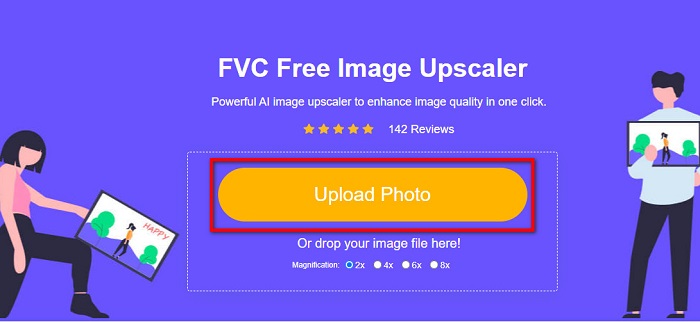
Stap 2. Klik in de hoofdinterface op de knop Upload Photo om de afbeelding toe te voegen die je wilt vergroten. Je kunt je afbeelding ook uploaden via slepen-en-neerzetten.
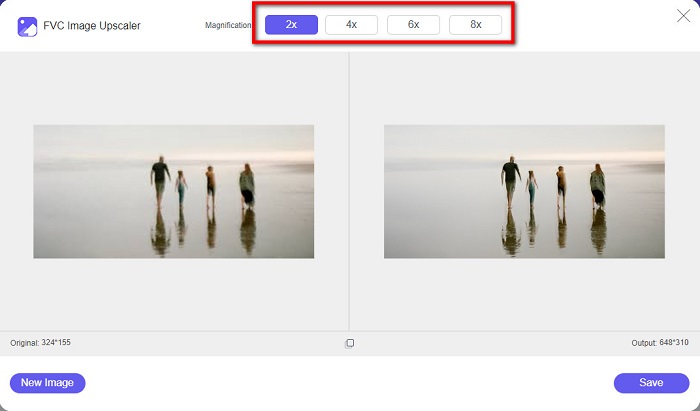
Stap 3. Zodra je bestand is geüpload, word je naar een andere interface geleid. Selecteer daar de vergrotingsfactor die je voor je afbeelding wilt. Je kunt kiezen tussen 2x, 4x, 6x en 8x. Hoe lager de kwaliteit van je afbeelding, hoe hoger de vergroting die je moet kiezen.
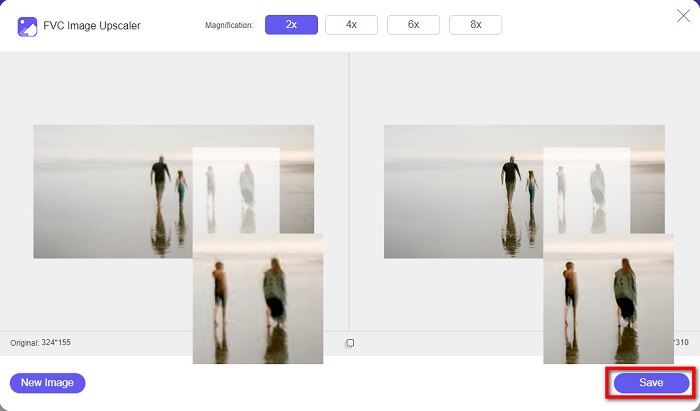
Stap 4. Beweeg je cursor over de linkerafbeelding om het resultaat van je vergroting te bekijken. Zie je de veranderingen? Klik op de knop Save rechtsonder in de interface om je resultaat op je apparaat op te slaan.
En dat zijn de eenvoudige stappen voor het vergroten van een foto om online af te drukken met FVC Free Image Upscaler. Makkelijk als taart, toch? Maar als u een foto wilt vergroten door de afmetingen van uw afbeelding te wijzigen, lees dan het volgende deel.
Deel 2. Een afbeelding vergroten in Photoshop zonder kwaliteitsverlies
U bent deze toepassing waarschijnlijk tegengekomen bij het zoeken naar het vergroten van een foto. En Adobe Photoshop is de meest vooraanstaande toepassing voor het bewerken van foto's op internet. Adobe Photoshop wordt voornamelijk gebruikt door professionals die vaak afbeeldingen bewerken om op verschillende platforms te publiceren. Met de tools en functies van deze applicatie kun je zeker verbazingwekkende resultaten produceren. Maar wist je dat je een afbeelding ook kunt vergroten met Adobe Photoshop? Ja, je leest het goed. Het is ook een geschikt hulpmiddel om foto's uit te breiden zonder kwaliteitsverlies. Met Adobe Photoshop kunt u uw afbeelding vergroten door de resolutie te wijzigen of handmatig de breedte en hoogte van uw afbeelding in te voeren. Hoewel Adobe Photoshop een professionele app is, is de vergrotingsfunctie eenvoudig te gebruiken. Dit zijn zonder verder oponthoud de stappen om een afbeelding verliesloos te vergroten met Photoshop.
Stap 1. Download om te beginnen Adobe Photoshop op je computer. Het is beschikbaar voor vrijwel alle besturingssystemen, zoals Windows en macOS. Zodra de toepassing op je apparaat is geïnstalleerd, importeer je de afbeelding die je wilt vergroten.
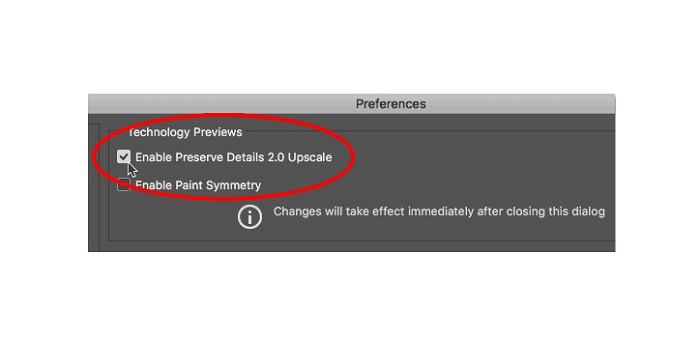
Stap 2. Schakel vervolgens Preserve Details 2.0 in. Als je een Windows-computer gebruikt, ga je naar het paneel Edit in de Menu Bar. Als je een Mac gebruikt, ga je naar het menu Photoshop CC, kies je Preferences en klik je op de knop Technology Previews. Hierdoor wordt het venster Preferences geopend bij de optie Technology Previews. Vink het vakje naast Enable Preserve Details 2.0 Upscale aan. Klik daarna op OK om het dialoogvenster voor Technology Previews te sluiten.
Stap 3. Open vervolgens het dialoogvenster Image Size door naar het menu Image te gaan en de optie Image Size te selecteren.
Stap 4. Wanneer we een afbeelding in Photoshop vergroten of upscalen, willen we de fysieke afmetingen van de afbeelding aanpassen, of met andere woorden, pixels toevoegen of verwijderen. Zorg er daarom voor dat Resample is geselecteerd.
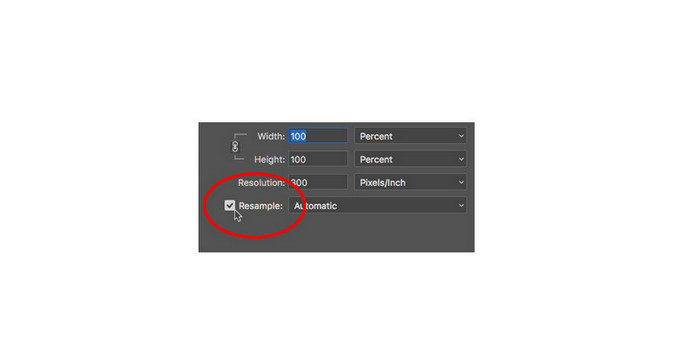
Stap 5. Verander daarna de height en width van je foto door je gewenste afmetingen voor je afbeelding in te voeren. Standaard zijn breedte en hoogte aan elkaar gekoppeld, dus als je de breedte van je afbeelding wijzigt, past de hoogte zich automatisch aan.
Stap 6. Wijzig tot slot de Resample Method in Preserve Details 2.0. De standaard Resample Method staat ingesteld op Automatic. Maar Photoshop zal Preserve Details 2.0 niet kiezen wanneer Resample op Automatic staat. Verander daarom de optie Resample door op Automatic te klikken en vervolgens Preserve Details 2.0 te selecteren.
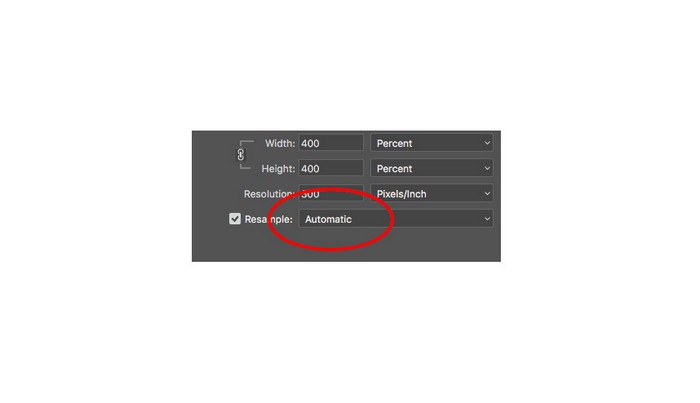
Stap 7. Nu is het tijd om de resultaten te bekijken. Nadat je Preserve Details 2.0 hebt geselecteerd, wordt het voorbeeldvenster links bijgewerkt en zie je hoe je opgeblazen afbeelding eruit zal zien. Sleep je afbeelding met je muis binnen het voorbeeldvenster om verschillende delen van je afbeelding te bekijken.
Door deze stappen te volgen, zult u zeker leren hoe u een foto kunt vergroten om af te drukken zonder kwaliteitsverlies.
Gerelateerd aan:
Top 7 beste online en offline tools om foto’s te vergroten
Top 4 offline en online GIF-vergroters die je niet mag missen
Deel 3. Veelgestelde vragen over het vergroten van afbeeldingen zonder kwaliteitsverlies
Kan ik de JPG-bestandsgrootte online vergroten?
Je kunt de bestandsgrootte van je JPG-afbeelding wijzigen met FVC Free Image Upscaler. Verhoog gewoon de vergroting naar 6x of 8x om de grootte van je JPG-afbeelding te vergroten.
Ondersteunt Adobe Photoshop PNG-bestanden?
Ja. PNG-bestanden worden door veel platforms ondersteund, waaronder Adobe Photoshop. U kunt bijna alle afbeeldingsbestandsindelingen importeren met Adobe Photoshop, zoals PNG, JPG, JPEG, BMP en WebP.
Heeft het vergroten van mijn afbeelding invloed op de bestandsgrootte?
Ja dat doet het. De bestandsgrootte van uw afbeelding neemt toe omdat u het totale aantal pixels van uw afbeelding of het aantal pixels per inch aanpast. Maar de bestandsgrootte wordt ook kleiner als u de breedte en hoogte van uw afbeelding verlaagt.
Gevolgtrekking
En dat zijn de methoden om een afbeelding te vergroten zonder kwaliteitsverlies. Met beide methoden, online of offline, kun je je afbeelding vergroten zonder de kwaliteit aan te tasten. Maar als je een eenvoudigere manier wilt om een afbeelding te vergroten, raden we aan om FVC Free Image Upscaler te gebruiken, een gebruiksvriendelijke toepassing.
-
 Het formaat van een afbeelding in Illustrator wijzigen op 2 verschillende manieren
 Leer de beste manieren om het formaat van een afbeelding in Illustrator te wijzigen. Download en open om te beginnen de Adobe Illustrator-app op uw pc en volg deze eenvoudige stappen.
-
 6 manieren om een afbeelding op het web en offline te wijzigen [100% werkt]
 Met de zelfstudie die we hier toevoegen, kunt u nu eenvoudig het formaat van een afbeelding wijzigen op basis van uw gewenste grootte. Leer hier hoe je het doet!
-
 De beste manieren om het formaat van foto's op uw iPhone gratis en zonder installatie te wijzigen
 Het formaat van een foto op je iPhone aanpassen kan moeilijk te leren zijn. Gelukkig biedt dit artikel een zelfstudie over hoe u eenvoudig de afmetingen van afbeeldingen kunt wijzigen.
