


 Video Converter Ultimate
 Scherm opnemer
 Videoreparatie
 Beveiligde download
3 efficiënte methoden om MP4 met gemak naar AMV te converteren op uw Windows en Mac
Wanneer u enkele grote MP4-video's naar uw smartphone wilt sturen, zoals een grote film, is er mogelijk niet genoeg opslagruimte. Om MP4 naar AMV-bestanden te converteren, kunt u het geavanceerde compressie-algoritme gebruiken om een veel kleinere video te krijgen. Of je de video's nu online moet converteren, of de video's met een bepaalde grootte moet aanpassen en bewerken, je kunt in het artikel meer leren over de 3 meest efficiënte MP4 naar AMV-converters.

Deel 1: Hoe MP4 online naar AMV te converteren
Als je eenvoudig een simpele MP4 naar AMV wilt converteren, is FVC Free Online Video Converter een veelzijdige online videoconverter die compatibel is met MP4, AMV, AVI en veel andere bestandsindelingen. Je kunt er bovendien de video‑ en audio-instellingen mee aanpassen en zelfs bestanden zonder watermerk of andere beperkingen converteren.
- 1. Converteer MP4 naar AMV, AVI, MKV en meer andere video's met originele kwaliteit.
- 2. Pas de framesnelheid, videokwaliteit, videocodec, audiokwaliteit en meer aan.
- 3. Zorg voor een eenvoudige gebruikersinterface om de AMV-bestanden in slechts 3 stappen te converteren.
- 4. Het is een veilige en stabiele methode om de bestanden zonder watermerk te converteren.
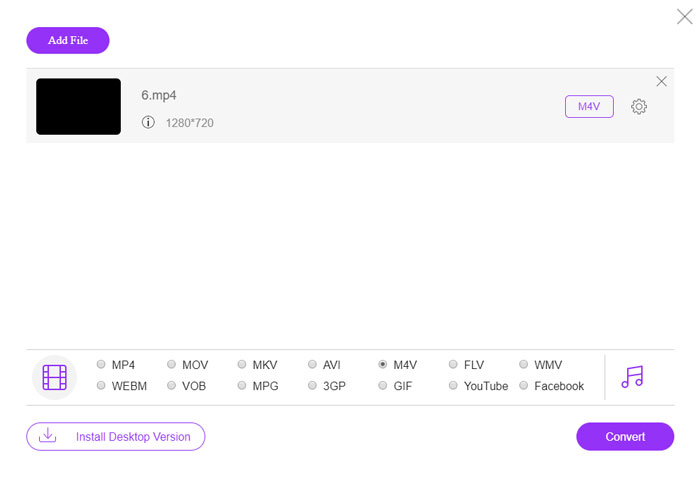
Stap 1. Ga in een willekeurige browser naar de online MP4-naar-AMV-converter; je kunt op de knop Add File to Convert klikken om de videoconverter de eerste keer te installeren. Je kunt ook de MP4-bestanden in het programma laden.

Stap 2. Kies AMV als uitvoerformaat onderaan. Natuurlijk kun je ook de video- en audio-instellingen aanpassen, zoals video-encoder, videoresolutie, videobitrate, framerate en meer om de gewenste video te krijgen.

Stap 3. Daarna kun je op de knop Convert klikken om MP4 overeenkomstig naar AMV te converteren. Het duurt slechts enkele seconden om het gewenste bestand te krijgen, waarna je de video vervolgens naar je smartphone kunt overzetten.
Deel 2: MP4 naar AMV converteren met VLC Media Player
VLC Media Player is een van de meest populaire MP4 naar AMV-converters. Het biedt ook enkele basisfuncties voor het converteren en bewerken van video's. Bovendien kunt u na conversie ook een voorbeeld van de output AMV-video bekijken. Bekijk gewoon het gedetailleerde proces zoals hieronder.
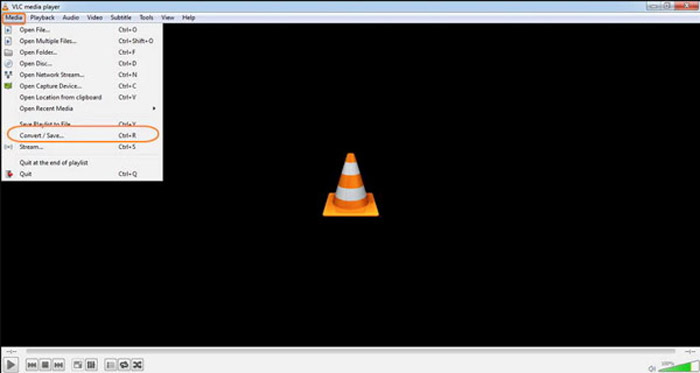
Stap 1. Open VLC Media Player op je computer, ga naar het menu Media en kies de optie Convert/Save. Klik op de optie Add rechts van de lijst File Selection op het tabblad File en blader naar de MP4-bestanden.
Stap 2. Klik op de knop Convert/Save om verder te gaan. Ga in het venster Convert naar de instellingen waar je AMV als uitvoerformaat kunt selecteren. Klik op de knop Edit Selected Profile om de video- en audio-instellingen aan te passen.
Stap 3. Klik op de optie Browse en kies een locatie en bestandsnaam voor het uitvoerbestand. Daarna kun je op de knop Start klikken om MP4-bestanden overeenkomstig op je computer naar AMV te converteren.
Deel 3: beste methode om MP4 met gemak naar AMV te converteren
FVC Video Converter Ultimate is een alles-in-één MP4-naar-AMV-converter voor zowel Windows als Mac. Hij zet niet alleen videoformaten om, maar stelt je ook in staat verschillende video- en audioparameters aan te passen, ondertitels/audiotracks toe te voegen en zelfs de geconverteerde videobestanden eenvoudig te bewerken.
- 1. Converteer MP4 naar AMV en meer andere videoformaten met originele kwaliteit.
- 2. Pas de framesnelheid, videokwaliteit, bitsnelheid, videocodec en meer aan.
- 3. Bied meerdere videobewerkingsfuncties om te roteren, knippen, filters aan te passen, enz.
- 4. Geavanceerde hardwareversnelling om de video met 70x hogere snelheid te converteren.
Gratis downloadVoor Windows 7 of nieuwerVeilige download
Gratis downloadVoor MacOS 10.7 of nieuwerVeilige download
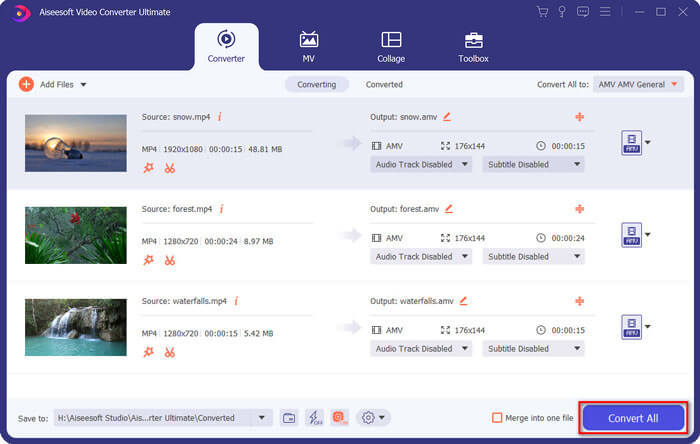
Stap 1. Download en installeer de MP4-naar-AMV-converter en start het programma op je computer. Kies de knop Convert en klik op de optie Add File om de MP4-bestanden te laden, of sleep meerdere MP4-bestanden direct naar dit programma.

Stap 2. Klik op het formaatpictogram aan de rechterkant van het videobestand en kies AMV als uitvoerformaat. Je kunt ook op het Gear-pictogram klikken om de video- en audio-instellingen aan te passen, of zelfs de video te bewerken/filters aan te passen.

Stap 3. Zodra je tevreden bent met de uitvoer-AMV, bijvoorbeeld wat betreft de videomaat, kun je op de knop Convert All klikken om de MP4-naar-AMV-conversie te starten. Daarna kun je de AMV-bestanden naar een ander apparaat overzetten.
Deel 4: Veelgestelde vragen over het converteren van MP4 naar AMV-bestanden
1. Wat is het AMV-bestandsformaat?
Het AMV-bestand staat bekend als het Anime Music Video-bestand. Het wordt meestal gebruikt door draagbare mediaspelers uit en in China. Het AMV-videoformaat is bedoeld voor lage resolutie, met een videoresolutie tussen 94x64 en 160x120. Wanneer u MP4 naar AMV converteert, kunt u met gemak meer video's naar uw smartphone sturen.
2. Hoe speel ik AMV-bestanden af op een smartphone en computer?
Hoe speel je de videobestanden op je smartphone of computer af als je MP4 naar AMV-bestanden converteert? Eigenlijk kun je AMV gewoon nemen als een variant van het AVI-formaat, dat op de meeste mediaspelers werkt. Als u de AMV-bestanden op uw iOS-apparaten moet afspelen, kunt u in plaats daarvan VLC Media Player of een andere mediaspeler gebruiken.
3. Wat zijn de verschillen tussen AMV en MP4?
MP4 is een van de meest gebruikte videoformaten die kunnen worden gebruikt voor online streamingdiensten en apparaten. AMV is een variant van Motion JPEG, met vaste in plaats van variabele kwantisatietabellen. Wanneer u MP4 naar AMV converteert, kunt u de video comprimeren en meer opslagruimte besparen, vooral voor het overbrengen van de video's naar apparaten.
Gevolgtrekking
Wat is de beste keuze om MP4 naar AMV te converteren? Leer gewoon meer details over de beste methoden uit het artikel. Als u de video's online moet converteren en comprimeren zonder extra software, is FVC Free Online Video Converter de ultieme oplossing waarmee u rekening kunt houden.
-
 AVI VS MP4 - wat beter is (kwaliteit / compressie / bestandsgrootte ...)
 Wat is een beter videoformaat, AVI of MP4? Als u een gedetailleerde vergelijking wilt, kunt u dit AVI VS MP4-artikel raadplegen. U kunt de verschillen en overeenkomsten tussen AVI en MP4 in veel aspecten kennen.
-
 Top 10 MP4 Player-software voor Windows en Mac (gratis en betaald)
 Lees en haal uw beste MP4-speler uit de aanbevelingen van de 10 nieuwste MP4-videospelersoftware. U kunt MP4-videobestanden soepel en zonder vertraging afspelen op Windows en Mac.
-
 Hoe MP4 naar WMV voor Mac / Windows te converteren
 Dit bericht laat zien hoe je MP4-video naar WMV-indeling converteert op Mac of Windows. We bieden u ook verschillende opties, waaronder zowel desktopsoftware als webgebaseerde online converters. Klaar om de beste MP4 naar WMV-conversietools te kennen?
