


 Video Converter Ultimate
 Scherm opnemer
 Videoreparatie
 Beveiligde download
Veelgebruikte methoden om Xvid naar MP4 online en offline te converteren
Ondervindt u problemen bij het afspelen van uw Xvid‑video’s? Dan hebben wij de beste oplossingen voor u. De beste oplossing is om uw Xvid‑bestanden te converteren naar andere populaire formaten, zoals MP4. Op die manier krijgt u geen problemen meer bij het streamen van uw video’s. In dit artikel laten we u een gratis Xvid-naar-MP4-converter zien die u kunt gebruiken. Met deze tool kunt u uw videobestanden eenvoudig en direct omzetten. Als dit onderwerp uw interesse heeft gewekt, lees dan de volgende delen en benut uw tijd om iets nieuws te leren!

Deel 1: de eenvoudigste manier om Xvid naar MP4 te converteren op Mac en Windows
Gebruik Video Converter Ultimate om Xvid naar MP4 te converteren. U kunt deze converter zowel op een Mac als op een Windows‑computer gebruiken. Hij zet bestanden 30 keer sneller om dan andere converters. Bovendien kunt u dankzij de batchconversie meerdere Xvid‑bestanden naar één MP4‑formaat converteren. Met deze functie kunt u bestanden gemakkelijk en snel omzetten. Andere videoformaten die door dit programma worden ondersteund zijn onder andere AVI, FLV, MKV, MOV, VOB, WMV, M4V en meer dan 100 andere. Hij is beschikbaar voor zowel Xvid‑ als MP4‑gebruikers. Daarnaast kan deze converter dankzij de gebruiksvriendelijke interface en eenvoudige conversiemethoden worden gebruikt door zowel beginners als gevorderde gebruikers. Lees de extra functies hieronder om te weten wat u kunt verwachten wanneer u Video Converter Ultimate gebruikt.
Functies
◆ Converteer verschillende videobestandsindelingen, zoals Xvid, MP4, DIVX, M4V, FLV, AVI, MKV, WMV, SWF en meer.
◆ Converteer meerdere videobestanden tegelijk.
◆ Het biedt een supersnel conversieproces, dat 30x sneller is dan andere converters.
◆ Biedt tools voor videobewerking, waaronder een videoverbeteraar, compressor, trimmer, cropper, reverser, enz.
Volg de gedetailleerde stappen hieronder om Xvid naar MP4 op uw Mac of Windows te converteren met FVC Video Converter Ultimate.
Stap 1: Download Video Converter Ultimate op uw Mac of Windows‑computer door op de Downloaden-knop hieronder te klikken. Start daarna het programma zodra de installatie is voltooid.
Gratis downloadVoor Windows 7 of nieuwerVeilige download
Gratis downloadVoor MacOS 10.7 of nieuwerVeilige download
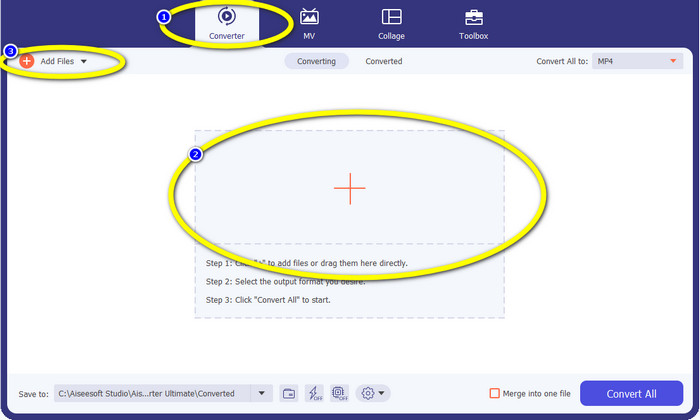
Stap 2: Zodra de interface op uw scherm verschijnt, kiest u de optie Converter en klikt u op het +‑pictogram om het Xvid‑bestand toe te voegen. Een andere manier om een videobestand toe te voegen is door op de knop Bestanden toevoegen te klikken.
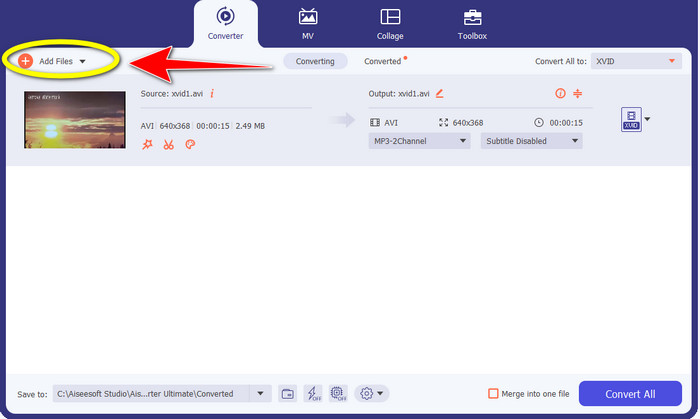
Stap 3: Met deze toepassing kunt u meerdere bestanden converteren. Om dus nog een Xvid‑video toe te voegen die u wilt converteren, klikt u linksboven in de interface op de knop Bestanden toevoegen.
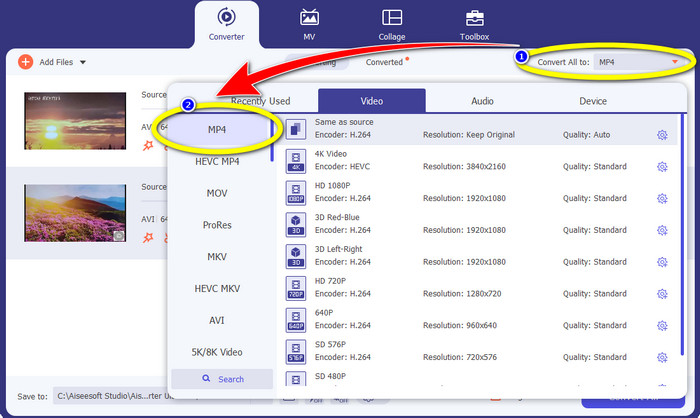
Stap 4: Klik vervolgens op de knop Alles converteren naar om ze naar één MP4‑bestand om te zetten. Kies het MP4-bestand uit de formaatopties en selecteer de gewenste videokwaliteit.
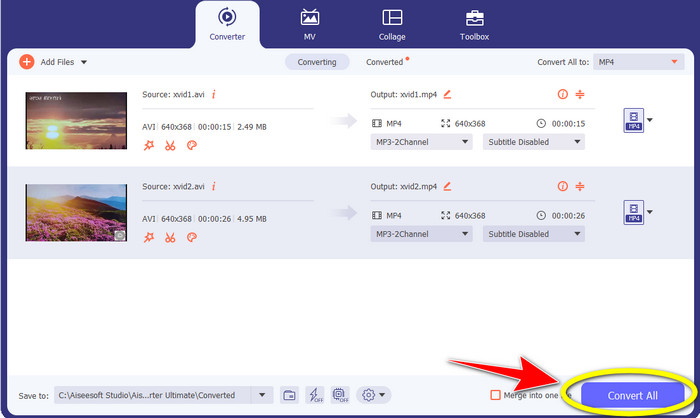
Stap 5: Nadat u het gewenste uitvoerformaat hebt gekozen, kunt u het conversieproces starten door op de knop Alles converteren te klikken. Sla daarna uw MP4‑video op uw apparaat op.
Deel 2: Xvid converteren naar MP4 op VLC
In dit deel leert u hoe u Xvid naar MP4 kunt converteren in VLC. Ter aanvullende informatie: de VLC Media Player kan, naast het afspelen van video’s, ook meerdere videobestanden converteren. Het ondersteunt videoformaten zoals MP4, TS, WEM, OGG en meer. Bovendien kan het audiobestanden converteren zoals MP3, FLAC enzovoort. In dit geval is VLC ook een betrouwbare toepassing voor het omzetten van verschillende bestanden. Deze software is echter niet zo geschikt voor beginners. De interface is lastig te begrijpen, waardoor het gebruik ingewikkelder wordt. Ook kost het veel tijd om het op uw computer te downloaden en te installeren.
Stap 1: Download en installeer de VLC Media Player op uw computer. Start vervolgens het programma.
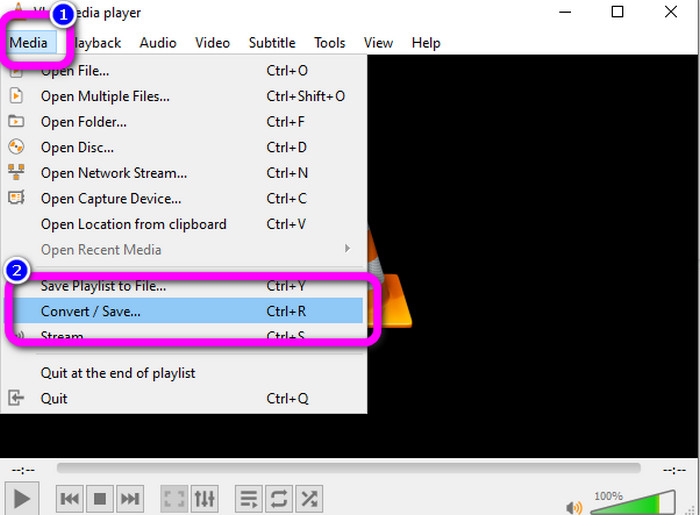
Stap 2: Ga naar het bovenste gedeelte van de interface en kies de optie Media. Klik daarna op de knop Converteren/Opslaan.
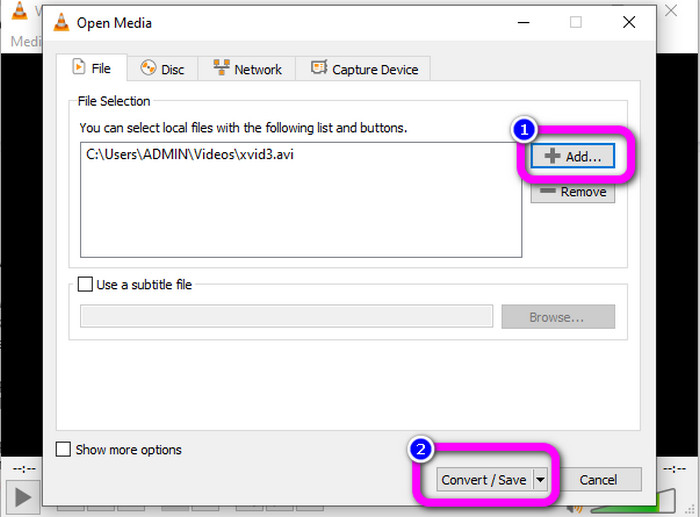
Stap 3: Druk op de knop Toevoegen om het Xvid‑videobestand te importeren. Wanneer het bestand is toegevoegd, klikt u op de knop Converteren/Opslaan.
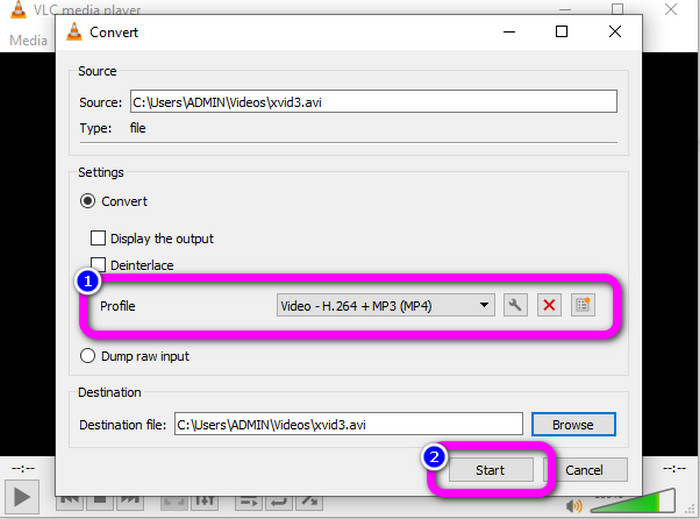
Stap 4: Klik voor de laatste stap op Profiel om de formaatopties te bekijken en selecteer het MP4‑bestandsformaat. Stel uw doelbestand in en ga verder met het conversieproces door op de knop Start te klikken.
Deel 3: Eenvoudige stappen om Xvid naar MP4 te converteren op Handbrake
Handbrake is een andere offline tool waarop u kunt vertrouwen bij het converteren van uw Xvid-bestand naar MP4-indeling. Deze tool biedt ook een batchconversieproces, waarbij u alleen een map hoeft in te voegen die uit meerdere video's bestaat en deze in één keer hoeft te converteren. Het is echter niet gemakkelijk te gebruiken. Veel opties zijn verwarrend voor beginners. Volg de eenvoudige gids hieronder om Xvid naar MP4 te converteren met een handrem.
Stap 1: Download HandBrake op uw computer. Start het programma nadat de installatie is voltooid.
Stap 2: Open de knop Bestand om het Xvid‑videobestand toe te voegen.
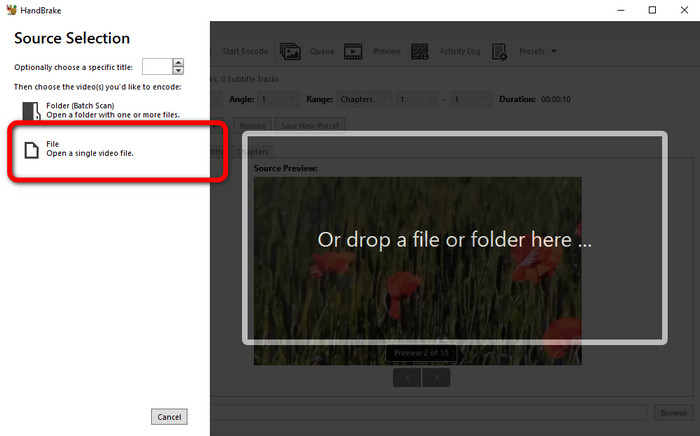
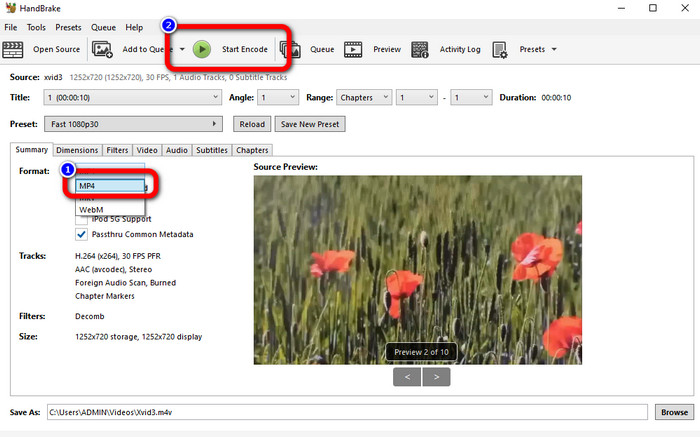
Stap 3: Ga naar de optie Format en selecteer het MP4‑bestandsformaat. Klik daarna op de knop Start Encode om uw Xvid‑bestand naar MP4 te converteren.
Deel 4: proces om Xvid online naar MP4 te converteren
FVC Free Video Converter Online is een uitstekende tool om Xvid online naar MP4 te converteren. Het biedt een gebruiksvriendelijke interface die perfect is voor beginners. U kunt bestanden in slechts drie eenvoudige stappen omzetten. Daarnaast kunt u ook meerdere bestanden tegelijk converteren, omdat het een batchconversieproces ondersteunt. Deze tool ondersteunt diverse videoformaten, zoals FLV, AVI, MKV, WMA, MOV, VOB en meer. Als u FVC Free Video Converter Online wilt gebruiken, volgt u de eenvoudige instructies hieronder.
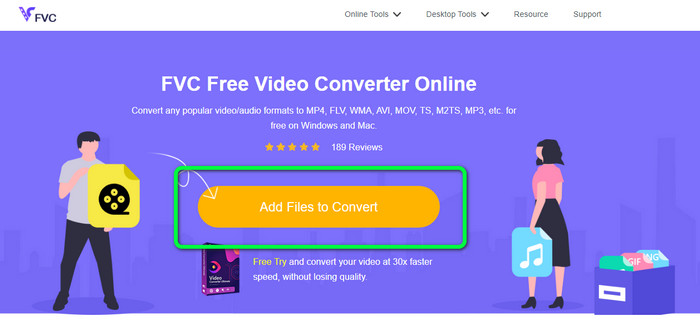
Stap 1: Ga naar de website van FVC Free Video Converter Online. Klik op de hoofdpagina op de knop Bestanden toevoegen om te converteren om het Xvid‑videobestand te uploaden dat u wilt omzetten.
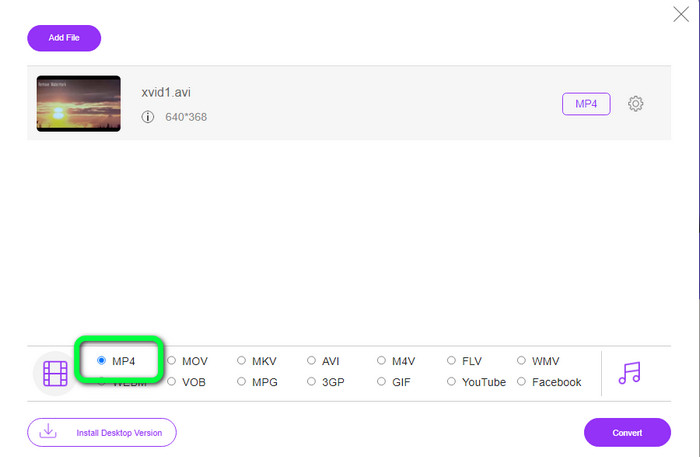
Stap 2: Onderaan de interface ziet u de formaatopties. Selecteer MP4 als uw uitvoerbestandsformaat.
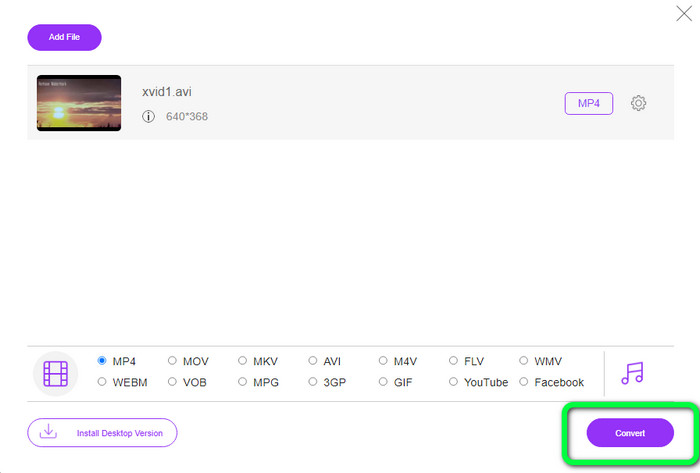
Stap 3: Klik op de knop Converteren om uw Xvid‑bestand naar MP4 om te zetten. Wacht tot het conversieproces is voltooid en sla vervolgens uw definitieve video op.
Deel 5: geweldige methode om Xvid naar MP4 te converteren met Android
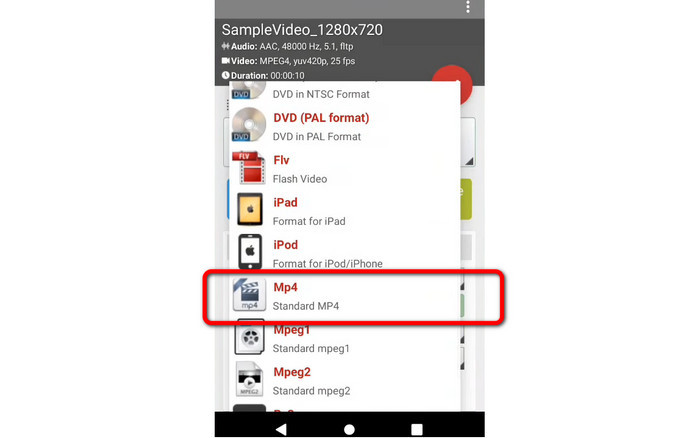
Als u een Xvid-naar-MP4‑converter voor Android wilt, kunt u Video Format Factory gebruiken. Met deze toepassing kunt u een videobestand eenvoudig naar andere formaten omzetten. Het converteren van uw video’s kost echter veel tijd, omdat het conversieproces traag is. Zie de onderstaande stappen om Xvid naar MP4 te converteren.
Stap 1: Download en installeer Video Format Factory op uw Android‑apparaat.
Stap 2: Selecteer na het starten van de toepassing de optie Video om het Xvid‑bestand toe te voegen.
Stap 3: Kies de optie Converteren en selecteer het MP4‑formaat uit de formaatopties. Start vervolgens het conversieproces door op het Vinkje te klikken.
Verder lezen:
Eenvoudige methoden om Xvid naar DivX te converteren
Uitstekende technieken om XviD snel naar 3GP te converteren
Deel 6: Veelgestelde vragen over het converteren van Xvid naar MP4
1. Wat is het Xvid-bestandsformaat?
Het Xvid-bestandsformaat is een videocodec volgens de MPEG-4-coderingsstandaard. Deze codec comprimeert videobestanden met behulp van het MPEG-4 Part 2 A SP-formaat.
2. Is Xvid van goede kwaliteit?
Ja. Dit bestand is de voortzetting van Project Mayo. Het doel is om een hoogwaardige open-source MPEG-4-codec te ontwikkelen.
3. Is MP4 gecomprimeerd?
Ja dat is zo. Er bestaat een gecomprimeerd MP4-bestand. Er kunnen verschillende videocodecs in een MP4-bestand worden opgenomen. Tot de meest populaire videocodecs voor MP4 behoren H.264, H.265 en MPEG-4. Met H.264-compressie kan een video van een uur worden gecomprimeerd tot ongeveer 1 GB met behulp van de MP4-videocodec.
Gevolgtrekking
Met alle bovenstaande informatie weet u nu hoe u Xvid naar MP4 kunt converteren: online, offline en met Android‑apparaten. Maar de beste converters die u kunt gebruiken zijn Video Converter Ultimate en FVC Free Video Converter Online. Deze twee converters bieden u een intuïtieve interface die geschikt is voor alle soorten gebruikers.
-
 Hoe MPG naar M4V op Mac te converteren en de online tool te gebruiken
 Ben je een nieuwe Mac-gebruiker en weet je niet hoe je MPG naar M4V moet converteren? Dan kun je dit artikel lezen om meer te weten en te ontdekken hoe je bestanden converteert met je Mac
-
 Succesvolle methoden om DIVX meteen naar MP4 te converteren
 Hoe converteer ik DIVX naar MP4? Als u op zoek bent naar de beste oplossing, bent u in het juiste artikel. We laten u zien hoe u eenvoudig DIVX naar MP4 kunt converteren
-
 Hoe F4V naar MP4 te converteren met de meest effectieve methoden
 Zijn je F4V-video's niet van een mooie kwaliteit? Maak er dan een MP4-bestand van. Dit bericht biedt de beste manier om F4V naar MP4 online en offline te converteren
