


 Video Converter Ultimate
 Scherm opnemer
 Videoreparatie
 Beveiligde download
Hoe PDF-bestanden te comprimeren voor e-mail 3 effectieve manieren om te kiezen
Inderdaad, het verzenden van grote bestanden via e‑mail kan lastig zijn. Het kan je zelfs problemen opleveren of helemaal niet worden afgeleverd. Bovendien beperken veel e‑mailproviders bijlagen tot een bepaalde bestandsgrootte, wat je met een complexe PDF al snel overschrijdt. Dit geldt vooral voor PDF’s met veel afbeeldingen of zeer lange documenten. Om dit te omzeilen, grijpen de meeste mensen naar services voor het delen van bestanden, zoals Dropbox of Google Drive. Toch vergeten ze bijna een handig trucje, namelijk bestandcompressie. Er zijn veel gratis online tools die dit kunnen, en sommige zijn behoorlijk populair. Maar hoe een PDF voor e‑mail comprimeren op een effectieve manier? Dat is wat je nu gaat leren als je de onderstaande inhoud verder leest.

Deel 1. Wat is de beste PDF-grootte voor e-mail?
Dit is een feit: er is geen magisch getal voor de ideale PDF-grootte voor e-mails. Waar u op moet letten, is de bijlagelimiet van uw e-mailplatform. Populaire services beperken bijlagen tot ongeveer 20 MB, wat verrassend eenvoudig te bereiken kan zijn, vooral bij PDF's die veel afbeeldingen bevatten of erg lange documenten zijn. Als uw PDF dus groter is dan de genoemde limiet van 20 MB, wordt uw e-mail waarschijnlijk niet verzonden en krijgt u een foutmelding. Dat gezegd hebbende, in plaats van te streven naar een specifieke grootte of de beste PDF-grootte voor e-mail, is het beter om het zekere voor het onzekere te nemen en het onder de 20 MB te houden. Op die manier kunt u erop vertrouwen dat het succesvol wordt bijgevoegd en verzonden.
Deel 2. Eén klik om PDF-bestanden te comprimeren voor e-mail
Hier is een snelle en handige manier om bestanden voor e‑mail te comprimeren. Maak kennis met deze gratis tool genaamd FVC Free PDF Compressor, die je forse PDF‑bestanden kan verkleinen zonder ze te beschadigen. Omdat de meeste e‑maildiensten slechts bijlagen van rond de 20 MB toestaan, bereiken PDF’s met afbeeldingen of veel tekst dat limiet al snel. Met deze compressor kun je je PDF veel kleiner maken, zelfs tot onder de 100 kilobyte! Je hoeft je geen zorgen te maken over hoe hij PDF’s zo drastisch verkleint voor e‑mail, want de kwaliteit van de bestanden blijft behouden. Sterker nog, je zult waarschijnlijk nauwelijks verschil zien tussen het origineel en de verkleinde versie.
Bovendien is deze geweldige tool supergemakkelijk te gebruiken en kan iedereen met enige mate van expertise het gebruiken. Het enige wat u hoeft te doen is het PDF-bestand naar het programma te slepen en neer te zetten, en het verkleint het automatisch. Vervolgens kunt u met slechts één klik de kleinere PDF op uw computer opslaan. Op deze manier kunt u PDF snel online comprimeren naar e-mailformaat tot een formaat dat perfect is om te e-mailen of uploaden, zonder watermerken op het uiteindelijke document. Bekijk de gedetailleerde richtlijnen hieronder voor een beter begrip van het proces.
Stap 1. Klik in de hoofdinterface op het tabblad Add PDF File en kies het PDF‑bestand dat je wilt comprimeren.
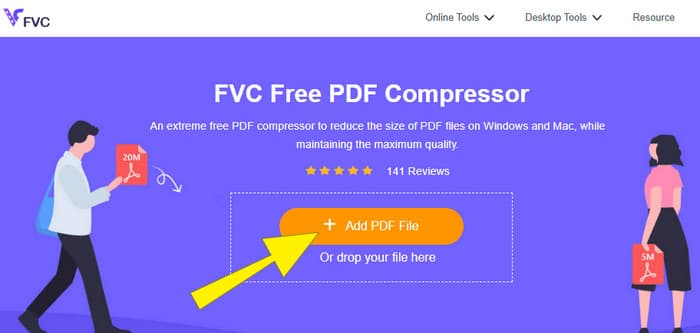
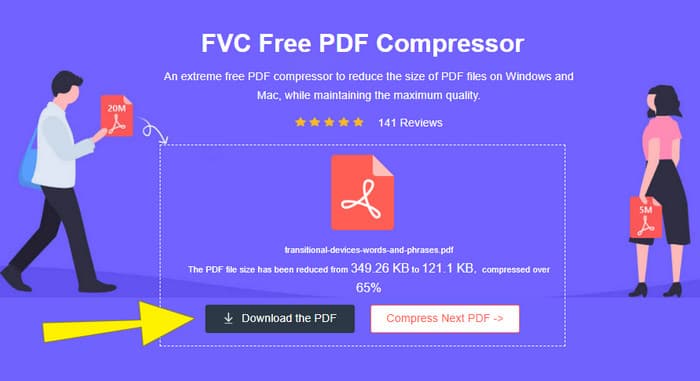
Stap 2. Terwijl het PDF‑bestand wordt geüpload, werkt de tool tegelijkertijd aan de compressie.
Stap 3. Klik, zodra het klaar is, op de knop Download the PDF.
Deel 3. PDF-bestanden comprimeren voor e-mail met bewerkingsfuncties
Als je liever een tool gebruikt met bewerkingsfuncties, dan is Adobe Acrobat precies wat je nodig hebt. Adobe Acrobat is een programma dat bekendstaat om het maken, bewerken en beheren van PDF‑bestanden. Het is als een krachtige gereedschapskist die speciaal is ontworpen voor het werken met PDF’s. Een van de handige functies is PDF‑compressie, die je kunt gebruiken wanneer je een omvangrijke PDF hebt die door de groottebeperking niet in je e‑mail past. Adobe Acrobat, dat zowel een online als een desktopversie heeft, kan je helpen grote PDF‑bestanden voor e‑mail te comprimeren zonder de kwaliteit al te veel aan te tasten. Dit doet het op verschillende manieren, bijvoorbeeld door de grootte van afbeeldingen in de PDF te verkleinen of onnodige lettertypen te verwijderen. Maar zoals je van Adobe en zijn pakketten mag verwachten, is de leercurve vrij steil. Daarom vind je hieronder de stappen om het proces te vergemakkelijken.
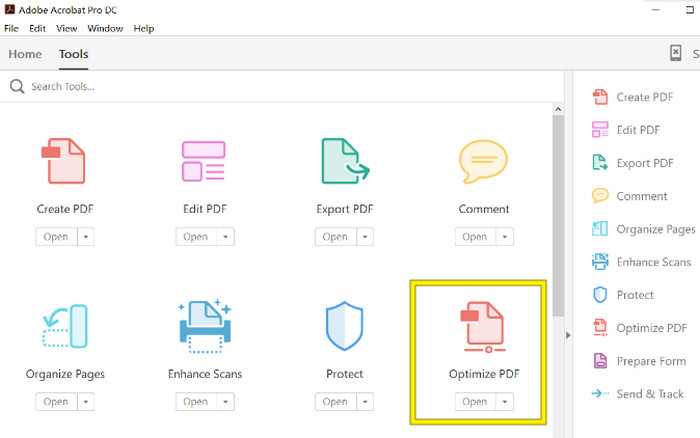
Stap 1. Start Acrobat en open het PDF‑bestand waarmee je wilt werken. Ga hiervoor naar Tools-Optimize PDF-Open.
Stap 2. Zodra je het PDF‑bestand hebt geopend, klik je op de optie Reduce File Size in de nieuw weergegeven navigatie. Stel vervolgens de bewerkingsopties in of gebruik de gegeven opties om de gewenste compressie en optimalisatie te bereiken.
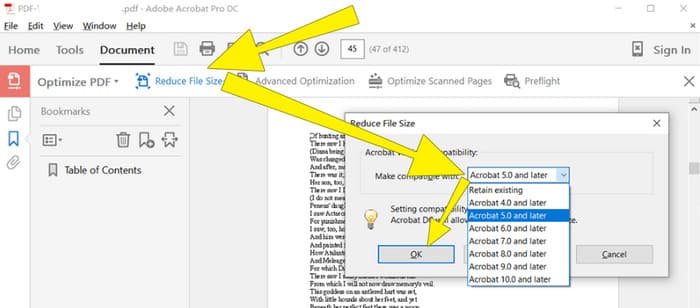
Stap 3. Sla daarna het gecomprimeerde PDF‑bestand op.
Deel 4. PDF-bestanden comprimeren voor e-mail door ze te converteren
Wil je een nieuwe truc leren om een PDF te comprimeren om via e‑mail te versturen? Laten we het bestand converteren naar JPG. Deze conversietruc kun je perfect uitvoeren met PowerPoint. PowerPoint is een programma dat je waarschijnlijk gebruikt om presentaties te maken. Denk aan een diashow met tekst, afbeeldingen en misschien zelfs video’s. Met PowerPoint bouw je deze presentaties met afzonderlijke dia’s die je doorloopt voor je publiek. Het is een populair hulpmiddel voor leraren, studenten, mensen uit het bedrijfsleven en iedereen die informatie visueel wil overbrengen.
Het invoegen van een PDF in uw PowerPoint-presentatie kan handig zijn, maar het is misschien niet het meest intuïtieve proces. Maar als u dat eenmaal doet, is het produceren van een JPG-bestand een fluitje van een cent. Maar maak u geen zorgen! We kunnen u er stap voor stap doorheen leiden, wat u moet volgen om uw PDF in een mum van tijd te laten insluiten.
Stap 1. Start PowerPoint op je pc en selecteer de juiste dia waarop je het PDF‑bestand kunt openen.
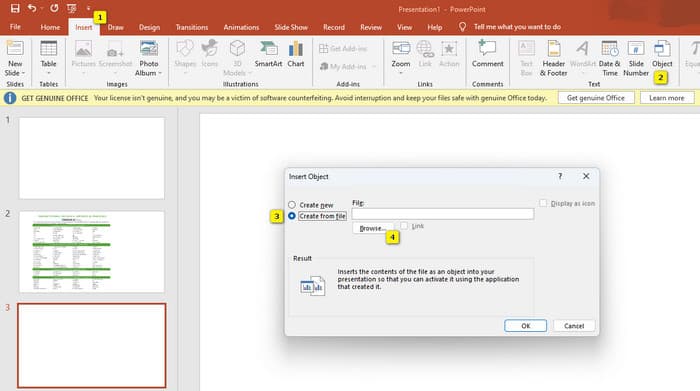
Stap 2. Ga nu naar het tabmenu Insert en zoek bij de sectie Text naar de optie Object. Klik op deze optie en er verschijnt een nieuw venster. In dat venster schakel je de optie Create from File in, die zich aan de linkerkant van die interface bevindt. Klik vervolgens op de knop Browse, zodat je het PDF‑bestand op de dia kunt importeren.
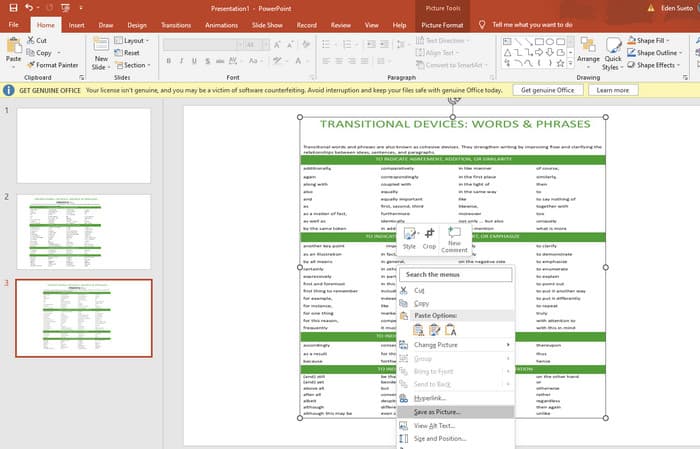
Stap 3. Zodra het PDF‑bestand is geüpload, kun je het naar JPG converteren. Klik hiervoor met de rechtermuisknop op de PDF op de dia, selecteer Save As Picture, en sla het op als JPEG.
Deel 5. Veelgestelde vragen over PDF en compressie
Hoe groot kan ik een PDF-bijlage per e-mail versturen?
Dat hangt af van uw e-mailprovider, maar de meeste beperken bijlagen tot ongeveer 20 MB.
Wat is de beste gratis PDF-compressor?
Er zijn gratis PDF-compressors beschikbaar, maar de beste hangt altijd af van de voorkeuren van de gebruiker. Tot nu toe is de FVC Free PDF Compressor de meest aanbevolen gratis online tool.
Hoe kan ik PDF-bestanden zippen voor e-mail?
Eigenlijk werkt zippen voor PDF's omdat dit al gecomprimeerde bestanden zijn.
Gevolgtrekking
Dit artikel gaat over hoe je PDF‑bestanden voor e‑mail comprimeert op de beste manieren. Je kunt nu zorgen voor een vlottere en betere manier om je PDF’s via e‑mail te verzenden, zolang je ze maar goed verkleint om binnen de bestandslimiet te blijven.
-
 3 beste oplossingen voor het gemakkelijk verwijderen van watermerken uit video's
 Wil je het vervelende watermerk op de video verwijderen? Met deze blog leer je de verschillende ideeën over het verwijderen van het watermerk op een video.
-
 4 beste manieren om snel een watermerk aan video's toe te voegen
 Laten we leren hoe u een watermerk kunt toevoegen aan video's op Windows, Mac, Online, iOS en Android met gedetailleerde stappen als u dit artikel leest.
-
 3 eenvoudigste manieren om online en offline een watermerk aan een GIF toe te voegen
 Het toevoegen van een watermerk aan een GIF kan zo eenvoudig zijn als 1-2-3 als u de juiste tool correct gebruikt. De tools in de markt zijn te breed, maar we zullen de drie tools presenteren waarop u kunt vertrouwen.
