


 Video Converter Ultimate
 Scherm opnemer
 Videoreparatie
Leer hoe u video omgekeerd kunt afspelen met de 3 Elite-software
Er worden al veel lopende video's geüpload op allerlei verschillende videodeelplatforms waarbij het omkeereffect is toegevoegd, om de video's er weer nieuw en fris uit te laten zien voor de kijker. In dit artikel gaan we daarom praten over hoe je een video achterstevoren afspeelt, met gedetailleerde stappen en verschillende software die je kunt gebruiken. Lees dus vooral verder om een goed beeld te krijgen van het omkeren van video’s.

Deel 1. Beste manier om video omgekeerd af te spelen
Deze fenomenale converter heeft al de eerste stap gezet op het gebied van videobewerking, vooral bij het terugspoelen. Veel gebruikers gebruiken deze tool al om hun video's opvallend te maken. Video Converter Ultimate heeft zijn trouwe klanten al veel meer bewezen dan ze verwachtten. Bovendien biedt deze software veel geavanceerde functies waarmee je van je opname weer iets nieuws kunt maken voor de kijkers. Wil je dus weten hoe je een video achterstevoren afspeelt en opslaat? Volg dan de onderstaande stappen en probeer het zelf uit.
Stap 1. Voordat je Video Converter Ultimate kunt gebruiken, moet je het eerst downloaden. Installeer het en doorloop de korte en eenvoudige configuratie.
Gratis downloadVoor Windows 7 of nieuwerVeilige download
Gratis downloadVoor MacOS 10.7 of nieuwerVeilige download
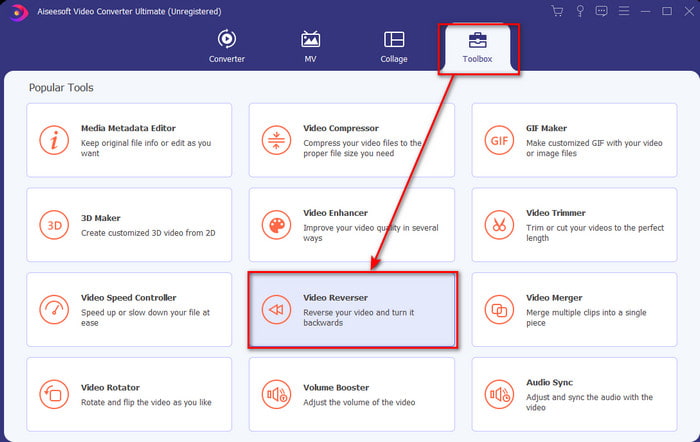
Stap 2. Ga naar de Toolbox en zoek de Video Reverser.
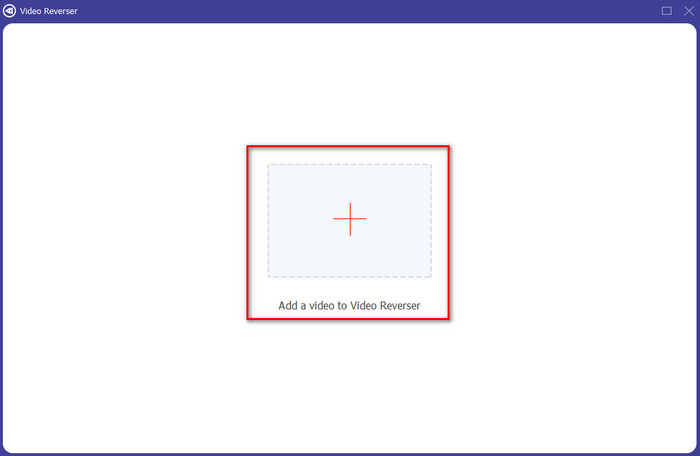
Stap 3. Klik op de knop + om het bestand toe te voegen; er verschijnt een map. Selecteer het videobestand en klik op Openen om het bestand in te voegen.
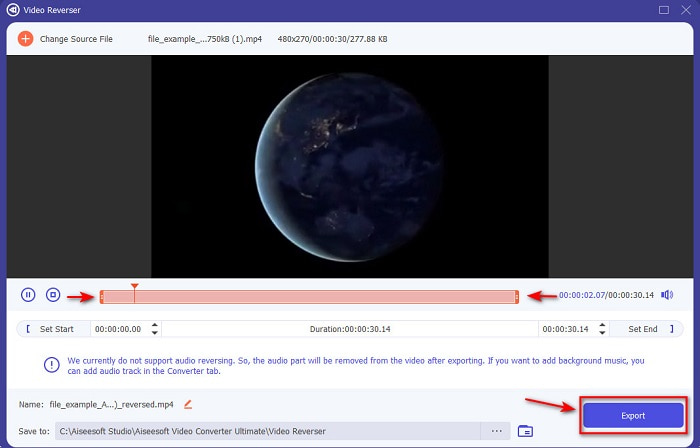
Stap 4. Pas de playback in and out aan als je de video korter wilt maken. Klik daarna op Exporteren om het opslaan van de omgekeerde video op je desktop te starten.
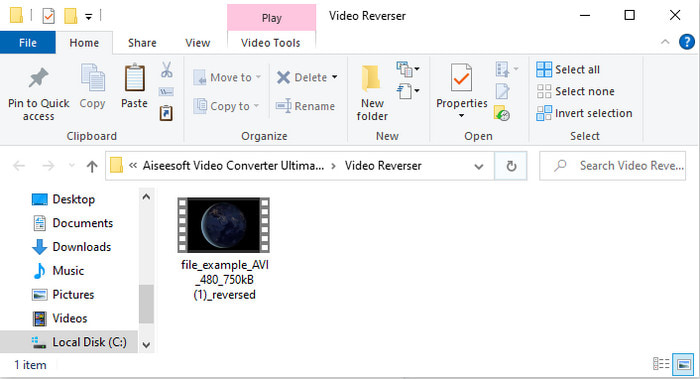
Stap 5. Nadat de video is geëxporteerd, verschijnt er een map met de omgekeerde video op je scherm. Klik op het bestand om de omgekeerde video te bekijken.
Voordelen
- Het heeft veel geavanceerde functies en is veel gemakkelijker te hanteren dan de Adobe Premiere Pro.
- Het ondersteunt alle videoformaten. U hoeft zich dus geen zorgen te maken als uw video de indeling AVI, MP4, MKV, MOV of iets anders heeft.
- Geschikt voor professionals en beginners die een eenvoudige tool willen hebben die een fenomenale conversiefunctie biedt.
Nadelen
- Het wordt betaald, maar de prijs ervan is veel lager als we het vergelijken met de première pro-software.
- Voordat u toegang krijgt tot de tool, moet u deze eerst downloaden.
Deel 2. Een video omgekeerd afspelen in iMovie
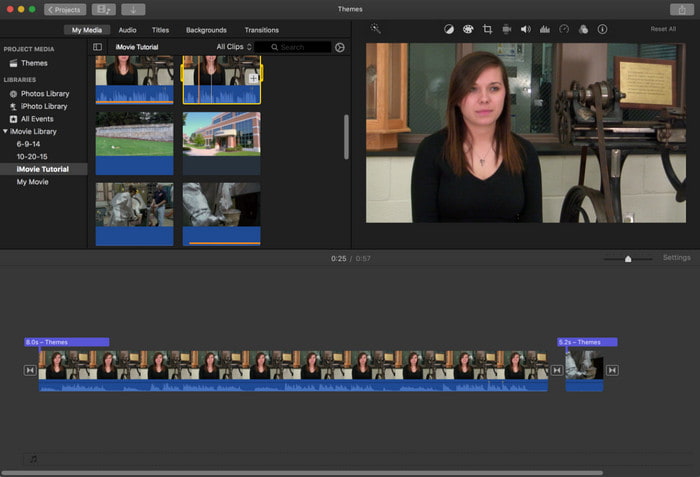
iMovie is de standaard videobewerker die je gratis op de Mac kunt gebruiken. Deze tool is al vooraf op de schijf geïnstalleerd, dus je hoeft het programma niet te downloaden om het te kunnen gebruiken. Wil je dus weten hoe je een video in iMovie achterstevoren afspeelt, volg dan de onderstaande stappen.
Stap 1. Open iMovie op je Mac. Sleep vervolgens het bestand naar de Tijdlijn.
Stap 2. Klik op de knop met de klokvorm en vink Omkeren aan. Pas daarna de afspeelsnelheid aan naar Normaal, Langzaam, Snel en meer.
Stap 3. Klik op de knop Exporteren om het resultaat op te slaan en bewaar het in je galerij.
Voordelen
- Geen download nodig en het is gratis voor elke Mac-gebruiker.
- Gemakkelijk te gebruiken voor snelle bewerkingen die u meteen wilt doen.
- Het heeft autosave-functies, dus het is niet nodig om + S te gebruiken.
Nadelen
- Het exporteren van video's hier zou veel tijd kosten.
- Het mist geavanceerde functies die je als professionele editor nodig hebt.
Deel 3. Een video omgekeerd laten afspelen met Adobe Premiere Pro
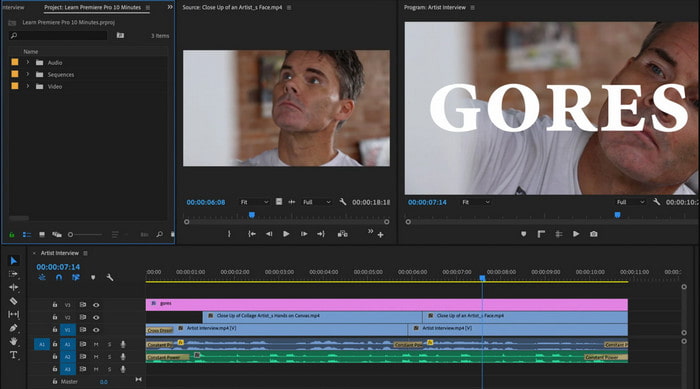
Adobe Premiere Pro is de beste bewerkingstool die je kunt gebruiken als je als een professional het beste resultaat wilt behalen. Maar het programma kan overweldigend zijn voor beginners zonder ervaring met videobewerking. Wil je dus leren hoe je een video achterstevoren afspeelt in Premiere Pro, kopieer dan de onderstaande stappen en volg ze nauwkeurig.
Stap 1. Download Adobe Premiere Pro naar je schijf en start de software.
Stap 2. Sleep het videobestand naar de Media Port en verplaats het daarna naar de Tijdlijn. Klik op de video en klik er vervolgens met de rechtermuisknop op en ga naar Snelheid/Duur.
Stap 3. Vink Reverse Speed (omgekeerde snelheid) aan en stel de gewenste duur in, klik daarna op OK.
Voordelen
- Het is de beste keuze voor de professionele editor omdat het geavanceerde functies voor professionele uitvoer ondersteunt.
- Het kan zware bewerkingen uitvoeren en u moet bewerkte video van hoge kwaliteit produceren.
- Het ondersteunt bijna alle videoformaten.
Nadelen
- Het is erg duur als je gewoon wilt omkeren of eenvoudige bewerkingen wilt uitvoeren.
- Het zal u veel tijd kosten om dit te leren gebruiken. In principe is het niet gebruiksvriendelijk.
- Soms crasht de software om onbekende redenen.
Deel 4. Veelgestelde vragen over het achteruit afspelen van video
Hoe speel je een video omgekeerd af op een iPhone?
Op de iPhone zit geen ingebouwde functie om video’s achterstevoren te bewerken, maar je kunt apps downloaden die je gemakkelijk helpen om op je iPhone terug te spoelen. Zoals de apps die je hier kunt gebruiken. Wil je daar meer over weten, klik dan op deze link om naar andere video-omkeertools te gaan die je kunt gebruiken.
Waarom verminderen mijn video's na het achteruitrijden?
Het kan zijn dat de output die u instelt in het midden of laag is. Maar om dit te voorkomen, kunt u de instellingen op hoog zetten om een omgekeerde video zonder kwaliteitsverlies te hebben. Verwacht echter een veel grotere bestandsgrootte dan die van lage kwaliteit.
Hoe kan ik geluiden toevoegen aan mijn omgekeerde video?
Al deze tools keren wel je video om, maar niet het geluid. Wil je weten hoe je achtergrondmuziek aan je video toevoegt, lees dan dit artikel. Daar leggen we uit hoe je audio aan je video toevoegt om deze te verbeteren.
Gevolgtrekking
Nu we weten hoe je een video achterstevoren afspeelt, is het tijd om ermee aan de slag te gaan. Met behulp van deze geweldige tool, die je op internet kunt vinden, kun je dat eenvoudig doen. Wil je echter een uitzonderlijke omgekeerde video maken die beter is dan met iMovie, maar minder duur dan Premiere Pro, dan is de juiste tool voor jou de Video Ultimate Converter. Volgens de wensen van klanten is deze software in alle opzichten uitstekend voor het omkeren. Voordat je dus aan je reis in het omkeren van video’s begint, moet je de juiste tool kiezen die je video fenomenaal kan maken. Om meer te weten te komen, moet je deze tool eerst downloaden en het programma het werk laten doen.
-
 Concrete tutorial - Hoe twee audiotracks samen te voegen in Audacity
 Audacity staat bekend om het bewerken van audio. Je hebt Audacity gedownload, maar weet niet hoe je audiotracks moet samenvoegen in Audacity? Dit bericht zal je vertellen hoe je tracks kunt samenvoegen in Audacity.
-
 2 Efficiënte methoden om MPEG-bestanden samen te voegen om oude tv-series te combineren
 Als je oude tv-series in MPEG hebt, kun je meer te weten komen over de 2 efficiënte methoden om MPEG-bestanden samen te voegen tot één film volgens jouw vereisten.
-
 2 manieren om AMV-video's in een kleiner formaat te comprimeren
 Of je nu geanimeerde MV's online wilt uploaden of downloaden, de grote bestandsgrootte van AMV is een spelbreker. Dit bericht deelt 2 eenvoudige manieren om de AMV-bestandsgrootte op de computer te verkleinen om dit probleem op te lossen.
