


 Video Converter Ultimate
 Scherm opnemer
 Videoreparatie
 Beveiligde download
Hoe je gameplay opneemt op de PS5 zonder limiet [Uitgebreide richtlijnen]
In slechts drie jaar tijd is de PlayStation 5 de winkelrekken uitgevlogen. Sinds de release zijn er al meer dan 50 miljoen exemplaren verkocht, omdat het een krachtige console is die 4K‑gaming mogelijk maakt. Als je je gamevaardigheden wilt laten zien of epische gameplaymomenten met je fans wilt delen, is opnemen op een PlayStation 5 een uitstekende optie. Als je je afvraagt hoe je op de PS5 opneemt, dan heeft de console een handige functie waarmee je je game-avonturen kunt vastleggen, aanpassen en delen op verschillende platforms. Maar hoe doe je dit precies? Blijf lezen om te ontdekken hoe je video’s opneemt en schermafbeeldingen maakt op je PS5 – en zelfs hoe je dat doet met een techniek voor onbeperkte opnametijd.

Deel 1. Hoe je gameplay opneemt op PS5
De PS5 wordt ongetwijfeld geleverd met een ingebouwde recorder die je zal helpen je adembenemende gameplay op te nemen. Het is echter de moeite waard om op te merken dat de recorder van je console beperkingen en effectiviteit heeft. Als het gaat om effectiviteit, is het veilig om te zeggen dat het zeer effectief is in het produceren van opgenomen video's van hoge kwaliteit. Aan de andere kant, als het gaat om de beperkingen, moet je in gedachten houden dat deze console je slechts maximaal 60 minuten aan speeltijd kan laten opnemen. Afgezien daarvan, zal het je alleen toestaan om video's te produceren in MP4 en WebM als de ondersteunde uitvoerformaten.
De onderstaande stappen geven antwoord op de vraag hoe je een schermopname kunt maken met de ingebouwde gameplay-recorder van de PS5.
Een gameplay opnemen
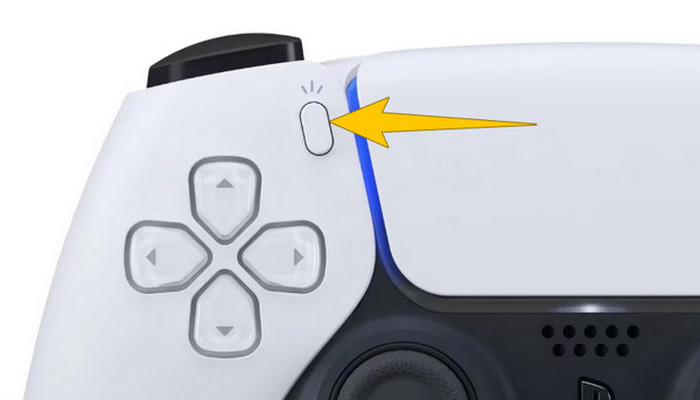
Stap 1. Pak je DualSense-controller en druk op de knop boven de pijltjestoetsen. Dit is de Create-knop en je drukt erop op het moment dat je je gameplay wilt gaan opnemen.
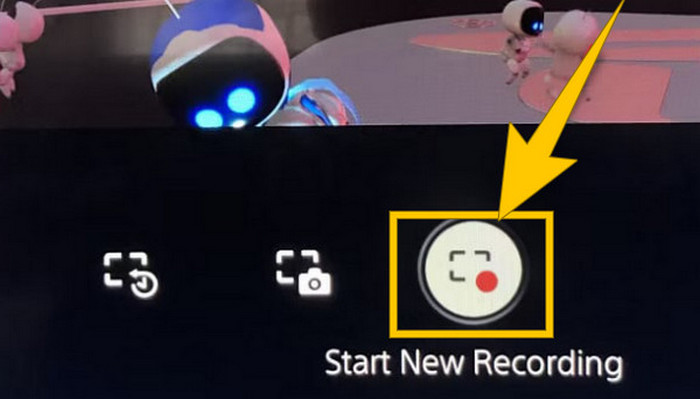
Stap 2. Nadat je op de knop hebt gedrukt, kijk je naar je scherm en klik je op de optie Nieuwe opname starten. Je ziet deze optie onderaan het scherm. De opname begint meteen, zodat je met je gameplay kunt beginnen.
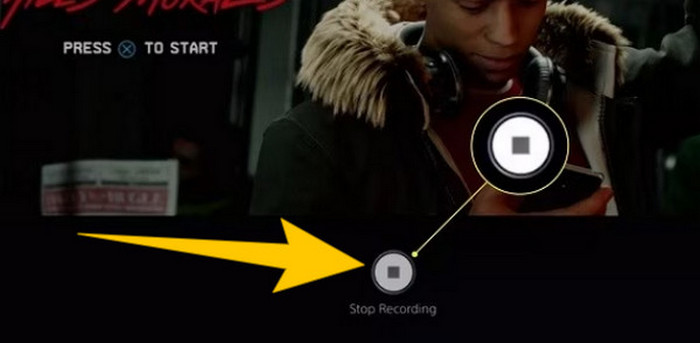
Stap 3. Stel dat je klaar bent met je game, dan volgt hier hoe je de gameplay-opname op de PS5 stopt. Je hoeft alleen opnieuw op de Create-knop te drukken en dit keer op Opname stoppen te klikken, wat je op het scherm ziet staan.
Download de opnames
Na het opnemen slaat PS5 de output automatisch op in je Media Gallery, waar alle bestanden worden bewaard. Als je nu een kopie wilt bewaren voor je aparte apparaat, is het jammer om je te moeten vertellen dat de genoemde galerij geen downloadoptie heeft. Er is echter nog steeds een manier om de bestanden te bewaren.
Stap 1. Sluit je externe SD‑ of USB‑station aan op je console. Ga daarna naar je Mediagalerij en open deze.
Stap 2. Selecteer de schermopname die je zojuist hebt opgeslagen. Klik vervolgens op de Ellips of de knop met drie puntjes onderaan het scherm, naast de andere beschikbare opties.
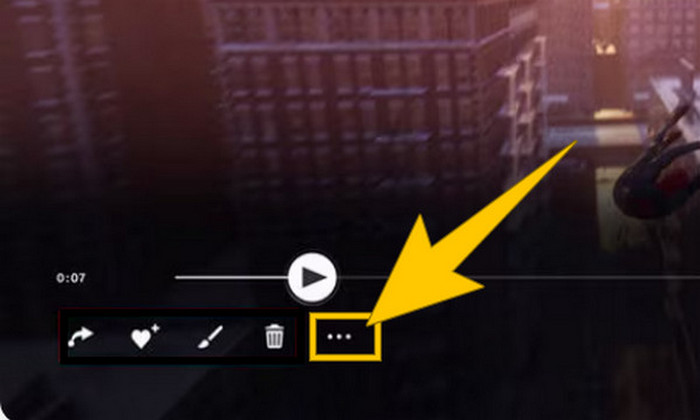
Stap 3. Zodra je erop hebt geklikt, kies je de optie Naar USB-station kopiëren om te beginnen met het kopiëren van de opgenomen video naar je USB-stick. Verplaats de video daarna naar het apparaat waarop je het opgenomen bestand wilt bewaren.
Deel 2. Hoe je op je PS5 schermopnames kunt maken in 4K-kwaliteit zonder limiet
Maak je geen zorgen als de PlayStation 5 je slechts tot een uur gameplay in goede kwaliteit laat vastleggen. We weten hoe frustrerend dat voor veel gamers is, en bovendien ondersteunen niet alle games deze functie. Voor onbeperkt opnemen in 4K‑kwaliteit bij alle PS5‑games kun je daarom eens kijken naar FVC Screen Recorder. Deze screenrecorder beperkt je opnametijd niet, alleen de opslagruimte van je computer. Bovendien zal hij je gameplay niet vertragen. Met deze geweldige gamerecorder kun je je opnamen ook bewerken voordat je ze opslaat. Zo kun je je opnamen trimmen, samenvoegen, comprimeren, converteren, metadata bewerken, de opname verbeteren en ze moeiteloos delen op de platforms van jouw keuze.
Het is ook vermeldenswaard dat FVC Screen Recorder verschillende opnametools biedt om aan uw opnametaken te voldoen. Hiermee kunt u video, audio, vensters, webcams, telefoons, enz. opnemen. Opmerkelijk genoeg kunt u van uw opnames genieten zonder dat er watermerken in zijn verwerkt! Dus, om meer te weten te komen over de FVC Screen Recorder, volgt u de onderstaande stappen om te zien hoe u op PS5 een schermopname kunt maken.
Stap 1. Download FVC Screen Recorder op je computer. Klik hiervoor gewoon op de knop Gratis downloaden en volg de instructies om het programma te installeren en te openen.
Gratis downloadenVoor Windows 7 of nieuwerVeilig downloaden
Gratis downloadenVoor macOS 10.7 of nieuwerVeilig downloaden
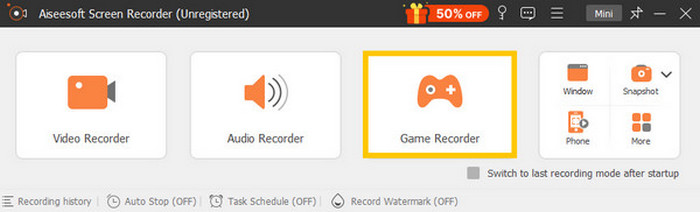
Stap 2. Zodra je in de interface van FVC bent, zoek en klik je op de tool Game Recorder. Deze bevindt zich aan de rechterkant in het midden van het scherm. Klik daar op het pijltje naast Selecteer het spel om te kiezen welk venster je PS5‑beeld toont.
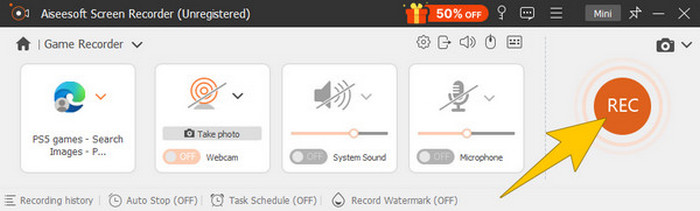
Stap 3. Nadat je het venster hebt geselecteerd, merk je dat de recorder zich daarop richt. Je kunt er bovendien voor kiezen om je webcam toe te voegen voor een picture‑in‑picture-opname, evenals het systeemgeluid en de microfoonaudio in je opname. Als alles goed staat, klik je op de knop REC om het spel en de opname te starten.
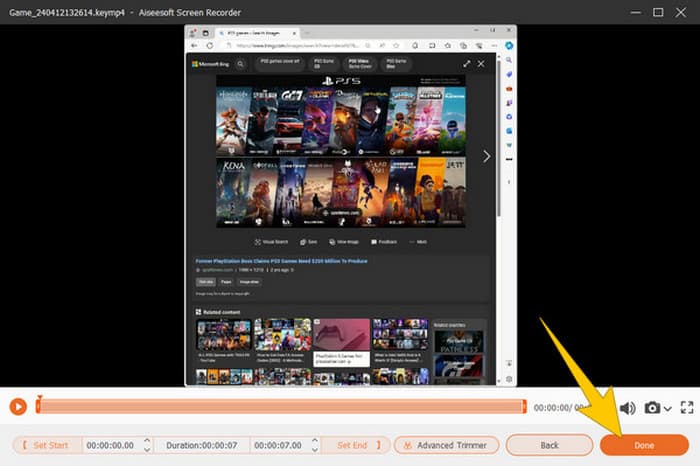
Stap 4. Wanneer je klaar bent met opnemen, klik je op de knop Stop op de zwevende werkbalk. Daarna kun je de video aanpassen met de bewerkingstools in het nieuwe venster. Klik vervolgens op de knop Gereed om het opgenomen bestand in je galerij op te slaan.
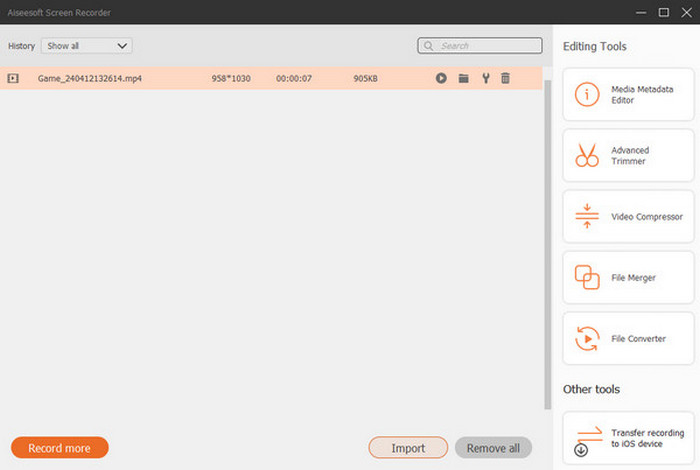
Stap 5. Deze stap is optioneel. Maar als je je opname op je sociale media-accounts wilt delen, kun je met de rechtermuisknop op je meest recente gameplay-opname klikken en vervolgens de optie Delen kiezen. Je kunt ook extra geavanceerde bewerkingstools gebruiken om je opnamen verder te verbeteren.
Wilt u meer weten over deze recorder? Hier volgen nog meer tips.
Verder lezen
5 efficiënte manieren om het scherm als GIF op te nemen op Mac & Windows
Hoe je epische stunts, clutches of tutorials in Minecraft opneemt
Deel 3. Veelgestelde vragen over het opnemen van gameplay op PS5
Hoe schakel ik gameplay-opname uit op de PS5?
Om de gameplay-opname op je PS5 uit te schakelen of te stoppen, hoef je alleen maar op de Create-knop van je gamecontroller te drukken. Klik vervolgens op je scherm op de optie Stop Recording.
Waar kan ik mijn opgenomen gameplayclips op mijn PS5 bekijken?
De opgenomen gameplay-clips worden opgeslagen in de Capture-sectie van de Main Gallery. U kunt deze galerij openen vanaf het Home-scherm. Hiermee kunt u uw clips bekijken, bewerken en delen zoals uw galerij dat toestaat.
Hoe deel ik mijn opnames op PS5?
Je kunt je clips na het opnemen op je PS5 direct delen vanuit de Capture Gallery. Je hoeft alleen maar de clip te selecteren die je wilt delen, op de Options-knop op je controller te klikken en de Share-optie te selecteren.
Gevolgtrekking
Je hoeft je niet langer af te vragen hoe je op de PS5 opneemt, want dit artikel heeft je de standaard- én de beste methoden gegeven. Maak dus opnames van hoge kwaliteit en van elke gewenste lengte van je favoriete games. Deel deze oplossingen vervolgens met je mede-gamers, zodat zij dezelfde spannende opname-ervaring op hun PS5 kunnen hebben!
-
 5 van de beste game-opnamesoftware die een gamer moet kennen [2024]
 Ben je een gamer die een game-opname wil doen? Dan geeft dit artikel je de beste gamerecorder die je kunt gebruiken om nieuwe gamehoogten te ervaren.
-
 Top 5 Android-schermrecorder-apps die u in 2024 moet aanschaffen
 Ondervindt u problemen omdat u geen schermopname kunt maken op uw Android? Als dat het geval is, heeft dit artikel de Android-schermrecorders besproken waarop u kunt downloaden.
-
 Top 5 Zoom Meeting Recorders om vergaderingen op Zoom op te nemen [2024]
 Wilt u een zoomvergadering opnemen om de belangrijke details van uw vergadering niet te missen? Zo ja, dan biedt dit artikel de beste zoomrecorders die u moet kennen.
