


 Video Converter Ultimate
 Scherm opnemer
 Videoreparatie
 Beveiligde download
Wat is JPG/JPEG en hoe afbeeldingen naar JPG te converteren
De bestandsformaten JPG, PNG en GIF zijn tegenwoordig de populairste formaten. Wanneer je afbeeldingen op je website of in berichten op sociale media gebruikt, zijn dit de bestanden die je kunt tegenkomen. Het is cruciaal om in gedachten te houden dat elk van deze formaten zijn eigen mogelijkheden heeft. Dat betekent dat elk formaat unieke kenmerken bezit. In dit artikel richten we ons echter op het JPG/JPEG-bestandsformaat. Je leert wat het is, wat het kan en hoe je JPG/JPEG-bestanden kunt openen. Ook ontdek je de beste manier om afbeeldingen met een online tool naar het JPG/JPEG-formaat te converteren.

Deel 1. Informatie over JPG of JPEG
Wat is het JPG/JPEG-formaat
JPG-afbeeldingsbestandsindeling is het beste bestand bij het comprimeren van een afbeelding. JPG is een populair bestand voor gebruikers. Ze gebruiken het voor foto's en internetafbeeldingen. Het staat ook bekend als JPEG- of JPG-bestanden. De volledige naam van JPEG is Joint Experts Group. Deze groep maakt dit populaire afbeeldingsbestand. Bovendien hebben de meeste bitmapafbeeldingen de bestandsextensie .jpg. De belangrijkste reden is om de grootte van de bestanden te verkleinen. JPG is een formaat met verlies, dat de beeldkwaliteit beïnvloedt wanneer u het te veel comprimeert. Dit formaat is toegankelijk in alle programma's. Op deze manier hoeft u niet na te denken over hoe u dit bestand op verschillende programma's of apparaten kunt openen. Het compressie-algoritme verkleint de grootte van het bestand. Het is een van de redenen waarom het tegenwoordig populair is geworden. Op deze manier verloopt het maken van een verhaal, het delen en het plaatsen van foto's op de websites op een meer ontspannen manier. Voor aanvullende informatie kunt u gevallen tegenkomen waarin de websites het JPEG-bestand niet herkennen. Sommige fotoviewers en -editors openen bijvoorbeeld alleen een afbeelding met het .JPG-bestand. De beste oplossing die u kunt doen, is de bestandsextensie hernoemen. U kunt het JPEG-bestand wijzigen in een JPG-bestand. Zo kan de website de afbeelding herkennen.
Bovendien heeft het JPG-bestand voordelen die u moet weten. JPG is een afbeelding met een hoge resolutie. De hoge definitie is een van de grote voordelen van dit afbeeldingsbestand. Het ondersteunt 24-bits kleuren met maximaal 16 miljoen kleuren. De resolutie zal nog steeds uitstekend zijn, zelfs na het toepassen van bewerkingen op hoog niveau met behulp van sommige tools. Ook is JPG kleiner van formaat. In vergelijking met andere afbeeldingsbestandsindelingen heeft het een ideale bestandsgrootte. Zelfs als het een kleiner formaat heeft, heeft dit geen invloed op de kwaliteit en resolutie van een afbeelding. Nadat u de voordelen kent, moet u de nadelen kennen voor meer bewustzijn. Wanneer u op JPG fotografeert, moet u de processor van de camera en kleurvariaties beperken. Dit bestand ondersteunt ook geen gelaagde afbeeldingen. Als je van plan bent een afbeelding te bewerken en een extra laag nodig hebt, is JPG hiervoor niet het perfecte formaat.
Deel 2. Hoe het JPG/JPEG-bestand te openen
Als u problemen ondervindt bij het openen van uw JPG-bestand op uw apparaten, helpt dit deel u. Wil je weten hoe je een JPG-bestand opent op Windows 11, Android en iPhone? U kunt de onderstaande instructies volgen.
Voor Windows-gebruikers
Stap 1: Druk op ctrl + E op je toetsenbord om Verkenner te openen. Dit ziet eruit als een map‑icoon met een blauwe clip.
Stap 2: Ga naar het mappenpaneel Snelle toegang. Ga vervolgens naar de map Downloads om de JPG‑foto te bekijken die je hebt opgeslagen.
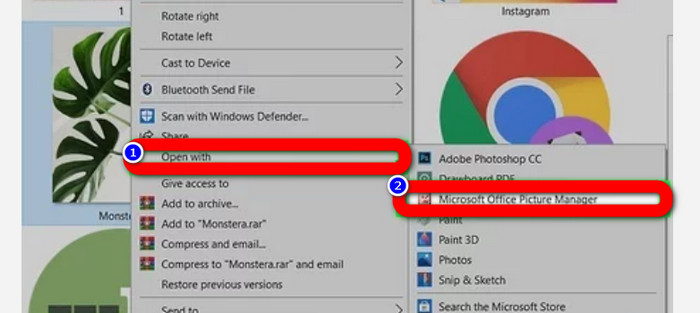
Stap 3: Wanneer je de JPG/JPEG‑bestanden ziet, kun je ze openen met andere programma’s dan Foto’s. Klik met de rechtermuisknop op de foto, kies de optie Openen met en selecteer het programma.
Voor Android-gebruikers
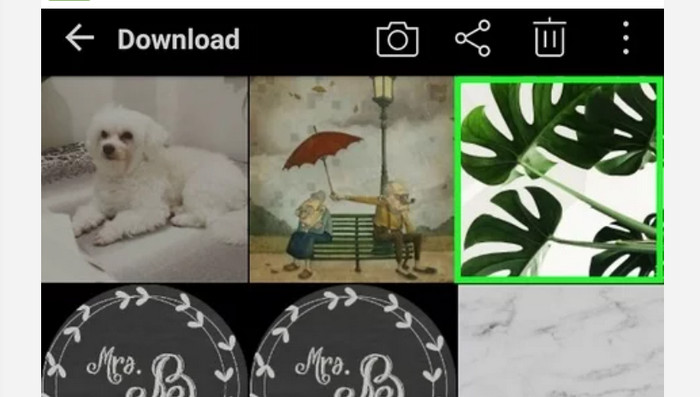
Stap 1: Open de Galerie‑applicatie op je Android‑apparaat.
Stap 2: Open het camera‑album om de foto’s te bekijken die je met de camera van je telefoon hebt gemaakt. Er staan ook verschillende andere albums op je telefoon.
Stap 3: Als je veel foto’s ziet, tik je op één foto om deze op volledig scherm te openen. Op die manier kun je je JPG/JPEG‑afbeelding bekijken.
Voor iPhone-gebruikers
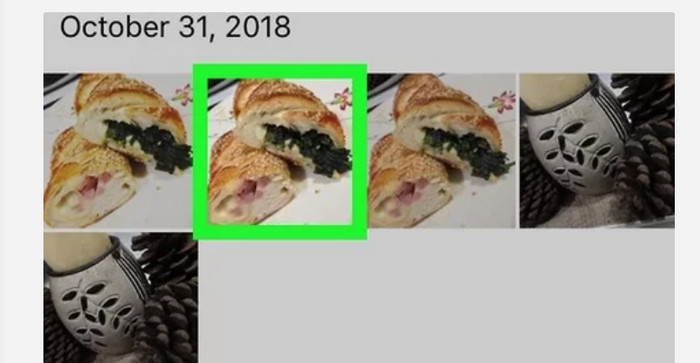
Stap 1: Tik op Foto’s op je iPhone. In deze app staan alle afbeeldingen die je met je camera en van internet hebt. Het icoon van deze app lijkt op een kleurrijke bloem.
Stap 2: Nadat je de app Foto’s hebt geopend, zie je daar al je foto’s. Net als op een Android‑telefoon vind je ook hier verschillende albums in de applicatie.
Stap 3: Tik op de afbeelding om deze op volledig scherm te openen. Zo kun je de afbeelding duidelijker bekijken. Naast het openen van de afbeelding kun je de foto in de app Foto’s ook bewerken. Er zijn pictogrammen waarmee je je afbeeldingen kunt verbeteren.
Deel 3. Uitstekende methode om afbeeldingen naar JPG te converteren
FVC Free Image Converter is een online tool die je kunt gebruiken om afbeeldingen naar JPG te converteren. Hij kan je helpen je afbeelding met een paar klikken om te zetten. Bovendien ondersteunt hij verschillende invoerformaten zoals JPG, PNG, GIF, TIFF en meer. Je hoeft je dus geen zorgen meer te maken als bepaalde programma’s of apparaten je afbeelding niet meer kunnen openen. Gebruik deze online afbeeldingsconverter om ze om te zetten. Hij kan bovendien de uitstekende kwaliteit van de originele foto’s behouden. Na het proces zie je geen verschil tussen het origineel en het geconverteerde bestand. Daarnaast is deze afbeeldingsconverter eenvoudig te gebruiken. Het conversieproces is duidelijk en overzichtelijk, waardoor de tool geschikt is voor beginners. Hij kan ook afbeeldingen in batch omzetten. Zo kun je veel bestanden tegelijk converteren. Je kunt deze applicatie bovendien in verschillende browsers gebruiken, zoals Google, Safari, Mozilla, Explorer en meer. Tot slot garandeert deze app de privacy van elke gebruiker. Nadat je de afbeelding hebt gedownload en geconverteerd, verwijdert de converter je foto automatisch.
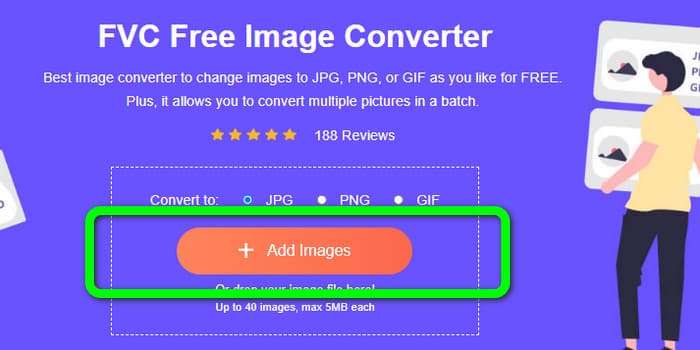
Stap 1: Bezoek eerst de website van FVC Free Image Converter. Ga naar de formaatinstellingen en kies het JPG‑bestandsformaat.
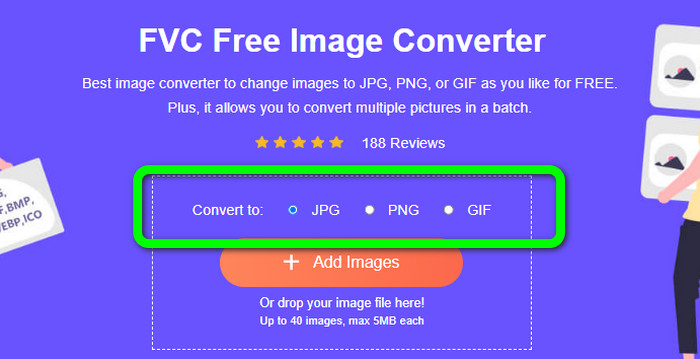
Stap 2: Klik op de knop Afbeeldingen toevoegen om een foto te uploaden die je wilt converteren. Als je een batchconversie wilt uitvoeren, klik je opnieuw op Afbeeldingen toevoegen.
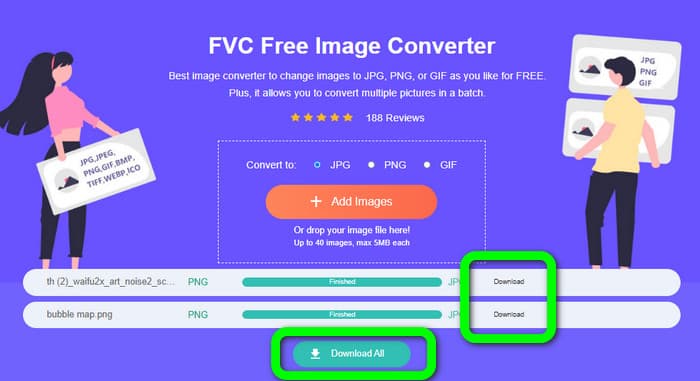
Stap 3: Wanneer het conversieproces is voltooid, klik je op de knop Downloaden om de bestanden één voor één op te slaan. Als je ze allemaal tegelijk wilt opslaan, klik je op de knop Alles downloaden.
Gerelateerd aan:
Volledige details over de verschillen tussen JPEG, JPG en PNG
8 verbluffende afbeeldingsconverters [complete informatie]
Deel 4. Veelgestelde vragen over JPG/JPEG-bestanden
1. Hoe weet ik of mijn foto een JPG-bestand is?
U kunt met de rechtermuisknop op de foto in uw bestandsmap klikken. Ga vervolgens naar de optie Eigenschappen. Navigeer naar het menu Algemeen en bekijk het bestandstype van uw afbeelding.
2. Hoe goed comprimeert JPEG afbeeldingen?
Erg goed. De niet-gecomprimeerde gegevens voor kleurenfoto's zijn 24 bits/pixel. De meest populaire verliesloze compressiemethoden kunnen dergelijke gegevens gemiddeld ongeveer 2:1 comprimeren. JPEG kan 10:1 tot 20:1 compressie bereiken zonder waarneembaar verlies. Het vermindert de benodigde hoeveelheid opslagruimte tot 1 à 2 bits per pixel. Met kleine gegevens is 30:1 tot 50:1 compressie werkbaar om gebreken te verminderen. Terwijl toepassingen van lage kwaliteit, zoals archiefindexen, relatief gemakkelijk 100:1 kunnen comprimeren. Een gecomprimeerde afbeelding De JPEG-verhouding van 100:1 gebruikt dezelfde hoeveelheid ruimte als een full-colour afbeelding op een tiende schaal. Ondanks dat het veel meer details heeft dan een miniatuur, doet het dat wel.
3. Hoe open ik een JPG-bestand in Photoshop?
Start Photoshop op uw computer. Ga naar Bestand > Optie Openen. Het mapbestand verschijnt op uw scherm. Kies het JPG-bestand en klik op OK. Daarna ziet u het JPG-afbeeldingsbestand in Photoshop.
Gevolgtrekking
Dit artikel legt uit waar JPG/JPEG voor staat, inclusief de definitie en de kenmerken. Als extraatje hebben we je ook de eenvoudigste methode laten zien om afbeeldingen naar het JPG‑formaat te converteren met behulp van FVC Free Image Converter. Waar wacht je nog op? Gebruik deze tool om je afbeeldingen moeiteloos naar het JPG‑formaat te converteren.
-
 Methoden voor het online en offline converteren van afbeeldingen naar JPG
 Wilt u het bestand om de een of andere reden naar JPG-indeling converteren? Dan is dit artikel iets voor jou. We leren je de beste methode om je afbeelding naar JPG te converteren
-
 Handige methoden om eenvoudig afbeeldingen naar PNG-indeling te converteren
 Bent u op zoek naar de beste manier om uw afbeelding op te slaan als PNG? Deze wegwijzer biedt uitstekende oplossingen om afbeeldingen online en offline naar PNG te converteren
-
 Converteer HEIC naar JPG met de 6 effectieve offline en online manieren
 Wil je weten hoe je HEIC naar JPG converteert? In dit geval voegen we 6 online en offline manieren toe die je kunt gebruiken om deze taak volledig af te ronden en af te handelen.
